
1. Introduction
Thank you for purchasing the TOPTRO X2 Mini Projector. This manual provides detailed instructions for setting up, operating, and maintaining your projector. Please read this manual thoroughly before use to ensure proper operation and to extend the lifespan of your device. Keep this manual for future reference.
Safety Information
- Do not look directly into the projector lens when the lamp is on.
- Ensure proper ventilation around the projector to prevent overheating.
- Do not expose the projector to rain or moisture.
- Use only the power adapter supplied with the projector.
- Do not attempt to repair the projector yourself. Contact qualified service personnel for assistance.
- Keep the projector away from heat sources and direct sunlight.
2. Package Contents
Verify that all items are present in your package:
- TOPTRO X2 Mini Projector
- Remote Control
- Power Cable
- HDMI Cable
- AV Cable
- User Manual
- Lens Cap

Image: The TOPTRO X2 Mini Projector shown with its carrying case and a smartphone displaying projected content. This image illustrates the compact size and portability of the projector, along with its primary function of displaying media.
3. Product Overview
Projector Layout

Image: Front and side view of the TOPTRO X2 Mini Projector, highlighting the lens, focus ring, and ventilation grilles. This provides a visual guide to the projector's external components.
Input/Output Ports
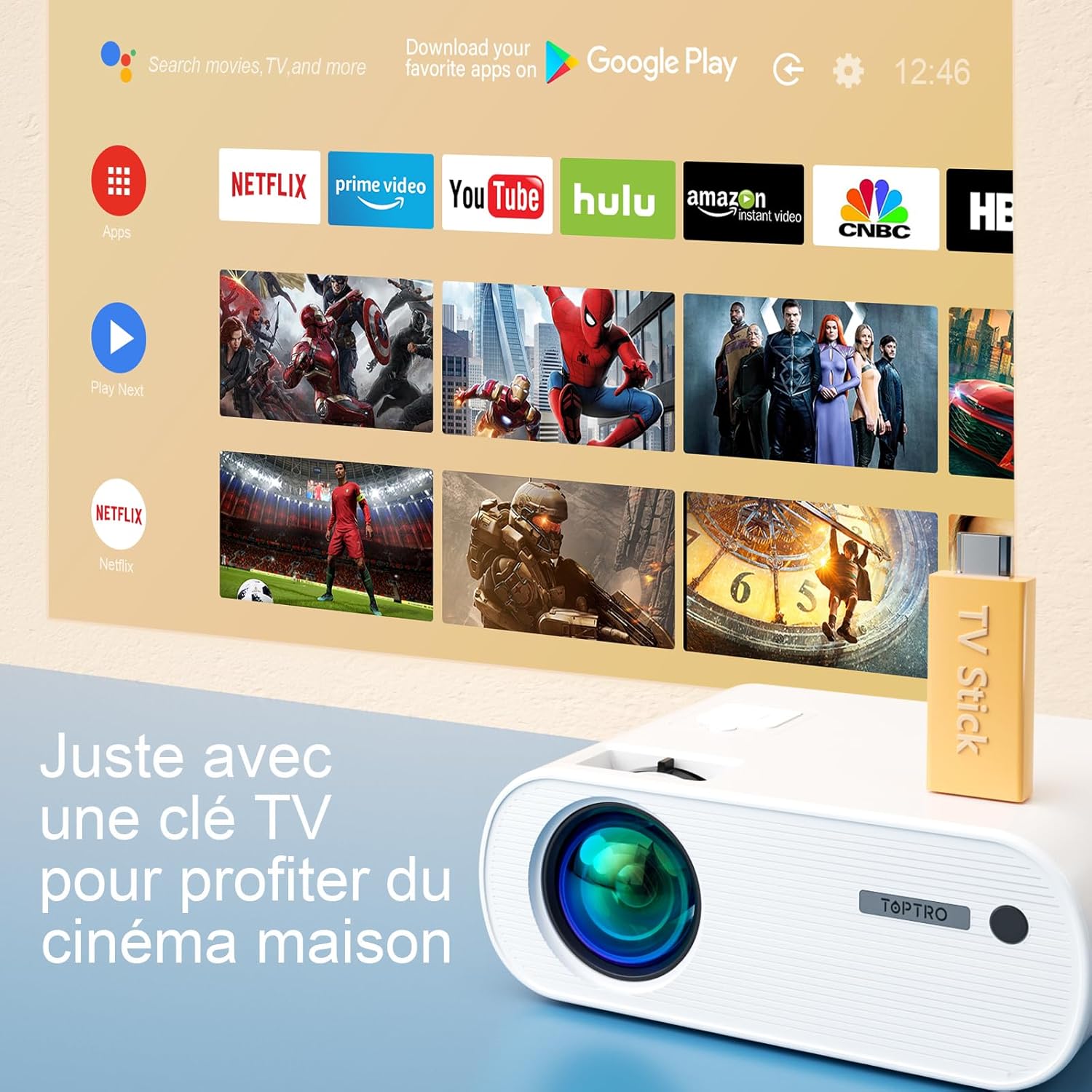
Image: Close-up of the rear panel of the TOPTRO X2 Mini Projector, showing various input/output ports including HDMI, USB, AV, and power input. This helps users identify where to connect their devices.
- Power Input
- HDMI Port
- USB Port
- AV Port
- Audio Out (3.5mm)
- VGA Port
- SD Card Slot
Control Panel

Image: Top-down view of the TOPTRO X2 Mini Projector's control panel, showing navigation buttons and the power button. This image assists users in understanding the on-device controls.
The projector can be controlled using the onboard buttons or the included remote control.
4. Initial Setup
4.1 Powering On
- Connect the power cable to the projector's power input and then to a power outlet.
- Press the power button on the projector or the remote control to turn on the device.
4.2 Adjusting Focus
Rotate the focus ring on the projector lens until the projected image is clear and sharp.

Image: A hand adjusting the focus ring on the TOPTRO X2 Mini Projector, with a blurred image on the left and a sharp image on the right, demonstrating the effect of focus adjustment. This visual aid helps users understand how to achieve a clear picture.
4.3 Keystone Correction
The TOPTRO X2 features 4D Keystone Correction (±40° vertical and horizontal) and a 100% X/Y zoom function, adjustable via the remote control. This allows for a rectangular image even if the projector is not perfectly aligned with the screen.

Image: Diagram illustrating the effect of keystone correction, showing a distorted image being corrected into a perfect rectangle. This helps users visualize the function of keystone adjustment.
To adjust:
- Navigate to the "Keystone Correction" menu using the remote control.
- Adjust the vertical and horizontal parameters until the image is rectangular.
- Use the zoom function (100% X/Y) to adjust the image size without moving the projector.
4.4 Placement Options
The projector can be placed on a table or mounted to the ceiling.

Image: An image showing the TOPTRO X2 Mini Projector in two different setups: on a table and ceiling-mounted. This demonstrates the versatility of installation options for the projector.
5. Operating Instructions
5.1 Selecting Input Source
Press the "Source" button on the remote control or projector to select the desired input source (HDMI, USB, AV, VGA, Screen Mirroring).
5.2 Connecting Devices
5.2.1 HDMI Connection
Connect your device (e.g., laptop, game console, TV Stick) to the projector's HDMI port using an HDMI cable.

Image: The TOPTRO X2 Mini Projector connected to a TV Stick, displaying various streaming service icons on a projected screen. This illustrates how to connect and use a TV stick for media consumption.
5.2.2 USB Connection
Insert a USB drive into the USB port to play media files directly. The projector supports various video, audio, and image formats.
5.2.3 AV Connection
Use the provided AV cable to connect devices with AV output (e.g., DVD player).
5.2.4 VGA Connection
Connect a computer to the VGA port using a VGA cable.
5.2.5 Wireless Connection (WiFi Screen Mirroring)
The TOPTRO X2 supports wireless screen mirroring for Android and iOS devices.

Image: The TOPTRO X2 Mini Projector wirelessly connected to multiple devices (smartphone, tablet, laptop), projecting a scenic image. This demonstrates the projector's WiFi screen mirroring capability for various devices.
- Select "Screen Mirroring" as the input source.
- Follow the on-screen instructions to connect your smartphone or tablet to the projector's WiFi network, then enable screen mirroring on your device.
5.2.6 Bluetooth Audio Connection
Connect external Bluetooth speakers or headphones for enhanced audio experience.

Image: The TOPTRO X2 Mini Projector wirelessly connected via Bluetooth to external speakers and headphones, with sound waves emanating from the projector. This illustrates the projector's Bluetooth audio output feature.
- Ensure your Bluetooth audio device is in pairing mode.
- On the projector, navigate to the Bluetooth settings menu.
- Select your device from the list to pair.
5.3 Menu Navigation
Use the arrow keys and "OK" button on the remote control or projector to navigate through the on-screen menus for settings such as picture mode, sound mode, and system settings.
6. Maintenance
6.1 Cleaning the Lens
Use a soft, lint-free cloth or lens cleaning paper to gently wipe the projector lens. Avoid using abrasive cleaners.
6.2 Cleaning the Dust Filter
The TOPTRO X2 features a removable dust filter to prevent dust accumulation and black spots on the projection. Regularly clean the filter to maintain optimal performance.
- Locate the removable dust filter cover on the side of the projector.
- Gently remove the cover and the filter.
- Clean the filter using a soft brush or compressed air.
- Reinsert the filter and close the cover securely.
6.3 Ventilation
Ensure that the projector's ventilation openings are not blocked to allow for proper airflow and prevent overheating. The projector is equipped with a circulation cooling system and three independent smart fans to manage temperature.
7. Troubleshooting
| Problem | Possible Cause | Solution |
|---|---|---|
| No image on screen | Power not connected; Incorrect input source; Lens cap on | Check power connection; Select correct input source; Remove lens cap |
| Blurred image | Focus not adjusted; Incorrect projection distance | Adjust focus ring; Adjust projector distance or use zoom function |
| Distorted image (trapezoid shape) | Projector not perpendicular to screen | Use keystone correction function |
| No sound | Volume too low; Muted; Incorrect audio output selected | Increase volume; Unmute; Check audio settings and connections |
| Remote control not working | Batteries dead; Obstruction between remote and projector | Replace batteries; Ensure clear line of sight |
| Overheating warning | Blocked ventilation; Prolonged use | Ensure vents are clear; Allow projector to cool down |
8. Specifications
| Feature | Detail |
|---|---|
| Brand | TOPTRO |
| Model | X2 |
| Native Resolution | 1920 x 1080P (Full HD) |
| Supported Resolution | Up to 4K Ultra HD |
| Brightness | 6800 Lumens (Note: Marketing claims may vary, e.g., 7000 or 12000 lumens) |
| Contrast Ratio | 8000:1 |
| Projection Size | Up to 300 inches |
| Projection Distance | Recommended 3.5m, Max 7m |
| Keystone Correction | 4D (±40° Vertical & Horizontal) |
| Zoom Function | 100% X/Y |
| Lamp Life | 90,000 hours (LED) |
| Speakers | Built-in 10W Dual Subwoofer with SRS Sound |
| Connectivity | HDMI, USB, AV, VGA, WiFi, Bluetooth |
| Color | Gray |
9. Warranty and Support
Warranty Information
Please refer to the warranty card included in your package for detailed warranty terms and conditions. The warranty typically covers manufacturing defects for a specified period from the date of purchase.
Customer Support
If you encounter any issues or have questions regarding your TOPTRO X2 Mini Projector, please contact TOPTRO customer support. Contact information can usually be found on the official TOPTRO website or on the warranty card.
When contacting support, please have your model number (X2) and purchase details ready.


