
1. Product Overview
The Keychron C2 is a full-size 104-key wired mechanical keyboard designed for both Mac and Windows operating systems. It features an RGB backlight, Gateron G Pro Brown switches, and durable double-shot ABS keycaps, crafted to enhance productivity and provide a comfortable typing experience.
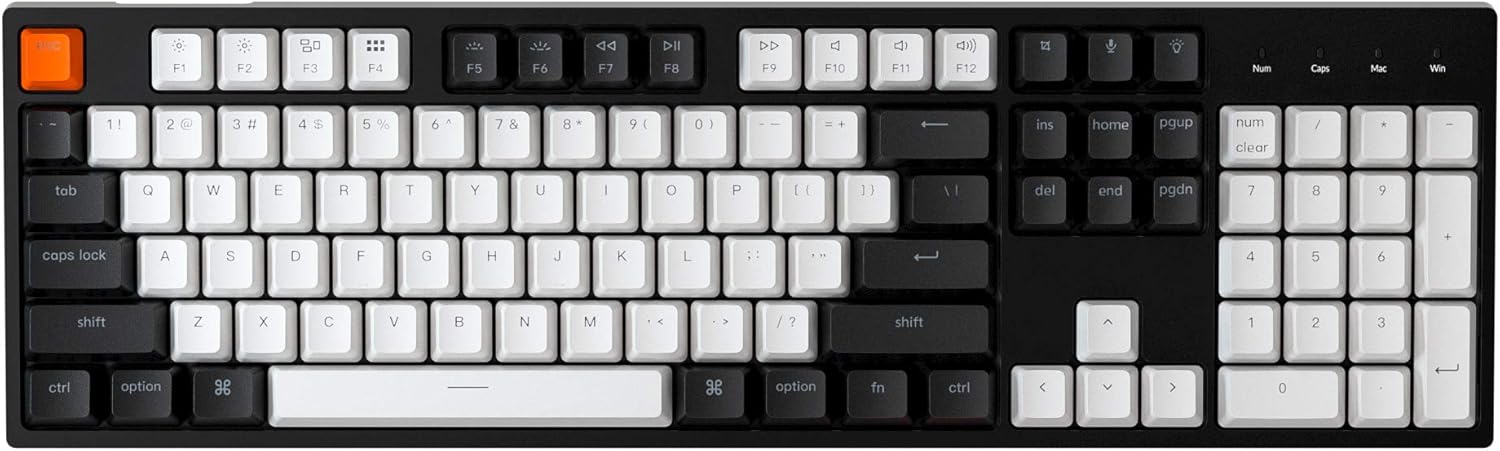
Figure 1.1: Keychron C2 Full Size Mechanical Keyboard
Key Features:
- Full Size 104 Keys: Includes a number pad for maximum productivity.
- Mac & Windows Layout: Optimized for Mac with multimedia and function keys, and compatible with Windows. Extra keycaps for both OS are included.
- Reliable USB Type-C Wired Connection: Ensures stable power supply and uninterrupted use.
- Durable Gateron G Pro Brown Switches: Offers a tactile typing experience with a 50 million keystroke lifespan.
- Rich RGB Backlight: Features over 15 types of RGB backlight modes with through-legend illumination.
- Double-Shot ABS Keycaps: Designed for durability and clear backlight shine-through.
- Ergonomic Design: Inclined bottom frame and 2-level adjustable feet provide a comfortable typing angle.
2. What's in the Box
Upon unboxing your Keychron C2 keyboard, please ensure all the following items are present:
- Keychron C2 Full Size Wired Mechanical Keyboard
- USB Type-C Cable
- Keycap Puller
- Switch Puller (if hot-swappable version)
- Extra Keycaps for Mac and Windows operating systems
- User Manual (this document)
3. Setup Guide
3.1 Connecting the Keyboard
- Locate the USB Type-C port on the back of the keyboard.
- Connect one end of the provided USB Type-C cable to the keyboard.
- Connect the other end of the USB Type-C cable to an available USB port on your computer.
- The keyboard will be automatically recognized by your operating system.

Figure 3.1: USB Type-C Wired Connection and OS Toggle Switch
3.2 Operating System (OS) Toggle Switch
The Keychron C2 features an OS toggle switch located on the back of the keyboard, next to the USB-C port. This switch allows you to seamlessly switch between Mac/iOS and Windows/Android modes to ensure proper key mapping and functionality.
- Slide the switch to the 'Mac/iOS' position for Apple devices.
- Slide the switch to the 'Win/Android' position for Windows or Android devices.

Figure 3.2: Keyboard compatibility with Mac and Windows systems
3.3 Adjusting Keyboard Angle
The keyboard is designed with an inclined bottom frame and two-level adjustable feet to provide a comfortable typing experience. You can adjust the feet to your preferred angle.
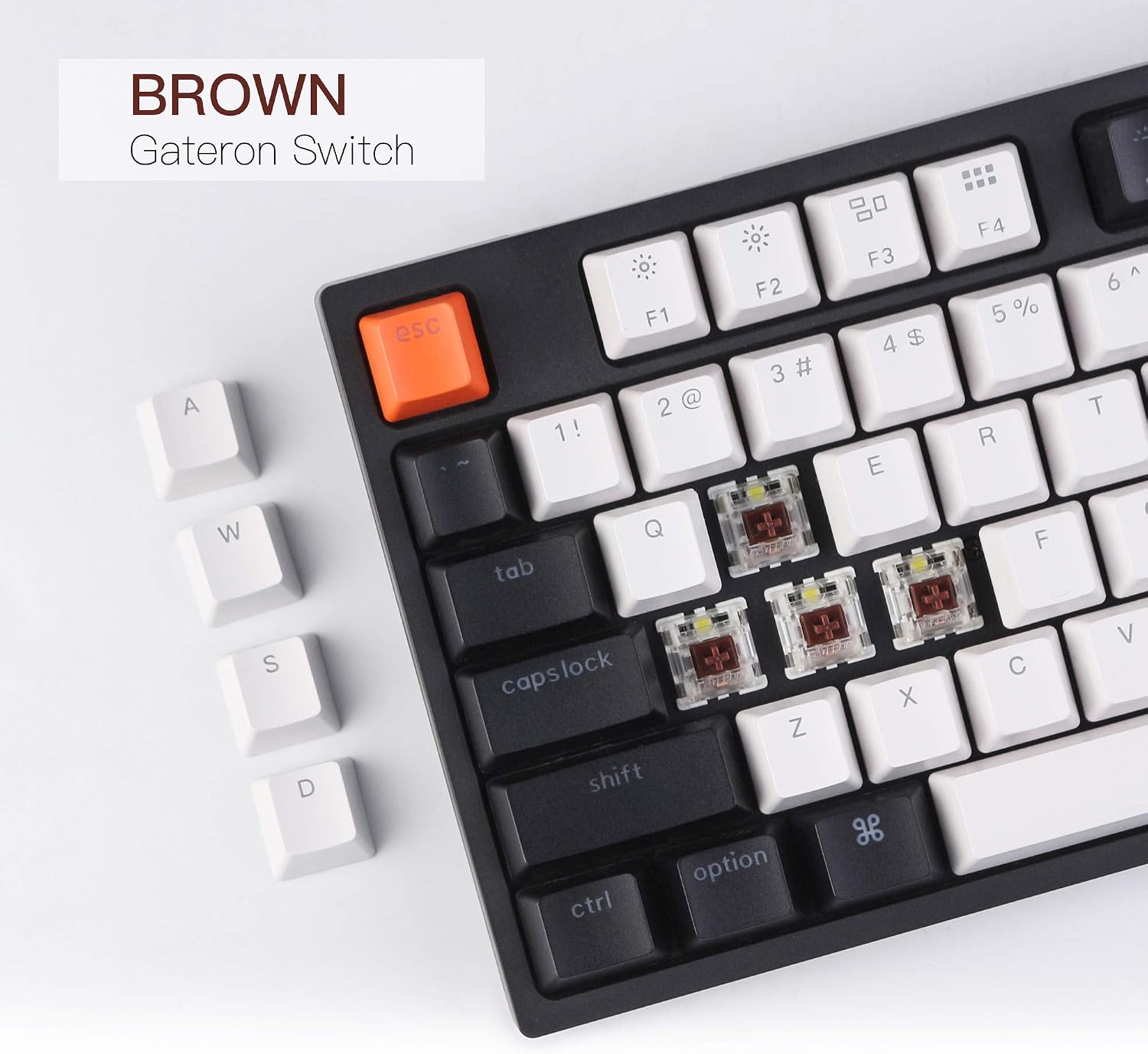
Figure 3.3: Keyboard side view showing 9° inclined bottom frame
4. Operating Instructions
4.1 Key Layout and Indicators
The C2 keyboard features a full 104-key layout with dedicated indicators for Num Lock and Caps Lock. It also includes specific key mappings for both Mac and Windows layouts, with extra keycaps provided for customization.

Figure 4.1: Num Lock, Caps Lock, Mac, and Windows Layout Indicators
4.2 RGB Backlight Control
The Keychron C2 offers over 15 types of RGB backlight effects. You can cycle through these effects and adjust brightness directly from the keyboard.
- Press the Light Bulb key (usually F5 or a dedicated key) to cycle through different RGB lighting modes.
- Use Fn + F1/F2 (or dedicated brightness keys) to adjust backlight brightness.
- Some models may have additional key combinations for speed or color adjustments; refer to the quick start guide for specific shortcuts.

Figure 4.2: Keyboard with vibrant RGB backlight effects
4.3 Gateron G Pro Brown Switches and Double-Shot ABS Keycaps
The keyboard is equipped with Gateron G Pro Brown switches, known for their tactile feedback and durability. The keycaps are made using a double-shot injection molding process, ensuring legends do not fade and allowing the RGB backlight to shine through clearly.

Figure 4.3: Close-up of Gateron G Pro Brown Switches with keycaps removed

Figure 4.4: Detail of Double-Shot ABS Keycaps
4.4 Official Product Video
Video 4.1: An overview of the Keychron RGB Mechanical Keyboard's features and design.
5. Maintenance
5.1 Cleaning the Keyboard
To maintain optimal performance and appearance, regularly clean your keyboard:
- Disconnect the keyboard from your computer before cleaning.
- Use a can of compressed air to remove dust and debris from between the keycaps.
- Wipe the keycaps and keyboard surface with a soft, slightly damp, lint-free cloth. Avoid excessive moisture.
- For stubborn stains, a small amount of isopropyl alcohol on a cloth can be used.
5.2 Keycap and Switch Replacement (if applicable)
The Keychron C2 comes with a keycap puller and, for hot-swappable versions, a switch puller. This allows for easy customization and maintenance of keycaps and switches.
- To remove keycaps: Use the keycap puller to gently pull keycaps straight up.
- To replace keycaps: Align the keycap with the switch stem and press down firmly until it clicks into place.
- To remove switches (hot-swappable models only): Use the switch puller to grip the top and bottom clips of the switch and pull it straight out.
- To install switches (hot-swappable models only): Align the pins of the new switch with the holes on the PCB and press down gently until it seats firmly. Ensure pins are not bent.
6. Troubleshooting
6.1 Keyboard Not Responding
- Ensure the USB Type-C cable is securely connected to both the keyboard and your computer.
- Try connecting the keyboard to a different USB port on your computer.
- Verify that the OS toggle switch on the back of the keyboard is set to the correct operating system (Mac/iOS or Win/Android).
- Restart your computer.
6.2 Backlight Not Working or Incorrect
- Press the Light Bulb key to cycle through backlight modes and ensure it's not turned off.
- Adjust brightness using the designated function keys (e.g., Fn + F1/F2).
- Ensure the keyboard is receiving sufficient power from the USB port.
6.3 Function Keys (F1-F12) Not Working Correctly
- Ensure the OS toggle switch is set to the correct operating system.
- On some systems, you may need to press the 'Fn' key in combination with the function key to activate its secondary function (e.g., multimedia controls).
- For Linux users, specific system file edits might be required for full function key compatibility, as noted in some user experiences. Consult Linux community forums for detailed instructions if issues persist.
7. Specifications
| Feature | Detail |
|---|---|
| Product Dimensions | 5.12 x 17.13 x 1.5 inches |
| Item Weight | 1.83 pounds |
| Manufacturer | Keychron |
| Item Model Number | C2B3 |
| Brand | Keychron |
| Compatible Devices | PC (Mac, Windows, Android, iOS) |
| Connectivity Technology | USB Type-C Wired |
| Keyboard Description | Mechanical |
| Recommended Uses | Gaming, Typing, Office, Home |
| Special Feature | RGB Backlit, Adjustable Feet |
| Switch Type | Gateron G Pro Brown Switch |
| Number of Keys | 104 |
| Keycap Material | Double-Shot ABS |
| Keyboard Backlighting | RGB (15+ modes) |
8. Warranty and Support
Keychron products are designed for durability and performance. For information regarding warranty coverage, technical support, and frequently asked questions, please visit the official Keychron website or contact their customer service directly.
Keep your purchase receipt or order number handy for any warranty claims.