
roborock S4 Max
roborock S4 Max Robot Vacuum User Manual
Model: S4 Max | Brand: roborock
1. Introduction
The roborock S4 Max is an advanced robotic vacuum cleaner designed to provide efficient and thorough cleaning for your home. Featuring precision LiDAR navigation, powerful 2000Pa suction, and multi-level mapping capabilities, it intelligently navigates and cleans various floor types, including carpets and hard floors. This manual provides essential information for setting up, operating, and maintaining your S4 Max to ensure optimal performance.
2. Product Overview
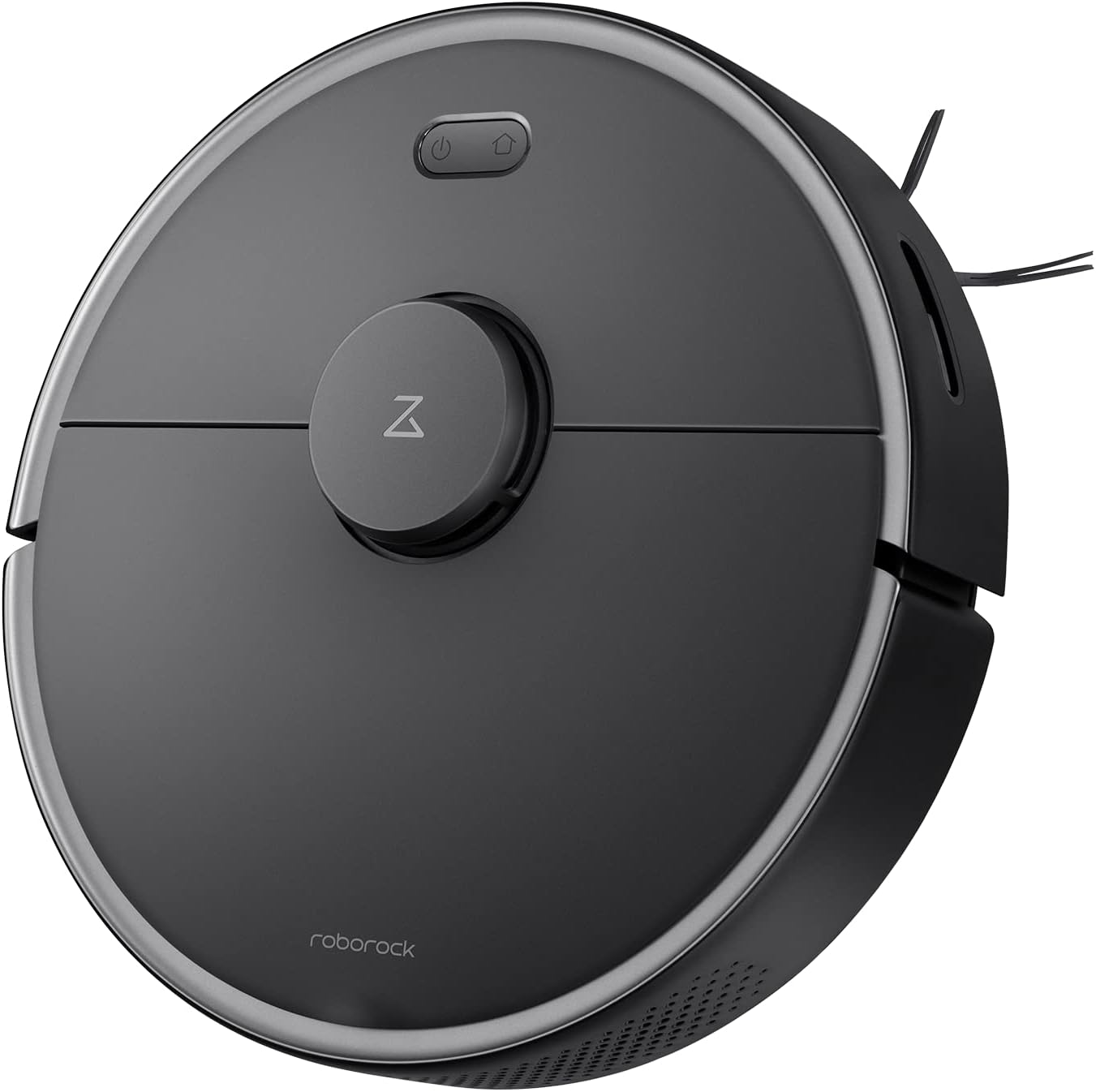
Figure 2.1: Top view of the roborock S4 Max Robot Vacuum.
Key Features:
- Precision LiDAR Navigation: Ensures accurate mapping and efficient cleaning paths, even in low-light conditions.
- 2000Pa Strong Suction: Effectively picks up dirt, dust, and pet hair from various surfaces.
- Multi-Level Mapping: Stores maps for up to four levels of your home, recognizing room locations automatically.
- Customizable Cleaning Zones: Set up to 10 No-Go Zones, 10 No-Mop Zones, and 10 Invisible Walls per level via the app.
- Carpet Boost: Automatically increases suction power when a carpet is detected for deeper cleaning.
- Long-Lasting Battery: Up to 180 minutes runtime on a single charge.
- Washable HEPA Filter: Captures 95% of particles and is reusable.
3. Setup
- Unpack the Robot: Carefully remove the robot vacuum and all accessories from the packaging.
- Place the Charging Dock: Position the charging dock against a wall in an open area with at least 0.5 meters (1.6 feet) of clear space on both sides and 1.5 meters (4.9 feet) in front. Ensure it is connected to a power outlet.
- Initial Charge: Place the robot on the charging dock. The power indicator light will illuminate. Allow the robot to fully charge before its first use.
- Download the App: Download the roborock app from your mobile device's app store. The app is compatible with 2.4Ghz Wi-Fi networks only.
- Connect to Wi-Fi: Follow the in-app instructions to connect your roborock S4 Max to your home Wi-Fi network.
- Initial Mapping: For the first cleaning cycle, allow the robot to fully map your home. Open all doors to rooms you wish to be mapped. The robot will create a detailed map that can be saved and customized.
4. Operating Instructions
4.1 Navigation and Mapping
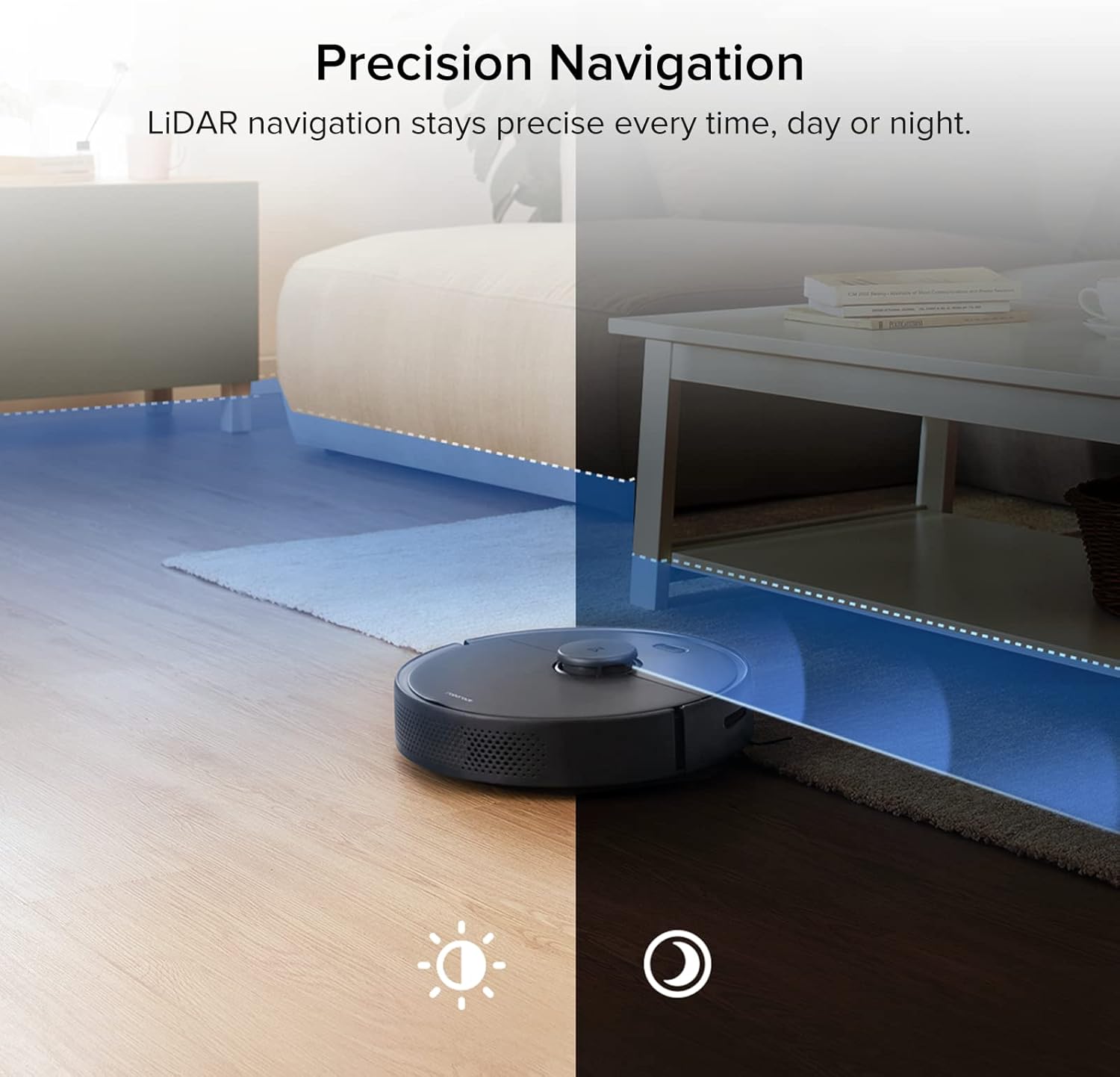
Figure 4.1: The S4 Max uses LiDAR for precise navigation in both bright and dark environments.

Figure 4.2: The robot can store and recognize maps for multiple levels of your home.
The S4 Max utilizes advanced LiDAR navigation to create accurate maps of your home. It cleans in methodical, straight lines, first along edges and then filling in the middle areas. This ensures comprehensive coverage and avoids missing spots. The robot can store up to four different floor plans, automatically recognizing which level it is on.
4.2 Cleaning Modes and Suction
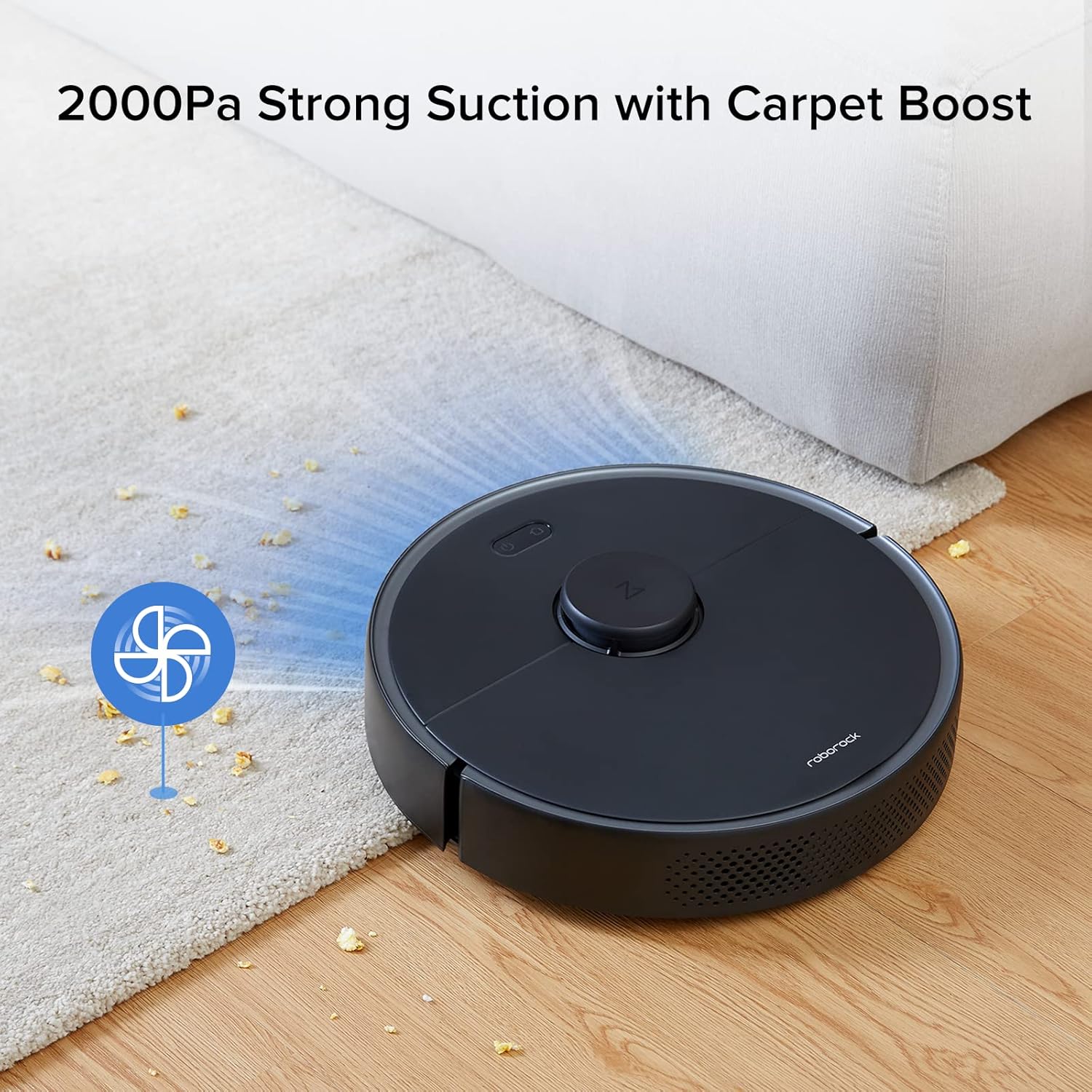
Figure 4.3: The S4 Max features 2000Pa suction power and automatically boosts suction on carpets.
The S4 Max offers multiple cleaning modes to suit your needs:
- Quiet: For minimal noise during cleaning.
- Normal: Standard cleaning power for everyday dirt.
- Turbo: Increased suction for tougher messes.
- Max: Maximum suction power (2000Pa) for deep cleaning.
The robot is equipped with a Carpet Boost feature, which automatically detects carpets and increases suction to the Max level for effective deep cleaning.
4.3 App Control and Customization
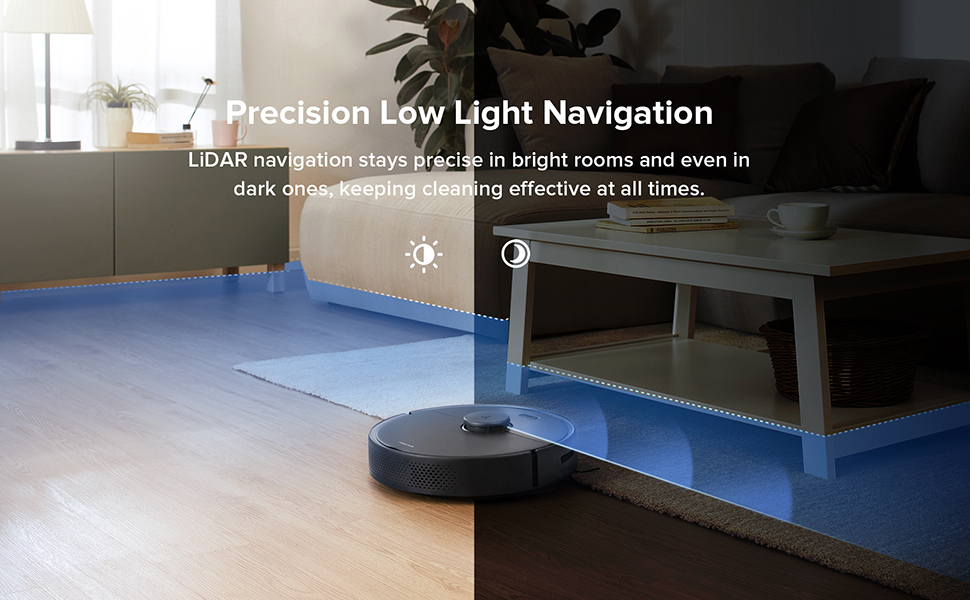
Figure 4.4: The roborock app provides comprehensive control over your robot vacuum.
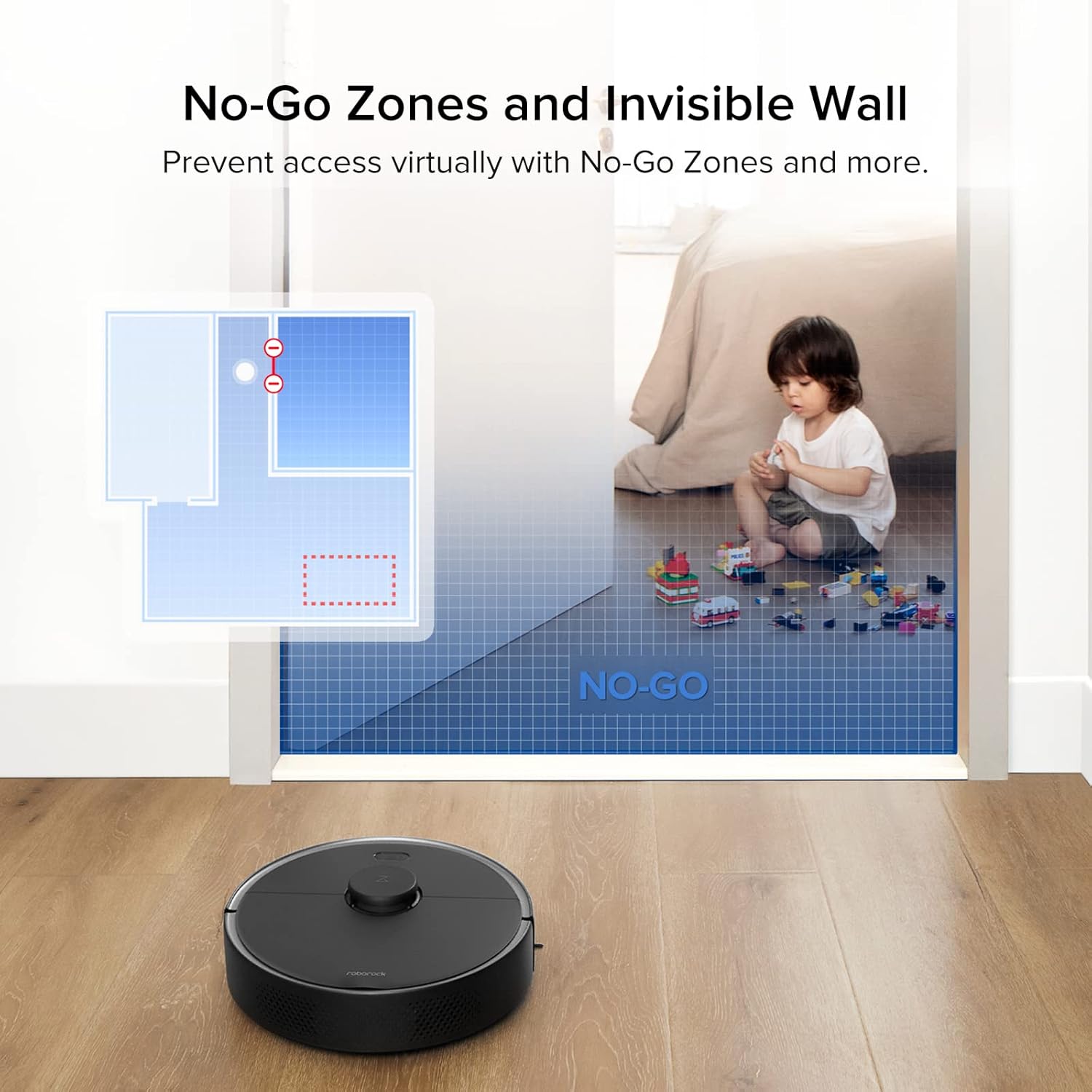
Figure 4.5: Set virtual boundaries to restrict the robot's access to certain areas.
The roborock app offers extensive control and customization options:
- Real-time Tracking: View exact vacuuming routes and the robot's current location.
- Cleaning Schedules: Set daily or weekly cleaning schedules for specific times and days.
- Zone Cleaning: Select specific rooms or draw custom zones for targeted cleaning.
- No-Go Zones & Invisible Walls: Define areas the robot should avoid. Invisible Walls can be straight or diagonal lines, offering flexibility.
- Suction Power Adjustment: Adjust suction power for different cleaning needs.
- Room Naming: Name rooms on your map for easier control, including voice commands with compatible devices like Amazon Echo.
5. Maintenance
Regular maintenance ensures your roborock S4 Max operates at peak efficiency.
5.1 Dustbin and Filter
- Emptying the Dustbin: The S4 Max features a 0.46-liter top-loading dustbin. Empty it after each cleaning cycle.
- Cleaning the Filter: The E11 rated HEPA filter is washable. Rinse it under running water and allow it to air dry completely before reinserting. An extra filter is included in the box for convenience.
5.2 Brushes
- Main Brush: Regularly check the main brush for tangled hair or debris. Use the included cleaning tool to remove any wrapped hair.
- Side Brush: Inspect the all-rubber side brush for wear or tangles. Clean as needed.
5.3 Sensors
Wipe all sensors (LiDAR, cliff sensors, wall sensors) with a soft, dry cloth to ensure proper functionality and navigation.
6. Specifications
| Brand | roborock |
| Model Name | S4 Max |
| Suction Power | 2000Pa |
| Navigation | LiDAR |
| Mapping | Multi-Level (up to 4 levels) |
| Dustbin Capacity | 0.46 Liters |
| Filter Type | Washable HEPA (E11 rated) |
| Battery Type | 5200 mAh Lithium Ion (Integrated) |
| Battery Life | Up to 180 minutes (on lowest power setting) |
| Control Method | App, Voice (Amazon Echo compatible) |
| Product Dimensions (Robot) | 13.8" (Diameter) x 3.8" (Height) |
| Item Weight | 7.28 pounds |
| Airflow (Max Setting) | 20.58 CFM |
| Noise Level (Max Setting) | 64.1 dB |
7. Troubleshooting
- Robot gets stuck on wires: Ensure all loose cables and wires are cleared from the cleaning path before operation.
- Robot pushes light rugs: Remove lightweight area rugs or those without rubber backing that the robot might push around.
- Reduced suction power: Check and empty the dustbin. Clean or replace the HEPA filter. Inspect the main brush for tangles.
- Navigation issues: Clean all sensors on the robot. Ensure the LiDAR sensor is not obstructed.
- Robot does not charge: Ensure the charging dock is properly connected to power and the robot is correctly aligned with the charging contacts.
8. Warranty and Support
For warranty information, technical support, or service inquiries, please refer to the official roborock website or contact their customer service directly. Keep your purchase receipt as proof of purchase for warranty claims.
Related documentsS4 Max


Ask a question about this manual
Ask about setup, troubleshooting, compatibility, parts, safety, or missing instructions. Manuals+ will review the question and use this page’s manual context to help answer it.