
1. Introduction
This manual provides detailed instructions for the installation, operation, and maintenance of your Imou Bullet 3 5MP/3K Outdoor Camera. Please read this manual thoroughly before using the product to ensure proper setup and functionality. Keep this manual for future reference.
2. Product Overview
The Imou Bullet 3 is a high-performance outdoor security camera designed for reliable surveillance. It features 5-megapixel (3K) resolution, color night vision, Wi-Fi 6 connectivity, and an IP67 weather-resistant rating, making it suitable for various outdoor environments.
Key Features:
- 5MP/3K Ultra HD Resolution for clear and detailed imaging.
- Color Night Vision for enhanced visibility in low-light conditions.
- Wi-Fi 6 support for stable and efficient wireless connection.
- IP67 Weatherproof rating for outdoor durability.
- Human and vehicle detection for accurate alerts.

Figure 2.1: Front view of the Imou Bullet 3 Outdoor Camera, showing the lens, two antennas, and mounting base.
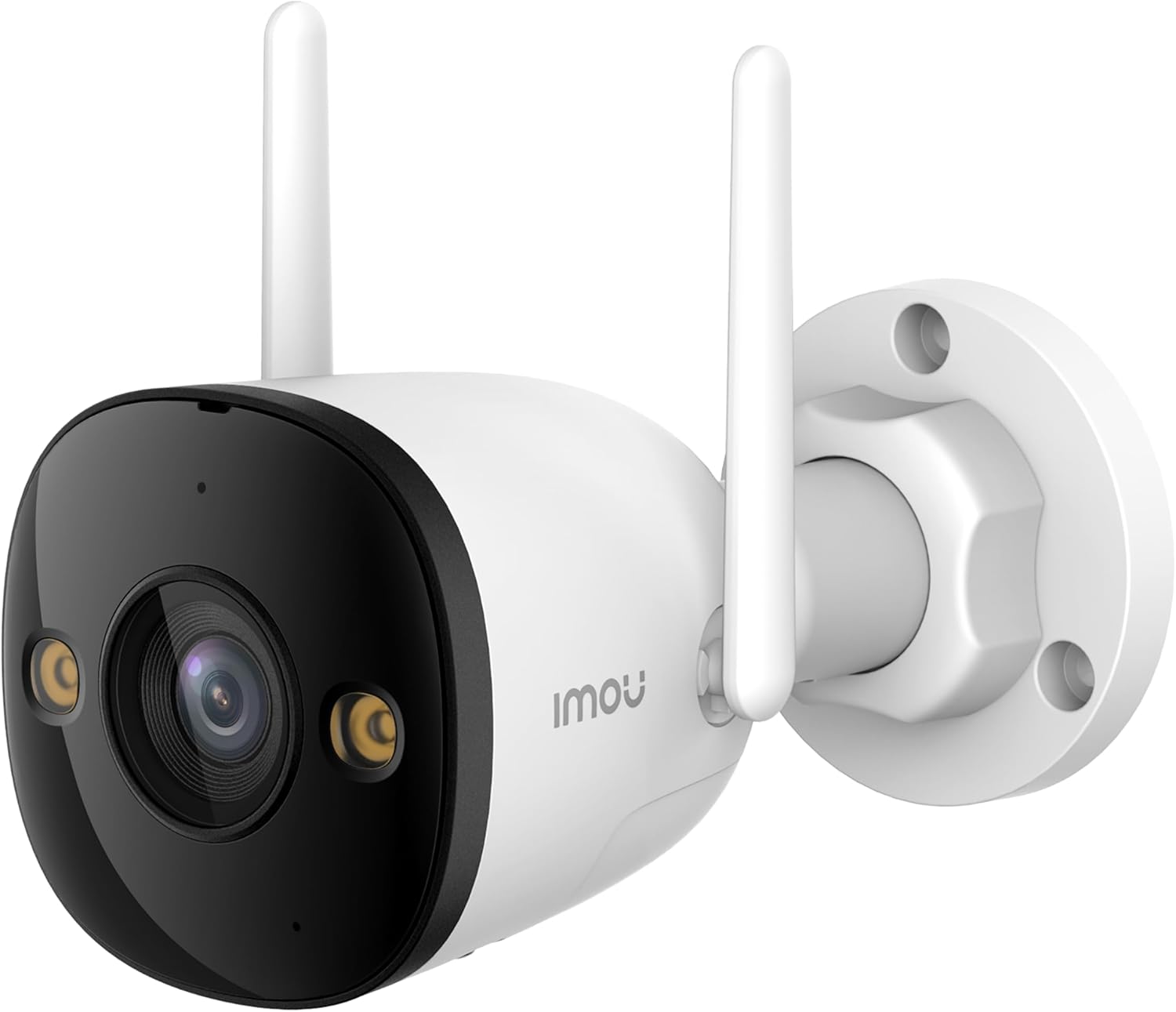
Figure 2.2: The Imou Bullet 3 camera, highlighting the Imou brand logo on its side.

Figure 2.3: Illustrates the camera's 3K UHD resolution capability, providing clear and detailed images.

Figure 2.4: Depicts the IMOU SENSE™ precision AI chip, which powers advanced features like detection.
3. Setup and Installation
Before installation, ensure you have all necessary components: the Imou Bullet 3 camera, power adapter, mounting screws, and a drilling template (if provided). It is recommended to test the camera's functionality and Wi-Fi signal strength at the desired installation location before permanent mounting.
3.1 Mounting the Camera
- Choose a suitable outdoor location with a clear view of the area you wish to monitor.
- Use the provided drilling template to mark the screw holes on the wall or ceiling.
- Drill holes and insert wall anchors if necessary.
- Secure the camera's mounting base to the surface using the screws.
- Adjust the camera angle as needed.
3.2 Powering On and Connection
Connect the camera to a power source using the provided power adapter. The camera supports both Wi-Fi and Power over Ethernet (PoE) connections for flexible installation.
- Wi-Fi Connection: Power on the camera and follow the instructions in the Imou Life app to connect it to your Wi-Fi network.
- PoE Connection: If your network supports PoE, connect an Ethernet cable from your PoE-enabled router or switch directly to the camera. This provides both power and data through a single cable.
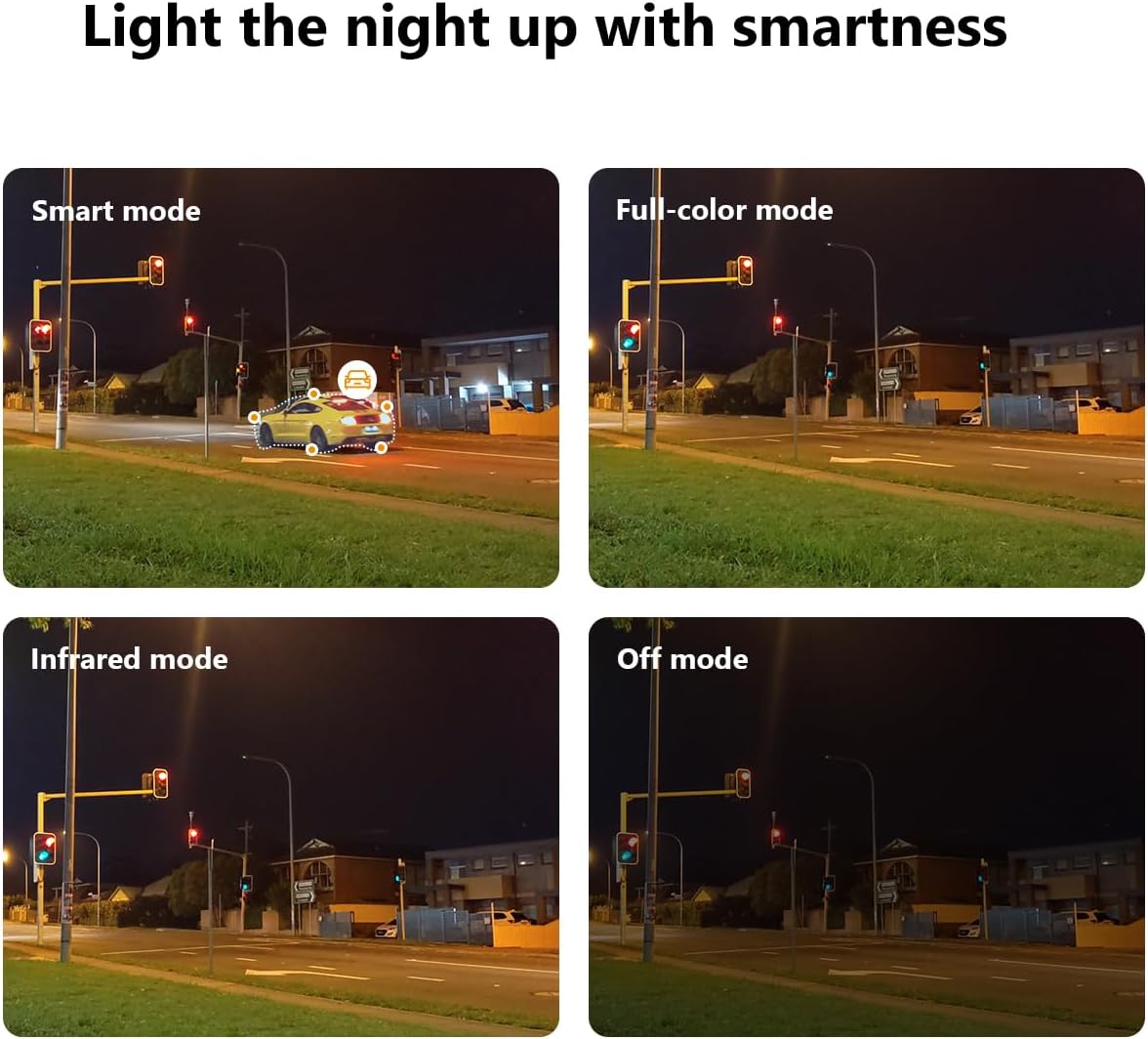
Figure 3.1: Illustrates the two primary connection methods: Wi-Fi for wireless setup and PoE for combined power and data via Ethernet cable.
4. Operating Instructions
The Imou Bullet 3 camera offers various features to enhance your security monitoring. All advanced settings and live viewing are accessible through the Imou Life mobile application.
4.1 Night Vision Modes
The camera provides multiple night vision modes to suit different lighting conditions:
- Smart Mode: Automatically switches between infrared and full-color night vision based on detected motion.
- Full-Color Mode: Utilizes built-in spotlights to provide full-color video even in complete darkness.
- Infrared Mode: Uses infrared LEDs for black and white video in low light, conserving power.
- Off Mode: Disables night vision features.

Figure 4.1: Comparison of the camera's night vision capabilities, including Smart, Full-color, Infrared, and Off modes.
4.2 Customizable Detection Zone
You can define specific areas within the camera's field of view for motion detection. This helps reduce false alarms from irrelevant areas.
- Open the Imou Life app and select your camera.
- Navigate to the detection settings.
- Draw or select the desired detection zones on the live view.
- Save your settings.

Figure 4.2: An example of a customizable detection zone, highlighted over a pool area to focus surveillance on specific regions.
4.3 Deterring Unwelcome Visitors
The camera is equipped with features to actively deter intruders, such as a built-in spotlight and siren. These can be triggered automatically upon detection or manually through the app.

Figure 4.3: The Imou camera with its integrated spotlights activated, designed to deter intruders and provide clear night vision.
4.4 Scheduling
You can set up schedules for when the camera's detection features are active. This allows you to customize surveillance based on your daily routine.
- In the Imou Life app, go to the camera settings.
- Find the 'Detection Schedule' option.
- Set specific times and days for motion detection and alerts to be active.

Figure 4.4: A smartphone screen displaying the detection scheduling interface within the Imou Life app, allowing users to set active surveillance times.
5. Maintenance
Regular maintenance ensures the longevity and optimal performance of your Imou Bullet 3 camera.
5.1 Cleaning
- Periodically wipe the camera lens and body with a soft, damp cloth to remove dust and dirt.
- Do not use harsh chemicals or abrasive cleaners, as they may damage the camera's finish or lens coating.
5.2 Environmental Considerations
- Ensure the camera's power connection is secure and protected from moisture.
- While IP67 rated, avoid submerging the camera in water or exposing it to extreme pressure washing.
6. Troubleshooting
If you encounter issues with your Imou Bullet 3 camera, refer to the following common problems and solutions:
6.1 No Power/Camera Offline
- Check Power: Ensure the power adapter is securely connected to the camera and a working power outlet.
- Wi-Fi Connection: Verify your Wi-Fi network is active and the camera is within range. Restart your router if necessary.
- Reset: If the issue persists, locate the reset button (refer to the camera's physical diagram) and press it for 10 seconds to restore factory settings. Reconfigure the camera afterward.
6.2 Poor Image Quality
- Clean Lens: Clean the camera lens as described in the Maintenance section.
- Network Stability: Ensure a stable internet connection. Poor Wi-Fi signal can affect video streaming quality.
- Lighting: Adjust camera placement to avoid direct glare or insufficient lighting.
6.3 Motion Detection Issues
- Detection Zone: Verify that the detection zones are correctly configured in the Imou Life app.
- Sensitivity: Adjust the motion detection sensitivity settings in the app.
- Obstructions: Ensure there are no physical obstructions blocking the camera's view.
7. Specifications
| Specification | Value |
|---|---|
| Brand | Imou |
| Model Number | IPC-S3EP-5M0WE(Bullet3 5MP) |
| Connectivity Technology | Wireless (Wi-Fi) |
| Indoor/Outdoor Usage | Outdoor |
| Color | Multicolor |
| Material | Plastic |
| Voltage | 12 Volts |
| Power Consumption | 5.3 Watts |
| Item Dimensions (L x W x H) | 14.77 x 7.42 x 7.56 cm |
| Item Weight | 560 g |
| Recommended Uses | Video sensor, human and vehicle detection |
| Special Feature | Portable |
| Number of Items | 1 |
| Number of Channels | 4 |
8. Warranty and Support
For warranty information and technical support, please refer to the official Imou website or contact their customer service. Keep your purchase receipt as proof of purchase for any warranty claims.
For further assistance, visit: www.imoulife.com


