
Introduction
The cimetech Wireless Mouse TM004 is a 2.4G cordless mouse designed for comfort and efficiency. It features silent clicks, adjustable DPI settings, and broad compatibility with various operating systems and devices. This manual provides instructions for setup, operation, maintenance, and troubleshooting to ensure optimal performance.

Image: The cimetech Wireless Mouse TM004 in grey, shown with its compact USB receiver.
Package Contents
- 1 x Cordless Mouse
- 1 x USB Receiver
- 1 x User Manual
Setup Instructions
1. Battery Installation
The cimetech Wireless Mouse TM004 requires one (1) AA battery for operation. To install the battery:
- Locate the battery compartment cover on the underside of the mouse.
- Slide the cover open.
- Insert one AA battery, ensuring the polarity (+/-) matches the diagram inside the compartment.
- Close the battery compartment cover securely.

Image: The bottom of the mouse, indicating the battery compartment, USB receiver storage, and the power switch.
2. Connect the USB Receiver
The mouse uses a 2.4G wireless connection via a USB receiver. To connect:
- Remove the USB receiver from its storage slot on the underside of the mouse.
- Plug the USB receiver into an available USB port on your computer or device.
- Your operating system should automatically detect and install the necessary drivers. This is a plug-and-play device, requiring no additional software installation.

Image: The wireless mouse in use, demonstrating its connection to a laptop via the USB receiver.
3. Power On/Off
Locate the On/Off switch on the underside of the mouse. Slide the switch to the 'On' position to activate the mouse. Slide it to 'Off' when not in use to conserve battery life.
Operating Instructions
Basic Functions
- Left Button: Primary click function, typically used for selecting items.
- Right Button: Secondary click function, typically used for context menus.
- Scroll Wheel: Used for scrolling through documents and web pages. It can also function as a middle click button.
DPI Adjustment
The mouse features 3 adjustable DPI (Dots Per Inch) settings: 800, 1200, and 1600. DPI controls the cursor sensitivity and speed. To adjust the DPI:
- Press the DPI Switch Button located behind the scroll wheel.
- Each press cycles through the available DPI settings (800 → 1200 → 1600).
- Select the DPI setting that best suits your work or entertainment needs for accurate and fast tracking.

Image: The mouse highlighting its DPI adjustment button and the silent click feature, with DPI levels of 800, 1200, and 1600.
Forward/Backward Buttons
The mouse is equipped with additional side buttons, typically located on the left side. These buttons are often used for navigation, such as 'Forward' and 'Backward' in web browsers or file explorers, enhancing efficiency.
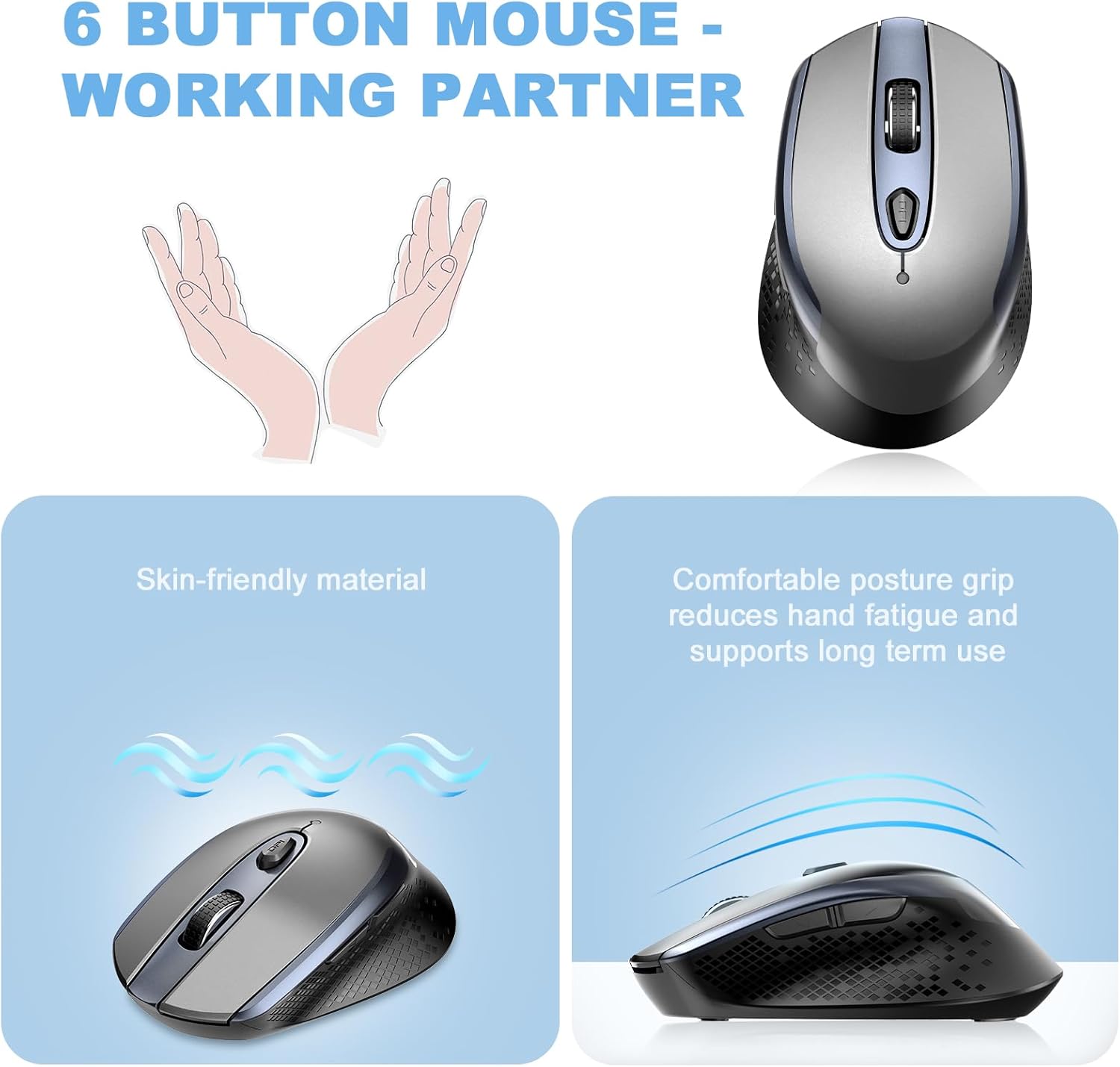
Image: A top-down view of the mouse, illustrating its six-button layout including the side navigation buttons.
Compatibility
The cimetech Wireless Mouse TM004 is compatible with a wide range of operating systems and devices, including:
- Windows 7/8/10/XP
- Vista 7/8
- Linux
- Desktops, Laptops, PCs
- ChromeBook, Galaxy Book, Vivobook, IdeaPad, Nitro, MateBook, HP Stream, ElliteBook, Dell Inspiron, Windows Surface, and other devices.
Maintenance
Cleaning
To maintain the performance and appearance of your mouse:
- Use a soft, dry cloth to wipe the exterior of the mouse.
- For stubborn dirt, slightly dampen the cloth with water or a mild cleaning solution, then wipe dry immediately.
- Avoid using harsh chemicals or abrasive materials, as these can damage the surface.
- Keep the optical sensor on the underside clean and free of dust or debris.
Battery Replacement
When the mouse performance degrades (e.g., erratic cursor movement, unresponsiveness), it may be time to replace the AA battery. Follow the battery installation steps outlined in the Setup section.
Troubleshooting
| Problem | Possible Cause | Solution |
|---|---|---|
| Mouse not responding | Low battery; USB receiver disconnected; Mouse powered off. | Replace battery; Ensure USB receiver is securely plugged in; Turn mouse On. |
| Erratic cursor movement | Low battery; Dirty optical sensor; Unsuitable surface; Interference. | Replace battery; Clean optical sensor; Use on a mouse pad or smooth, non-reflective surface; Move closer to receiver or away from other wireless devices. |
| Connection issues (intermittent) | Distance from receiver; Interference; USB port issue. | Ensure mouse is within 50 feet of receiver; Avoid obstacles; Try a different USB port. |
| DPI setting not changing | DPI button not pressed correctly. | Press the DPI button firmly to cycle through settings. |
Specifications
- Model Number: TM004
- Connectivity Technology: 2.4GHz Wireless (USB Wireless Receiver)
- Movement Detection Technology: Optical
- Adjustable DPI: 800 / 1200 / 1600
- Buttons: 6 (Left, Right, Scroll Wheel, DPI Switch, Forward, Backward)
- Special Features: Ergonomic Design, Portable Lightweight, Silent Click, Water Resistant (design), Wireless Soundless
- Power Source: 1 x AA Battery (not included)
- Item Weight: 2.82 ounces
- Package Dimensions: 4.29 x 2.8 x 1.73 inches
- Wireless Range: Up to 50 feet
Warranty and Support
For warranty information or technical support, please refer to the contact details provided with your purchase or visit the official cimetech website. Keep your purchase receipt for warranty claims.