
Snom M18 KLE SIP DECT 4-Line Desk Office Phone User Manual
Model: M18 KLE
This manual provides comprehensive instructions for the setup, operation, and maintenance of your Snom M18 KLE SIP DECT 4-Line Desk Office Phone.
Setup Guide
Package Contents
- Snom M18 KLE Desk Phone Unit
- Handset
- Handset Cord
- Ethernet Cable
- AC Power Adapter
Physical Installation
Connect the Handset: Plug one end of the coiled handset cord into the handset and the other end into the port labeled with a handset icon on the side of the phone base.
Connect to Network: Connect one end of the Ethernet cable to the LAN port on the back of the phone and the other end to your network router or switch.
Connect Power: Plug the AC power adapter into the power port on the back of the phone, then plug the adapter into a standard electrical outlet. The phone will power on automatically.
Initial Configuration
Upon first power-on, the phone may display a setup wizard or attempt to obtain network settings via DHCP. Follow the on-screen prompts to configure basic settings such as language, time zone, and network parameters if not automatically assigned.
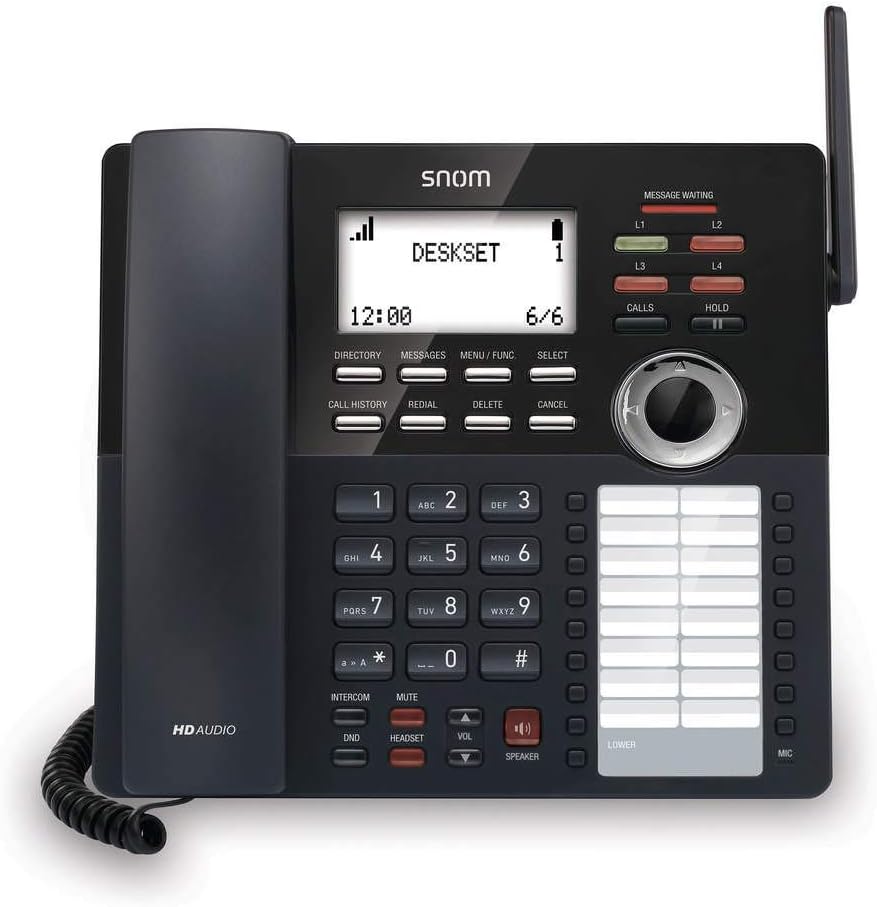
Image: Front view of the Snom M18 KLE Desk Office Phone, showing the display, keypad, and function buttons. The handset is cradled on the left side, and a DECT antenna is visible on the right.
Operating Instructions
Basic Call Functions
Making a Call:
Pick up the handset or press the SPEAKER button.
Dial the desired phone number using the keypad.
Press the CALLS button or wait a few seconds for the call to connect automatically.
Answering a Call:
When the phone rings, pick up the handset or press the SPEAKER button to answer.
Ending a Call:
Place the handset back in the cradle or press the SPEAKER button again.
Advanced Call Features
Hold: During an active call, press the HOLD button to place the call on hold. Press HOLD again to resume the call.
Transfer:
During an active call, press the TRANSFER soft key (may be labeled differently on screen).
Dial the number to which you want to transfer the call.
To perform a blind transfer, press the TRANSFER soft key again before the recipient answers. To perform an attended transfer, wait for the recipient to answer, announce the call, then press TRANSFER.
Conference: The phone supports 3-way local conferencing. During an active call:
Press the CONF soft key (or similar). The first call is placed on hold.
Dial the number of the third party.
Once the third party answers, press the CONF soft key again to join all parties.
Mute: Press the MUTE button to mute your microphone during a call. Press it again to unmute.
Do Not Disturb (DND): Press the DND button to activate or deactivate Do Not Disturb mode. When active, incoming calls will be redirected or sent to voicemail without ringing the phone.
Menu Navigation
Use the 4-way navigational pad and the SELECT soft key to navigate through the phone's menus. Soft keys below the display change functionality based on the current screen.
Phonebook and Call History
Directory: Press the DIRECTORY soft key to access your local phonebook. You can add, edit, and delete contacts.
Call History: Press the CALL HISTORY button to view a list of dialed, received, and missed calls.
Maintenance and Care
Cleaning the Device
To clean the phone, use a soft, damp cloth. Avoid using abrasive cleaners or solvents, as these can damage the phone's surface. Ensure the phone is unplugged before cleaning.
Battery Replacement
The deskset contains a 2.4V/750 mAh Ni-MH battery. If battery performance degrades significantly over time, contact Snom support or a qualified technician for replacement. Do not attempt to replace the battery yourself unless specifically instructed by Snom.
Firmware Updates
Periodically, Snom may release firmware updates to improve performance and add new features. Consult your system administrator or the Snom website for instructions on how to update your phone's firmware.
Troubleshooting
| Problem | Possible Cause | Solution |
|---|---|---|
| No dial tone | Phone not powered, network cable disconnected, or SIP registration failure. | Check power connection. Ensure Ethernet cable is securely connected. Verify SIP account registration status on the display. Restart the phone. |
| Cannot make/receive calls | SIP registration issue, DND active, or network problem. | Check SIP registration. Deactivate DND. Verify network connectivity. Contact your IT administrator. |
| Display is blank or frozen | Power issue or software error. | Unplug the power adapter, wait 10 seconds, then plug it back in. If the issue persists, contact support. |
| Poor audio quality | Network congestion, faulty cable, or handset issue. | Check network connection and bandwidth. Try a different handset or headset. |
Technical Specifications
- Display: 3.5-inch 102 x 66 pixels (w x h) mono LCD with blue/white backlighting
- Line Keys: 4 programmable LED backlit line keys
- Feature Keys: 17 dedicated feature keys
- Navigation: 4-way navigational pad
- Speed Dial: 32 speed dial keys (2 pages x 16)
- Voice Quality: HD voice for receiver and speakerphone, Full-duplex speakerphone
- Headset Support: HAC receiver, 2.5mm corded headset jack
- Call Handling: 4-line call handling (active and held), 3-way local conference, N-way network conference, Intercom, Call transfer (blind/attended), Call hold, Call forwarding, Mute, Redial, Caller ID
- Phonebook: Local up to 1,000 entries, XML/LDAP remote phonebook
- Call History: Up to 200 entries
- Battery: Deskset battery: 2.4v/750 mAh Ni-MH
- Power Source: Corded Electric (Included AC Adapter)
- Standby/Talk Time: 36 hours standby / 7 hours talk time
Warranty Information
The Snom M18 KLE SIP DECT 4-Line Desk Office Phone comes with a 3-year limited warranty from the date of purchase. This warranty covers defects in materials and workmanship under normal use. For full terms and conditions, please refer to the official Snom warranty policy available on their website or contact customer support.
Customer Support
For technical assistance, warranty claims, or further information, please visit the official Snom website or contact their customer support department. Keep your product model number (M18 KLE) and purchase details ready when contacting support.