
Introduction
This manual provides comprehensive instructions for the Razer Huntsman Mini 60% Gaming Keyboard. It covers setup, operation, maintenance, and troubleshooting to ensure optimal performance and longevity of your device. The Razer Huntsman Mini is a compact gaming keyboard featuring Razer Optical Switches, designed for portability and streamlined desktop setups.
Product Features
- Razer Linear Optical Switches: Utilizes optical beam-based actuation for faster key presses (15-30% shorter actuation distance than other linear switches at 1.0 mm).
- Razer Chroma RGB Lighting: Customizable lighting with 16.8 million colors and various effects, synchronizable with popular games and other Razer hardware.
- Durable Aluminum Construction: Features a matte aluminum top frame for enhanced structural integrity and long-term durability.
- Doubleshot PBT Keycaps: Made from textured, high-grade PBT material for a durable, oil-resistant finish less prone to grime buildup.
- Fully Programmable Macros: Razer Hypershift allows remapping of keys and keypress combinations for complex commands.
- 60% Form Factor: Compact design for increased desk space and portability.
- Detachable USB-C Cable: For easy transport and secure connection.
What's in the Box
- Razer Huntsman Mini Keyboard
- Detachable Type-C to Type-A Cable
- Important Product Information Guide
Setup Instructions
1. Connecting the Keyboard
Connect the detachable USB-C to Type-A cable to the USB-C port located on the back of the Razer Huntsman Mini keyboard. Ensure the cable is securely latched into the keyboard's slot design to prevent accidental disconnections. Plug the Type-A end of the cable into an available USB port on your computer.

Figure 1: Detachable USB-C cable connected to the keyboard, showing the dual kickstand.
2. Adjusting Keyboard Angle
The keyboard features dual kickstands on its underside, allowing for two different tilt angles to suit your ergonomic preference. Gently flip out the desired kickstand to adjust the keyboard's height.
3. Software Installation (Razer Synapse)
For full customization of RGB lighting, macro programming, and other advanced features, download and install the Razer Synapse software from the official Razer website. Follow the on-screen instructions to complete the installation. Regular software updates may require system restarts.
Operating Instructions
1. Basic Key Functions
The Razer Huntsman Mini features a 60% layout, meaning some keys have secondary functions accessed via the Function (FN) key. These secondary functions are typically printed on the front side of the keycaps.
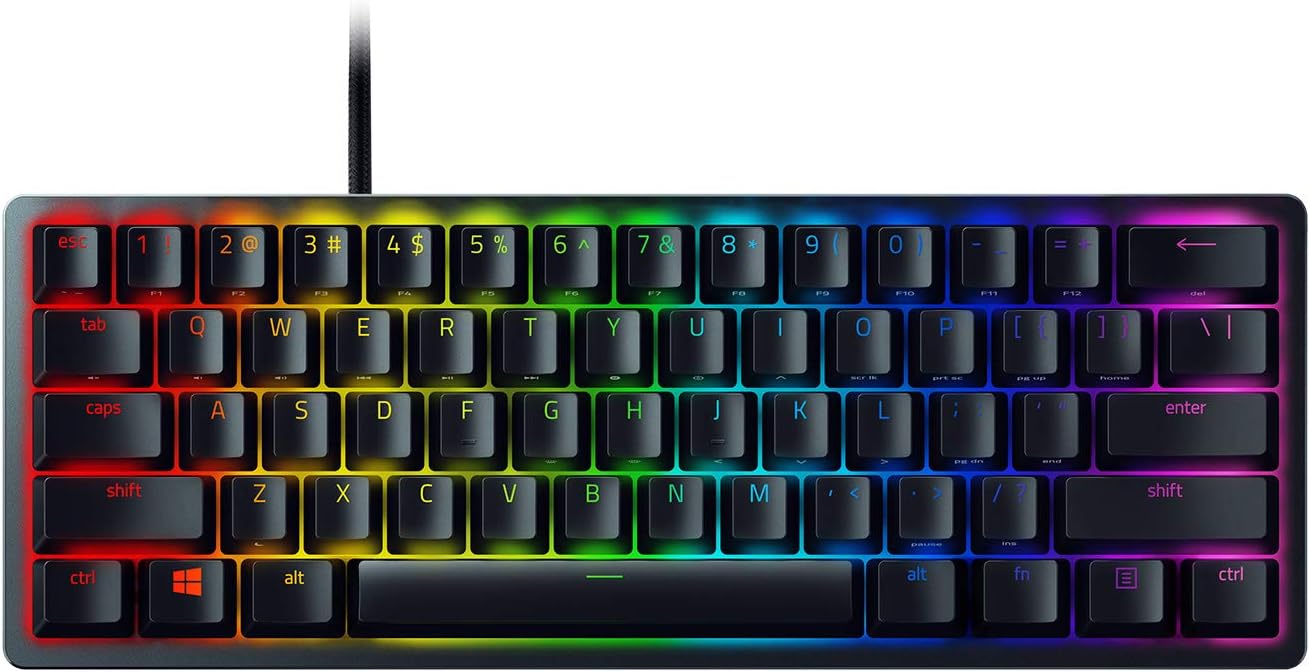
Figure 2: Top-down view of the Razer Huntsman Mini keyboard.
2. Function (FN) Key Combinations
Hold down the FN key and press the corresponding key to activate its secondary function. Common combinations include:
- FN + I, O, P, [, ], \: Media controls (Play/Pause, Stop, Previous, Next, Mute, Volume Down, Volume Up)
- FN + K, L, :, ', Enter: Arrow keys (Up, Left, Down, Right)
- FN + U, J, H, G: Home, End, Page Up, Page Down
- FN + Backspace: Delete
3. RGB Lighting Control (Lighting Presets)
The keyboard's RGB lighting can be controlled directly using FN key combinations. The following hotkeys activate different lighting effects:

Figure 3: Hotkey combinations for various RGB lighting effects.
- FN + CTRL + 1: Off
- FN + CTRL + 2: Static
- FN + CTRL + 3: Breathing
- FN + CTRL + 4: Spectrum Cycling
- FN + CTRL + 5: Wave
- FN + CTRL + 6: Starlight
- FN + CTRL + 7: Reactive
Further customization and advanced effects are available through the Razer Synapse software.
4. On-the-Fly Macro Recording
The Razer Huntsman Mini supports on-the-fly macro recording. Refer to the Razer Synapse software for detailed instructions on creating and assigning macros.
Maintenance
1. Cleaning the Keyboard
To clean your keyboard, disconnect it from your computer. Use a soft, lint-free cloth lightly dampened with water to wipe down the keycaps and chassis. Avoid using harsh chemicals or abrasive materials. For deeper cleaning, you may carefully remove keycaps using a keycap puller and clean underneath.
2. Keycap Durability
The PBT keycaps are designed for enhanced durability and resistance to oils and grime. Regular cleaning will help maintain their appearance and tactile feel.

Figure 4: Close-up of the Doubleshot PBT keycaps with side-printed secondary functions.
Troubleshooting
If you encounter any issues with your Razer Huntsman Mini keyboard, try the following steps:
- No Response: Ensure the USB-C cable is securely connected to both the keyboard and your computer. Try plugging the keyboard into a different USB port.
- Lighting Issues: Verify that Razer Synapse is installed and updated. Check lighting presets using FN + CTRL combinations.
- Key Malfunctions: Ensure no debris is lodged under the keycap. If the issue persists, contact Razer Support.
- Software Not Detecting Keyboard: Restart your computer and ensure Razer Synapse is running. Check for any pending software updates.
For further assistance, visit the official Razer Support website or consult the Important Product Information Guide included with your keyboard.
Specifications
| Feature | Detail |
|---|---|
| Brand | Razer |
| Series | Huntsman |
| Model Number | RZ03-03390200-R3M1 |
| Hardware Platform | PC |
| Operating System | Windows 10 |
| Item Weight | 1.1 pounds |
| Product Dimensions | 11.56 x 4.07 x 1.45 inches |
| Color | Classic Black |
| Power Source | Corded Electric |
| Connectivity Technology | Micro USB (Note: Product description states USB-C, this may be a discrepancy in source data) |
| Keyboard Description | Gaming |
| Recommended Uses | Gaming |
| Special Feature | Portable, USB-C Wired, Compact Keyboard, Backlit, Lighting, Detachable |
| Keyboard Backlighting Color Support | RGB |
Warranty and Support
The Razer Huntsman Mini 60% Gaming Keyboard comes with a manufacturer's warranty. Please refer to the 'Important Product Information Guide' included in your package for specific warranty terms and conditions. For technical support, driver downloads, and FAQs, visit the official Razer Support website.
Online resources and community forums are also available for additional assistance and tips.


