
Eonon P4
Eonon P4 9.33-Inch IPS Touchscreen Car Radio User Manual
Model: P4 | Brand: Eonon
Introduction
This manual provides detailed instructions for the installation, operation, and maintenance of your Eonon P4 9.33-inch IPS Touchscreen Car Radio. This device integrates wireless CarPlay and Android Auto, a dual camera system (4K front, 1080P rear), GPS navigation, Bluetooth, FM, and AUX connectivity to enhance your driving experience. Please read this manual thoroughly before using the product to ensure proper function and safety.

Figure 1: The Eonon P4 main unit displaying a CarPlay interface, along with the included 4K front camera, 1080P reversing camera, and 64GB MicroSD card.
Package Contents
Verify that all items listed below are included in your package:
- 1 x Head Unit (Eonon P4 Car Radio)
- 1 x Base Bracket
- 1 x Suction Cup Bracket
- 1 x Cigarette Lighter Power Cable
- 1 x Backup Camera (Rear Lens)
- 1 x AUX Cable
- 1 x Pry Bar
- 4 x Cable Clips (Wire Frame)
- 1 x 64 GB MicroSD Card
- 1 x User Manual

Figure 2: Illustration of all components included in the Eonon P4 package. This image displays the main unit, mounting brackets, power cable, cameras, and accessories.
Setup and Installation
The Eonon P4 offers two primary installation methods: via a base bracket or a suction cup bracket. Choose the method that best suits your vehicle's dashboard and your preference.
Mounting Methods

Figure 3: Demonstrates the two available mounting options: a suction cup mount for windshield or smooth surfaces, and a dashboard base mount for a more permanent fixture.
- Base Bracket Installation:
- Attach the base bracket to the rear of the main unit.
- Remove the protective film from the adhesive on the bottom of the base bracket.
- Place the bracket firmly onto a clean, flat surface on your dashboard. Apply pressure for a few seconds to ensure a secure bond.
- Suction Cup Bracket Installation:
- Attach the suction cup bracket to the rear of the main unit.
- Clean the desired mounting surface (windshield or smooth dashboard area).
- Press the suction cup firmly against the surface and engage the locking mechanism to secure it.
Power Connection

Figure 4: Illustrates the three main steps for quick installation: attaching the bracket, securing it to the dashboard, and connecting the power cable to the cigarette lighter socket.
After mounting the unit, connect the cigarette lighter power cable:
- Insert one end of the cigarette lighter power cable into the "Power In" port on the Eonon P4 unit.
- Insert the other end into your vehicle's cigarette lighter socket.
- The unit should power on automatically or after pressing the power button.
Camera Installation
The Eonon P4 includes a 4K front camera (integrated) and a 1080P reversing camera. The reversing camera requires external installation.

Figure 5: Shows the 1080P backup camera, its IP68 waterproof rating, and examples of backup camera guidelines and a real-time interior view.
- Front Camera: Integrated into the main unit. Ensure its view is unobstructed.
- Reversing Camera:
- Mount the 1080P reversing camera at the rear of your vehicle, typically near the license plate light or trunk handle.
- Route the camera cable to the main unit and connect it to the "Camera In" port.
- Connect the camera's power wire to your vehicle's reverse light circuit so it activates automatically when shifting into reverse.
Operating Instructions
Display and Interface

Figure 6: Highlights the 9.33-inch IPS display with 1600x600 resolution, showcasing its vibrant colors and responsive capacitive touchscreen. It also shows the detachable screen feature.
The Eonon P4 features a 9.33-inch IPS touchscreen with a resolution of 1600x600 pixels. The capacitive touchscreen provides a responsive user experience. The screen is detachable for security.
Wireless Connectivity (CarPlay & Android Auto)

Figure 7: Illustrates the wireless connectivity options including Apple CarPlay, Android Auto, Apple AirPlay, and Android Cast, showing how a smartphone screen can be mirrored or integrated.
The unit supports wireless Apple CarPlay and Android Auto. To connect your smartphone:
- Ensure Bluetooth and Wi-Fi are enabled on your smartphone.
- On the Eonon P4, navigate to the CarPlay or Android Auto application.
- Follow the on-screen prompts to pair your phone via Bluetooth. Once paired, the Wi-Fi connection will be established automatically for wireless CarPlay/Android Auto functionality.
- You can now use voice commands (Siri/Google Assistant) for navigation, calls, music, and other supported applications.
Screen Mirroring (Apple AirPlay & Android Cast)
The Eonon P4 supports screen mirroring from your smartphone via Apple AirPlay and Android Cast. This allows you to display your phone's screen directly on the unit.
- To use AirPlay or Android Cast, ensure your phone and the P4 unit are connected to the same Wi-Fi network (or directly via the unit's Wi-Fi hotspot if available).
- Select the AirPlay or Android Cast option on the P4 and follow your phone's instructions to mirror the screen.
- Note: Some streaming services (e.g., Netflix, Prime Video) may restrict screen mirroring due to content protection.
Dual Camera System and Loop Recording
The unit features an integrated 4K front camera (with WDR and 140° wide angle) and a 1080P rear camera (100° wide angle). Both cameras support loop recording and real-time display.
- Loop Recording: Video footage is recorded in segments (1, 3, or 5 minutes). When the MicroSD card is full, the oldest files are automatically overwritten.
- Reversing Camera Display: When your vehicle is shifted into reverse, the unit will automatically display the 1080P rear camera feed.
- Real-time Display: You can view both front and rear camera feeds simultaneously on the screen.
- MicroSD Card: The included 64GB MicroSD card is used for DVR recording. It supports cards from 32GB to 256GB, Class 10 or higher.
Split Screen Display
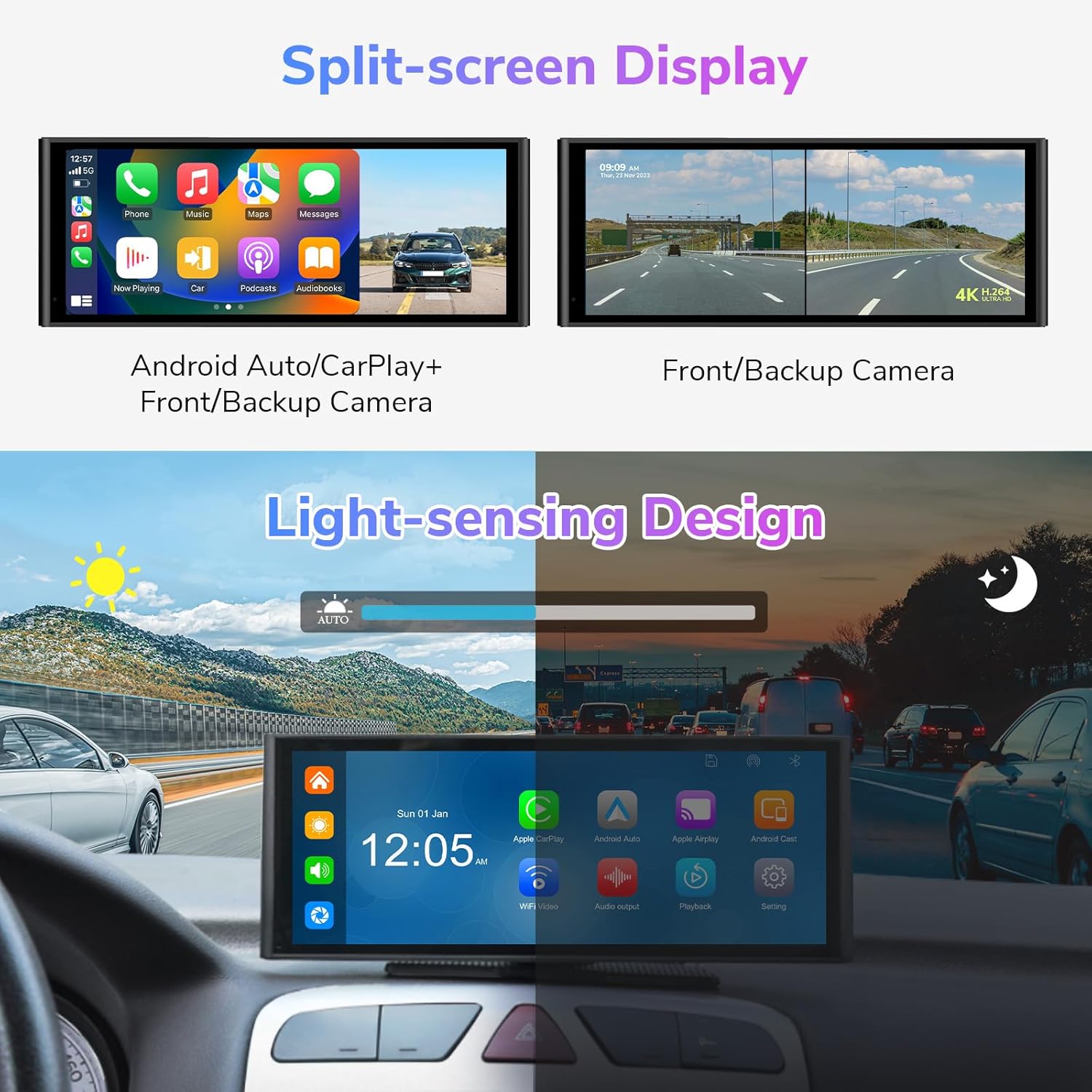
Figure 8: Illustrates the split-screen capability, showing combinations like CarPlay with camera view, Android Auto with camera view, and simultaneous front and backup camera views.
The split-screen function allows you to view two applications simultaneously. Supported combinations include:
- CarPlay + Front/Backup Camera
- Android Auto + Front/Backup Camera
- Front Camera + Backup Camera
Audio Output Options

Figure 9: Displays the four audio output methods: Bluetooth out, AUX out, FM transmit, and the built-in speaker, allowing users to choose how audio is played through their car's sound system.
The Eonon P4 offers four ways to output audio to your vehicle's sound system:
- Built-in Speaker: For direct audio playback from the unit.
- FM Transmit: Transmit audio to your car's FM radio by tuning both devices to the same FM frequency.
- AUX Out: Connect the provided AUX cable from the P4's AUX output to your car's AUX input for a wired audio connection.
- Bluetooth Out: Pair the P4 with your car's Bluetooth system to stream audio wirelessly.
Light-Sensing Design
Figure 10: Illustrates the light-sensing design, showing how the screen brightness automatically adjusts between day and night modes based on ambient light conditions for optimal visibility.
The unit features a light-sensing design that automatically adjusts screen brightness based on ambient light conditions, ensuring optimal visibility during both day and night driving.
Maintenance
- Cleaning the Screen: Use a soft, lint-free cloth to gently wipe the touchscreen. For stubborn smudges, slightly dampen the cloth with water or a screen-safe cleaner. Avoid harsh chemicals.
- Camera Lenses: Keep the front and rear camera lenses clean for clear recordings. Use a soft cloth to remove dust or dirt.
- MicroSD Card: Periodically format the MicroSD card (e.g., monthly) to maintain optimal recording performance and prevent data corruption. Back up any important footage before formatting.
- Firmware Updates: Check the official Eonon website periodically for any available firmware updates to ensure your device has the latest features and bug fixes.
Troubleshooting
| Problem | Possible Cause | Solution |
|---|---|---|
| Unit does not power on. | Power cable not connected properly; vehicle's cigarette lighter socket is not receiving power. | Ensure the cigarette lighter power cable is securely plugged into both the unit and the vehicle's socket. Check the vehicle's fuse for the cigarette lighter. |
| Wireless CarPlay/Android Auto not connecting. | Bluetooth/Wi-Fi not enabled on phone; incorrect pairing process; interference. | Ensure Bluetooth and Wi-Fi are active on your phone. Forget previous pairings on both devices and try pairing again. Ensure no other devices are interfering with the Wi-Fi signal. |
| Screen mirroring (AirPlay/Android Cast) not working for certain apps. | Content protection restrictions; Wi-Fi connectivity issues. | Some streaming services restrict mirroring. Ensure both devices are on the same Wi-Fi network. Try mirroring with a different app to isolate the issue. |
| Backup camera not displaying. | Camera cable loose; power not connected to reverse light; camera malfunction. | Check all camera cable connections. Verify the camera's power wire is correctly connected to the reverse light circuit. Test the camera in another vehicle if possible. |
| Poor audio quality via FM transmit or Bluetooth. | FM interference; Bluetooth signal degradation. | For FM transmit, try a different, clear FM frequency. For Bluetooth, ensure the P4 is close to your car's Bluetooth receiver. Using the AUX cable often provides the best audio quality. |
| Screen brightness stuck in day mode. | Light sensor obstructed or software glitch. | Ensure the light sensor on the unit is not covered. Restart the unit. Check for firmware updates that might address this issue. |
Specifications
| Feature | Detail |
|---|---|
| Model | P4 |
| System | Linux |
| CPU | Allwinner V536 |
| Operating Voltage | DC 7-32 V |
| Operating Current | ≤ 3 A |
| Screen Size | 9.33 inches (250mm x 97mm x 13mm) |
| Screen Resolution | 1600 x 600 |
| Front Camera | 4K, WDR, 140° Wide Angle |
| Reversing Camera | 1080P, 100° Wide Angle, IP68 Waterproof |
| Connectivity | Wireless CarPlay, Android Auto, Bluetooth 5.0, USB, AUX |
| MicroSD Card Support | 32GB to 256GB (Class 10 or higher) |
| Audio Output | Built-in Speaker, FM Transmit, AUX Out, Bluetooth Out |
| Mounting Types | Base Bracket, Suction Cup Bracket |
| Languages | English, Japanese, German, French, Korean, Spanish, Chinese, Russian |
| Item Weight | 0.5 kg (Net), 1.4 kg (Gross) |
Warranty and Support
For warranty information, technical support, or service inquiries, please refer to the warranty card included with your product or visit the official Eonon website. Keep your purchase receipt as proof of purchase for warranty claims.
Related documentsP4


Ask a question about this manual
Ask about setup, troubleshooting, compatibility, parts, safety, or missing instructions. Manuals+ will review the question and use this page’s manual context to help answer it.