
1. Introduction
The AVMATRIX VS0601 is a compact, multi-format video switcher designed for professional video production. It features a robust metal housing and supports 6 channels of SDI and HDMI inputs, offering versatile video switching, audio mixing, and various transition effects. The unit is engineered for compatibility with diverse equipment, providing flexibility for live events and broadcast applications.
Key Features:
- 6 channel inputs: 4xSDI and 2xHDMI inputs
- 2xSDI & 1xHDMI PGM outputs, 1xSDI AUX output, 1xSDI & 1xHDMI multiview outputs
- T-Bar/ AUTO/ CUT transitions and MIX/ FADE/ WIPE effects
- Picture-in-Picture (PiP) mode with adjustable size and position
- Audio mixer: 3.5mm stereo/ RCA audio & SDI/ HDMI embedded audio
- GPIO interface for live tally system
- FTB (Fade to Black) function for emergency situations
2. Setup
2.1 Unpacking and Inspection
Carefully unpack the VS0601 switcher and inspect it for any signs of damage. Ensure all components listed in the packaging are present.
2.2 Connecting Power
- Connect the provided DC 12V power adapter to the 'DC 12V' input port on the rear panel of the VS0601.
- Plug the power adapter into a suitable electrical outlet.
- Ensure the 'OFF/ON' switch on the rear panel is in the 'OFF' position before connecting power.
2.3 Video Input Connections
The VS0601 supports both SDI and HDMI video inputs. The device auto-detects the input signal format.
- SDI Inputs: Connect up to four SDI sources (cameras, media players, etc.) to the 'SDI IN' ports (1-4) using BNC cables.
- HDMI Inputs: Connect up to two HDMI sources to the 'HDMI IN' ports (5-6) using HDMI cables.
2.4 Video Output Connections
The switcher provides multiple program (PGM) and multiview outputs.
- PGM Outputs: Connect your main display or recording device to the 'PGM OUT' SDI (x2) or HDMI (x1) ports.
- AUX Output: Use the 'AUX' SDI output for an additional program feed.
- Multiview Outputs: Connect a monitor to the 'MULTIVIEW OUT' SDI or HDMI ports to view all input sources simultaneously.
2.5 Audio Connections
- Audio Input: Connect external audio sources to the 3.5mm stereo audio input or the RCA (L/R) audio input ports.
- Audio Output: Connect monitoring headphones or speakers to the 3.5mm stereo audio output or the RCA (L/R) audio output ports.
2.6 Other Connections
- TALLY: Connect a tally system to the DB-15 GPIO interface for live production cues.
- LAN: Use the RJ45 LAN port for network control and time synchronization.

Figure 2.1: Rear panel connections of the AVMATRIX VS0601. This image displays the various input and output ports including SDI IN, HDMI IN, PGM OUT, MULTIVIEW OUT, AUX, Audio IN/OUT, TALLY, LAN, and DC 12V power input.
3. Operating Instructions
3.1 Powering On/Off
- To power on, switch the 'OFF/ON' toggle on the rear panel to the 'ON' position.
- To power off, switch the 'OFF/ON' toggle to the 'OFF' position.
3.2 Front Panel Controls Overview
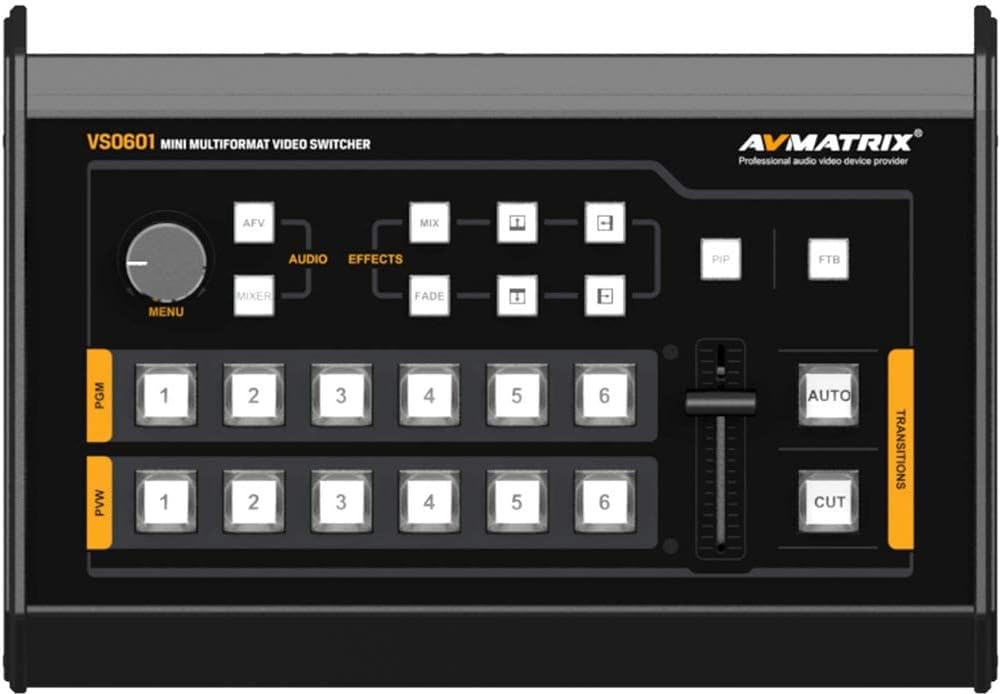
Figure 3.1: Front control panel of the AVMATRIX VS0601. This image highlights the PGM and PVW input selection buttons, T-Bar fader, AUTO/CUT transition buttons, MENU knob, and effect selection buttons (MIX, FADE, WIPE, PiP, FTB).
3.3 Input Selection (PGM & PVW)
The front panel features two rows of numbered buttons (1-6) for Program (PGM) and Preview (PVW) selection.
- PGM (Program): The top row of buttons selects the input currently live on the main output.
- PVW (Preview): The bottom row of buttons selects the input to be prepared for the next transition. This input will be visible on the multiview output.
3.4 Transitions
The VS0601 offers various transition methods and effects.
- CUT: Press the 'CUT' button for an instant, hard cut between the PVW and PGM sources.
- AUTO: Press the 'AUTO' button to execute a smooth transition (e.g., fade, wipe) between PVW and PGM sources at a preset speed.
- T-Bar: Manually control the transition speed and direction by moving the T-Bar fader. Pushing the T-Bar up or down will transition between the PVW and PGM sources.
- Effects (MIX, FADE, WIPE): Select the desired transition effect (MIX, FADE, WIPE) using the dedicated buttons above the T-Bar. The selected effect will be applied when using the AUTO button or T-Bar.
3.5 Picture-in-Picture (PiP) Mode
Activate PiP mode by pressing the 'PiP' button. Use the 'MENU' knob and associated buttons to adjust the size and position of the PiP window. The PiP source is typically the PVW input, overlaid on the PGM input.
3.6 Audio Mixing
The audio mixer allows control over embedded SDI/HDMI audio and external analog audio inputs.
- Use the 'AUDIO' buttons and 'MENU' knob to navigate and adjust audio levels for each input.
- The 3.5mm stereo and RCA inputs can be mixed with embedded audio from video sources.
3.7 FTB (Fade to Black)
Press the 'FTB' button to instantly fade the program output to black. Press it again to return to the previous program source.
4. Maintenance
4.1 Cleaning
To maintain optimal performance and appearance, regularly clean the exterior of the VS0601.
- Use a soft, dry cloth to wipe down the unit.
- For stubborn marks, lightly dampen the cloth with water or a mild, non-abrasive cleaner.
- Avoid using harsh chemicals, solvents, or abrasive materials, as these can damage the finish.
- Ensure no liquids enter the device through vents or ports.
4.2 Environmental Conditions
Operate the VS0601 within the specified environmental ranges to prevent damage and ensure longevity.
- Operating Temperature: -20 to 60°C (-4 to 140°F)
- Storage Temperature: -30 to 70°C (-22 to 158°F)
- Operating Humidity: 20%~70% RH (non-condensing)
Avoid exposing the unit to extreme temperatures, direct sunlight, excessive dust, or high humidity.
4.3 Power Supply Care
Always use the original power adapter provided with the unit. Do not use damaged cables or adapters. Disconnect power during electrical storms or when the unit is not in use for extended periods.
5. Troubleshooting
This section addresses common issues you might encounter with the AVMATRIX VS0601. If problems persist, contact customer support.
5.1 No Video Output
- Check Power: Ensure the unit is powered on and the power adapter is securely connected.
- Verify Input Sources: Confirm that all video input sources are active and sending a signal.
- Check Cables: Ensure all SDI and HDMI cables are securely connected to both the switcher and the display/recording device. Try swapping cables if possible.
- Input Selection: Verify that the correct input is selected on the PGM row of buttons.
- Output Format: Check if the output format of the VS0601 is compatible with your display/recording device. The PGM output can be scaled.
5.2 No Audio Output
- Check Audio Connections: Ensure external audio cables are properly connected to the audio input/output ports.
- Audio Levels: Verify that audio levels are not muted or set too low in the audio mixer settings.
- Embedded Audio: If using embedded audio, confirm the source device is sending audio with the video signal.
5.3 Device Freezes or Unexpected Power Loss
- Power Supply: Ensure the power adapter is providing stable 12V, 2A power. An unstable power source can cause interruptions.
- Ventilation: Check that the unit has adequate ventilation and is not overheating. Ensure vents are not blocked.
- Firmware: Check the AVMATRIX website for any available firmware updates that may address stability issues.
- Reset: Power cycle the device by turning it off, waiting 10 seconds, and then turning it back on.
5.4 Multiview Not Displaying All Inputs
- Multiview Output Connection: Ensure the monitor is correctly connected to the 'MULTIVIEW OUT' port.
- Input Signals: Confirm that all connected input sources are active and sending valid video signals.
6. Specifications
| Feature | Specification |
|---|---|
| Video Inputs | 4x 3G/HD/SD-SDI, 2x HDMI |
| SDI Video Rate | Auto detection, SD/HD/3G-SDI |
| SDI Compliance | SMPTE 259M/ SMPTE 292M/ SMPTE 424M |
| PGM Outputs | 2x 3G/HD/SD-SDI; 1x HDMI Type A |
| PGM Output Format | 1080p 60/50/30/25/24; 1080i 50/60 |
| Multiview Output | 1x 3G-SDI; 1x HDMI Type A |
| Multiview Output Format | 1080p 60 |
| Audio Input | 1x 3.5mm Stereo audio; 1x RCA (L/R) |
| Audio Output | 1x 3.5mm Stereo audio; 1x RCA (L/R) |
| GPIO | Tally, DB-15x1 |
| LAN | RJ45, Synchronize local time |
| Working Temperature | -20 to 60°C |
| Storage Temperature | -30 to 70°C |
| Operation Humidity | 20%~70% RH |
| Power Consumption | ≤ 14.5W |
| Power Supply | DC 12V, 2A |
| Dimensions | 6.78" x 2.17" x 9.81" (17.22 x 5.51 x 24.92 cm) |
| Weight | 2.2 lbs (1 kg) |
7. Warranty Information
Specific warranty terms and conditions for the AVMATRIX VS0601 may vary by region and reseller. Please refer to the warranty card included with your product or contact your point of purchase for detailed information regarding warranty coverage, duration, and service procedures. Keep your proof of purchase for warranty claims.
8. Support
For technical assistance, troubleshooting beyond this manual, or service inquiries, please contact AVMATRIX customer support or your authorized reseller. You may also visit the official AVMATRIX website for additional resources, FAQs, and firmware updates.
Online Resources:
- AVMATRIX Official Website: www.avmatrix.net (Please note: This is a placeholder URL, verify the actual official website for AVMATRIX)


