
Introduction
This manual provides detailed instructions for the Razer BlackShark V2 gaming headset. Designed for esports, this headset offers high-quality audio, clear microphone communication, and effective sound isolation. Please read this manual thoroughly to ensure proper setup and optimal performance of your device.
Video Description: An official overview video showcasing the Razer BlackShark V2 headset, highlighting its design and key features. This video provides a visual introduction to the product and its various models.
What's in the Box
Verify that all components are present in your package:
- Razer BlackShark V2 Headset
- USB Sound Card
- Detachable Razer HyperClear Cardioid Microphone
- User Manual
Setup Instructions
Follow these steps to set up your Razer BlackShark V2 headset:
- Connect the Microphone: Insert the detachable Razer HyperClear Cardioid Microphone into the port on the left earcup until it clicks into place.
- Connect to Device:
- Via USB Sound Card (Recommended for PC/Mac): Connect the headset's 3.5mm jack to the USB Sound Card, then plug the USB Sound Card into an available USB port on your computer. This enables advanced audio features via Razer Synapse.
- Via 3.5mm Jack (for Consoles/Mobile): Connect the headset's 3.5mm jack directly to the 3.5mm audio port on your PlayStation, Xbox, Nintendo Switch, or mobile device.
- Install Razer Synapse (PC/Mac): For full customization and access to features like THX Spatial Audio and advanced microphone controls, download and install Razer Synapse from the official Razer website.
- Configure Audio Settings: After connecting, ensure your operating system's audio output and input devices are set to the Razer BlackShark V2 or the Razer USB Sound Card.
Operating Instructions
Audio Performance with Razer TriForce Titanium 50mm Drivers

Image Description: This image illustrates the unique design of the Razer TriForce Titanium 50mm Drivers. It shows the driver divided into three parts, each dedicated to tuning highs, mids, and lows, resulting in clearer and more powerful audio. The titanium-coated diaphragms are also visible.
The Razer BlackShark V2 features TriForce Titanium 50mm Drivers. These drivers are designed with titanium-coated diaphragms and are divided into three parts for individual tuning of high, mid, and low audio frequencies. This design ensures brighter, clearer audio with richer highs and more powerful lows, enhancing your listening experience for both gaming and multimedia.
Razer HyperClear Cardioid Microphone
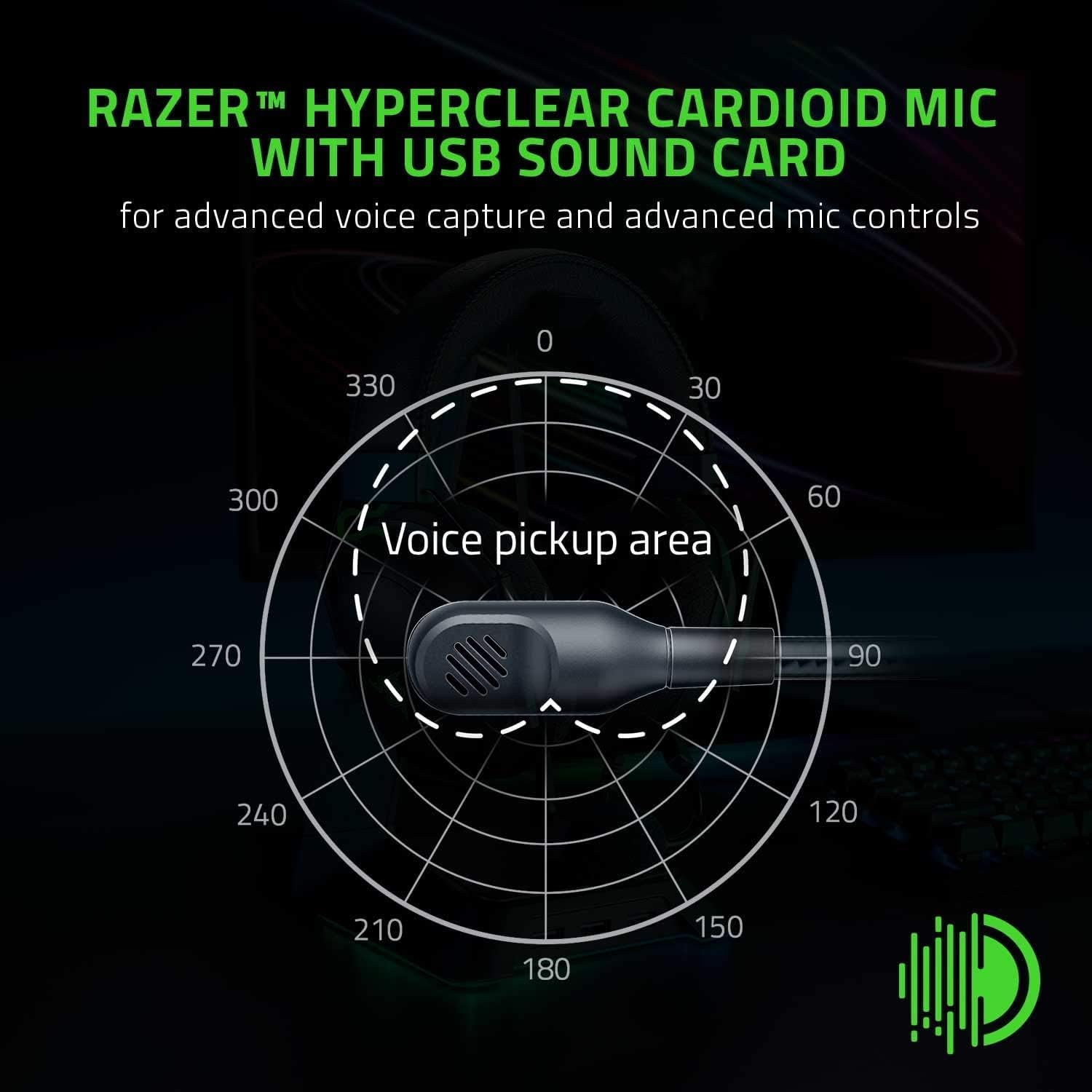
Image Description: This image displays a polar pattern diagram illustrating the focused voice pickup area of the Razer HyperClear Cardioid Microphone. The diagram highlights how the microphone is tuned to capture sound primarily from the front, minimizing background noise.
The detachable Razer HyperClear Cardioid Mic is engineered for enhanced voice capture. Its cardioid pickup pattern focuses on your voice while suppressing background noise. When connected via the USB Sound Card, you can further refine your voice output using Razer Synapse software, adjusting settings for clarity and noise reduction.
- Mute Button: A dedicated mute button is located on the left earcup for quick microphone control.
- Volume Control: A volume wheel on the left earcup allows for easy adjustment of audio levels.
Advanced Passive Noise Cancellation

Image Description: The image shows the Razer BlackShark V2 headset positioned on a desk, emphasizing its closed-earcup design. This design, combined with plush ear cushions, creates a tight seal around the ears to provide advanced passive noise cancellation, blocking out external distractions.
The headset features advanced passive noise cancellation. Its special closed earcups fully cover your ears, and the plush cushions form a perfect seal. This design effectively blocks out external noise, allowing for uninterrupted focus during gaming or other activities.
Ultra-Soft Breathable Memory Foam Cushions

Image Description: A detailed close-up of the headset's ear cushions, highlighting the ultra-soft breathable memory foam wrapped in plush leatherette. This design is intended to reduce clamping force and minimize heat buildup for extended comfort.
For premium comfort during long sessions, the ear cushions are made from ultra-soft breathable memory foam, wrapped in plush leatherette. The improved density of the foam reduces clamping force, while the breathable fabric minimizes sweat and heat buildup, ensuring comfort over extended periods of use.
THX Spatial Audio

Image Description: The Razer BlackShark V2 headset is shown with the THX logo prominently displayed, signifying its THX Spatial Audio feature. This technology provides pinpoint positional accuracy in audio, enhancing immersion and competitive advantage in gaming.
When used with the USB Sound Card and Razer Synapse, the Razer BlackShark V2 supports THX Spatial Audio. This feature provides pinpoint positional accuracy, optimizing game sound design for true-to-life acoustics. This allows you to better identify the direction of sounds, gaining a competitive edge in games.
Maintenance
To ensure the longevity and optimal performance of your headset, follow these maintenance guidelines:
- Cleaning: Use a soft, dry cloth to wipe down the earcups and headband. For deeper cleaning, a slightly damp cloth with mild soap can be used, but ensure no moisture enters the speaker grilles or microphone.
- Microphone Care: When not in use, you can detach the microphone to prevent damage. Store it in a safe place.
- Storage: Store the headset in a cool, dry place away from direct sunlight and extreme temperatures. Avoid placing heavy objects on top of the headset.
- Cable Management: Avoid sharp bends or excessive pulling on the cables to prevent internal damage.
Troubleshooting
If you encounter issues with your Razer BlackShark V2 headset, refer to the following common solutions:
- No Audio/Low Volume:
- Check the volume wheel on the left earcup and ensure it is turned up.
- Verify that the headset is correctly plugged into your device or USB Sound Card.
- Confirm that the correct audio output device is selected in your operating system's sound settings.
- If using the USB Sound Card, ensure Razer Synapse is installed and updated, and check its audio settings.
- Microphone Not Working:
- Ensure the microphone is securely inserted into the headset's port.
- Check if the microphone mute button on the left earcup is disengaged (not muted).
- Verify that the correct microphone input device is selected in your operating system's sound settings and any communication software (e.g., Discord, Zoom).
- If using the USB Sound Card, check microphone settings within Razer Synapse.
- Ensure the microphone is oriented correctly towards your mouth, as it has a focused pickup area.
- Audio Glitches/Distortion:
- Try connecting the headset to a different USB port or 3.5mm jack.
- Update your audio drivers and Razer Synapse software.
- Test the headset on another device to determine if the issue is with the headset or the source device.
- Discomfort During Use:
- Adjust the headband for a comfortable fit. The earcups are designed to slide to accommodate different head sizes.
- Ensure the ear cushions are properly seated around your ears.
Specifications
| Feature | Detail |
|---|---|
| Brand | Razer |
| Model Name | BlackShark V2 |
| Model Number | RZ04-03230100-R3M1 |
| Color | Black |
| Ear Placement | Over Ear |
| Connectivity Technology | Wired (3.5 mm Jack, USB via Sound Card) |
| Audio Driver Type | Dynamic Driver (Razer TriForce Titanium) |
| Audio Driver Size | 50 Millimeters |
| Frequency Response | 12Hz - 28KHz |
| Impedance | 32 Ohms |
| Sensitivity | 98 dB |
| Noise Control | Sound Isolation (Passive Noise Cancellation) |
| Microphone Type | Razer HyperClear Cardioid (Detachable) |
| Compatible Devices | PC, Mac, PS4, Xbox One, Nintendo Switch, Mobile Devices |
| Item Weight | 1.32 Pounds (approx. 599g) |
| Material | Faux Leather (ear cushions) |
Warranty and Support
Razer products come with a limited manufacturer's warranty. For detailed warranty information, product registration, and technical support, please visit the official Razer support website:
Keep your proof of purchase for warranty claims.


