
1. Introduction
This manual provides instructions for the LogiLink UA0361 USB-C Hub. This device allows you to connect multiple standard USB-A devices, such as keyboards, mice, or external storage, to your USB-C enabled laptop, smartphone, or tablet. It features a plug-and-play design for easy connectivity and supports data transfer rates up to 5 Gbps via the USB 3.0 port and 480 Mbps via the USB 2.0 ports.
2. Package Contents
- 1x LogiLink UA0361 USB-C 3-Port Hub
- 1x User Manual
3. Features
- USB-C hub with 90-degree angled connector.
- 3 x USB ports: 1x USB 3.0 (Type-A) and 2x USB 2.0 (Type-A).
- Maximum data transfer rate: Up to 5 Gbps (USB 3.0 port) or 480 Mbps (USB 2.0 ports).
- Compatible with USB 3.0 and USB 2.0 standards, offering backwards compatibility.
- No driver installation required (Plug & Play functionality).
- Durable aluminum housing.
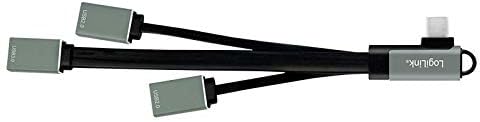
Image: Overview of the LogiLink UA0361 USB-C Hub, showcasing its compact design and multiple ports.
4. Setup Instructions
The LogiLink UA0361 USB-C Hub is designed for simple plug-and-play operation.
- Identify USB-C Port: Locate an available USB-C port on your host device (e.g., laptop, smartphone, tablet).
- Connect the Hub: Insert the 90-degree angled USB-C connector of the UA0361 hub firmly into the USB-C port of your host device. The angled design helps prevent obstruction of your screen or other ports.
- Automatic Detection: The hub is plug-and-play and does not require manual driver installation. Your operating system will automatically detect and configure the device.

Image: The LogiLink UA0361 USB-C Hub connected to a laptop, demonstrating its compact and unobtrusive fit.
5. Operating Instructions
Once the hub is connected and recognized by your host device, you can begin connecting your USB-A peripherals.
- Connect USB-A Devices: Plug your standard USB-A devices (e.g., keyboard, mouse, USB flash drive, external hard drive) into the available USB-A ports on the hub.
- Utilize USB 3.0 Port: For devices requiring higher data transfer speeds, such as external hard drives or high-speed flash drives, use the USB 3.0 port (typically identified by a blue internal tab or a 'SS' SuperSpeed logo) to achieve speeds up to 5 Gbps.
- Utilize USB 2.0 Ports: The two USB 2.0 ports are suitable for devices like keyboards, mice, printers, or older USB flash drives, supporting speeds up to 480 Mbps.
- Simultaneous Use: The hub supports simultaneous operation of all connected devices, allowing you to expand your device's connectivity options.
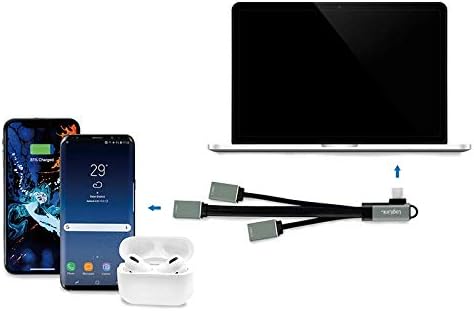
Image: The LogiLink UA0361 USB-C Hub facilitating connections for a smartphone, wireless earbuds, and another device to a laptop.
6. Maintenance
- Cleaning: Keep the hub clean and free from dust. Use a soft, dry cloth for cleaning. Avoid liquid cleaners.
- Environment: Avoid exposing the hub to extreme temperatures, direct sunlight, or high humidity.
- Handling: Do not attempt to disassemble or repair the device yourself. Unauthorized modifications may void your warranty and pose safety risks.
7. Troubleshooting
- Q: The hub is not recognized by my device.
- A: Ensure the USB-C connector is fully and securely inserted into your host device's port.
- A: Try connecting the hub to a different USB-C port on your device, if available.
- A: Restart your host device.
- A: Verify that your host device's USB-C port supports data transfer (some USB-C ports are for charging only).
- Q: Devices connected to the hub are not working.
- A: Ensure the individual USB-A devices are properly connected to the hub.
- A: Test the USB-A devices by connecting them directly to your host device (if possible) to rule out device malfunction.
- A: Some high-power consumption devices may require an external power source, which this hub does not provide.
- Q: Data transfer speeds are slow.
- A: Ensure you are using the USB 3.0 port for USB 3.0 compatible devices to achieve maximum speeds.
- A: Performance can be affected by the host device's USB-C port capabilities and the connected devices.
8. Specifications
| Brand | LogiLink |
| Model Number | UA0361 |
| Hardware Interface | USB 3.1 Type C |
| Total USB Ports | 3 (1x USB 3.0 Type-A, 2x USB 2.0 Type-A) |
| Data Transfer Rate | Up to 5 Gbps (USB 3.0), Up to 480 Mbps (USB 2.0) |
| Special Features | Plug & Play, 90-degree angled USB-C connector |
| Compatible Devices | Apple MacBook 2015/2016/Pro 2016/2019, iMac 2019, iPad Pro 11" 2019, Google Pixel C, HTC 10, Lenovo X1, Nintendo Switch, ASUS/Dell/HP with USB-C, Microsoft Lumia 950XL, Surface Pro 7, Samsung TabPro 5/S8 |
| Operating System Compatibility | Linux, Windows 10, Windows 7 (and newer versions) |
| Housing Material | Aluminum |
| Manufacturer | 2direct GmbH |

Image: Close-up of the LogiLink UA0361 USB-C Hub highlighting its 90-degree right angle design for ergonomic use.
9. Warranty Information
This product comes with a standard manufacturer's warranty. Please refer to the warranty card included with your purchase or contact your retailer for specific warranty terms and conditions applicable in your region.
10. Support
For technical support, customer service inquiries, or further assistance, please contact your local LogiLink distributor or visit the official LogiLink website for up-to-date contact information and resources.


