
Popglory P22
Popglory P22 Smartwatch User Manual
Model: P22
1. Introduction
This manual provides detailed instructions for the setup, operation, and maintenance of your Popglory P22 Smartwatch. Please read this manual thoroughly before using the device to ensure proper function and to maximize your user experience.
The Popglory P22 Smartwatch is designed to assist you in monitoring your daily activities and health metrics, including heart rate, blood pressure, blood oxygen, and sleep patterns. It also offers various sports modes and smart notifications when connected to your smartphone.

Image 1.1: Popglory P22 Smartwatch (Rose)
2. Setup
2.1. Charging the Device
Before first use, fully charge your smartwatch. Connect the magnetic charging cable to the charging contacts on the back of the watch and plug the USB end into a standard USB power adapter (not included) or a computer USB port. The watch display will indicate charging status.
2.2. App Installation
The Popglory P22 Smartwatch requires the HeroBandIII application for full functionality. Scan the QR code provided in the watch packaging or search for "HeroBandIII" in your smartphone's app store (Google Play Store for Android, Apple App Store for iOS).
2.3. Device Pairing
- Ensure your smartphone's Bluetooth is enabled.
- Open the HeroBandIII app on your smartphone.
- Follow the in-app instructions to add a new device. Select "P22" from the list of available devices.
- Confirm the pairing request on both your smartphone and the smartwatch.
Once paired, the watch will synchronize data with the app.
3. Operating Instructions
3.1. Basic Navigation
- Swipe Up: Access notifications.
- Swipe Down: Access quick settings (brightness, mute, battery, weather).
- Swipe Left/Right: Navigate through main features (activity data, heart rate, sports modes, weather, music control, etc.).
- Press Side Button: Return to the main watch face or wake the screen.
3.2. Custom Watch Faces
The smartwatch supports custom watch faces. You can select from over 200 integrated watch faces via the HeroBandIII app or upload a personal photo to personalize your display.

Image 3.1: Custom Watch Faces
3.3. Health Monitoring
The P22 Smartwatch monitors several health metrics. Please note that these measurements are for reference only and should not be used for medical diagnosis.
- Heart Rate: Access the heart rate interface on the watch to measure your current heart rate. Continuous monitoring can be enabled via the app.
- Blood Pressure: Navigate to the blood pressure interface to initiate a measurement.
- Blood Oxygen (SpO2): Select the SpO2 function to measure your blood oxygen saturation.
- Sleep Tracking: The watch automatically tracks your sleep patterns (deep sleep, light sleep, awake time) when worn during sleep. View detailed sleep data in the HeroBandIII app.
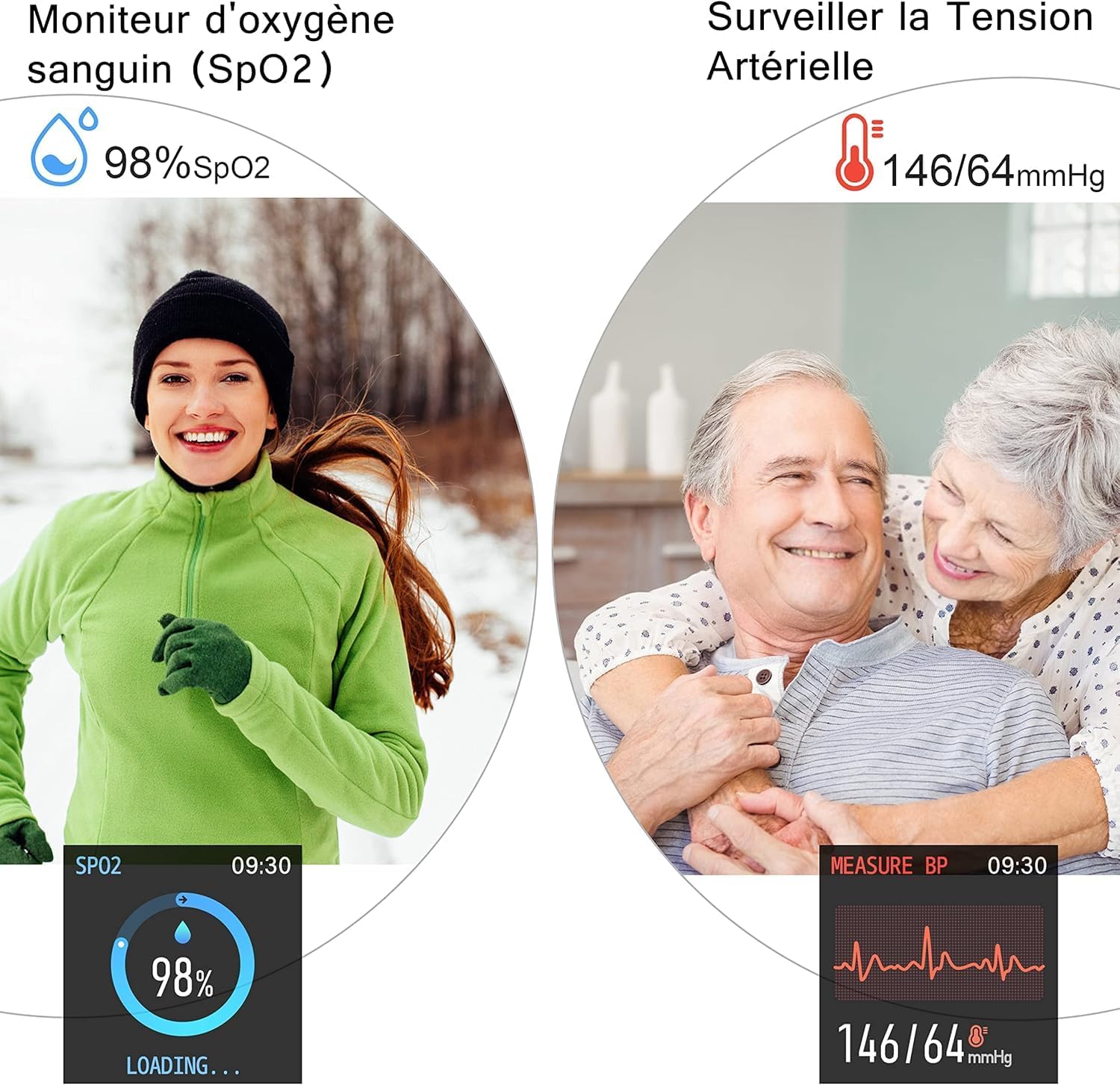
Image 3.2: SpO2 and Blood Pressure Monitoring
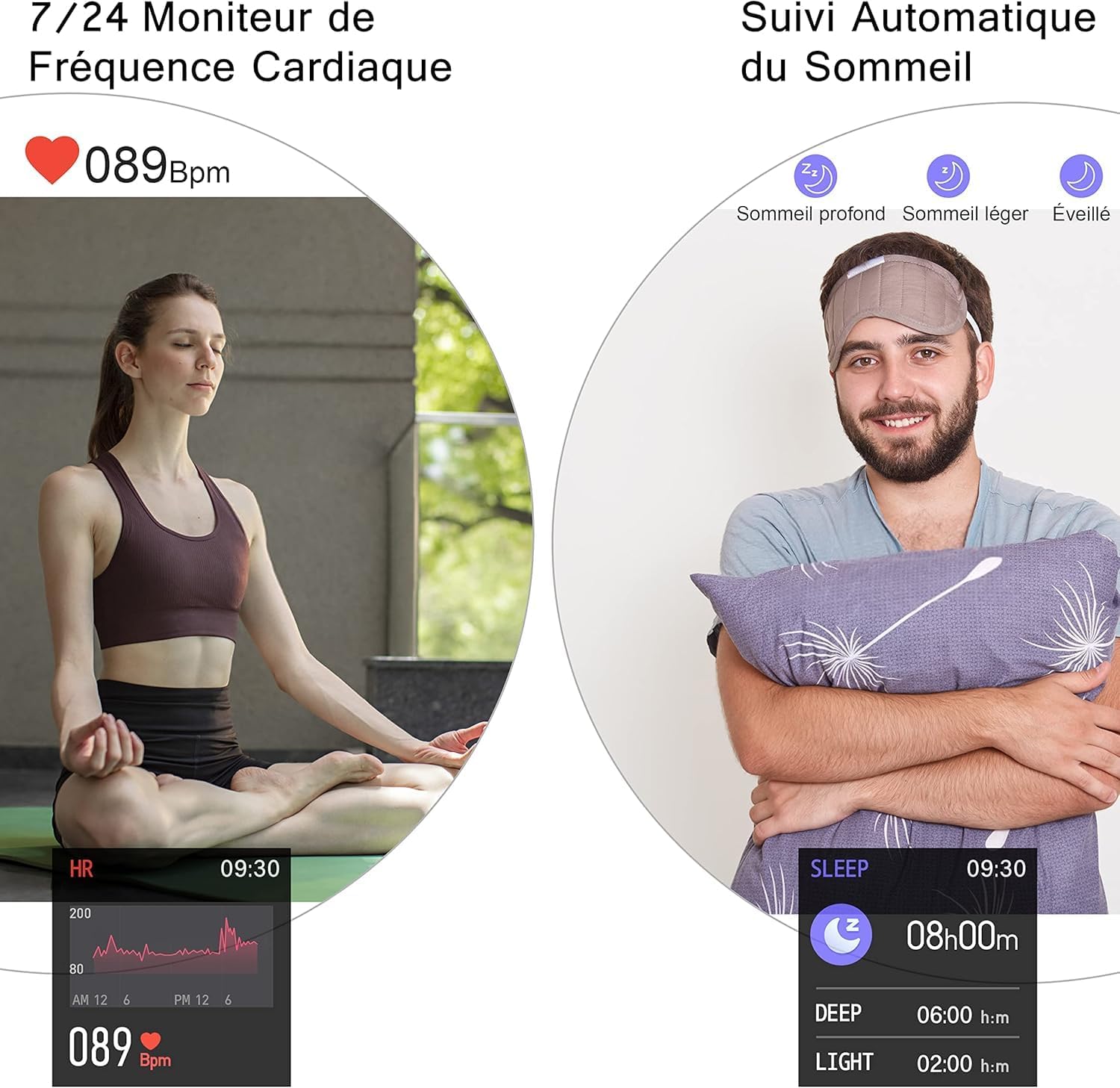
Image 3.3: Heart Rate and Sleep Monitoring
3.4. Sports Modes
The smartwatch features multiple sports modes to track your workouts. Select a mode to record data such as steps, calories burned, distance, and active minutes.
- Available modes include: Walking, Running, Cycling, Jump Rope, Badminton, Basketball, Football.

Image 3.4: Multi-Sport Mode Tracking
3.5. Smart Notifications
Receive notifications for incoming calls, SMS messages, and social media alerts directly on your watch when connected to your smartphone. Lift your wrist to automatically illuminate the screen and view messages.
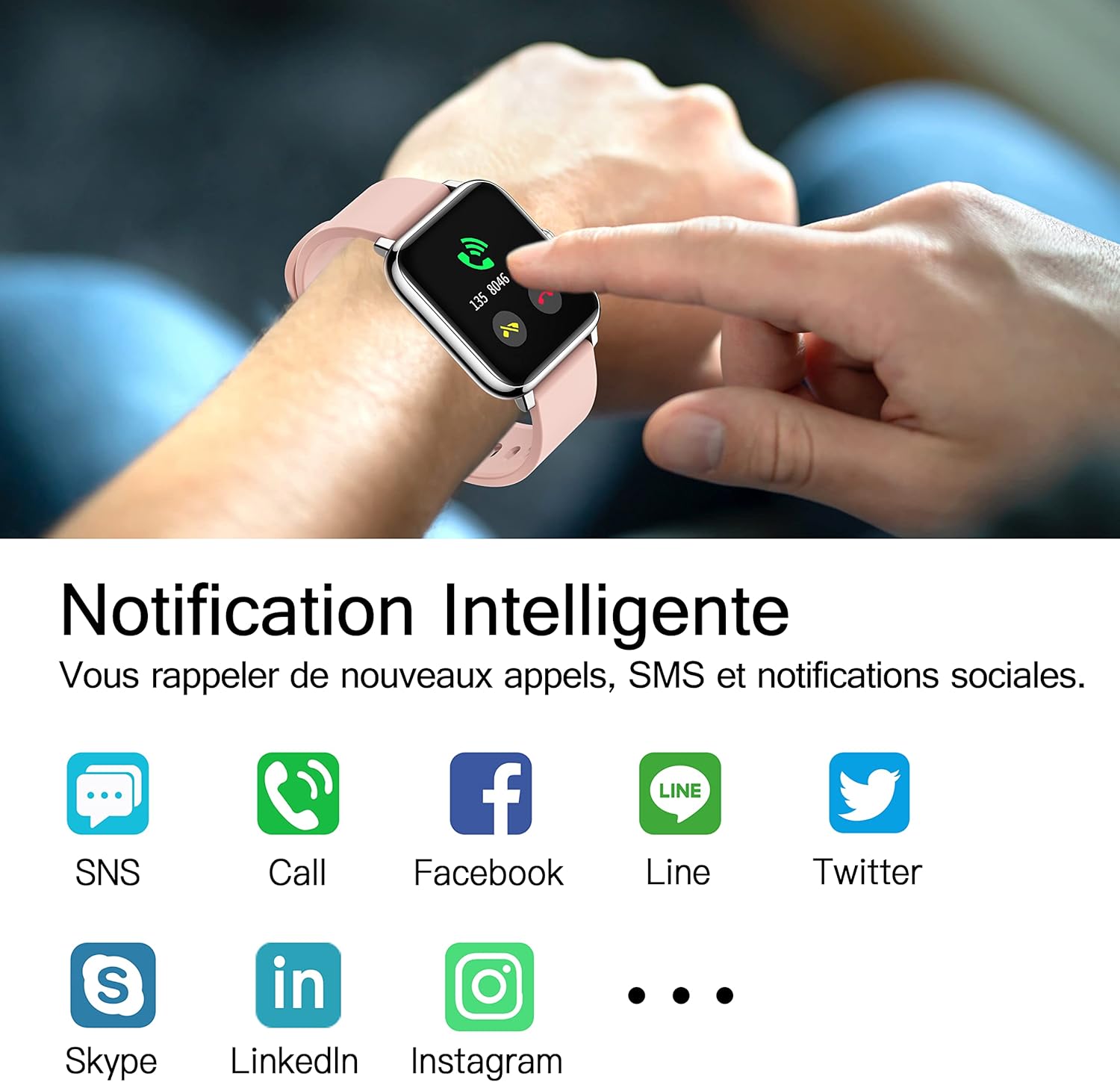
Image 3.5: Smart Notifications
3.6. Additional Features
- Music Control: Control music playback on your smartphone directly from the watch.
- Weather Forecast: View current weather conditions and forecasts after setting your location in the HeroBandIII app.
- Alarm: Set alarms via the app, and the watch will vibrate to alert you.
- Stopwatch & Timer: Utilize the stopwatch and timer functions for various activities.
- Sedentary Reminder: Receive reminders to move after periods of inactivity.
- Remote Camera: Use the watch as a remote shutter for your smartphone's camera.
- Brightness Adjustment: Adjust screen brightness directly from the watch's quick settings.

Image 3.6: Additional Smartwatch Functions
4. Maintenance
4.1. Cleaning
Regularly clean your smartwatch and strap to prevent skin irritation and maintain device performance. Use a soft, damp cloth to wipe the screen and strap. Avoid using harsh chemicals or abrasive materials.
4.2. Water Resistance
The Popglory P22 Smartwatch is designed to be resistant to splashes and sweat. It is not recommended for swimming, showering, or prolonged submersion in water. Avoid exposing the watch to hot water or steam.
4.3. Storage
Store the smartwatch in a cool, dry place when not in use. Avoid extreme temperatures and direct sunlight.
5. Troubleshooting
| Problem | Possible Cause | Solution |
|---|---|---|
| Watch does not turn on | Low battery | Charge the watch for at least 10-15 minutes. |
| Cannot pair with smartphone | Bluetooth off, app issue, watch not discoverable | Ensure Bluetooth is on. Restart watch and phone. Reinstall HeroBandIII app. Ensure watch is not paired to another device. |
| Notifications not received | App permissions, Bluetooth connection lost, DND mode | Check app notification permissions. Ensure watch is connected via Bluetooth. Disable Do Not Disturb mode on watch/app. |
| Inaccurate health data | Improper fit, movement during measurement | Ensure the watch is worn snugly on the wrist. Remain still during measurements. Remember data is for reference only. |
| Screen unresponsive | Software glitch, low battery | Restart the watch (if possible). Charge the watch. |
6. Specifications
- Brand: Popglory
- Model Name: P22
- Screen Size: 1.4 inches
- Operating System Compatibility: Android 4.4+ / iOS 9.0+
- Connectivity: Bluetooth
- Battery Type: Lithium-polymer
- Special Features: Heart Rate Monitor, Blood Pressure Monitor, Blood Oxygen Monitor, Sleep Tracker, Pedometer, Calorie Tracker, Distance Tracker, Multi-Sport Modes, Notification Alerts, Music Control, Weather Forecast, Alarm, Stopwatch, Timer, Sedentary Reminder, Remote Camera Control, Brightness Adjustment.
- GPS: Not integrated
- Shape: Rectangular
7. Warranty and Support
For warranty information and customer support, please refer to the documentation included with your purchase or contact Popglory customer service through their official website or the HeroBandIII application. Please have your model number (P22) and purchase details ready when contacting support.
Related documentsP22


Ask a question about this manual
Ask about setup, troubleshooting, compatibility, parts, safety, or missing instructions. Manuals+ will review the question and use this page’s manual context to help answer it.