
Introduction
The PWAY PW-HT226P2 is a 1x2 Port HDMI Splitter Extender designed to distribute a single HDMI source to two remote displays over Cat5/5e/6/7 Ethernet cables, extending the signal up to 50 meters (165 feet). It supports Full HD 1080P resolution at 60Hz and features Power over Cable (POC) for simplified power management and EDID copy functionality for enhanced compatibility.

Image: The PWAY PW-HT226P2 HDMI Splitter Extender system, showing the main transmitter unit and two receiver units.
Product Features
- Extended Transmission: Transmits HDMI video and audio signals without latency up to 50 meters (165 feet) over a single Cat5/5e/6/7 Ethernet cable.
- Dual Local Outputs: The transmitter unit includes two local HDMI outputs for connecting displays directly, in addition to the two RJ45 ports for extended connections.
- High Resolution Support: Supports resolutions up to 1920x1080P at 60Hz, and is backward compatible with 1080i, 720P, and 720i.
- Power over Cable (POC): Only one power adapter is required to power both the transmitter and receiver units, simplifying installation and reducing cable clutter.
- EDID Copy Function: Equipped with EDID (Extended Display Identification Data) copy functionality to ensure optimal compatibility between the source device and connected displays.
- HDMI 1.3 Compliant: Ensures compatibility with a wide range of HDMI devices.

Image: Overview of the PWAY HDMI Extender Splitter 1x2, highlighting key features such as 3D support, 1080P resolution, 50m extension, and POC.
Package Contents
Please check the package contents upon unpacking. If any items are missing or damaged, contact your retailer.
- 1x HDMI Splitter Extender Transmitter (TX)
- 2x HDMI Splitter Extender Receiver (RX)
- 1x DC 5V Power Adapter
- 1x User Manual (this document)

Image: The complete packing list, including the transmitter, two receivers, and the power adapter.
Product Diagram
Transmitter (TX) Unit
The transmitter unit connects to your HDMI source and distributes the signal.
- DC 5V: Power input port.
- HDMI IN: Connect to your HDMI source (e.g., DVD player, game console).
- HDMI OUT (Loop): Two local HDMI outputs for connecting displays directly to the transmitter.
- Cat5/6/7: Two RJ45 output ports for connecting to the receiver units via Ethernet cable.
- STATUS LED: Indicates operational status.
- EDID LED: Indicates EDID status.
- POWER LED: Indicates power status.
Receiver (RX) Unit
The receiver units connect to your displays and receive the extended HDMI signal.
- Cat5/6/7: RJ45 input port for connecting to the transmitter unit via Ethernet cable.
- HDMI OUT: Connect to your display device (e.g., TV, monitor).
- STA LED: Indicates signal status.
- PWR LED: Indicates power status.

Image: A detailed connection diagram illustrating how to connect the video source, transmitter, Cat5e/6 cables, receivers, and multiple display devices.
Setup Instructions
- Power Off Devices: Ensure all devices, including the HDMI source, displays, and the PWAY extender units, are powered off before beginning installation.
- Connect HDMI Source: Connect your HDMI source device (e.g., Blu-ray player, PC, game console) to the HDMI IN port on the Transmitter (TX) unit using a high-quality HDMI cable.
- Connect Local Displays (Optional): If you wish to use local displays, connect them to the HDMI OUT (Loop) ports on the Transmitter (TX) unit using HDMI cables.
- Connect Ethernet Cables: Connect Cat5e/6/7 Ethernet cables from the Cat5/6/7 output ports on the Transmitter (TX) unit to the Cat5/6/7 input ports on each Receiver (RX) unit. Ensure the cables are properly terminated and meet the specified length requirements for your desired resolution (up to 50m for 1080P).
- Connect Remote Displays: Connect your remote display devices (e.g., TV, monitor) to the HDMI OUT port on each Receiver (RX) unit using HDMI cables.
- Apply Power: Connect the provided DC 5V power adapter to the DC 5V port on the Transmitter (TX) unit. Due to the POC function, the receiver units will be powered via the Ethernet cable.
- Power On Devices: Power on the HDMI source device, then the displays, and finally the PWAY extender units.
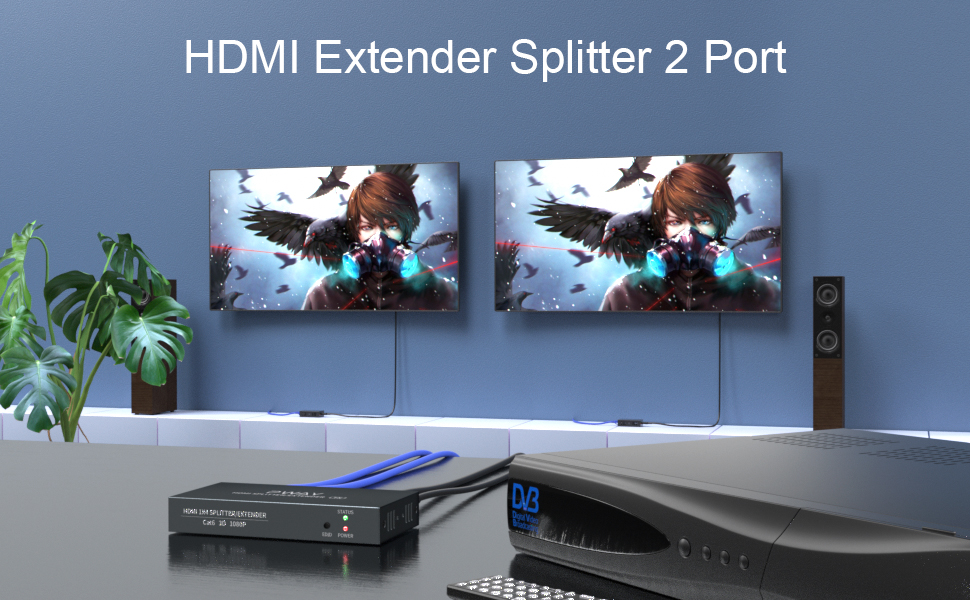
Image: An example setup showing the transmitter connected to a source and two remote displays via receiver units.

Image: A chart indicating the maximum transmission distances based on the type of network cable used: Cat5 up to 40m, Cat5e up to 45m, and Cat6/7 up to 50m.
Operating Instructions
Once all connections are made and power is applied, the system should operate automatically.
- Signal Detection: The extender units will automatically detect the HDMI input signal and transmit it to the connected displays.
- LED Indicators:
- Transmitter (TX): The POWER LED should be lit when power is supplied. The STATUS LED and EDID LED will indicate active signal and EDID status respectively.
- Receiver (RX): The PWR LED should be lit, indicating power received via POC. The STA LED will indicate active signal reception.
- EDID Management: The EDID copy function ensures the source device outputs a compatible resolution and audio format for the connected displays. No manual configuration is typically required.
Maintenance
To ensure optimal performance and longevity of your PWAY HDMI Splitter Extender, follow these maintenance guidelines:
- Cleaning: Use a soft, dry cloth to clean the units. Do not use liquid or aerosol cleaners.
- Ventilation: Ensure the units are placed in a well-ventilated area to prevent overheating. Do not block ventilation openings.
- Cable Management: Keep cables organized and avoid sharp bends or excessive tension, which can damage cables and ports.
- Environmental Conditions: Avoid exposing the units to extreme temperatures, humidity, or direct sunlight.
Troubleshooting
If you encounter issues with your HDMI Splitter Extender, refer to the following common problems and solutions:
| Problem | Possible Cause | Solution |
|---|---|---|
| No video or audio on display. |
|
|
| Poor picture quality or flickering. |
|
|
| Receiver unit not powering on. |
|
|
Specifications
| Model | PW-HT226P2 |
| Brand | PWAY |
| HDMI Compliance | HDMI 1.3 |
| HDCP Compliance | HDCP 1.2 |
| Supported Resolutions | Up to 1080P@60Hz (1920x1080), 1080i, 720P, 720i |
| Transmission Distance | Up to 50m (165ft) over Cat5e/6/7 cable |
| Ethernet Cable Requirements | Cat5/5e/6/7 (UTP/STP) |
| Power Supply | DC 5V (via included adapter) |
| Features | POC (Power over Cable), EDID Copy, Dual Local HDMI Outputs |
Safety Information
- Do not disassemble or modify the device.
- Use only the provided power adapter.
- Keep the device away from water, moisture, and extreme temperatures.
- Avoid dropping or subjecting the device to strong impacts.
- Ensure proper ventilation to prevent overheating.
Warranty and Support
PWAY products are designed for reliability and performance. For warranty information or technical support, please refer to the warranty card included with your product or visit the official PWAY website. You may also contact your retailer for assistance.
Please retain your proof of purchase for warranty claims.