
Introduction
This manual provides comprehensive instructions for the setup, operation, and maintenance of your InAndon KV-V5 Pro Karaoke Player. Please read this manual thoroughly before using the device to ensure proper functionality and to maximize your user experience.
The InAndon KV-V5 Pro is a sophisticated karaoke system featuring a 21.5-inch capacitive touch screen, dual wireless microphones, and an 8TB hard drive for song storage. It supports both a dedicated KTV system and an Android operating system, offering a wide range of entertainment options.
Safety Information
- Ensure the device is placed on a stable, flat surface to prevent accidental falls.
- Do not expose the device to water or excessive moisture.
- Keep the device away from direct sunlight and heat sources.
- Use only the provided power adapter.
- Do not attempt to open or repair the device yourself. Refer to qualified service personnel.
- Important: This karaoke machine requires an external amplifier and speakers for audio output. These are not included with the product.
Package Contents
Verify that all items are present in the package:
- InAndon KV-V5 Pro Karaoke Player (with 21.5" Touch Screen and 8TB HDD)
- 2 Wireless Microphones
- Power Adapter
- User Manual (this document)
Product Overview
Front Panel

Image Description: This image displays the front panel of the InAndon KV-V5 Pro base unit. A central power button is visible, along with a USB port on the left side. The unit has a sleek, dark finish.
Rear Panel Connections

Image Description: This image illustrates the rear panel of the karaoke player's base unit, highlighting its connectivity options. Ports include LAN, USB, HD OUT, VGA, COAXIAL, OPTICAL, AUDIO OUT (L/R RCA), RECORD IN, MIC OUT 1, MIC OUT 2, and DC 12V 4A power input. These ports are essential for connecting the player to external audio systems, displays, and microphones.
- LAN Port: For wired internet connection.
- USB Ports: For connecting external storage devices or accessories.
- HD OUT: HDMI output for connecting to a display (TV, monitor).
- VGA: VGA output for connecting to a display.
- COAXIAL/OPTICAL: Digital audio outputs.
- AUDIO OUT (L/R RCA): Analog audio output for connecting to an amplifier.
- RECORD IN: Audio input for recording.
- MIC OUT 1/2: Microphone outputs.
- DC 12V 4A: Power input.
Setup Instructions
- Connect to Display: Use an HDMI cable (not included) to connect the "HD OUT" port on the karaoke player to your TV or monitor. Alternatively, use a VGA cable.
- Connect to Audio System: Connect the "AUDIO OUT (L/R RCA)" ports on the karaoke player to the audio input of your amplifier. Ensure your amplifier is connected to speakers. (Amplifier and speakers are required and not included.)
- Connect Microphones: The wireless microphones connect automatically to the receiver unit. Ensure the receiver unit is powered on and connected to the karaoke player.
- Power On: Connect the power adapter to the "DC 12V 4A" port on the rear panel and plug it into a power outlet. Press the power button on the front of the base unit.
- Network Connection:
- Wi-Fi: On the touch screen, navigate to network settings and connect to your Wi-Fi network.
- Wired: Connect an Ethernet cable to the "LAN" port for a stable internet connection.
Video Description: This video demonstrates a user operating the InAndon karaoke system, showcasing the connection to a television and the use of a wireless microphone. It provides a visual guide to the setup and basic interaction with the system.
Operating Instructions
System Interface

Image Description: This image shows the complete InAndon KV-V5 Pro karaoke system, including the 21.5-inch capacitive touch screen display unit on a stand and the base unit with two wireless microphones. The touch screen displays the main KTV interface with various song selection options and controls.
Switching Between KTV and Android Systems

Image Description: This image illustrates the system's capability to switch between different modes: "Movie Mode," "KTV Mode," and "Android Application." This indicates the dual-system functionality of the device, allowing users to choose between karaoke and other multimedia functions.
The KV-V5 Pro operates on a dual-system platform, offering both a dedicated KTV system and an Android system. You can switch between these modes via the touch screen interface to access karaoke functions, watch movies, or use Android applications.
Song Selection and Management
- Cloud Song Library: The system provides access to a cloud library with approximately 440,000 songs. Connect to the internet to download songs for free. The cloud library updates every two weeks.
- Local Storage: The 8TB hard drive stores approximately 90,000 songs.
- Intelligent Song Deletion: When the hard drive memory falls below 10GB, the system automatically deletes songs with low or no click-through rates to free up space. These songs can be re-downloaded from the cloud if needed.
- Multiple Ordering Methods:
- Touch Screen: Directly select songs using the 21.5-inch capacitive touch screen.
- Mobile App: Control song selection, change songs, and manage original accompaniment via a dedicated mobile application.
- Voice Control: Utilize the intelligent AI voice keying machine to order songs by speaking. Supports Mandarin and Cantonese languages.
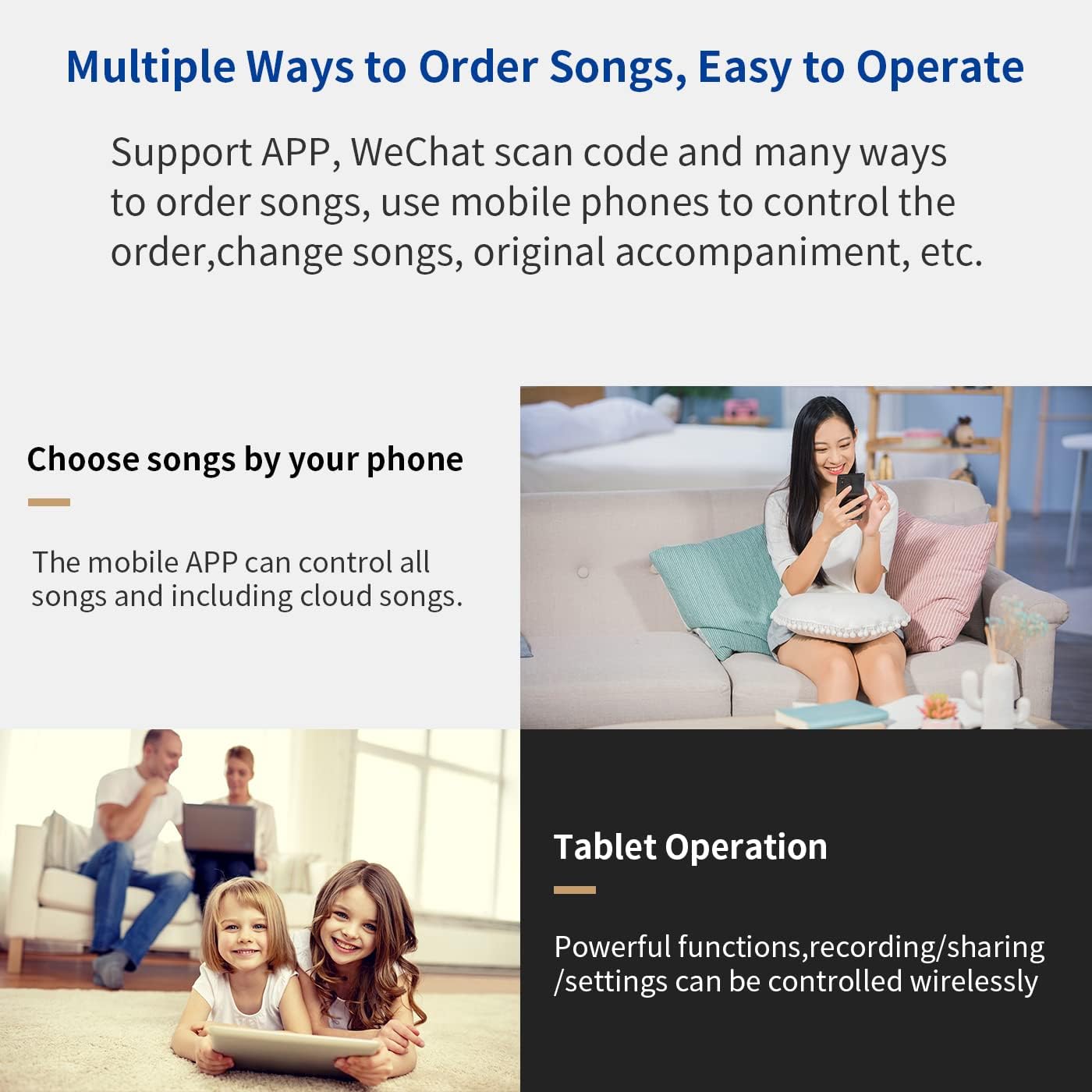
Image Description: This image displays the various methods for song selection. It shows options for choosing songs via a mobile phone app and tablet operation, emphasizing the system's flexibility and ease of use.

Image Description: This image highlights the intelligent AI voice control feature. It shows a user interacting with the system by speaking commands to order songs, with the interface displaying the voice recognition in action.

Image Description: This image illustrates the intelligent song deletion feature, showing the system interface managing hard drive space by automatically removing less frequently played songs when storage is low.
Recording Function

Image Description: This image shows the "Recording Function" interface on the karaoke system's touch screen. A finger is shown pressing a red button to initiate recording, indicating the ease of capturing vocal performances.
The system includes a recording function. Follow the on-screen prompts to record your performances. Recorded songs can be managed and played back through the system interface.
Maintenance
- Cleaning: Use a soft, dry cloth to clean the touch screen and exterior surfaces. Do not use liquid cleaners or abrasive materials.
- Software Updates: Connect the device to the internet regularly to receive software updates, which may include new features, performance improvements, and bug fixes.
- Hard Drive Management: The intelligent song deletion feature helps manage hard drive space. You can also manually delete unwanted songs through the system settings.
Troubleshooting
| Problem | Possible Cause | Solution |
|---|---|---|
| No power | Power cable not connected; power outlet issue. | Ensure power adapter is securely connected to the device and a working power outlet. |
| No sound output | Not connected to amplifier/speakers; amplifier/speakers off or muted; incorrect audio settings. | Verify connections to amplifier and speakers. Check amplifier/speaker power and volume. Adjust audio output settings on the karaoke player. |
| No display on TV/monitor | HDMI/VGA cable loose or faulty; incorrect input selected on TV. | Check HDMI/VGA cable connections. Ensure the correct input source is selected on your TV/monitor. |
| Microphones not working | Microphones off; low battery; receiver not connected or powered. | Turn on microphones. Replace batteries if needed. Ensure microphone receiver is properly connected and powered. |
| Cannot connect to internet | Incorrect Wi-Fi password; router issue; LAN cable disconnected. | Re-enter Wi-Fi password. Restart router. Check LAN cable connection. |
If problems persist, please contact customer support.
Specifications
- Model: KV-V5 Pro
- Screen: 21.5-inch Capacitive Touch Screen
- Storage: 8TB Hard Drive
- Connectivity: Wi-Fi, LAN, USB, HD OUT (HDMI), VGA, COAXIAL, OPTICAL, RCA Audio Out (L/R), Record In, Mic Out
- Microphones: 2 Wireless Microphones included
- Power Source: DC 12V 4A (Power Adapter included)
- Compatible Devices: Amplifier (required, not included)
- Media Format: Karaoke
- Special Features: Dual System (KTV/Android), Cloud Song Download, Intelligent Voice Keying, Real-time Score, Recording Function, Intelligent Song Deletion.
Warranty and Support
For warranty information and technical support, please refer to the documentation provided with your purchase or contact InAndon customer service directly.
Customer Support Contact: For technical assistance, you may contact the seller via the storefront or refer to the WeChat technical support number provided in the product description: +86 17727581630.


