
Introduction
Thank you for choosing the DEPSTECH D04 1080P HD Webcam. This manual provides essential information for setting up, operating, and maintaining your webcam to ensure optimal performance. The D04 webcam is designed to deliver sharp, crystal-clear video and natural audio for various applications, including video conferencing, online teaching, streaming, and gaming.
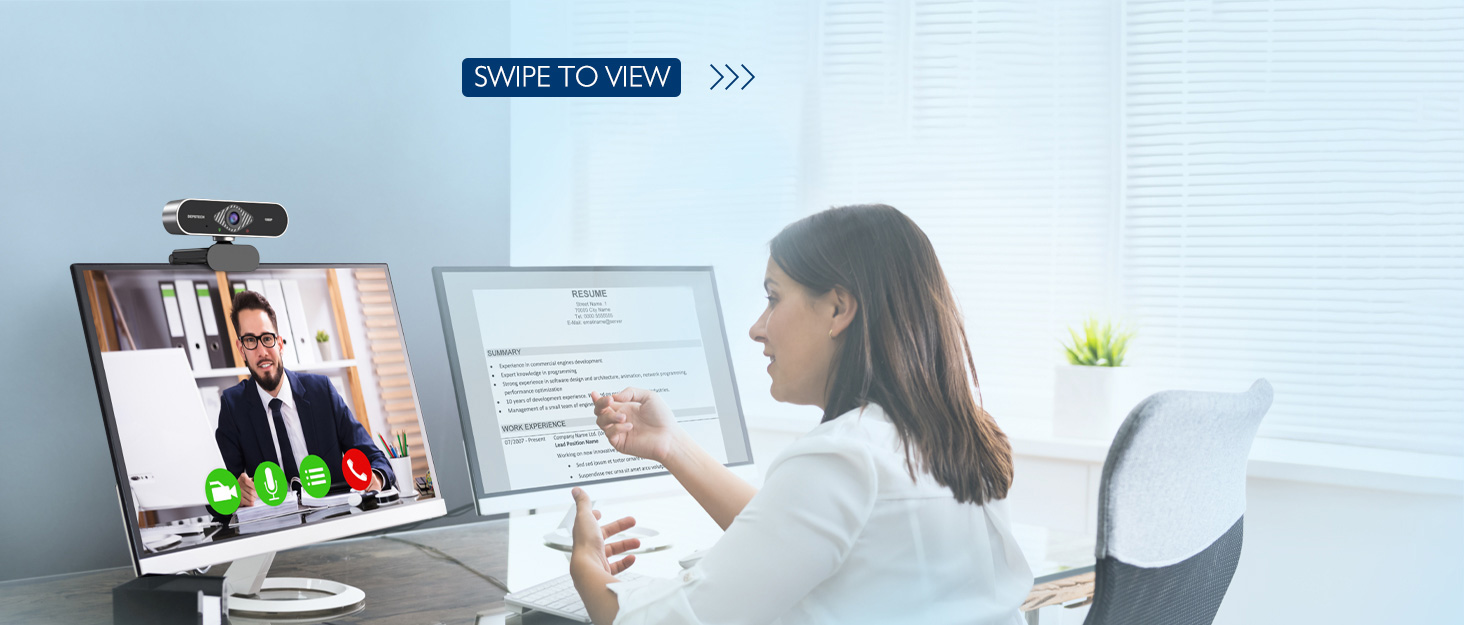
Image: DEPSTECH D04 Webcam in use for a video conference.
Key Features:
- Full HD 1080P Video: Delivers sharp and crystal-clear video at 30 frames per second with a 6-layer glass HD lens and 1/2.9” CMOS image sensor.
- Stereo Microphone with Noise Reduction: Features an automatic noise reduction function for clearer and more natural sound, even in noisy environments.
- Automatic Light Correction & HDR: Ensures excellent video quality even in dimly lit conditions.
- Plug-and-Play: No additional drivers or software required for most operating systems.
- Broad Compatibility: Works with MAC OS, Windows XP/7/8/10, and popular applications like Skype, YouTube, Yahoo!, and Zoom.
Package Contents
- DEPSTECH D04 Webcam
- Mini Tripod
- Privacy Cover
- User Manual
Setup Instructions
1. Placement of the Webcam
The DEPSTECH D04 webcam features a flexible mounting clip that allows it to be placed on various devices or surfaces.
- On a Monitor/Laptop Screen: Open the clip and place the webcam on top of your monitor or laptop screen. Adjust the angle so the camera is stable and facing you.
- On a Tripod: Attach the webcam to the included mini tripod using the universal screw mount at the bottom of the clip. Place the tripod on a flat surface.
- On a Flat Surface: The clip can also be folded to create a stand, allowing the webcam to sit directly on your desk or shelf.

Image: Webcam mounted on a laptop screen.

Image: Webcam mounted on a tripod.
2. Connecting the Webcam
The DEPSTECH D04 webcam is a plug-and-play device, requiring no additional driver installation for most operating systems.
- Connect the USB cable from the webcam to an available USB port on your computer (desktop or laptop).
- Wait for your operating system to automatically detect and install the device. This usually takes a few seconds.
- Once detected, the webcam is ready for use with your preferred video communication or recording software.

Image: USB connection for the webcam.
Operating Instructions
1. Using the Webcam with Software
After connecting, your DEPSTECH D04 webcam will be recognized as a standard video and audio input device by most applications.
- Open your desired video conferencing, streaming, or recording application (e.g., Zoom, Skype, OBS, YouTube, Facetime).
- Navigate to the application's settings or preferences, usually under 'Audio' and 'Video' sections.
- Select "DEPSTECH D04 Webcam" or "USB 2.0 Camera" as your video input device.
- Select "USB 2.0 Camera Audio" as your microphone input device.
- Adjust video and audio settings as needed within the application.

Image: User engaged in a video call with the webcam.
2. Privacy Cover
The webcam includes a privacy cover for enhanced security and peace of mind. Slide the cover over the lens when the webcam is not in use to prevent accidental recordings or unauthorized access.

Image: Webcam with the privacy cover closed.
3. Indicator Lights
The webcam features indicator lights to show its status:
- Green Light: Indicates the camera is active and in use by an application.
- Red Light: Indicates the webcam is powered on and connected.
Maintenance
To ensure the longevity and optimal performance of your DEPSTECH D04 webcam, follow these maintenance guidelines:
- Cleaning the Lens: Gently wipe the lens with a soft, lint-free cloth. Avoid using harsh chemicals or abrasive materials that could scratch the lens.
- Cleaning the Body: Use a soft, dry cloth to clean the exterior of the webcam.
- Storage: When not in use, especially for extended periods, store the webcam in a clean, dry place. Use the privacy cover to protect the lens.
- Avoid Extreme Conditions: Do not expose the webcam to extreme temperatures, humidity, or direct sunlight.
Troubleshooting
If you encounter issues with your DEPSTECH D04 webcam, refer to the following common solutions:
- Webcam Not Detected:
- Try connecting the webcam to a different USB port on your computer.
- Restart your computer.
- Ensure the USB cable is securely connected.
- Check your operating system's device manager (Windows) or System Information (Mac) to see if the webcam is listed.
- No Video/Black Screen:
- Make sure the privacy cover is open.
- Verify that the webcam is selected as the video input device in your application's settings.
- Close and reopen the application.
- No Audio/Poor Audio Quality:
- Ensure "USB 2.0 Camera Audio" is selected as the microphone input in your application's settings.
- Check your computer's sound settings to ensure the microphone is enabled and not muted.
- Adjust the microphone input volume in your application or system settings.
- Poor Video Quality:
- Ensure you have adequate lighting in your environment. The webcam has auto light correction, but good ambient light helps.
- Clean the webcam lens.
- Check your internet connection speed if streaming or video conferencing.
Specifications
| Brand | DEPSTECH |
| Model Number | D04 |
| Video Capture Resolution | 1080p |
| Image Capture Speed | 30 fps |
| Photo Sensor Technology | CMOS (1/2.9” CMOS image sensor) |
| Focus Type | Fixed Focus |
| Lens Type | Wide Angle |
| Connectivity Technology | USB |
| Supported Audio Format | Stereo |
| Special Features | Auto Light Correction, Noise Canceling Microphone, Tripod and Privacy Cover Included |
| Operating System Compatibility | Mac OS, Windows XP/7/8/10 |
| Color | Black |
Warranty Information
The DEPSTECH D04 Webcam comes with a 1 Year Warranty from the date of purchase. This warranty covers manufacturing defects and ensures the product is free from defects in material and workmanship under normal use. Please retain your proof of purchase for warranty claims. The warranty does not cover damage caused by misuse, accident, unauthorized modification, or external causes.
Support
For further assistance, technical support, or warranty inquiries, please contact DEPSTECH customer service. You can typically find contact information on the official DEPSTECH website or through the retailer where you purchased the product.
Please have your model number (D04) and proof of purchase ready when contacting support.


