
1. Introduction
This manual provides detailed instructions for the ONTEN HDMI to VGA Converter. This device facilitates the connection of an HDMI-enabled source device to a VGA-enabled display, such as a monitor, projector, or TV. It is designed for one-way signal conversion from HDMI to VGA.

Image 1.1: The ONTEN HDMI to VGA Converter, featuring an HDMI male connector on one end and a VGA female port on the adapter body.
2. Product Overview
The ONTEN HDMI to VGA Converter is a compact adapter designed for seamless video signal conversion. It features a male HDMI connector for input and a female VGA port for output. The adapter is equipped with an advanced IC chip for stable signal conversion.
2.1 Components
- HDMI Male Connector: Connects to the HDMI output port of your source device.
- VGA Female Port: Connects to a VGA cable from your display device.
- Integrated Circuit (IC) Chip: Manages the digital-to-analog signal conversion.

Image 2.1: Close-up view of the HDMI input and VGA output interfaces on the converter.

Image 2.2: Diagram highlighting key features including gold-plated HDMI connector for corrosion resistance, bare copper conductors for signal performance, and its plug-and-play, no-driver-required design.
3. Setup Instructions
Follow these steps to connect your HDMI source device to a VGA display using the ONTEN HDMI to VGA Converter.
- Prepare Devices: Ensure both your HDMI source device (e.g., laptop, TV stick) and VGA display device (e.g., monitor, projector) are powered off.
- Connect VGA Cable: Connect one end of a standard VGA cable (not included) to the VGA female port on the ONTEN converter. Secure the connection if your VGA cable has screws.
- Connect to Display: Connect the other end of the VGA cable to the VGA input port on your display device.
- Connect HDMI: Insert the HDMI male connector of the ONTEN converter into the HDMI output port of your source device.
- Power On: Power on your display device first, then your HDMI source device.
- Select Input: On your display device, select the correct VGA input source if it does not automatically detect the signal.
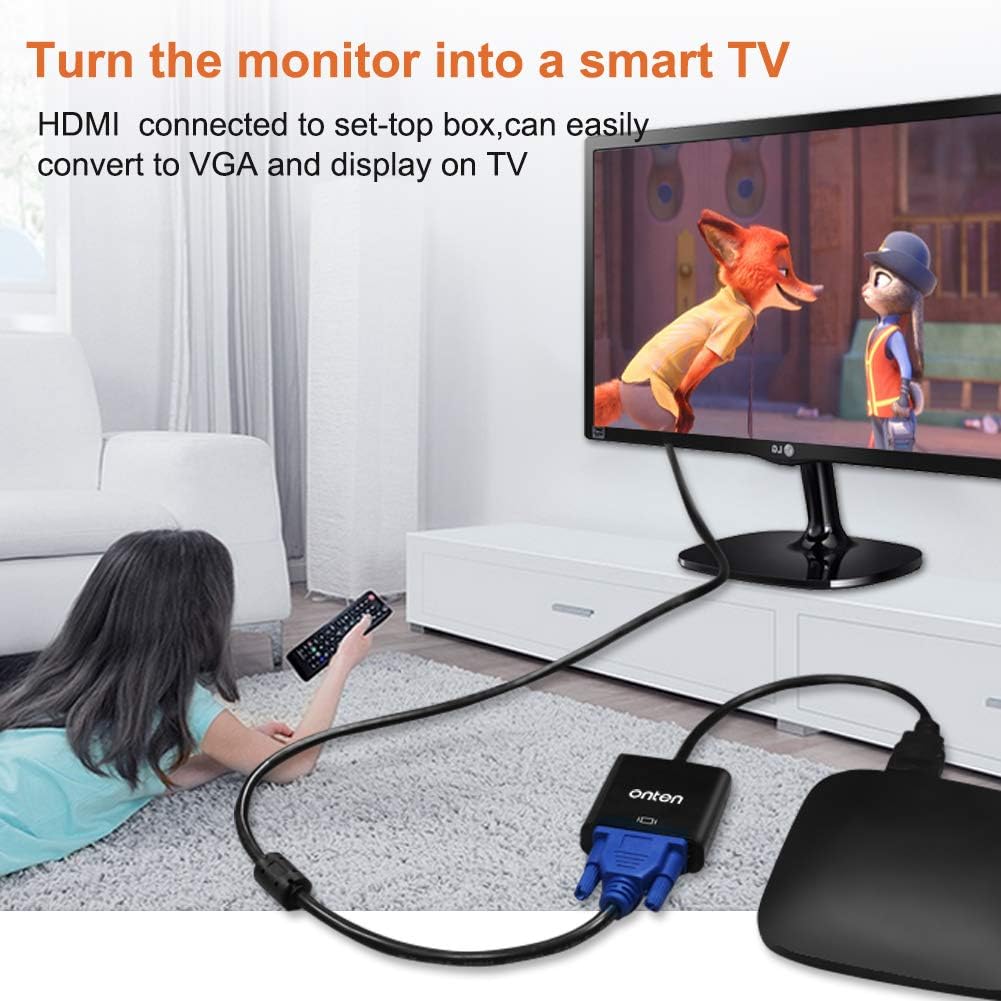
Image 3.1: An example setup showing a set-top box connected to a monitor using the HDMI to VGA converter, effectively turning the monitor into a display for the set-top box.

Image 3.2: A diagram illustrating various devices that can be connected using the converter, including projectors, monitors, and HDTVs, from source devices like laptops, desktop PCs, and media players.
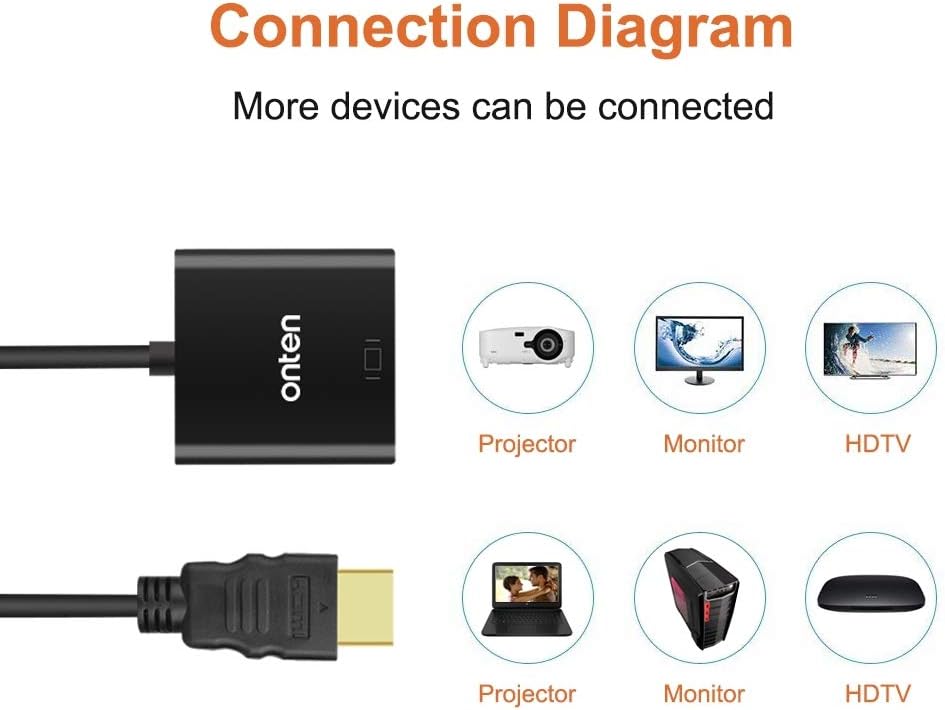
Image 3.3: A laptop connected to an external monitor using the HDMI to VGA converter, demonstrating how a small screen can be extended to a larger display.
4. Operating Modes
When connecting your laptop or computer to an external display, you can typically configure the display settings for different operating modes:
- Mirror Mode (Duplicate Primary Display): The external display shows the exact same content as your primary screen. This is useful for presentations or sharing content.
- Extend Mode (Extend Desktop Area): The external display acts as an extension of your primary screen, providing more desktop space. This is useful for multitasking.
These modes are configured through your computer's operating system display settings (e.g., Windows Display Settings, macOS System Preferences > Displays).

Image 4.1: Illustrations of Mirror Mode, where the laptop screen is duplicated on an external monitor, and Extend Mode, where the external monitor provides additional desktop space.
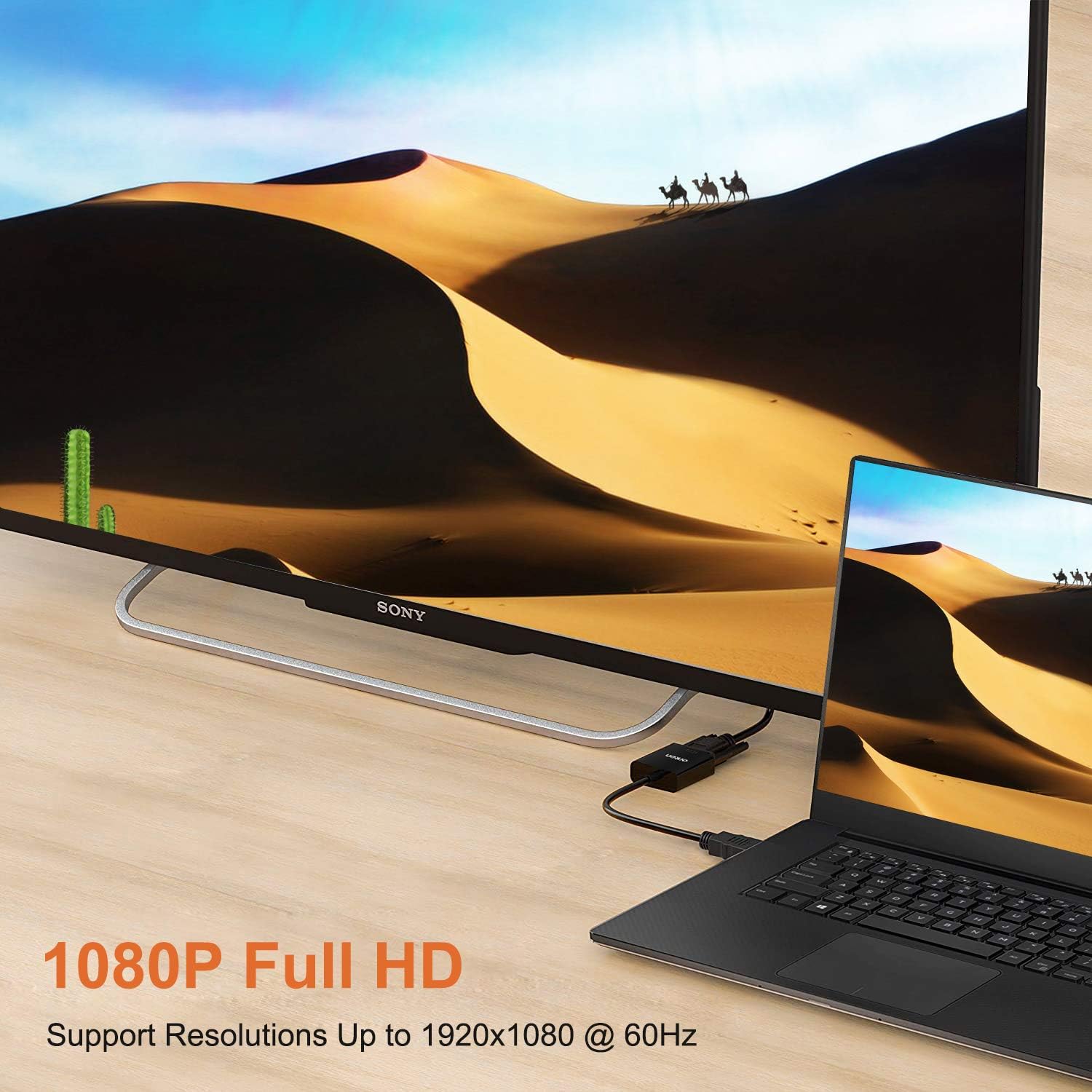
Image 4.2: A laptop connected to a large television via the converter, demonstrating support for 1080P Full HD resolution at 60Hz.
5. Important Notes and Limitations
- One-Way Conversion: This converter is NOT bi-directional. It only transfers signals from HDMI to VGA. It cannot convert VGA to HDMI.
- No Audio Support: This specific model does not support audio output. For audio, a separate audio cable connection from your source device to your display or external speakers is required.
- VGA Cable Required: A VGA cable is necessary to connect the converter to your display device. This cable is not included with the converter.
- Compatibility: This product is not compatible with Blue-ray discs, PS3, PS4, Apple TV, Samsung TV, Raspberry Pi, XBOX, Apple, and Sony Devices.
- VGA Cable Quality: Use a standard VGA cable. The use of a long VGA cable may affect the final signal quality.
6. Specifications
| Feature | Specification |
|---|---|
| Input | HDMI Male |
| Output | VGA Female |
| Supported Resolutions | Up to 1920x1080@60Hz (1080p Full HD), including 480i/480p/576i/576p/800x600/720i/720p/1280x1024/1600x1200 |
| Audio Support | No |
| Color | Black |
| Item Weight | 1.44 ounces |
| Manufacturer | ONTEN |
| Model Number | B08865BYHQ |
7. Troubleshooting
- No Display on Screen:
- Ensure all cables (HDMI, VGA) are securely connected.
- Verify that the display device is powered on and set to the correct VGA input source.
- Check if your source device is outputting an HDMI signal.
- Confirm compatibility with your source device (refer to Section 5).
- Try a different VGA cable to rule out cable issues.
- Flickering or Unstable Display:
- Ensure all connections are tight. Loose connections can cause signal instability.
- Reduce the resolution of your source device to see if the issue persists.
- If using a very long VGA cable, try a shorter, higher-quality cable.
- Restart both the source device and the display.
- No Audio:
- This converter does not transmit audio. Connect a separate audio cable from your source device to your display's audio input or external speakers.
- Ensure your computer's audio output is configured correctly for the desired audio device.
8. Maintenance
To ensure the longevity and optimal performance of your ONTEN HDMI to VGA Converter, follow these maintenance guidelines:
- Storage: Store the converter in a cool, dry place away from direct sunlight and extreme temperatures.
- Cleaning: Use a soft, dry cloth to clean the exterior of the converter. Avoid using liquid cleaners or solvents.
- Handling: Avoid bending or twisting the cable excessively. Do not pull on the cable to disconnect; always grasp the connector housing.
- Protection: Protect the connectors from dust and debris when not in use.
9. Warranty and Support
For warranty information or technical support, please refer to the warranty card included in your product packaging or contact ONTEN customer service through the retailer where the product was purchased. Please have your model number (B08865BYHQ) and purchase details ready when contacting support.