
1. Introduction
The RAINPOINT Bluetooth Sprinkler Timer is designed to automate your garden and lawn watering with precision and ease. Featuring Bluetooth 5.0 connectivity, it allows you to control and program irrigation schedules directly from your smartphone. It supports both irrigation and misting modes, includes a water flow meter, and offers a rain delay function to conserve water.
Key Features:
- Bluetooth 5.0 Control: Manage and program your timer from your smartphone within a Bluetooth signal range of up to 165 ft (60m).
- Multiple Application Modes: Choose between 'Irrigation mode' for regular watering and 'Mist mode' for fine misting.
- Water Flow Sensor: Built-in sensor monitors and analyzes water consumption to prevent overwatering.
- Rain Delay Function: Skip watering for 24, 48, or 72 hours based on weather forecasts to conserve water.
- Soil Moisture Sensor Compatibility: Delay watering schedules based on data from optional soil moisture sensors.
2. Product Overview and Components
Familiarize yourself with the main parts of your RAINPOINT Bluetooth Sprinkler Timer.

Figure 1: RAINPOINT Bluetooth Sprinkler Timer components, showing the inlet, outlet, and control panel.

Figure 2: Internal valve system of the RAINPOINT Sprinkler Timer, highlighting the auto-shutoff valve, anti-clogging self-cleaning valve, and impurity filter.
3. Specifications
| Feature | Specification |
|---|---|
| Inlet Size | 1" with 3/4" adaptor |
| Outlet Thread | 3/4" |
| Working Water Pressure | 0.5 bar to 8 bar (7.25-116 PSI) |
| Working Water Flow | 5 L/min to 35 L/min |
| Waterproof Rating | IP54 |
| Watering Temperature | 0℃ to 50℃ (32℉ to 122℉) |
| Power Source | DC 1.5V x 4 AA batteries |
| Irrigation Mode Frequency | Maximum 3 times per day |
| Irrigation Mode Duration | 1 minute to 11 hours 59 minutes |
| Mist Period | 1 minute to 11 hours 59 minutes |
| Mist Working Time | 5 seconds to 59 seconds |
| Mist Interval | Maximum 15 minutes |
| Battery Life | Over 1 year |
| Material | Plastic |
| Item Weight | 10.2 ounces |
4. Setup
4.1 Battery Installation
- Remove the battery compartment cover from the back of the timer.
- Insert 4 new AA batteries, ensuring correct polarity (+/-).
- Securely replace the battery compartment cover.

Figure 3: Proper installation of 4 AA batteries into the timer's battery compartment.
4.2 Connecting to Hose and Faucet
- Screw the timer's inlet onto your outdoor faucet. Ensure a tight fit to prevent leaks.
- Connect your garden hose to the timer's outlet.
4.3 App Installation and Bluetooth Pairing
- Download the "RainPoint" app from your smartphone's app store (iOS or Android).
- Open the app and enable Bluetooth on your smartphone.
- In the app, select to add a new device. Follow the on-screen instructions to press and hold the button on the timer until the LED indicator blinks rapidly, then confirm in the app to pair.
Video 1: This video demonstrates the initial setup of the Bluetooth water timer, including battery installation and pairing with the mobile application.
Video 2: This video provides a comprehensive guide on how to use the TTV103BRF Bluetooth water timer, covering app navigation and basic functions.
4.4 Connecting Soil Sensor (Optional)
If you have a RAINPOINT soil moisture sensor, you can connect it to your timer for smart irrigation based on soil humidity.
- Ensure the soil sensor has batteries installed and is powered on.
- In the RainPoint app, navigate to the 'Sensor' tab.
- Follow the app's instructions to connect the soil sensor. The app will display soil humidity and temperature data once connected.
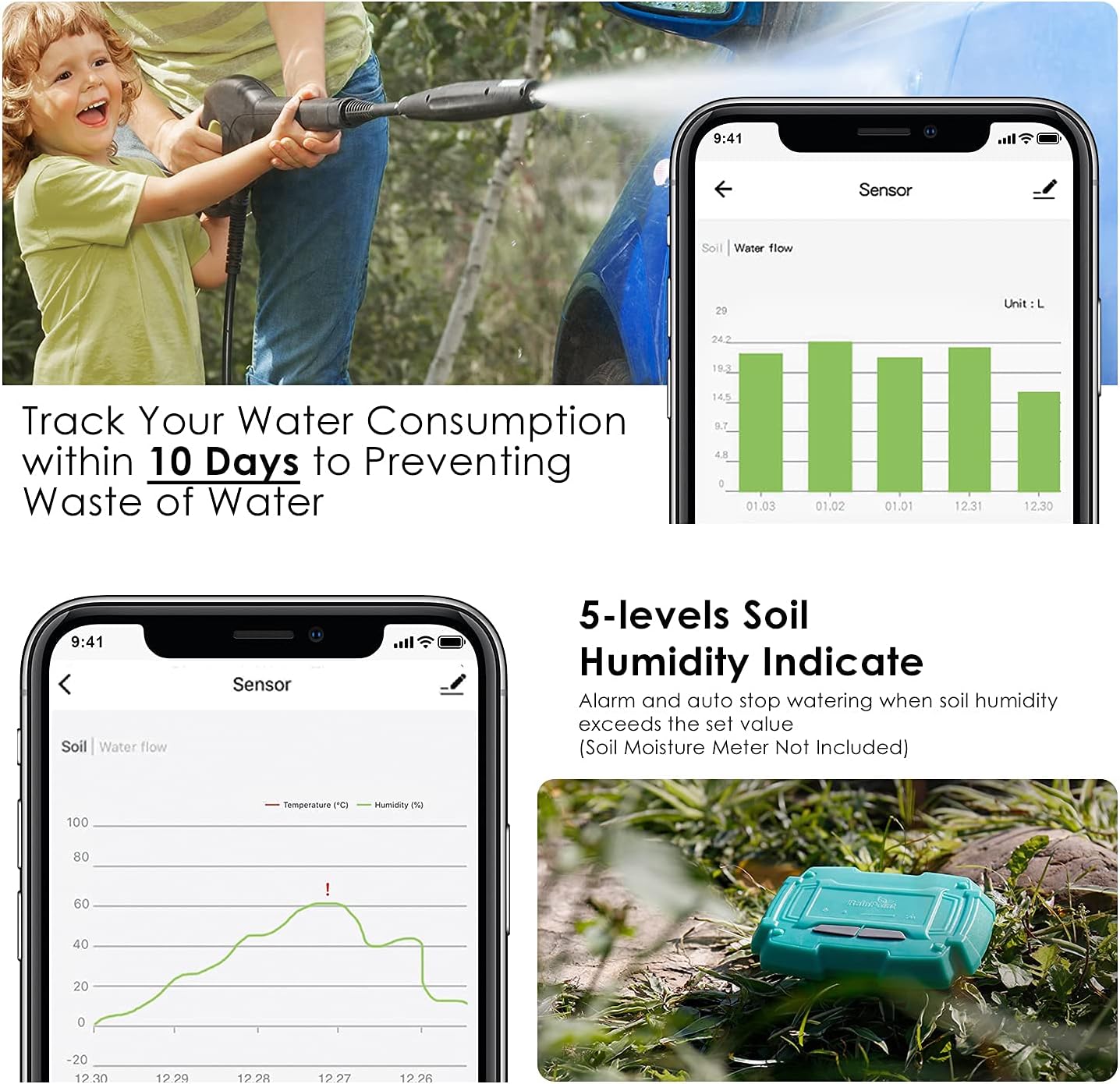
Figure 4: The RainPoint app interface showing soil humidity and temperature data from a connected soil sensor.
5. Operating Instructions
5.1 Manual Watering
To initiate watering immediately for a set duration:
- Open the RainPoint app and navigate to the 'Manual' tab.
- Drag the slider to set the desired watering duration (e.g., 5 minutes, 30 minutes).
- Press the 'Play' icon to start manual watering. Press the 'Pause' icon to stop.

Figure 5: Manual watering settings within the RainPoint app, allowing users to set a specific duration for immediate watering.
5.2 Setting Irrigation Plans (Irrigation Mode & Mist Mode)
You can set up to three different irrigation plans (Plan A, B, C) per day.
- Navigate to the 'Plan' tab in the RainPoint app.
- Select a plan (e.g., Plan A) to configure.
- Choose between 'Irrigation Mode' or 'Mist Mode'.
- For Irrigation Mode: Set the start time, watering duration (1 min to 11h 59m), and select the days of the week for the plan to repeat.
- For Mist Mode: Set the start time, mist period (1 min to 11h 59m), mist working time (5s to 59s), interval (max 15 min), and select the days of the week for the plan to repeat.
- Save your plan settings.

Figure 6: The RainPoint app interface showing multiple irrigation plans with customizable start times, durations, and repeat schedules.
5.3 Rain Delay Function
To temporarily pause your watering schedule due to rain:
- In the 'Plan' tab, locate the 'Rain Delay' section.
- Select the desired delay duration (e.g., 24H, 48H, 72H).
- The timer will automatically resume its schedule after the selected delay period.

Figure 7: The RainPoint app displaying options to skip watering for 12, 24, or 72 hours due to rain.
5.4 Water Flow Monitoring
The built-in water flow sensor allows you to track your water consumption.
- Navigate to the 'Parameter' or 'Sensor' tab in the RainPoint app.
- View the water flow data, which can be tracked for up to 10 days, to monitor usage and prevent waste.

Figure 8: The RainPoint app interface showing water consumption data over 10 days.
6. Maintenance
6.1 Battery Replacement
Replace batteries when the low power indicator appears in the app or on the device. Follow the battery installation steps in Section 4.1.
6.2 Cleaning Filter
Periodically check and clean the built-in filter at the timer's inlet to prevent debris from affecting water flow.
- Disconnect the timer from the faucet.
- Remove the filter screen from the inlet.
- Rinse the filter under running water to remove any accumulated debris.
- Reinsert the clean filter and reattach the timer to the faucet.
6.3 Winterization
To prevent damage from freezing temperatures:
- Disconnect the timer from the faucet and hose before the first freeze.
- Remove batteries.
- Store the timer indoors in a dry, frost-free location.
6.4 Durability
The RAINPOINT Sprinkler Timer is constructed with durable materials, making it waterproof, ultraviolet-proof, and corrosion-proof to ensure reliable operation in various outdoor conditions.
Figure 9: The timer is designed to be waterproof, UV-proof, and corrosion-proof for long-lasting performance.
7. Troubleshooting
7.1 Connection Issues
- Cannot pair with app: Ensure Bluetooth is enabled on your smartphone and the timer's LED is blinking rapidly. Check that the timer is within the 165 ft (60m) Bluetooth range.
- App not responding: Check battery levels in the timer. Close and reopen the app, or restart your smartphone.
7.2 No Water Flow
- No water from faucet: Ensure your outdoor faucet is fully open.
- Timer not activating: Check battery levels. Verify that an irrigation plan is active or manual watering is initiated.
- Low water pressure: Ensure adequate water pressure from your source.
- Clogged filter: Refer to Section 6.2 for instructions on cleaning the filter.
7.3 Incorrect Schedule Execution
- Schedule not running: Verify that the irrigation plan is enabled in the app and the correct days of the week are selected. Check the timer's battery status.
- Watering at wrong times: Double-check the start times and durations configured in your irrigation plans within the app.
- Rain delay active: Ensure the rain delay function is not currently active, preventing scheduled watering.
8. Warranty Information
This product comes with a manufacturer's warranty. Please refer to the product packaging or the official RAINPOINT website for specific warranty terms and conditions, including coverage duration and claim procedures.
9. Support
For further assistance, technical support, or inquiries about your RAINPOINT Bluetooth Sprinkler Timer, please contact RAINPOINT customer support through the following channels:
- Online: Visit the official RAINPOINT website for FAQs and support resources.
- Amazon Store: You can also find support and product information on the RAINPOINT Store on Amazon.


