1. Introduction
This manual provides comprehensive instructions for the setup, operation, maintenance, and troubleshooting of your ASUS XA04 ROG Strix Scope Deluxe RGB Mechanical Gaming Keyboard. Please read this manual thoroughly before using the product to ensure proper functionality and to maximize your user experience.
2. Product Overview
The ASUS ROG Strix Scope Deluxe is a mechanical gaming keyboard designed for performance and durability, featuring Cherry MX switches and customizable RGB lighting.
2.1 Key Features
- Xccurate Ctrl Key: An extra-wide Ctrl key designed for improved precision in FPS gaming.
- Cherry MX RGB Switches: German-made mechanical switches providing tactile feedback and precise actuation.
- Quick-Toggle Switch: Instantly shifts between function (F1-F12) and media key input.
- Stealth Key: Hides all applications and mutes audio for instant privacy.
- Aura Sync RGB LED Technology: Customizable per-key backlighting with dynamic lighting effects.
- Durable Construction: Aluminum top plate for resilience.
- Ergonomic Wrist Rest: Detachable magnetic wrist rest crafted from memory foam for comfort.
- Onboard Memory: For storing profiles and settings.
- 100% Anti-Ghosting & N-Key Rollover: Ensures every keystroke is registered accurately.
- Windows Lock Key: Prevents accidental presses of the Windows key during gameplay.
- On-the-Fly Macro Recordings: Allows for macro creation without software.
- Cable Routing: Integrated cable management options.
2.2 Package Contents
- ASUS XA04 ROG Strix Scope Deluxe RGB Mechanical Gaming Keyboard
- Detachable Magnetic Wrist Rest
- Keycap Puller Tool
- Additional Silver-hued WASD Keycaps
- User Manual (this document)
2.3 Keyboard Layout and Components

Figure 1: Top view of the ASUS ROG Strix Scope Deluxe keyboard. This image displays the full keyboard layout with its RGB backlighting active, showcasing the standard QWERTY layout, function keys, and numeric keypad.
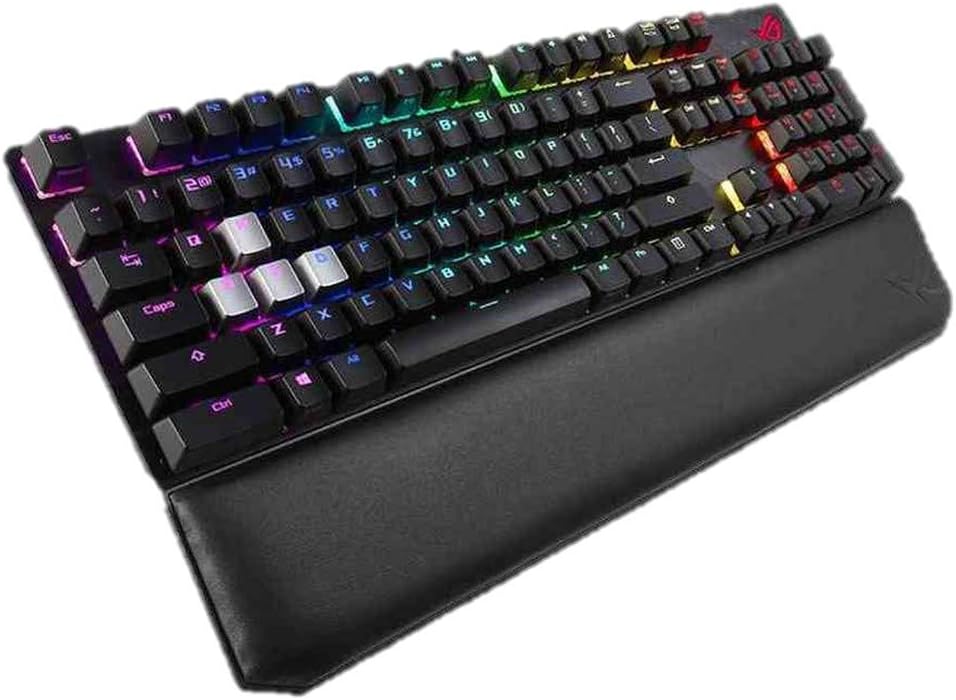
Figure 2: Angled view of the keyboard with the detachable magnetic wrist rest attached. This perspective highlights the ergonomic design and the integrated wrist support.

Figure 3: Close-up of the magnetic wrist rest. The image shows the comfortable, memory foam wrist rest with a leatherette finish, designed to attach seamlessly to the keyboard.

Figure 4: Detail of the Xccurate Ctrl key. This image highlights the enlarged Ctrl key, designed to be more than twice the width of a standard Ctrl key for enhanced FPS gaming precision.

Figure 5: Illustration of the Stealth Key function. The image shows the F12 key, which acts as the Stealth Key, along with icons depicting its actions: hiding all apps and muting audio for instant privacy.

Figure 6: Explanation of the Quick-Toggle Switch. This image illustrates how pressing the Fn key + Ins (Fn Lock) toggles between standard function keys (F1-F12) and media control keys.

Figure 7: Close-up of Cherry MX mechanical switches. The image displays various types of Cherry MX switches (e.g., Blue, Red, Brown, Speed Silver) and their internal mechanisms, highlighting the precision components.

Figure 8: Overview of additional keyboard features. This graphic illustrates key functionalities such as onboard memory, 100% anti-ghosting with N-key rollover, Windows lock key, on-the-fly macro recording, dual-textured case design, and integrated cable routing.

Figure 9: Bottom view of the keyboard. This image shows the underside of the keyboard, highlighting the durable aluminum top plate and the cable routing channels.
3. Setup
3.1 Connecting the Keyboard
- Unpack the keyboard and its components.
- Attach the magnetic wrist rest to the front edge of the keyboard if desired.
- Plug the USB connector of the keyboard into an available USB port on your computer.
- Your operating system should automatically detect and install the necessary drivers.
3.2 Software Installation (Optional)
For full customization of RGB lighting, macros, and other advanced features, it is recommended to install the ASUS Armoury Crate software. This software can be downloaded from the official ASUS support website.
- Visit the official ASUS support website.
- Navigate to the support page for the ROG Strix Scope Deluxe keyboard (Model XA04).
- Download and install the latest version of Armoury Crate.
- Follow the on-screen instructions to complete the installation.
4. Operating Instructions
4.1 Basic Key Functions
- Standard Keys: Function as a typical QWERTY keyboard.
- Function Keys (F1-F12): By default, these keys perform their standard F-key functions.
- Numeric Keypad: Located on the right side for numerical input.
4.2 Special Key Functions
- Xccurate Ctrl Key: The enlarged Ctrl key on the left side provides a larger target for improved accuracy, particularly useful in fast-paced gaming scenarios.
- Stealth Key (F12): Pressing the Stealth Key (F12) instantly hides all open applications and mutes all audio, providing immediate privacy. Press it again to restore applications and audio.
- Quick-Toggle Switch (Fn + Ins): This combination allows you to switch the functionality of the F1-F12 keys between standard function keys and multimedia controls.
- When in Function Mode, F1-F12 perform their standard operating system or application-specific functions.
- When in Media Mode, F1-F12 perform multimedia actions such as play/pause, stop, previous/next track, and volume control.
- Windows Lock Key: This key (often located near the right Ctrl key or as an Fn combination) disables the Windows key to prevent accidental presses that could interrupt gameplay.
4.3 RGB Lighting Control (Aura Sync)
The keyboard features per-key RGB backlighting customizable via ASUS Aura Sync.

Figure 10: Keyboard displaying Aura Sync RGB lighting. This image shows the vibrant, customizable lighting effects across the keyboard, often synchronized with other Aura Sync compatible devices.
- Default Effects: The keyboard comes with pre-programmed lighting effects that can be cycled through using specific key combinations (refer to the Armoury Crate software for exact combinations or customization).
- Software Customization: Use the ASUS Armoury Crate software to:
- Select from a wide range of static colors.
- Apply dynamic lighting effects (e.g., breathing, wave, reactive).
- Synchronize lighting with other Aura Sync compatible devices.
- Create custom lighting profiles.
4.4 Macro Recording
The keyboard supports on-the-fly macro recording without requiring software.
- Press Fn + Left Alt to start recording. The indicator light will blink.
- Type the sequence of keys you wish to record.
- Press Fn + Left Alt again to stop recording. The indicator light will stop blinking.
- Press the desired key to assign the macro to.
- To execute the macro, press the assigned key.
Note: For advanced macro management and editing, use the ASUS Armoury Crate software.
5. Maintenance
5.1 Cleaning the Keyboard
Regular cleaning helps maintain the keyboard's performance and appearance.
- Dust Removal: Use compressed air to remove dust and debris from between the keycaps.
- Surface Cleaning: Gently wipe the keycaps and keyboard surface with a soft, lint-free cloth slightly dampened with water or a mild, non-abrasive cleaning solution. Avoid excessive moisture.
- Wrist Rest: Wipe the leatherette wrist rest with a damp cloth.
- Keycap Removal: Use the included keycap puller tool to carefully remove keycaps for deeper cleaning. Ensure the keyboard is unplugged before removing keycaps.
Caution: Do not immerse the keyboard in water or use harsh chemicals, as this may damage the product.
6. Troubleshooting
If you encounter issues with your keyboard, refer to the following common solutions:
| Problem | Possible Solution |
|---|---|
| Keyboard is not responding. |
|
| RGB lighting is not working or incorrect. |
|
| Macros are not executing correctly. |
|
| Keys are sticky or unresponsive. |
|
If the problem persists after attempting these solutions, please contact ASUS customer support for further assistance.
7. Specifications
| Feature | Detail |
|---|---|
| Brand | ASUS |
| Model Number | XA04 (192876327791) |
| Keyboard Type | Mechanical Gaming Keyboard |
| Switch Type | Cherry MX RGB Switches |
| Color | Black (with Blue Cherry MX switches) |
| Material | Aluminum (top plate) |
| Connectivity | Wired USB |
| Backlighting | Per-key RGB, Aura Sync compatible |
| Anti-Ghosting | 100% Anti-Ghosting with N-Key Rollover |
| Onboard Memory | Yes |
| Operating System Compatibility | Windows 10, Windows 7 |
| Product Dimensions (L x W x H) | 43.94 x 13.46 x 3.89 cm (17.3 x 5.3 x 1.53 inches) |
| Item Weight | 1.92 kg (4.23 lbs) |
| Included Components | Keycap Puller, Detachable Wrist Rest |
8. Warranty and Support
For warranty information, please refer to the warranty card included with your product or visit the official ASUS website. ASUS provides customer support for product inquiries, technical assistance, and warranty claims.
ASUS Support Website: www.asus.com/support/
Please have your product model number (XA04) and serial number ready when contacting support.


