
1. Introduction
This manual provides detailed instructions for the installation, operation, maintenance, and troubleshooting of the Akozon MPT-7210A MPPT Solar Controller. This device is designed to efficiently charge lithium batteries using solar panels, featuring advanced Maximum Power Point Tracking (MPPT) technology.
2. Safety Information
Please read all safety instructions carefully before installation and operation. Failure to follow these instructions may result in electric shock, fire, or serious injury.
- Ensure all connections are secure and correct before applying power.
- Do not disassemble or attempt to repair the controller yourself. Contact qualified personnel for service.
- Install the controller in a well-ventilated area, away from flammable materials and moisture.
- Wear appropriate personal protective equipment (PPE) during installation, including insulated gloves and eye protection.
- Verify battery voltage and polarity before connecting to the controller.
3. Product Overview
The Akozon MPT-7210A is a high-performance MPPT solar charge controller designed for various battery types, including lithium batteries. It features an LCD display for real-time monitoring and user-friendly controls.
Key Features:
- MPPT Technology: Innovative Maximum Power Point Tracking for improved energy generation efficiency.
- Wide Compatibility: Supports 24V, 36V, 48V, 60V, and 72V battery pack systems.
- Adjustable Output: Output voltage (DC15-90V) and current (0-10A) are adjustable.
- LCD Display: 160*128 TFT color LCD displays current, voltage, power, and charging time.
- Dual Working Modes: Selectable MPPT for photovoltaic panels and DC-DC for boost power supply.
- Protection Features: Overload protection and MOS reverse connection protection for both input and output.
- Efficient Cooling: Advanced fan temperature control and aluminum alloy casing for excellent heat dissipation.
- Data Storage: Built-in 20 groups of data for user settings and storage.
Product Components:
The controller unit includes the main body, an LCD display, control buttons, input/output terminals, and a cooling fan.
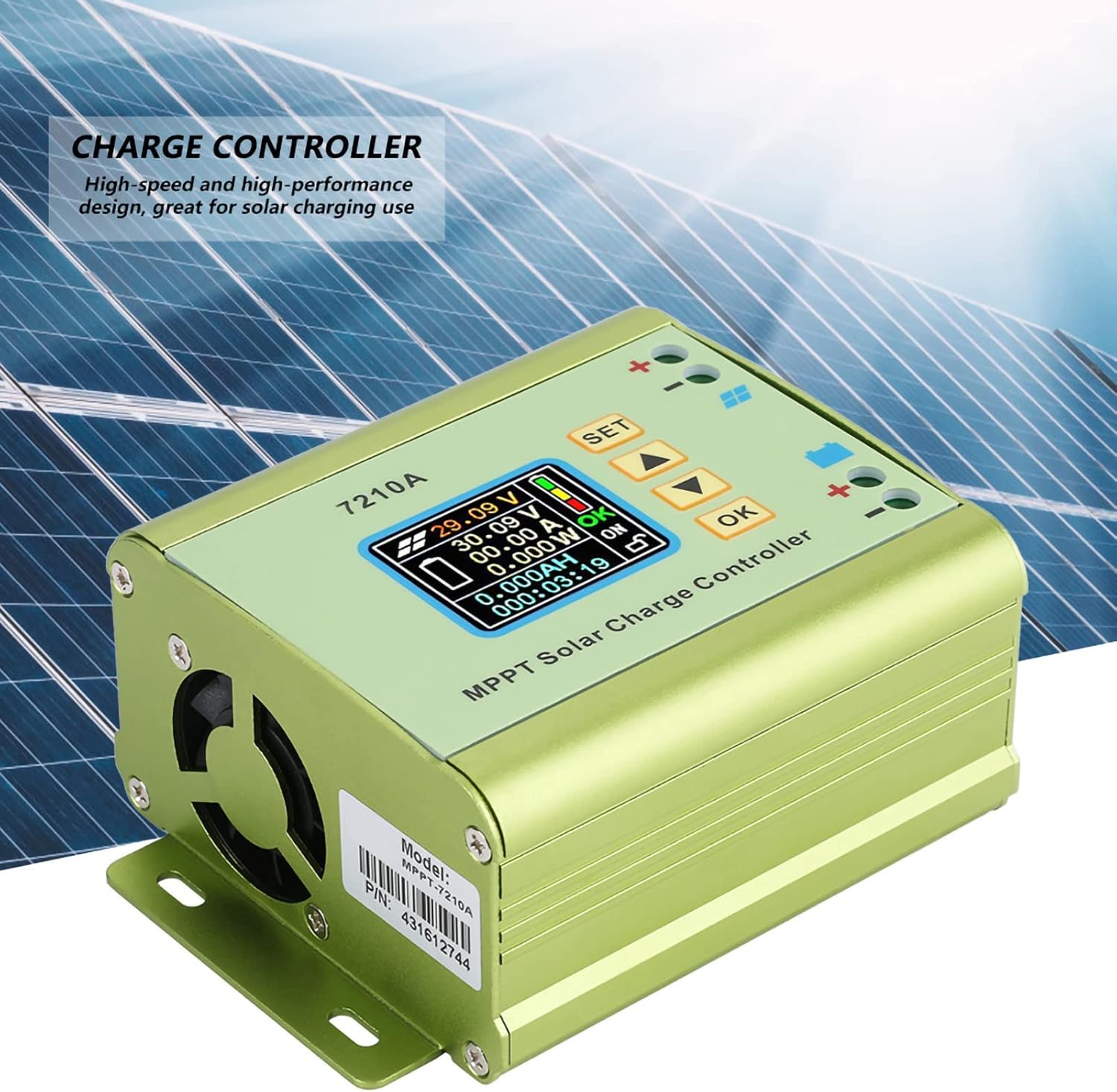
Figure 1: Front view of the Akozon MPT-7210A Solar Controller, showing the LCD display and control interface.
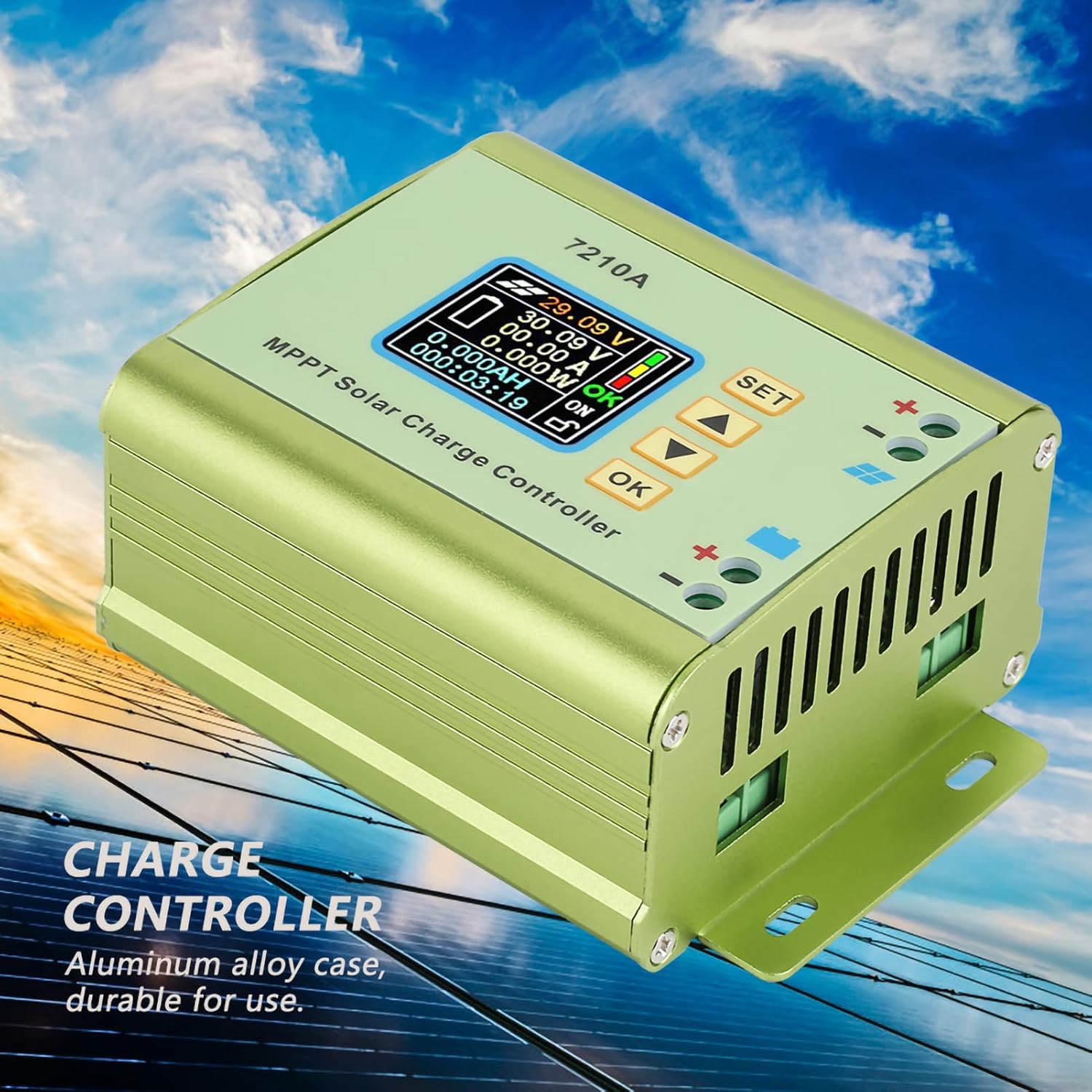
Figure 2: Side view of the Akozon MPT-7210A Solar Controller, emphasizing its durable aluminum alloy casing and heat dissipation design.

Figure 3: Physical dimensions of the Akozon MPT-7210A Solar Controller, measuring approximately 13.1cm x 9.6cm x 5.5cm.
4. Specifications
| Parameter | Value |
|---|---|
| Model | MPT-7210A |
| Material | Aluminum Alloy |
| Display | 160*128 TFT Color LCD |
| Input Voltage | DC 12-60V |
| Output Current | 0-10A (Adjustable) |
| Output Power | 20-600W |
| Working Mode | MPPT, DC-DC |
| Output Voltage | DC 15-90V (Adjustable for 24V/36V/48V/60V/72V battery systems) |
| Dimensions (L*W*H) | 131*96*55mm (5.2*3.8*2.2in) |
| Weight | Approx. 440g (15.5oz) |
5. Setup and Installation
Follow these steps for proper installation of your Akozon MPT-7210A Solar Controller.
- Mounting: Choose a suitable location for mounting the controller. Ensure it is dry, well-ventilated, and protected from direct sunlight and extreme temperatures. The controller has mounting brackets for secure installation.
- Battery Connection:
- Connect the positive (+) terminal of the battery to the positive (+) battery terminal on the controller.
- Connect the negative (-) terminal of the battery to the negative (-) battery terminal on the controller.
- Ensure correct polarity. Reverse connection protection is built-in, but proper connection is always recommended.
- Solar Panel Connection:
- Connect the positive (+) terminal of the solar panel to the positive (+) solar input terminal on the controller.
- Connect the negative (-) terminal of the solar panel to the negative (-) solar input terminal on the controller.
- Ensure correct polarity. The controller supports solar panels with an output power of 100W to 600W.

Figure 4: Wiring diagram for connecting the solar panel and battery to the MPT-7210A controller. Connect battery first, then solar panel.
Important: Always connect the battery to the controller first, and disconnect the solar panel before disconnecting the battery.
6. Operating Instructions
The MPT-7210A features an intuitive LCD display and control buttons for easy operation.
6.1. LCD Display Overview
The 160*128 TFT color LCD displays real-time operational data, including input voltage, output voltage, current, power, and charging time. The display also indicates the selected working mode and battery status.
Figure 5: Detailed view of the LCD display on the MPT-7210A, showing various operational parameters.
6.2. Control Buttons
The controller features several buttons for navigation and setting adjustments:
- SET: Enters the settings menu or confirms a selection.
- UP/DOWN Arrows: Navigates through menu options or adjusts parameter values.
- OK: Confirms a setting or exits a menu.
6.3. Setting Output Voltage and Current
The controller allows you to set the desired output voltage and current to match your battery pack requirements.
- Press the SET button to enter the main settings menu.
- Use the UP/DOWN arrows to navigate to the "Output Voltage" or "Output Current" setting.
- Press OK to select the parameter.
- Use the UP/DOWN arrows to adjust the value.
- Press OK to confirm the new value.
- Press SET again to exit the settings menu.
The controller supports output voltages adjustable from DC15-90V, suitable for 24V, 36V, 48V, 60V, and 72V battery systems. Output current is adjustable from 0-10A.
6.4. Selecting Working Mode
The MPT-7210A offers two working modes:
- MPPT Mode: Optimized for photovoltaic panel applications to maximize power extraction.
- DC-DC Mode: Functions as a boost power supply.
To change the working mode:
- Press the SET button to enter the main settings menu.
- Navigate to the "Working Mode" option using the UP/DOWN arrows.
- Press OK to select.
- Use the UP/DOWN arrows to toggle between MPPT and DC-DC modes.
- Press OK to confirm your selection.
- Press SET again to exit the settings menu.
6.5. Data Storage
The controller can store up to 20 groups of user-defined settings. Refer to the on-screen menu for instructions on saving and recalling these settings.
7. Maintenance
Regular maintenance ensures optimal performance and longevity of your solar controller.
- Cleaning: Periodically clean the exterior of the controller with a dry, soft cloth. Do not use harsh chemicals or abrasive cleaners.
- Ventilation: Ensure the cooling fan and ventilation openings are free from dust and debris to maintain proper heat dissipation.
- Connections: Regularly check all wiring connections for tightness and corrosion. Loose connections can lead to power loss or overheating.
- Environment: Verify that the installation environment remains dry and within the recommended temperature range.
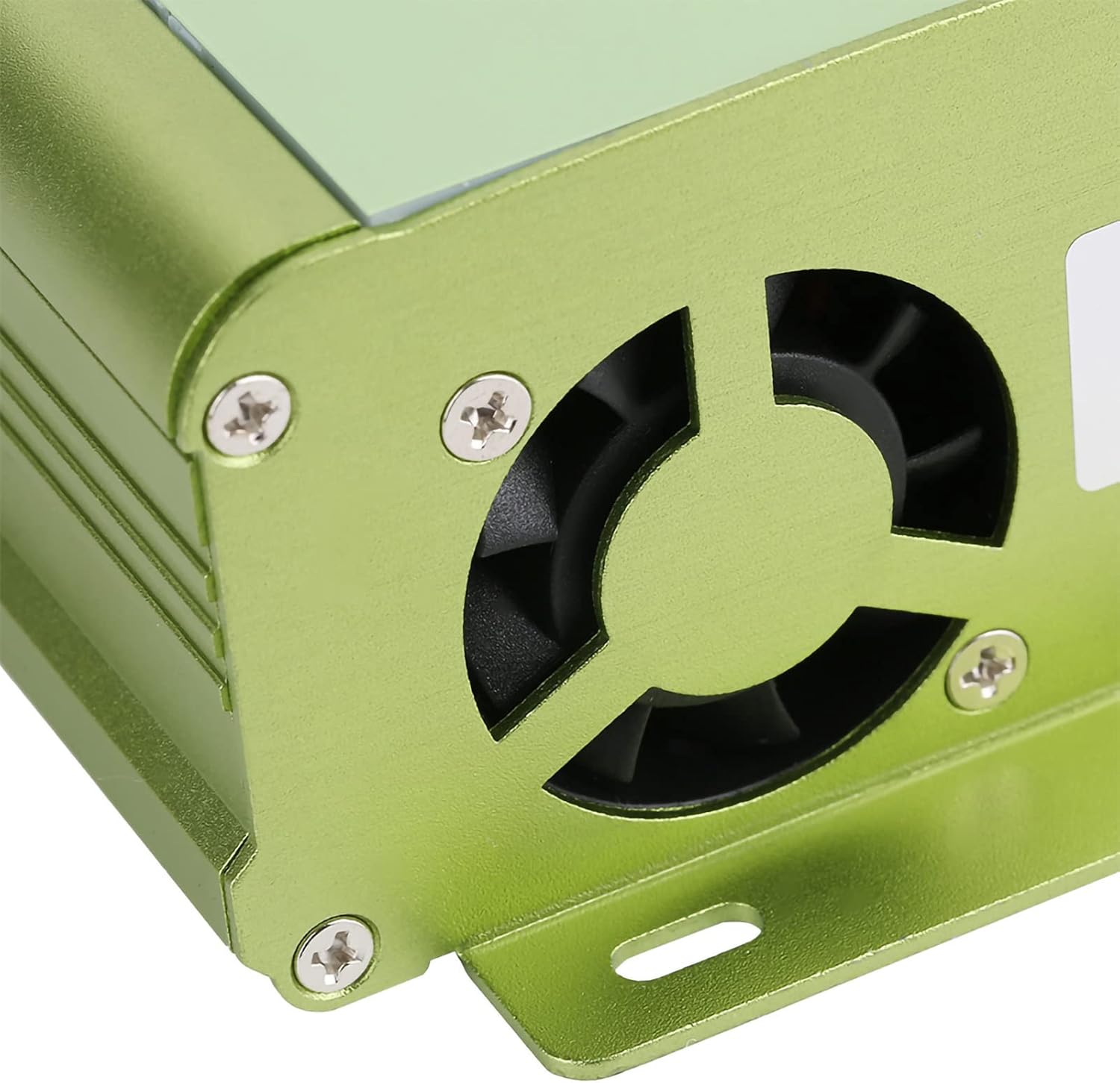
Figure 6: View of the cooling fan on the MPT-7210A, essential for maintaining optimal operating temperature.

Figure 7: Bottom view of the MPT-7210A, illustrating the heat sink fins that aid in passive heat dissipation.
8. Troubleshooting
This section addresses common issues you might encounter with your solar controller.
| Problem | Possible Cause | Solution |
|---|---|---|
| Controller display is off. | No power from battery or solar panel; incorrect wiring. | Check battery and solar panel connections. Ensure battery is charged sufficiently to power the display. Verify polarity. |
| Battery not charging. | Solar panel not connected or insufficient sunlight; incorrect output settings; faulty wiring. | Ensure solar panel is connected and receiving adequate sunlight. Check output voltage and current settings to match battery requirements. Inspect all wiring for damage or loose connections. |
| Overload protection activated. | Output current exceeds the controller's maximum limit (10A). | Reduce the load connected to the battery or adjust the output current setting if applicable. The controller will automatically cut off if overloaded. |
| Incorrect voltage/current readings. | Sensor issue; calibration needed (unlikely for user); external interference. | Ensure connections are clean and secure. If problem persists, contact customer support. |
9. Warranty and Support
For warranty information and technical support, please refer to the seller's policy or contact Akozon customer service directly. Keep your purchase receipt for warranty claims.
Manufacturer: Akozon
Model: MPT-7210A
ASIN: B087C24Z2P
For further assistance, you may visit the Akozon Store on Amazon.