
Introduction
This manual provides essential information for setting up, operating, maintaining, and troubleshooting your Lenovo ThinkPad E15 15.6" FHD Business Laptop. Please read this guide thoroughly to ensure optimal performance and longevity of your device.
1. Setup
1.1 Unpacking and Initial Inspection
Carefully remove all components from the packaging. Verify that all items listed in the 'What's in the Box' section are present. Inspect the laptop for any physical damage before proceeding.
1.2 Connecting to Power
Connect the power adapter to the laptop's USB-C port (which supports Power Delivery) and then plug it into a power outlet. It is recommended to fully charge the battery before first use.
1.3 Initial Power On and Operating System Setup
Open the laptop lid and press the power button. The laptop will guide you through the initial setup process for Windows 10 Professional. Follow the on-screen instructions to configure your language, region, network, and user account.

Figure 1: Lenovo ThinkPad E15 with Windows 10 desktop.
1.4 Connecting External Devices
Your ThinkPad E15 includes various ports for connecting external devices:
- USB 3.1 Gen1 Type-C: For power delivery, data transfer, and DisplayPort output.
- USB 3.1 Gen1 (x2): For connecting USB accessories. One port is always on.
- USB 2.0 (x1): For connecting USB accessories.
- HDMI 1.4b: For connecting to external displays. An HDMI cable is included with your purchase.
- RJ-45: For wired network connection.
- Audio Combo Jack: For connecting headphones or a headset.

Figure 2: Included HDMI Cable for external display connection.
2. Operating Your ThinkPad E15
2.1 Keyboard and TrackPoint
The ThinkPad E15 features a full-sized keyboard with a numeric keypad and the iconic TrackPoint pointing device for precise cursor control. The keyboard is non-backlit.

Figure 3: Keyboard and TrackPoint layout.
2.2 Display Features
The 15.6-inch Full HD (1920x1080) TN Anti-glare display provides a clear viewing experience. It supports external digital monitors via HDMI or USB Type-C, with a maximum external digital monitor resolution of 4K (3840x2160).
2.3 Ports and Connectivity
Familiarize yourself with the port locations for efficient use:
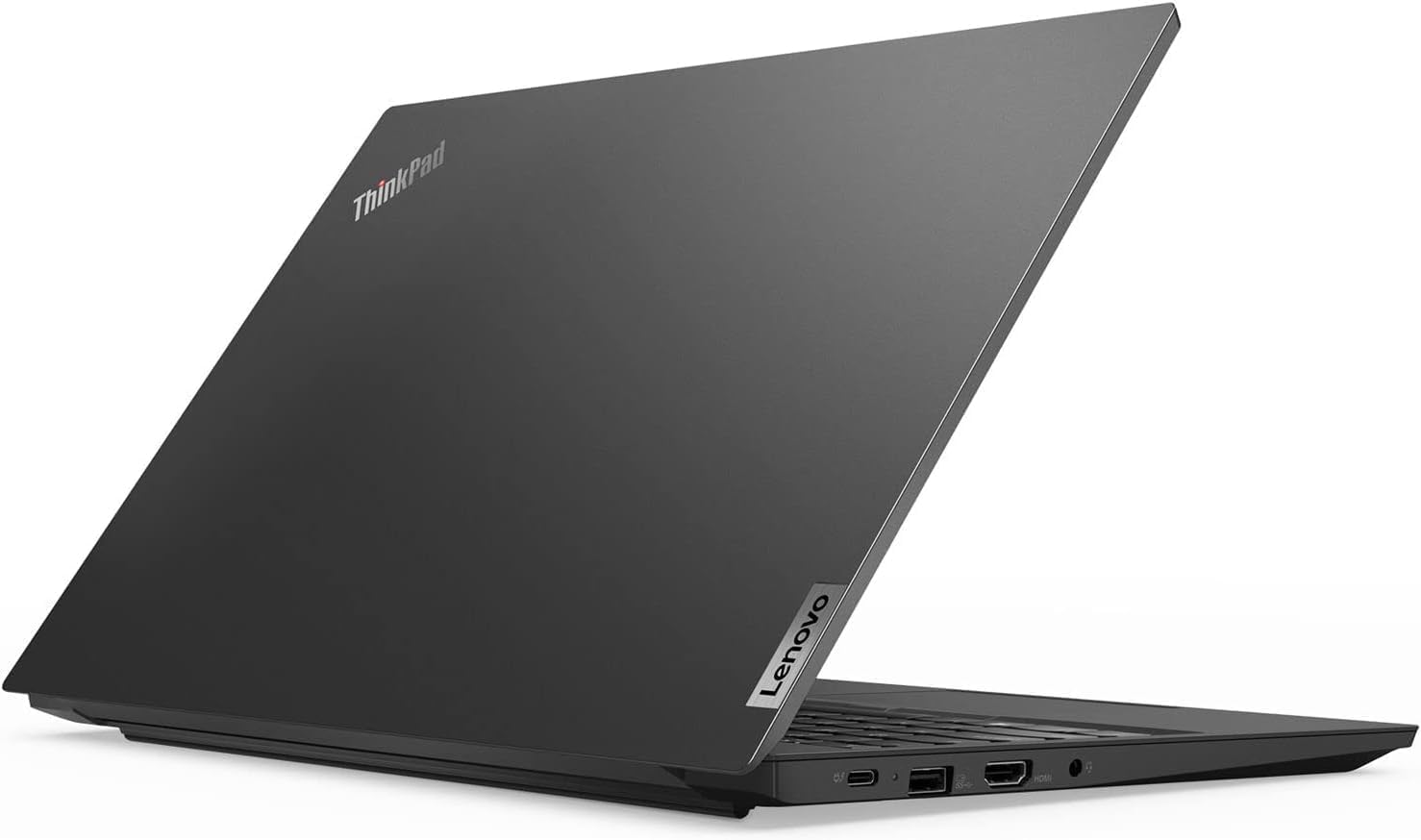
Figure 4: Left side ports (USB-C, USB 3.1, HDMI, Audio Jack).

Figure 5: Right side ports (USB 2.0, RJ-45 Ethernet).
2.4 Webcam and Privacy Shutter
The laptop includes a 720p webcam with a ThinkShutter for privacy. Slide the shutter to cover the camera lens when not in use.
2.5 Fingerprint Reader
Utilize the integrated fingerprint reader for secure and convenient login to your Windows 10 Pro operating system.
3. Maintenance
3.1 General Care and Cleaning
- Keep the laptop in a clean, dry environment.
- Use a soft, lint-free cloth slightly dampened with water or a screen cleaner to clean the display.
- For the chassis, use a soft cloth. Avoid harsh chemicals.
- Ensure ventilation openings are clear of dust and debris.
3.2 Battery Care
The ThinkPad E15 uses a Lithium Ion battery. To maximize battery life:
- Avoid extreme temperatures.
- Do not fully discharge the battery frequently.
- If storing the laptop for an extended period, ensure the battery is charged to approximately 50-60%.
3.3 Software Updates
Regularly update your Windows 10 Pro operating system and Lenovo drivers to ensure optimal performance, security, and compatibility.
4. Troubleshooting
4.1 Power Issues
- Laptop does not turn on: Ensure the power adapter is securely connected and the outlet is functional. Try a different power outlet.
- Battery not charging: Verify the power adapter is correctly connected. Check for any visible damage to the adapter or charging port.
4.2 Display Issues
- No display: Connect an external monitor via HDMI to check if the issue is with the laptop's internal display.
- External monitor not detected: Ensure the cable is securely connected and the external monitor is powered on and set to the correct input source.
4.3 Connectivity Problems
- Wi-Fi not connecting: Check if Wi-Fi is enabled in Windows settings. Restart your router and the laptop.
- Bluetooth device not pairing: Ensure the Bluetooth device is in pairing mode and within range. Check Bluetooth settings on the laptop.
4.4 Webcam Performance
If you experience blurry video or lag during video calls, ensure the ThinkShutter is fully open. Check for updated webcam drivers from the Lenovo support website. Verify your internet connection stability.
5. Specifications
| Feature | Detail |
|---|---|
| Brand | Lenovo |
| Model Name | ThinkPad E15 |
| Screen Size | 15.6 Inches |
| Display Resolution Maximum | 1920x1080 (Full HD) |
| Display Type | TN Anti-glare LCD |
| CPU Model | Intel Core i5-10210U |
| Processor Speed | 1.6 GHz (Base), 4.2 GHz (Max Turbo) |
| RAM Memory Installed Size | 16 GB DDR4 |
| Hard Disk Size | 512 GB PCIe NVMe M.2 SSD |
| Operating System | Windows 10 Pro 64-bit |
| Graphics Coprocessor | Integrated Intel UHD Graphics |
| Special Features | Backlit Keyboard (Note: Product description states Non-Backlit, please verify), Fingerprint Reader, ThinkShutter |
| Connectivity Technology | Bluetooth 5.0, Wi-Fi 5 (802.11ac), Ethernet (1000 Mbps) |
| Ports | 1x USB 3.1 Gen1 Type-C (PD & DisplayPort), 2x USB 3.1 Gen1, 1x USB 2.0, 1x HDMI 1.4b, 1x RJ-45, 1x Audio Combo Jack |
| Battery Life (Average) | 12 Hours |
| Item Dimensions (L x W x Thickness) | 14.48" x 9.64" x 0.74" |
| Item Weight | 0.01 Ounces (Note: This weight is highly unlikely for a laptop, likely a data entry error. Actual weight is typically 3.5-4.5 lbs) |
6. Warranty Information
Your Lenovo ThinkPad E15 comes with a 1 Year Limited Warranty from Lenovo. For detailed terms and conditions, please refer to the warranty documentation included with your product or visit the official Lenovo support website.
7. Support
For technical assistance, driver downloads, or further support, please visit the official Lenovo Support website. You can also find contact information for customer service and technical support on their website.
Lenovo Support Website: https://support.lenovo.com


