
1. Introduction
1.1 Product Overview
The zowietek AI Auto Tracking PTZ Camera is a versatile and advanced camera system designed for professional video production, live streaming, and conferencing applications. It features AI-powered auto-tracking capabilities, 1080P60 Full HD video resolution, and a 20X optical zoom lens. Connectivity options include HDMI, 3G-SDI, USB 3.0, and LAN with Power over Ethernet (PoE), ensuring broad compatibility with various AV systems and streaming platforms.

Image 1.1: Front view of the zowietek AI Auto Tracking PTZ Camera.
1.2 Key Features
- AI Auto Tracking: Supports single-view, real-time, stage, zone, and smart framing for dynamic subject tracking.
- 1080P60 Full HD: Delivers high-definition video at 60 frames per second with true-to-life colors.
- 20X Optical Zoom: Provides detailed close-ups without loss of quality.
- Multiple Outputs: Equipped with HDMI, 3G-SDI, USB 3.0, and LAN (PoE) for flexible integration.
- Front LCD IP Display: Allows for quick viewing of the camera's IP address.
- Wide Platform Compatibility: Works with OBS, vMix, Zoom, Skype, Microsoft Teams, YouTube, Facebook Live, and Twitch.
- Pro Streaming Protocols: Supports H.264/H.265 encoding, RTSP, RTMP(s), and SRT protocols.
- PoE Simplicity: Power over Ethernet simplifies installation with a single cable for power, control, and video.
1.3 Package Contents
Verify that all items listed below are included in your package:
- zowietek PTZ Camera
- Remote Controller
- Power Supply (U.S. specific)
- RS232 Cable
- USB 3.0 Cable
- Wall Mount Bracket
- User Manual (this document)

Image 1.2: Contents included in the zowietek PTZ Camera package.
2. Setup
2.1 Physical Installation
The camera can be placed on a flat surface or mounted using the included wall mount bracket. Ensure the camera is positioned to provide an optimal view of the desired tracking area. For wall mounting, securely attach the bracket to a sturdy surface before attaching the camera.
2.2 Connections
Connect the camera to your system using the appropriate cables. The camera offers various output options for different setups.

Image 2.1: Rear panel connections of the PTZ Camera.
- Power: Connect the provided power adapter to the DC12V port. Alternatively, if using PoE, connect a PoE-enabled Ethernet cable to the LAN port.
- LAN (PoE): Connect an Ethernet cable to the LAN port for network control, video streaming, and Power over Ethernet (if supported by your network switch).
- HDMI Output: Connect an HDMI cable to an HDMI display, switcher, or capture device for high-definition video output.
- 3G-SDI Output: Connect an SDI cable to an SDI monitor, switcher, or recorder for professional video output over longer distances.
- USB 3.0: Connect the USB 3.0 cable to a computer for video conferencing or direct capture.
- RS232 In/Out: Use the RS232 ports for serial control from a PTZ controller or other control systems.
- 3.5mm Audio Line In: Connect an external microphone or audio source for embedded audio in your video stream.

Image 2.2: Overview of multiple video output connections.

Image 2.3: LAN with PoE connection for simplified setup.
3. Operating Instructions
3.1 Power On/Off
After connecting the power supply or PoE, the camera will automatically power on. The front LCD display will show the camera's IP address. To power off, disconnect the power source.
3.2 AI Auto Tracking Modes
The camera features advanced AI tracking modes to suit various scenarios:
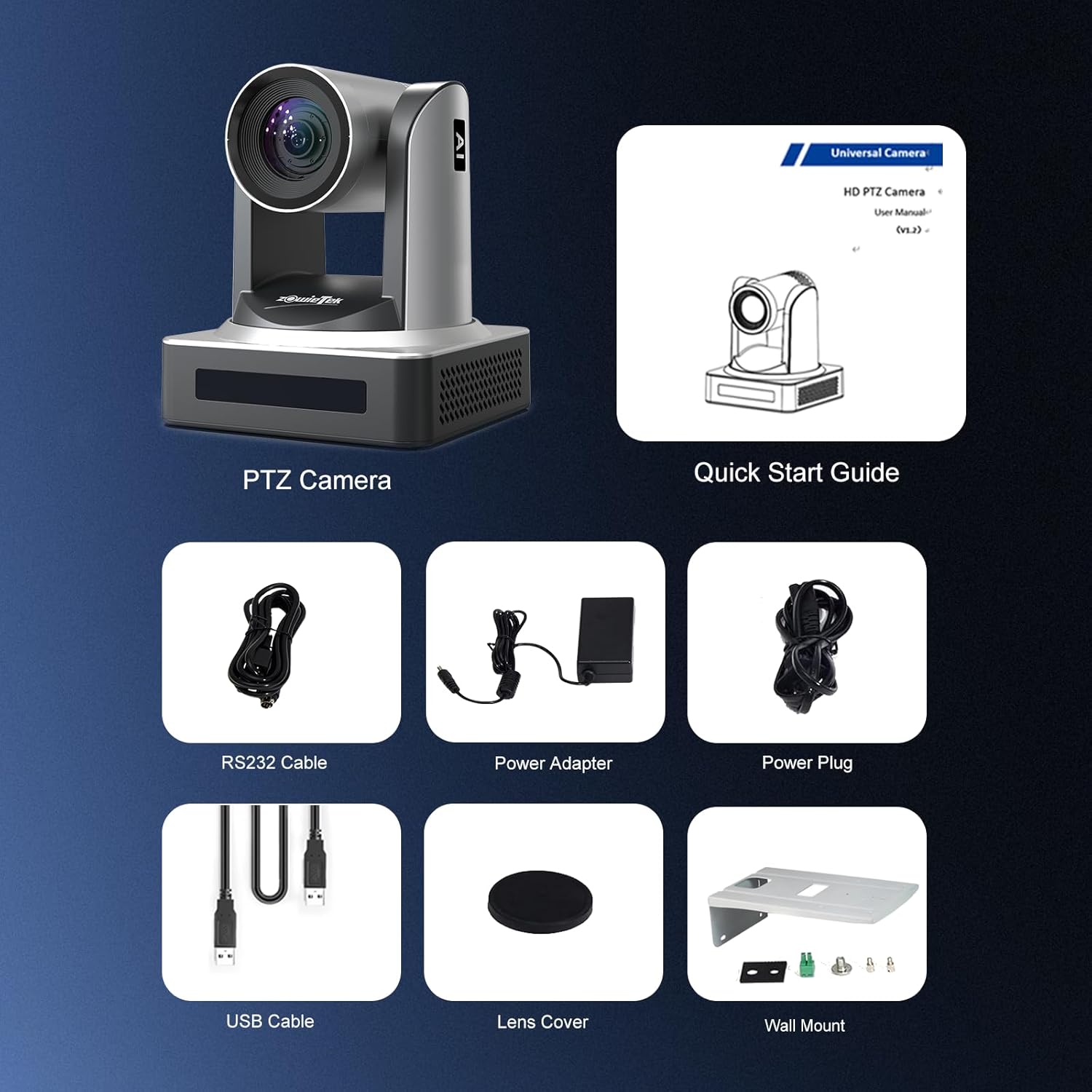
Image 3.1: Overview of AI Auto Tracking modes.
- Real-time Tracking: Follows moving subjects instantly with minimal delay. Ideal for dynamic presentations or sports.
- Stage Tracking: Designed for theatrical or performance environments, focusing on subjects within a defined stage area.
- Zone Tracking: Activates when a subject enters predefined areas and ignores movement outside specified zones. Useful for lectures or classrooms.
- Intelligent View: Features intelligent subject recognition and automated framing, ensuring smooth, hands-free tracking for presentations, live events, and video productions.

Image 3.2: Real-time tracking example.

Image 3.3: Stage tracking example.

Image 3.4: Zone tracking example.

Image 3.5: Intelligent View tracking example.
3.3 Control Methods
The camera can be controlled via multiple methods:

Image 3.6: Flexible control options for the PTZ Camera.
- IR Remote Controller: Enables convenient real-time PTZ control, preset recall, and camera adjustments.
- Web-based Control: Access the camera's settings and control functions through a web browser by entering the camera's IP address. This allows for switching AI tracking modes and fine-tuning parameters.
- Dedicated PTZ Controller: For advanced control, connect a dedicated PTZ joystick controller via RS232 or network for precise pan, tilt, and zoom adjustments, and preset management.

Image 3.7: IR Remote Controller for basic operations.

Image 3.8: Web-based control interface.

Image 3.9: PTZ Camera with dedicated controller.
3.4 Streaming and Platform Compatibility
The camera supports various streaming protocols and is compatible with popular platforms:

Image 3.10: Wide compatibility with streaming platforms and protocols.
- Supported Protocols: H.264/H.265 encoding, RTSP, RTMP(s), SRT.
- Compatible Platforms: OBS, vMix, Zoom, Skype, Microsoft Teams, YouTube, Facebook Live, Twitch.

Image 3.11: Live streaming capabilities.
4. Specifications
| Feature | Detail |
|---|---|
| Model Number | 90482-990 |
| Product Dimensions | 5.91 x 5.91 x 6.59 inches |
| Item Weight | 3.09 pounds |
| Photo Sensor Technology | CMOS |
| Video Capture Resolution | 1080p |
| Maximum Focal Length | 91.49 Millimeters |
| Maximum Aperture | 1.8 f |
| Video Capture Format | MP4 |
| Supported Audio Format | AAC, MP3 |
| Screen Size (Front LCD) | 3.8 Inches |
| Connectivity Technology | Ethernet, HDMI, USB |

Image 4.1: 1/2.8" CMOS Sensor for enhanced image quality.

Image 4.2: 1080P60 Full HD video capture.

Image 4.3: Low light performance.

Image 4.4: Silent motor technology for quiet operation.
5. Maintenance
5.1 Cleaning
To maintain optimal performance, keep the camera lens and body clean. Use a soft, dry cloth to wipe the camera. For the lens, use a specialized lens cleaning cloth and solution. Avoid using harsh chemicals or abrasive materials.
5.2 Firmware Updates
Periodically check the zowietek official website for available firmware updates. Firmware updates can improve performance, add new features, or resolve known issues. Follow the instructions provided with the firmware update package carefully.
6. Troubleshooting
This section addresses common issues you might encounter with your zowietek PTZ Camera.
6.1 No Video Output
- Check Connections: Ensure all video cables (HDMI, SDI, USB, LAN) are securely connected to both the camera and the receiving device.
- Power: Verify the camera is powered on. Check the power adapter connection or PoE status if using Ethernet.
- Input Selection: Confirm the receiving device (monitor, switcher) is set to the correct input source.
- Cable Quality: Try different cables to rule out faulty wiring, especially for longer runs.
6.2 AI Tracking Not Working Correctly
- Lighting Conditions: Ensure adequate lighting in the tracking area. Extreme low light or backlighting can affect tracking performance.
- Obstructions: Clear any objects that might obstruct the camera's view of the subject.
- Tracking Mode: Verify that the correct AI tracking mode (Real-time, Stage, Zone, Intelligent View) is selected for your environment. Adjust sensitivity settings via web control if available.
- Firmware: Ensure the camera has the latest firmware installed.
6.3 Cannot Access Camera via IP Address
- Network Connection: Confirm the Ethernet cable is properly connected and the network indicator light on the camera is active.
- IP Address: Check the IP address displayed on the front LCD screen. Ensure your computer is on the same network subnet as the camera.
- Firewall/Antivirus: Temporarily disable any firewall or antivirus software on your computer that might be blocking access.
- Default IP: If you cannot determine the IP, consult the full user manual for instructions on resetting to default IP settings or using IP discovery tools.
6.4 Noise During Pan/Tilt/Zoom Operations
- The camera is designed with ultra-silent PTZ motors. A very faint sound during movement is normal. If the noise is excessive or unusual, contact support.
7. Warranty and Support
7.1 Limited Warranty
This zowietek PTZ Camera comes with a 1-year limited warranty from the date of purchase. This warranty covers manufacturing defects and malfunctions under normal use. It does not cover damage caused by misuse, accidents, unauthorized modifications, or improper installation.
7.2 Return Policy
A 30-day money-back guarantee is offered for returns without reason, starting from the date of purchase. Please refer to your retailer's specific return policy for detailed instructions.
7.3 Technical Support and Training
zowietek provides lifetime technical support and free online training for this product. For assistance, please visit the official zowietek website or contact their customer service team. Support inquiries are typically responded to within 24 hours.


