
1. Introduction
This manual provides essential information for the installation, operation, and maintenance of your NVIDIA Quadro K4200 4GB GDDR5 Graphics Card. The NVIDIA Quadro K4200 is a professional graphics processing unit (GPU) designed for demanding visual computing workflows, offering advanced features for design, animation, and video applications. This specific unit is a renewed product, ensuring functionality and performance.
Please read this manual thoroughly before installing and using the graphics card to ensure proper setup and optimal performance.
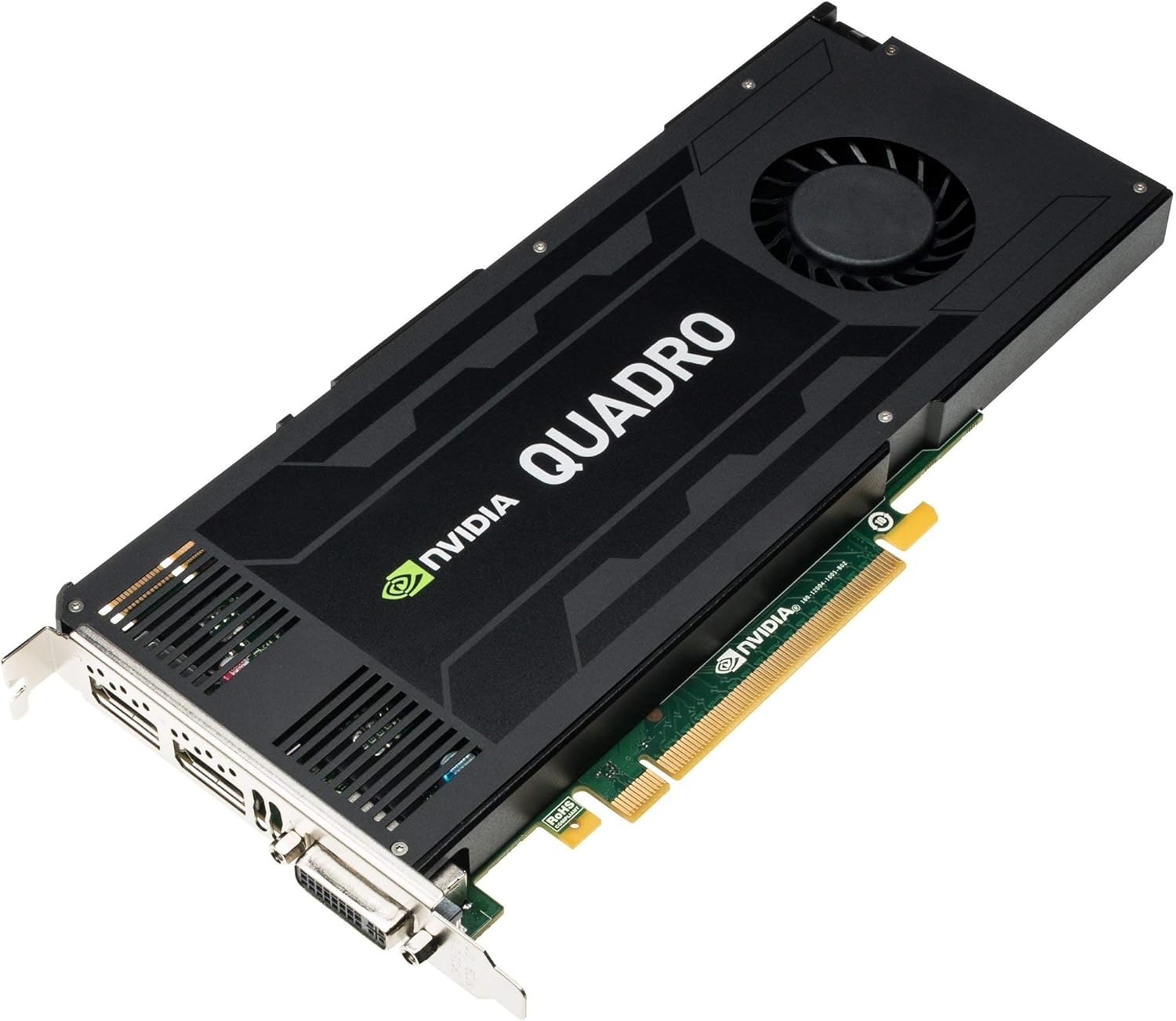
Figure 1: NVIDIA Quadro K4200 Graphics Card. This image displays the full graphics card, highlighting its cooling fan, heatsink, and various output ports including DisplayPort and DVI.
2. Technical Specifications
The following table details the technical specifications of the NVIDIA Quadro K4200 graphics card:
| Feature | Specification |
|---|---|
| Graphics Processor | NVIDIA Quadro K4200 |
| Graphics RAM Size | 4 GB GDDR5 |
| Video Output Interface | DisplayPort + DVI |
| Product Dimensions | 9.49 x 0.79 x 4.41 inches |
| Item Weight | 2.2 pounds |
| Manufacturer | HP ISS BTO |
| Item Model Number | 764900-001 |
| ASIN | B086WNXKR4 |
| Date First Available | April 8, 2020 |
3. Installation Guide
Follow these steps to properly install your NVIDIA Quadro K4200 graphics card into your computer system. Ensure your system is powered off and unplugged before beginning the installation process.
- Prepare Your System: Power down your computer completely and unplug the power cord from the wall outlet. Disconnect all peripherals.
- Open the Computer Case: Remove the side panel of your computer case to access the internal components.
- Locate an Available PCIe Slot: Identify an available PCI Express x16 slot on your motherboard. This is typically the longest slot. If replacing an existing graphics card, carefully remove it first.
- Remove Slot Cover: Remove the metal slot cover from the back of your computer case corresponding to the chosen PCIe slot.
- Insert the Graphics Card: Align the NVIDIA Quadro K4200 with the PCIe slot. Apply even, firm pressure to push the card straight down into the slot until it is fully seated. You should hear a click as the retention clip engages.
- Secure the Card: Use a screw or the case's retention mechanism to secure the graphics card bracket to the computer case.
- Connect Power (if applicable): The Quadro K4200 typically requires supplementary power. Connect the appropriate PCIe power connector(s) from your power supply unit (PSU) to the power input(s) on the graphics card. Refer to your PSU manual for connector types.
- Close the Computer Case: Replace the side panel of your computer case.
- Connect Display Cables: Connect your monitor(s) to the DisplayPort or DVI outputs on the graphics card.
- Power On: Plug the power cord back into the wall outlet and power on your computer.

Figure 2: NVIDIA Quadro K4200 Output Ports. This image shows a close-up of the card's output bracket, featuring DisplayPort and DVI connectors, which are used to connect to monitors.
4. Operating Instructions
4.1 Driver Installation
After physical installation, it is crucial to install the correct drivers for your NVIDIA Quadro K4200 graphics card to ensure full functionality and optimal performance.
- Download Drivers: Visit the official NVIDIA website (www.nvidia.com/drivers) and navigate to the driver download section.
- Select Product: Choose "Quadro" for the product type, "Quadro K Series" for the product series, and "Quadro K4200" for the product. Select your operating system.
- Download and Install: Download the recommended driver package. Once downloaded, run the installer and follow the on-screen prompts. A system restart may be required.
4.2 Display Configuration
Once drivers are installed, you can configure your display settings through your operating system's display settings or the NVIDIA Control Panel.
- Windows: Right-click on the desktop and select "Display settings" or "NVIDIA Control Panel" to adjust resolution, refresh rate, and multi-monitor setups.
- Linux: Use your desktop environment's display settings or the NVIDIA X Server Settings utility.
5. Maintenance
Proper maintenance can extend the lifespan and ensure consistent performance of your graphics card.
- Dust Removal: Periodically (e.g., every 3-6 months), power down and unplug your computer. Open the case and use compressed air to gently clear dust from the graphics card's heatsink and fan. Hold the fan blades to prevent them from spinning excessively during cleaning.
- Ensure Airflow: Ensure that your computer case has adequate airflow. Keep vents clear and avoid placing the computer in enclosed spaces that restrict air circulation.
- Driver Updates: Regularly check the NVIDIA website for updated drivers. Newer drivers often include performance improvements, bug fixes, and compatibility enhancements.
6. Troubleshooting
This section addresses common issues you might encounter with your graphics card.
6.1 No Display Output
- Check Cables: Ensure all display cables (DisplayPort, DVI) are securely connected to both the graphics card and the monitor.
- Power Connection: Verify that the supplementary PCIe power connector(s) are firmly attached to the graphics card.
- Card Seating: Power off and unplug the PC, then re-seat the graphics card firmly in its PCIe slot.
- Monitor Input: Ensure your monitor is set to the correct input source.
- BIOS/UEFI Settings: Check your motherboard's BIOS/UEFI settings to ensure the primary display output is set to PCIe/discrete graphics.
6.2 Driver Installation Issues
- Previous Drivers: Uninstall any previous graphics drivers (especially from a different manufacturer) using a utility like Display Driver Uninstaller (DDU) in Safe Mode before installing new NVIDIA drivers.
- Correct Driver: Double-check that you have downloaded the correct driver for the Quadro K4200 and your operating system from the NVIDIA website.
- Administrator Privileges: Run the driver installer as an administrator.
6.3 Performance Problems or Instability
- Overheating: Monitor GPU temperatures using software. Ensure proper case airflow and clean the card's heatsink/fan if necessary.
- Power Supply: Verify that your power supply unit (PSU) has sufficient wattage and stable power delivery for all system components, including the graphics card.
- Driver Corruption: Reinstall the graphics drivers.
- System Updates: Ensure your operating system is fully updated.
7. Warranty Information
As this is a renewed product, warranty terms are typically provided by the seller or refurbisher. According to the product listing, a 90-day refund/replacement policy is offered. Please retain your proof of purchase for any warranty claims.
For specific details regarding your renewed product's warranty, please refer to the documentation provided by the seller (Compeve) at the time of purchase or contact them directly.
8. Customer Support
For technical assistance, driver downloads, or further information regarding your NVIDIA Quadro K4200 graphics card, please refer to the following resources:
- NVIDIA Official Website: www.nvidia.com/support (for driver downloads and general product information)
- Seller Support: For issues related to the renewed product's condition, return policy, or specific purchase details, please contact the seller (Compeve) directly through your purchase platform.


