
Introduction
The Jabra Evolve2 65 is a wireless Bluetooth headset designed for professional use, offering superior audio quality for calls and music. It features advanced passive noise cancellation, long battery life, and compatibility with leading Unified Communications platforms. This manual provides detailed instructions for setting up, operating, maintaining, and troubleshooting your headset.
What's in the Box
Verify that all items are present in your package:
- Jabra Evolve2 65 Headset (Black, Dual-Ear)
- Jabra Link 380a Bluetooth Adapter (USB-A)
- 1.2m USB-C to USB-A Charging Cable
- Carry Case
- Warranty and Safety Leaflets
- User Documents
- Charging Stand (SKU specific, if included with your model)

Image: The contents of the Jabra Evolve2 65 package, showing the headset, USB-A adapter, USB-C to USB-A charging cable, and a protective carry case.
Setup
1. Charging the Headset
Before first use, fully charge your Jabra Evolve2 65 headset. A full charge takes approximately 1.5 hours and provides up to 37 hours of battery life. A 15-minute charge can provide up to 8 hours of use.
- Connect the supplied USB-C to USB-A cable to the charging port on the headset and to a USB power source.
- The LED indicator on the headset will show charging status.
2. Connecting to your Device
The Jabra Evolve2 65 can connect wirelessly via Bluetooth 5.0 using the included Jabra Link 380a USB-A adapter or directly to a Bluetooth-enabled device.
Using the Jabra Link 380a USB-A Adapter:
- Plug the Jabra Link 380a USB-A adapter into an available USB-A port on your computer.
- The headset and adapter are pre-paired and should connect automatically. The LED on the adapter will turn solid blue when connected.
Direct Bluetooth Pairing:
- Turn on the headset.
- Put the headset into pairing mode (refer to the headset's controls for specific instructions, usually by holding a button until the LED flashes blue).
- On your device (smartphone, tablet), go to Bluetooth settings and select the Jabra Evolve2 65 from the list of available devices.
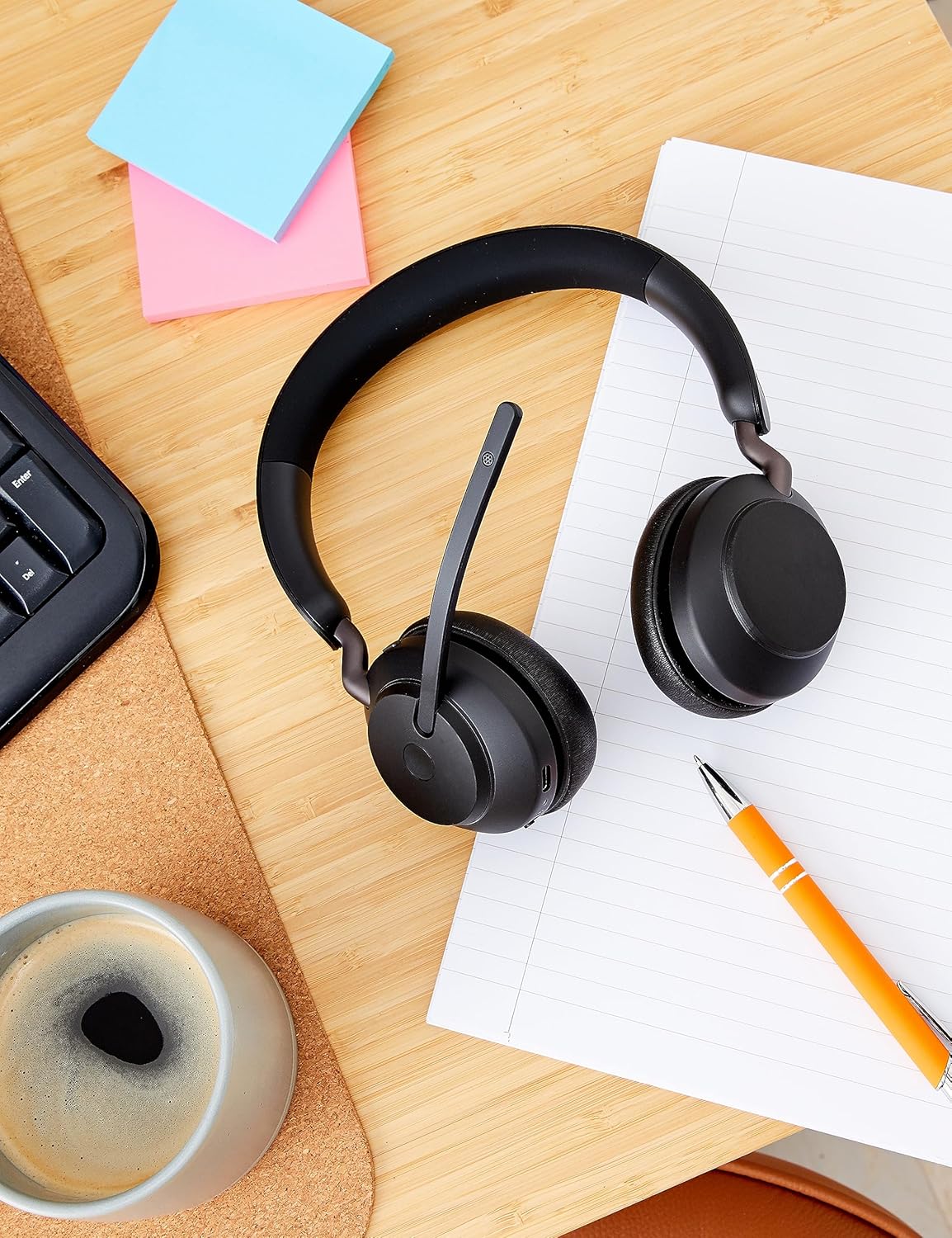
Image: The Jabra Evolve2 65 headset positioned on a wooden desk alongside a USB-A dongle, indicating readiness for connection to a computer or other device.
Operating Instructions
Basic Controls
The headset features intuitive touch controls for media and call management.
- Volume Control: Use the dedicated buttons on the ear cup to adjust volume up or down.
- Play/Pause: Tap the multi-function button for media playback control.
- Answer/End Call: Press the call button to manage phone calls.
- Mute Microphone: Lift the microphone boom arm to mute your microphone during a call. Lower it to unmute.
Passive Noise Cancellation
The Evolve2 65 features enhanced memory foam padding and an angled ear cup design to provide superior passive noise cancellation, reducing ambient noise by up to 48%.

Image: A woman wearing the Jabra Evolve2 65 headset, illustrating the effectiveness of its passive noise cancellation feature in a busy environment.
Microphone Technology
Equipped with 3-microphone call technology, the headset reduces background conversation noise by 23%, ensuring clear communication during calls.

Image: A man wearing the Jabra Evolve2 65 headset, illustrating the use of its 40mm speakers for rich audio and the 3-microphone call technology for clear communication.
Busylight Feature
The integrated busylight is four times more visible than previous models, indicating your availability to others. It automatically activates during calls or meetings, or can be manually activated with a button press.

Image: A man wearing the Jabra Evolve2 65 headset, demonstrating its compatibility with leading UC platforms and the visibility of its busylight feature.
Maintenance
To ensure the longevity and optimal performance of your Jabra Evolve2 65 headset, follow these maintenance guidelines:
- Cleaning: Regularly wipe the ear cushions and headband with a soft, dry cloth. For deeper cleaning, use a slightly damp cloth with mild soap, ensuring no moisture enters the speaker or microphone openings.
- Storage: When not in use, store the headset in its provided carry case to protect it from dust, scratches, and impacts. Avoid storing in extreme temperatures.
- Cable Care: Handle the charging cable gently. Avoid sharp bends or excessive pulling that could damage the cable or connectors.
- Battery: For optimal battery health, avoid fully discharging the battery frequently. Charge the headset regularly, even if not used daily.

Image: The Jabra Evolve2 65 headset resting on a table, showcasing its soft memory foam cushions designed for all-day comfort and durability.
Troubleshooting
If you encounter issues with your Jabra Evolve2 65 headset, try the following solutions:
- No Audio/Poor Audio Quality:
- Ensure the headset is charged and powered on.
- Verify the headset is connected to your device (check Bluetooth connection or USB adapter status).
- Adjust the volume on both the headset and your connected device.
- If using the USB adapter, try plugging it into a different USB port.
- Microphone Not Working:
- Ensure the microphone boom arm is lowered and not muted.
- Check microphone settings on your computer or communication software.
- Connection Issues:
- Turn the headset off and on again.
- Restart your computer or Bluetooth device.
- If issues persist, try re-pairing the headset with your device or USB adapter.
- Busylight Not Functioning:
- Ensure the headset is connected to a device running a compatible UC platform.
- Check for any software updates for your Jabra headset via the Jabra Direct application.
Specifications
| Feature | Detail |
|---|---|
| Brand | Jabra |
| Model Name | Evolve2 65 |
| Model Number | 26599-989-999 |
| Connectivity Technology | Bluetooth 5.0, Wireless |
| Bluetooth Range | 30 meters |
| Ear Placement | On Ear |
| Noise Control | Passive Noise Cancellation |
| Audio Driver Size | 40 millimeters |
| Battery Average Life | 37 hours |
| Battery Charge Time | 1.5 hours |
| Control Type | Media Control, Touch |
| Microphone Included | Yes (3-microphone technology) |
| Compatible Devices | Universal (UC-Certified for Microsoft Teams, Cisco, Mitel, Avaya & more) |
| Item Weight | 1.6 ounces |
| Material | Faux Leather, Foam, Metal, Silicone, Memory Foam |
Warranty & Support
The Jabra Evolve2 65 headset comes with a 2-year manufacturer's warranty. This warranty covers defects in materials and workmanship under normal use.
For detailed warranty terms, technical support, or to register your product, please visit the official Jabra support website or contact their customer service. Keep your proof of purchase for warranty claims.
Online Support: www.jabra.com/support


