
1. Introduction
This manual provides essential information for the proper installation, operation, and maintenance of your Goojprt QR701 Mini 58mm Thermal Receipt Printer. Please read this manual thoroughly before using the printer to ensure optimal performance and longevity.

Figure 1: Goojprt QR701 Mini Thermal Receipt Printer.
2. Product Overview
Familiarize yourself with the main components and features of your QR701 printer.

Figure 2: Key components of the QR701 printer.
- LED Indicator: Provides status feedback (e.g., power on, error, paper out).
- Out of Paper Key: Indicates when the paper roll is depleted.
- Cover Switch: Releases the printer cover for paper loading.
- Tear Paper: Serrated edge for manually tearing receipts.
- Paper Outlet Cover: Protects the paper exit slot.
- Positioning Slider: Helps secure the printer in an embedded setup.
- TTL Interface: One of the connectivity options for data transmission.
3. Product Features
The Goojprt QR701 is a compact and efficient thermal receipt printer designed for various applications. Key features include:
- Compact Design: Beautiful appearance and small size for easy integration into various systems.
- Easy Paper Loading: Simple paper structure allows paper roll replacement from the front panel, ensuring ease of operation.
- Low Noise Operation: Adopts thermal printing technology, providing quiet operation without disturbing the environment.
- High-Speed Printing: Offers a printing speed of 50-80mm/s for efficient transaction processing.
- Versatile Interfaces: Supports Serial TTL, Parallel, and USB interfaces for broad compatibility.
- Embedded Design: Specifically designed for easy embedding into various instruments and systems.
- ESC/POS Compatibility: Supports the standard ESC/POS print instruction set.
- Environmental Friendly: Does not require ribbon or ink cartridges, contributing to reduced energy consumption and waste.

Figure 3: Thermal printing benefits.

Figure 4: Environmental benefits of the printer.

Figure 5: High-speed printing capability.
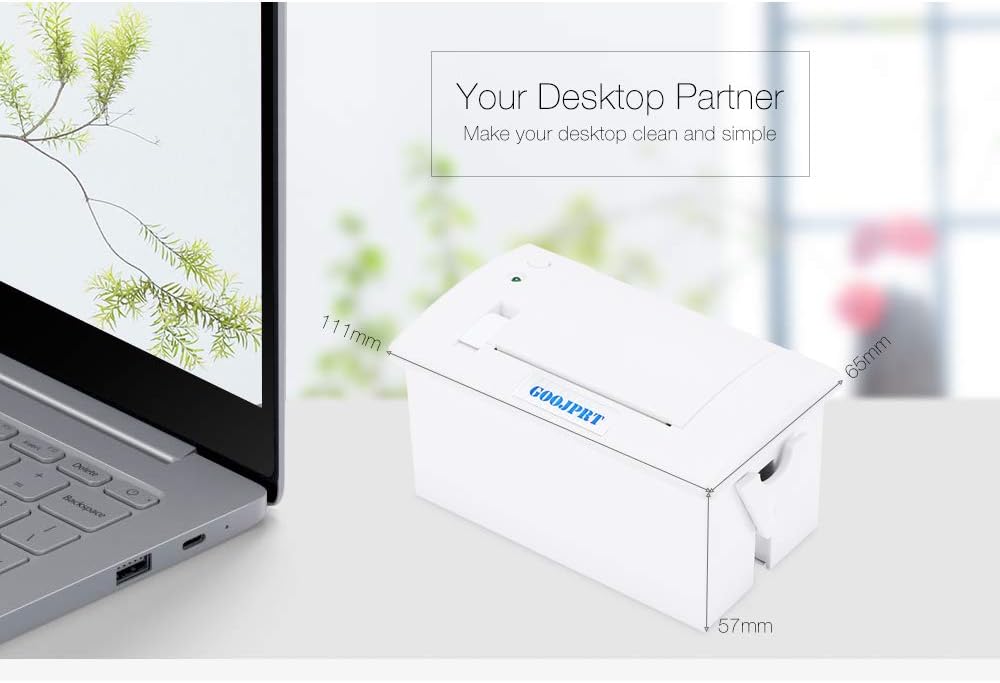
Figure 6: Printer dimensions.
4. Setup and Installation
Follow these steps to set up your Goojprt QR701 printer:
- Unpacking: Carefully remove the printer and all accessories from the packaging. Verify that all components listed in the package contents (printer, communication cable, CD) are present.
- Power Connection: Connect the power supply (not included, typically DC 5V-9V / 12V) to the printer's power input port.
- Interface Connection: Connect the printer to your host device (e.g., computer, POS system) using the appropriate communication cable (Serial TTL, Parallel, or USB).
- Driver Installation: Install the necessary printer drivers on your host device. Refer to the included CD or the manufacturer's website for driver software and installation instructions.
- Paper Roll Installation: Refer to the "Paper Loading" section (Section 5.1) for detailed instructions on how to install the thermal paper roll.
5. Operating Instructions
5.1 Paper Loading
Proper paper loading is crucial for the printer's operation. Follow these steps:
- Open the Printer Cover: Locate the cover switch and open the printer cover.
- Insert Paper Roll: Place the thermal paper roll into the compartment. The paper roll should be placed with the paper feeding from the bottom and the leading edge facing upwards, ensuring it is correctly oriented. The product description specifies placing the paper roll on the reverse side.
- Close the Printer Cover: Gently close the printer cover until it latches securely. Ensure a small portion of the paper is exposed from the paper outlet.
- Important Note: Before installing the paper, remove any tape or adhesive from the paper roll to prevent foreign matter from entering the printer and to protect the print head.

Figure 7: Printer with cover open for paper loading.
5.2 Basic Printing
Once the printer is connected and paper is loaded, you can initiate printing from your connected device. Ensure your operating system and application software are configured to use the Goojprt QR701 printer.
6. Maintenance
Regular maintenance ensures the longevity and optimal performance of your thermal printer.
- Cleaning the Print Head: Periodically clean the thermal print head with a soft, lint-free cloth moistened with isopropyl alcohol. Ensure the printer is powered off and cooled down before cleaning. Avoid touching the print head directly with bare hands.
- Cleaning the Platen Roller: Clean the platen roller (the rubber roller that feeds the paper) with isopropyl alcohol to remove paper dust or adhesive residue.
- Exterior Cleaning: Wipe the exterior of the printer with a soft, damp cloth. Do not use harsh chemicals, solvents, or abrasive cleaners, as these can damage the printer's casing.
- Paper Quality: Use only high-quality thermal paper recommended for 58mm printers. Poor quality paper can damage the print head, cause print issues, or lead to premature wear.
- Avoid Obstructions: Keep the paper path clear of any foreign objects, dust, or debris.
7. Troubleshooting
This section addresses common issues you might encounter with your Goojprt QR701 printer and provides potential solutions.
| Problem | Possible Cause | Solution |
|---|---|---|
| No Power | Power cable disconnected; power outlet faulty; power supply issue. | Check power cable connection to printer and outlet; try a different power outlet; ensure power supply meets specifications. |
| No Print Output | Paper loaded incorrectly; no paper; printer not connected; driver issue; printer offline. | Verify paper loading (refer to Section 5.1); ensure paper roll is present; check communication cable connection; reinstall printer drivers; ensure printer is online in your system settings. |
| Faint or Incomplete Print | Low voltage; print head dirty; poor quality thermal paper; print head worn out. | Ensure power supply meets specifications (DC 5V-9V / 12V); clean print head (refer to Section 6); use recommended thermal paper; if issue persists, print head may need replacement. |
| Paper Jam | Paper loaded incorrectly; foreign object in paper path; paper roll too tight. | Open cover and carefully remove jammed paper; ensure paper is loaded correctly and freely; remove any foreign objects. |
| LED Indicator Status | LED behavior indicates specific printer status (e.g., flashing for error, solid for ready, off for no power). | Consult the printer's specific LED indicator guide (if available in separate documentation) to diagnose the status. Address the indicated issue (e.g., load paper if 'paper out' is indicated). |
8. Technical Specifications
Detailed technical specifications for the Goojprt QR701 Mini 58mm Thermal Receipt Printer:
| Parameter | Specification |
|---|---|
| Printing Method | Hotspot thermal printing |
| Printing Speed | 50-80 mm/s |
| Resolution | 8 dots/mm, 384 dots/line (203.2 x 384 dpi) |
| Effective Printing Width | 48 mm |
| Character Set | ASCII, GB2312-80 (Chinese) |
| Print Font | ANK: 8 x 16, 9 x 17, 9 x 24, 12 x 24; Chinese: 16 x 16, 24 x 24 |
| Paper Type | Thermal paper 57 x 30 |
| Paper Width | 57.5 +/- 0.5 mm |
| Coil Diameter (Maximum) | 39 mm |
| Interface | Serial TTL / Parallel / USB |
| Embedding Depth | 50 mm |
| Power Supply | DC 5V-9V / 12V |
| Mounting Port Size | 103 x 57 mm |
| Working Temperature | 5 °C - 50 °C |
| Operating Humidity | 10% to 80% |
| Storage Temperature | -20 °C - 60 °C |
| Storage Humidity | 10% to 90% |
| Product Dimensions (L x W x H) | 11.10 x 6.50 x 5.70 cm / 4.37 x 2.56 x 2.24 inches |
| Included Components | 58mm embedded receipt thermal printer, communication cable, CD |
9. Applications
The Goojprt QR701 Mini 58mm Thermal Receipt Printer is suitable for a wide range of applications requiring compact and efficient receipt printing:
- Retail Environments: Ideal for shopping malls and supermarkets for point-of-sale receipts.
- Healthcare: Suitable for hospitals and clinics for patient receipts or internal documentation.
- Hospitality: Used in restaurants for order tickets or customer receipts.
- Financial Institutions: Applicable in banks for transaction slips.
- Logistics and Warehousing: For printing labels or delivery notes.
- Other Occasions: Versatile for various embedded systems and custom applications.

Figure 8: Common applications of the QR701 printer.
10. Warranty and Support
For warranty information, technical support, or service inquiries, please refer to the documentation provided with your purchase or contact your vendor. Keep your purchase receipt as proof of purchase for any warranty claims.


