
eero eero Pro 6 Router
eero Pro 6 Router User Manual
Model: eero Pro 6 Router
1. Introduction
This manual provides essential information for setting up, operating, maintaining, and troubleshooting your eero Pro 6 tri-band mesh Wi-Fi 6 router. The eero Pro 6 is designed to deliver fast, reliable Wi-Fi coverage throughout your home, eliminating dead spots and buffering. It also features a built-in Zigbee smart home hub for seamless integration with compatible smart devices.
2. Product Overview
The eero Pro 6 is a high-performance Wi-Fi 6 router that serves as the central component of your mesh Wi-Fi system. It is capable of supporting internet speeds up to a gigabit and provides extensive coverage for homes up to 2,000 sq. ft. Its compact design allows for discreet placement in any room.
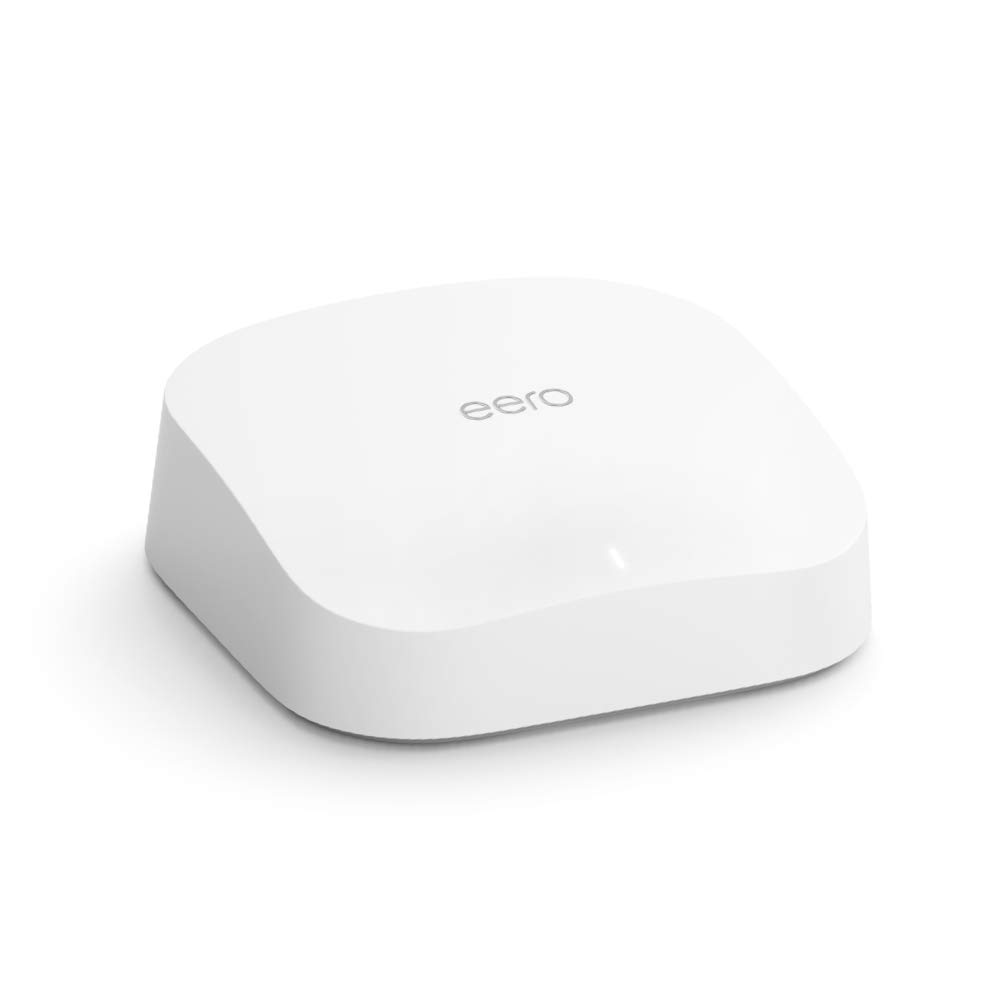
Image: The eero Pro 6 Router, showcasing its sleek, minimalist design.
3. Key Features
- Premium Wi-Fi 6 Performance: Supports speeds up to a gigabit, ensuring fast and efficient internet connectivity.
- Extensive Coverage: Covers up to 2,000 sq. ft., effectively eliminating Wi-Fi dead spots and buffering throughout your home.
- Connects 75+ Devices: Wi-Fi 6 technology allows for more connected devices simultaneously without compromising performance.
- Optimized for Streaming and Gaming: eero's mesh Wi-Fi technology adapts to your space, ensuring smooth 4K video streaming, gaming, and video conferencing.
- Built-in Zigbee Smart Home Hub: Doubles as a Zigbee hub, enabling easy connection and control of compatible smart home devices with Alexa.
- Automatic Updates: Your network stays safe and secure with automatic software updates.
- Expandable System: Easily add more eero products to expand your network as your needs change, thanks to cross-compatible hardware.

Image: A hand gently touching the eero Pro 6 router, illustrating its premium Wi-Fi 6 capabilities and gigabit speed support.

Image: A person connecting the eero router, symbolizing the end of Wi-Fi dead spots and buffering.

Image: An illustration depicting the eero Pro 6 providing Wi-Fi coverage across multiple floors and connecting over 75 devices.

Image: A woman comfortably using a tablet, highlighting the worry-free experience for streaming, gaming, and remote work.

Image: Individuals enjoying entertainment in a smart home environment, demonstrating the integrated Zigbee hub functionality.
4. Setup
Setting up your eero Pro 6 is designed to be quick and straightforward, typically taking only minutes. You will need a supported iOS or Android device and an internet service connection (with a cable or DSL modem, if required).
- Download the eero App: Search for "eero" in your device's app store and download the official eero application.
- Connect Your eero: Follow the in-app instructions to connect your eero Pro 6 to your modem and power outlet.
- Follow In-App Guide: The eero app will walk you through the entire setup process, including creating your network name and password, and adding additional eero devices if you have a multi-pack system.
- Verify Connection: Once setup is complete, the app will confirm your network is up and running.

Image: A smartphone displaying the eero app's successful setup screen, emphasizing the quick installation process.
5. Operating Your eero Network
Once your eero Pro 6 network is set up, it operates automatically to provide optimal Wi-Fi performance. The mesh technology intelligently routes traffic and ensures seamless roaming for your devices.
- Network Management: Use the eero app to manage your network from anywhere. You can view connected devices, set up guest networks, and manage profiles.
- Smart Home Integration: Leverage the built-in Zigbee hub to connect and control compatible smart home devices directly through the eero network, often manageable via Alexa.
- Automatic Updates: Your eero system will automatically download and install software updates, typically overnight, to enhance performance and security.
6. Maintenance
The eero Pro 6 is designed for minimal maintenance. Regular software updates are handled automatically to ensure your network remains secure and performs optimally.
- Placement: Ensure your eero devices are placed in open areas, away from large metal objects or other electronics that could cause interference.
- Cleaning: Periodically wipe the exterior of the device with a soft, dry cloth. Do not use liquid cleaners or aerosols.
- Firmware: Allow automatic updates to proceed. Do not unplug your eero during an update.
7. Troubleshooting
If you encounter issues with your eero Pro 6, consider the following common troubleshooting steps:
- No Internet Connection:
- Check if your modem is working correctly.
- Ensure all cables are securely connected to your eero and modem.
- Restart your modem and then your eero device(s) by unplugging them for 30 seconds and plugging them back in.
- Slow Speeds or Buffering:
- Verify your internet service provider's speed.
- Check the eero app for network health and device placement suggestions.
- Ensure your eero devices are not obstructed.
- Device Not Connecting:
- Restart the problematic device.
- Forget the Wi-Fi network on your device and reconnect.
- Check the eero app to see if the device is paused or has parental controls applied.
- App Issues:
- Ensure your eero app is updated to the latest version.
- Try force-closing and reopening the app.
For further assistance, refer to the eero support website or contact customer support.
8. Specifications
| Feature | Description |
|---|---|
| Model Name | Amazon eero Pro 6 mesh wifi router |
| Wi-Fi Coverage | Covers up to 2,000 sq. ft. |
| Type | Router (connects to modem as primary router) |
| Supported Speeds | Best for internet speeds up to a gigabit. |
| Wi-Fi Connectivity | Wi-Fi 6 tri-band concurrent 2:2:4 (802.11ax), compatible with older Wi-Fi standards |
| Wired Connectivity | Two auto-sensing gigabit Ethernet ports for WAN and/or LAN connectivity |
| Speed Rating | AX4200 |
| Smart Home Connectivity | Works with Alexa, Amazon Frustration Free Setup, 802.15.4 radio (Zigbee, Thread), Bluetooth Low Energy 5.0. |
| Electrical Rating | 100-240V AC, 50-60Hz |
| Processor, Memory, Storage | 1.6 GHz quad-core processor, 1 GB RAM, 4 GB flash storage |
| Network Security & Services | Profiles, WPA3 (eero Labs feature), WPA2, TLS v1.2+, VPN passthrough, IPv6, NAT, UPnP, port forwarding, DHCP, static IP, and cloud connectivity |
| Required for Setup | Supported iOS or Android device and internet service (with cable or DSL modem, if required). |
| Temperature Rating | Operating: 0°C- 40°C / 32°F - 104°F; Storage: -25°C- 60°C/ -13°F - 140°F |
| Dimensions | 5.6 in x 5.4 in x 1.9 in (142 mm x 138 mm x 48 mm) |
9. Warranty and Support
Your eero Pro 6 router comes with a 1-year limited warranty and service. This device receives the same limited warranty as a new device, even if purchased as a Like-New Amazon device.
For detailed warranty information and customer support, please visit the official eero support website or refer to the documentation included with your product. Software security updates are guaranteed for at least five years after the device is last available for purchase as a new unit.
Related documentseero Pro 6 Router


Ask a question about this manual
Ask about setup, troubleshooting, compatibility, parts, safety, or missing instructions. Manuals+ will review the question and use this page’s manual context to help answer it.