
Amazon Echo Buds (2nd Gen)
Amazon Echo Buds (2nd Gen) User Manual
Your guide to setting up, operating, and maintaining your Echo Buds with Active Noise Cancellation.
Setup Guide
1. Unboxing and Initial Charge
Upon opening your Echo Buds package, you will find the Echo Buds, the charging case, multiple pairs of ear tips, two pairs of wing tips, a USB-C cable, and a Quick Start Guide. Before first use, ensure your Echo Buds and charging case are fully charged.
- Place the Echo Buds into the charging case.
- Connect the USB-C cable to the charging case and a power source. The LED indicator on the case will show charging status.
- For wireless charging models, place the case on a Qi-certified wireless charging pad (sold separately).

Image: The Echo Buds charging case placed on a wireless charging pad, indicating the charging process.
2. Pairing Your Echo Buds
To use your Echo Buds, you need to pair them with your smartphone or other Bluetooth-enabled device and set them up using the Alexa app.
- Open the Echo Buds charging case with the buds inside. The LED light on the case should pulse blue, indicating pairing mode.
- On your smartphone, go to Bluetooth settings and select "Echo Buds" from the list of available devices.
- Download and open the Amazon Alexa app. Follow the on-screen instructions to complete the setup process for your Echo Buds. This includes customizing settings, enabling features like Active Noise Cancellation, and linking your Amazon account.

Image: A smartphone displaying the Alexa app, showing battery levels for the left and right Echo Buds and the charging case, along with controls for ANC and mute.
3. Customizing Your Fit
Achieving a secure and comfortable fit is crucial for optimal sound quality and Active Noise Cancellation performance. The Echo Buds come with various ear tips and wing tips to help you find the best fit.
- Experiment with different sizes of ear tips (silicone domes) to create a good seal in your ear canal.
- Try different wing tip sizes to ensure the buds stay securely in place, especially during movement. The wing tip should tuck comfortably into the fold of your outer ear.
- Use the Ear Tip Fit Test feature in the Alexa app to verify you have the best possible seal.

Image: The Echo Buds displayed alongside a selection of different sized ear tips and wing tips, illustrating the customization options for fit.
Operating Your Echo Buds
1. Basic Touch Controls
The Echo Buds feature customizable touch controls on each earbud for managing audio playback, calls, and voice assistant activation.
- Single Tap: Play/Pause music, Answer/End call.
- Double Tap: Skip forward, Decline call.
- Triple Tap: Skip backward.
- Press and Hold: Toggle Active Noise Cancellation/Passthrough, activate voice assistant (customizable in Alexa app).
2. Active Noise Cancellation (ANC) and Passthrough Mode
The Echo Buds offer dynamic audio with Active Noise Cancellation to reduce background noise and Passthrough Mode to hear your surroundings.
- Active Noise Cancellation (ANC): Reduces ambient noise for an immersive listening experience. Enable or disable via touch control or the Alexa app.
- Passthrough Mode: Amplifies sounds from your environment, allowing you to hear what's happening around you without removing your earbuds. Adjust the level of amplification in the Alexa app.
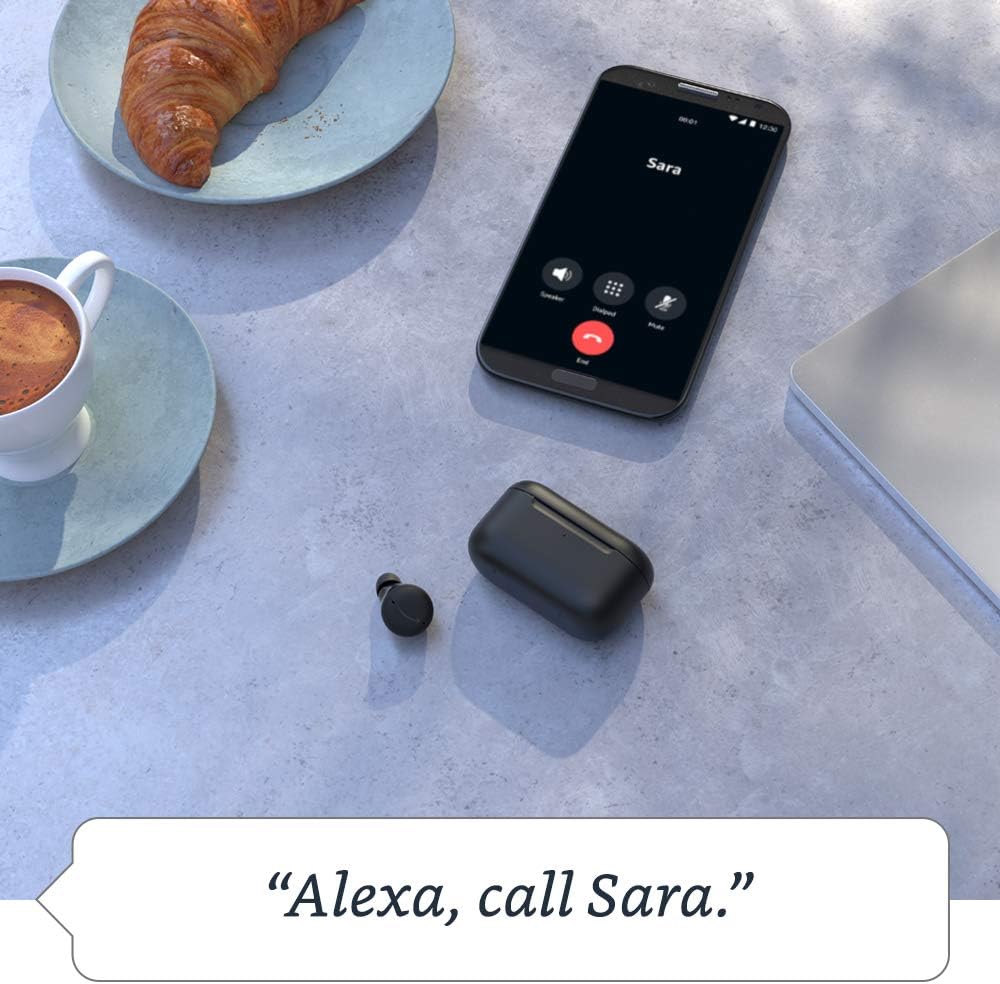
Image: An Echo Bud shown with a visual representation of sound waves, demonstrating the effect of active noise cancellation on ambient noise.
3. Voice Commands with Alexa
With the Alexa app, you can use your voice to control music, make calls, set reminders, and access various Alexa features hands-free.
- Simply say "Alexa" followed by your command. For example, "Alexa, play my workout playlist" or "Alexa, what's the weather?"
- You can also access other voice assistants like Siri or Google Assistant by configuring the press and hold gesture in the Alexa app.
4. Making and Receiving Calls
The Echo Buds allow for clear calls with integrated microphones.
- To make a call: Say "Alexa, call [contact name]" or use your phone's dialer.
- To answer a call: Single tap either earbud.
- To end a call: Single tap either earbud.
- To decline a call: Double tap either earbud.
5. Multipoint Pairing
The Echo Buds support seamless switching between two connected devices simultaneously, such as a laptop and a smartphone. This allows you to move from a video call on one device to music on another without manually re-pairing.
Maintenance and Care
1. Cleaning Your Echo Buds and Case
Regular cleaning helps maintain performance and hygiene.
- Gently wipe the earbuds and charging case with a soft, dry, lint-free cloth.
- For ear tips, remove them from the earbuds and clean with a damp cloth, then dry thoroughly before reattaching.
- Avoid using abrasive materials, alcohol, or chemical cleaners.
2. Battery Management
To maximize the lifespan of your Echo Buds' battery:
- Store the earbuds in their charging case when not in use.
- Avoid exposing the device to extreme temperatures.
- A 15-minute quick charge provides up to 2 hours of music playback.
Troubleshooting Common Issues
1. Connectivity Problems
- Echo Buds not connecting: Ensure Bluetooth is enabled on your device and the Echo Buds are in pairing mode (blue pulsing light). Try turning Bluetooth off and on again on your device.
- Intermittent connection: Ensure your device is within range. Avoid physical obstructions between the earbuds and your device.
- Resetting Echo Buds: If issues persist, you can perform a factory reset via the Alexa app or by holding the button on the charging case for an extended period (refer to Alexa app for specific instructions).
2. Audio Quality Issues
- Poor sound or ANC: Re-run the Ear Tip Fit Test in the Alexa app to ensure you have the best seal. Try different ear tip sizes.
- Low volume: Adjust volume on your connected device and within the Alexa app.
3. Charging Issues
- Buds not charging in case: Ensure the earbuds are properly seated in the charging case and the charging contacts are clean.
- Case not charging: Verify the USB-C cable and power adapter are working correctly. For wireless charging, ensure the case is centered on the charging pad.
Technical Specifications
| Size | Earbud: 20.0 x 19.1 x 19.1 mm (without ear tip or wing tip) Case: 66.8 x 28.6 x 39.1 mm |
| Weight | Earbud: 5.7 g (without ear tip or wing tip) Case: 44.4 g (47.6 g for wireless charging case) |
| Connectivity | Bluetooth 5.0 (HFP, A2DP, AVRCP, SPP, IAP) Requires Wi-Fi or mobile data connection via Alexa app |
| Processors | Realtek RTL8763C Bluetooth System on Chip with integrated Audio Codec, NXP Digital Signal Processor |
| Speakers | 5.7 mm dynamic driver |
| Microphones | 3 per earbud: 2 external beamforming + 1 internal |
| IPX Rating | IPX4 (earbuds only) - tested to withstand water splashing |
| Sensors | Accelerometer, proximity, touch, hall (case) |
| Battery Life | Up to 5 hours music playback with ANC (15 hours total with case) Up to 6.5 hours music playback without ANC (19.5 hours total with case) Up to 4 hours call time (12 hours total with case) 15-min quick charge provides up to 2 hours music playback |
| Accessibility Features | Audio Personalization, Alexa app features for vision, hearing, mobility, and speech. |
| Included in Box | Echo Buds, charging case, 4 pairs of ear tips, 2 pairs of wing tips, USB-C cable, Quick Start Guide |
| Privacy Features | Wake word technology, streaming indicator, mute button in Alexa app, ability to view and delete voice recordings. |
Warranty and Customer Support
Your Amazon Echo Buds come with a 1-year limited warranty and service. Extended warranties may be available for purchase separately in some regions.
For detailed warranty terms, troubleshooting assistance beyond this manual, or to contact customer support, please visit the Amazon Devices Support website or use the help section within the Amazon Alexa app.
Please retain your proof of purchase for warranty claims.
Related documentsEcho Buds (2nd Gen)


Ask a question about this manual
Ask about setup, troubleshooting, compatibility, parts, safety, or missing instructions. Manuals+ will review the question and use this page’s manual context to help answer it.