
1. Introduction
This manual provides essential information for the proper setup, operation, and maintenance of your Lenovo 04X2176 External Slim DVD Writer. Please read this manual thoroughly before using the device to ensure safe and efficient operation. This external optical drive is designed for use with compatible Lenovo ThinkCentre Tiny Mini PCs.
2. Safety Information
- Do not expose the device to moisture, rain, or extreme temperatures.
- Avoid placing the device in direct sunlight or near heat sources.
- Handle discs by their edges to prevent scratches and smudges.
- Do not attempt to disassemble or repair the device yourself. Refer to qualified service personnel.
- Use only the specified power source (if an external adapter is required and not supplied, ensure it meets specifications).
3. Product Overview
The Lenovo 04X2176 is an external slim DVD writer designed for compact computing environments. It offers DVD and CD read/write capabilities through a USB interface, making it a versatile accessory for compatible systems.
Key Features:
- Model: 04X2176
- Form Factor: Slim, External
- Interface: USB (1x USB-B for connection to PC, 2x USB-A for peripheral devices)
- Functionality: DVD/CD Read and Write
- Compatibility: Specifically designed for Lenovo ThinkCentre M73, M83, M92, M93 Tiny (Ultra Slim) Mini PCs.
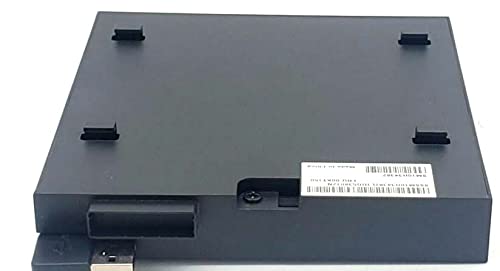
An image showing the compact design of the Lenovo 04X2176 External Slim DVD Writer, highlighting its slim profile and USB ports.
Package Contents (Not Included):
Please note that this product typically ships without connecting cables, an external power adapter, an installation disc, or additional documentation. These items may need to be acquired separately if not already available.
4. Setup
- Connect to PC: Using a compatible USB-B to USB-A cable (not included), connect the USB-B port on the DVD writer to an available USB-A port on your Lenovo ThinkCentre Tiny PC.
- Power (if applicable): If your PC's USB port does not provide sufficient power, an external USB power adapter (not included) may be required. Connect it to the designated power input if available.
- Driver Installation: Most modern operating systems (Windows, macOS, Linux) will automatically detect and install the necessary drivers for the DVD writer. If the device is not recognized, check your operating system's device manager or visit the official Lenovo support website for driver downloads.
- Ready for Use: Once drivers are installed, the device will appear as an optical drive in 'My Computer' or 'This PC'.
5. Operating Instructions
Inserting a Disc:
- Press the eject button on the front of the DVD writer to open the disc tray.
- Carefully place the disc (CD or DVD) onto the tray with the label side facing up. Ensure the disc is seated correctly on the spindle.
- Gently push the disc tray back into the drive until it clicks shut.
Reading Data from a Disc:
- Insert the disc as described above.
- Your operating system may automatically prompt you to open the disc or run its content.
- Alternatively, navigate to 'My Computer' or 'This PC', locate the optical drive icon, and double-click it to browse the disc's contents.
Writing Data to a Disc (Burning):
- Insert a blank, writable CD-R/RW or DVD-R/RW disc into the drive.
- Open 'My Computer' or 'This PC' and double-click the optical drive icon.
- Follow the on-screen prompts to prepare the disc for writing. You may be asked to choose a disc format (e.g., 'Like a USB flash drive' or 'With a CD/DVD player').
- Drag and drop the files you wish to burn onto the disc icon.
- Follow your operating system's instructions to finalize the burning process. Do not interrupt the process once it has started.
Ejecting a Disc:
- Press the eject button on the front of the DVD writer.
- Alternatively, right-click the optical drive icon in 'My Computer' or 'This PC' and select 'Eject'.
- Carefully remove the disc from the tray.
6. Maintenance
- Cleaning the Drive: Use a soft, dry, lint-free cloth to gently wipe the exterior of the drive. Do not use liquid cleaners or abrasive materials. For internal lens cleaning, use a specialized CD/DVD lens cleaning kit.
- Disc Care: Keep discs clean and free of scratches. Store them in protective cases when not in use.
- Storage: When not in use, store the DVD writer in a clean, dry, and dust-free environment.
7. Troubleshooting
Drive Not Recognized:
- Ensure the USB cable is securely connected to both the DVD writer and the PC.
- Try connecting the drive to a different USB port on your PC.
- Restart your computer.
- Check Device Manager (Windows) or System Information (macOS) to see if the drive is listed. If there's an error, try updating or reinstalling drivers.
Disc Not Reading/Writing:
- Ensure the disc is clean and free of scratches or smudges.
- Verify that the disc type (CD-R, DVD-R, etc.) is compatible with the drive and your intended operation.
- Try a different disc to rule out a faulty disc.
- For writing, ensure you are using a blank, writable disc and that there is enough free space on the disc.
Disc Not Ejecting:
- Ensure no software is currently accessing the disc. Close any open applications that might be using the drive.
- Try ejecting the disc through your operating system (right-click drive icon > Eject).
- If the eject button does not work, locate the small emergency eject hole on the front of the drive. Gently insert a straightened paperclip into the hole until the tray partially opens, then pull it out manually.
8. Specifications
| Model Number | 04X2176 |
| Brand | Lenovo |
| Interface | USB (1x USB-B, 2x USB-A) |
| Form Factor | External, Slim |
| Functionality | DVD-ROM, DVD-R/RW, CD-ROM, CD-R/RW Read/Write |
| Compatibility | Lenovo ThinkCentre M73, M83, M92, M93 Tiny (Ultra Slim) Mini PCs |
9. Warranty and Support
Warranty Information:
This Lenovo 04X2176 External Slim DVD Writer typically comes with a 6-month warranty from the date of purchase. Please retain your proof of purchase for warranty claims. The warranty covers manufacturing defects but does not cover damage caused by misuse, accidents, or unauthorized modifications.
Technical Support:
For further technical assistance, driver downloads, or warranty service, please visit the official Lenovo support website or contact Lenovo customer service directly. Ensure you have your product model number (04X2176) and serial number (if applicable) ready when contacting support.
Lenovo Support Website: support.lenovo.com