
Introduction
This manual provides essential instructions for the safe and efficient operation, maintenance, and troubleshooting of your Xiaomi Mijia Robot 2-in-1 Sweeping and Wet Mopping Robot Vacuum Cleaner. Please read this manual thoroughly before using the product and retain it for future reference.
Important Safety Information
To reduce the risk of injury or damage, read and follow all safety precautions. This appliance is for household use only.
- Do not allow children to play with the appliance.
- Ensure the charging dock is placed on a level surface against a wall.
- Keep hair, loose clothing, fingers, and all parts of the body away from openings and moving parts.
- Do not operate the robot in areas with open flames or explosive materials.
- Do not use the robot to pick up large debris, liquids, or burning objects.
- Always remove the water tank and dustbin before moving or cleaning the robot.
- Use only the original power adapter and charging dock provided by the manufacturer.
Package Contents
Verify that all items are present in the package:
- 1 x Xiaomi Mijia Sweeping Mopping Robot
- 1 x 2-in-1 Water Tank
- 2 x Side Brush
- 1 x Charging Stand
- 1 x Power Adapter
- 1 x Mop Bracket
- 2 x Wiper (Mopping Pad)
Product Overview
Familiarize yourself with the main components of your robot vacuum cleaner.

Image Description: Top view of the Xiaomi Mijia Robot Vacuum Cleaner, showing the main body, the LDS laser navigation system dome, and the power/home buttons.
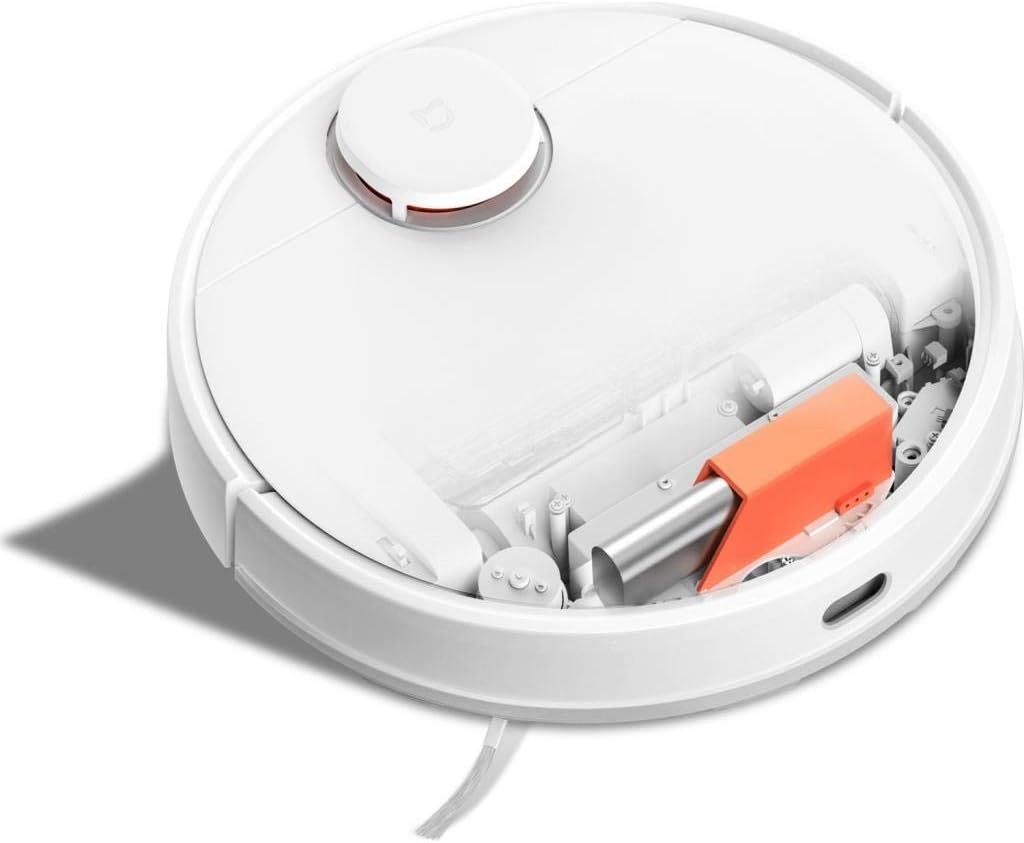
Image Description: Top view of the Xiaomi Mijia Robot Vacuum Cleaner with its top lid open, revealing the dustbin compartment and internal mechanisms, including an orange component.
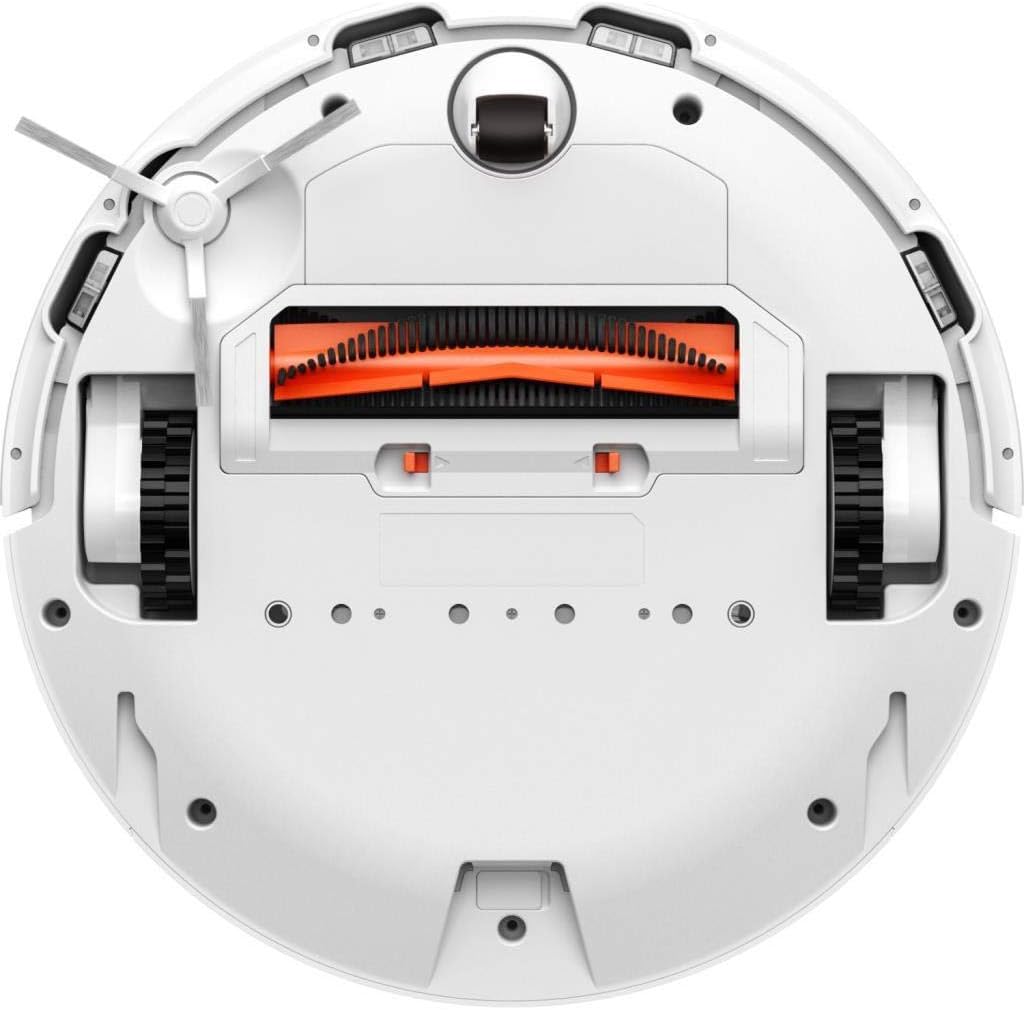
Image Description: Bottom view of the Xiaomi Mijia Robot Vacuum Cleaner, displaying the main roller brush (orange), side brushes, charging contacts, and various sensors.
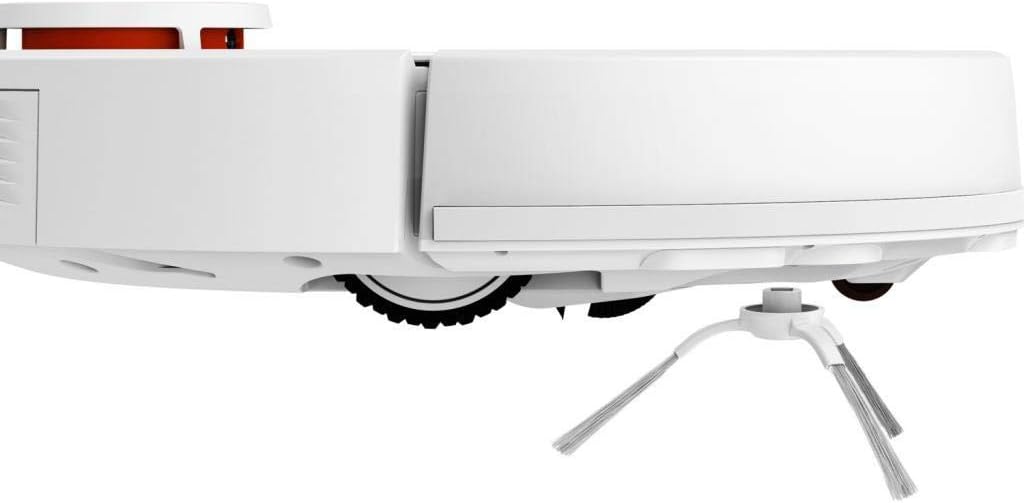
Image Description: Side profile of the Xiaomi Mijia Robot Vacuum Cleaner, highlighting one of the side brushes and a main wheel.
Setup
1. Charging Dock Placement
Place the charging dock against a wall on a hard, level surface. Ensure there are no obstacles within 0.5 meters (1.6 feet) to either side and 1.5 meters (4.9 feet) in front of the dock. Connect the power adapter to the charging dock and plug it into a power outlet.

Image Description: The Xiaomi Mijia Robot Vacuum Cleaner positioned next to its compact white charging dock, ready for charging.
2. Initial Charging
Place the robot onto the charging dock. The robot will automatically align itself and begin charging. For first-time use, ensure the robot is fully charged before operation. A full charge typically takes several hours.
3. App Installation and Connection
Download the "Mi Home" app from your smartphone's app store. Follow the in-app instructions to add your Xiaomi Mijia Robot Vacuum Cleaner. This process involves connecting the robot to your home's 2.4 GHz Wi-Fi network. The app allows for remote control, scheduling, and map management.
Operating Instructions
1. Cleaning Modes
The robot supports three cleaning modes:
- Sweeping and Mopping: The robot simultaneously vacuums and mops the floor. Ensure the 2-in-1 water tank with a mop pad is installed.
- Sweeping: The robot only vacuums. Use the dustbin for this mode.
- Mopping: The robot only mops. Ensure the 2-in-1 water tank with a mop pad is installed and the HEPA filter is removed from the water tank if only mopping is desired.
2. Starting a Cleaning Cycle
Press the power button on the robot or use the Mi Home app to start a cleaning cycle. The robot will automatically map its environment using its LDS laser navigation system and begin cleaning.

Image Description: The Xiaomi Mijia Robot Vacuum Cleaner actively cleaning a modern room with light-colored flooring, demonstrating its compact size and ability to navigate open spaces.
3. Pausing and Stopping
Press the power button once to pause cleaning. Press it again to resume. To stop cleaning and send the robot back to its charging dock, press and hold the power button, or use the app.
4. Scheduled Cleaning
Use the Mi Home app to set up cleaning schedules. You can specify times and days for the robot to automatically start cleaning.
5. Zone Cleaning and Virtual Walls
Through the Mi Home app, you can define specific areas for cleaning (zone cleaning) or set up virtual walls and forbidden sweep areas to restrict the robot's access to certain zones.
6. Voice Control
The robot supports voice interaction via the Mi Home app and is compatible with Amazon Echo (Alexa). Follow the instructions in the Mi Home app to link your robot with your voice assistant for hands-free control.
Maintenance
Regular maintenance ensures optimal performance and extends the lifespan of your robot vacuum cleaner.
1. Dustbin and Water Tank Cleaning
Empty the dustbin after each cleaning cycle. Remove the 2-in-1 water tank, empty any remaining water, and clean the mop pad. The mop pad can be washed and reused.
2. Main Brush and Side Brush Cleaning
Periodically remove the main brush and side brushes to clear any tangled hair or debris. Use the cleaning tool provided (if any) or scissors to cut tangled hair.
3. Sensor Cleaning
Wipe the cliff sensors, wall sensors, and charging contacts with a soft, dry cloth to ensure they remain free of dust and debris. Clean the LDS laser navigation system dome as well.
4. Filter Replacement
The HEPA filter in the dustbin should be cleaned regularly and replaced every 3-6 months, depending on usage. Refer to the Mi Home app for filter status and replacement reminders.
Troubleshooting
If you encounter issues with your robot, refer to the following common solutions:
| Problem | Possible Cause | Solution |
|---|---|---|
| Robot does not start or respond. | Low battery; power button not pressed correctly. | Ensure robot is fully charged. Press and hold the power button for a few seconds. |
| Robot cannot connect to Wi-Fi. | Incorrect Wi-Fi password; 5GHz network used; robot too far from router. | Ensure correct 2.4GHz Wi-Fi network and password. Move robot closer to router. Reset Wi-Fi on robot if necessary. |
| Poor cleaning performance. | Full dustbin; clogged brushes; dirty filter. | Empty dustbin. Clean main brush and side brushes. Clean or replace filter. |
| Robot gets stuck frequently. | Obstacles on the floor; high thresholds; dark surfaces (cliff sensors). | Clear floor of cables and small objects. Use virtual walls for problematic areas. Ensure sufficient lighting for dark floors. |
| Mopping function not working. | Water tank empty; mop pad not installed; water outlet clogged. | Fill water tank. Attach mop pad correctly. Clean water tank outlets. |
Specifications
| Feature | Detail |
|---|---|
| Brand | XIAOMI |
| Model Name | 26200 |
| Special Feature | High Precision Sensors, LDS Laser Navigation |
| Color | White |
| Included Components | Sweeping Mopping Robot, 2-in-1 Water Tank, Side Brushes, Charging Stand, Power Adapter, Mop Bracket, Wipers |
| Filter Type | Cloth (HEPA) |
| Battery Life | Up to 130 minutes (Sweeping), 60 minutes (Mopping) |
| Voltage | 240 Volts (Input) |
| Dustbin Capacity | 0.3 Liters |
| Power Source | Battery Powered |
| Control Method | App (Mi Home) |
| Compatible Devices | Amazon Echo (Alexa) |
| Form Factor | Robotic |
| Product Dimensions | 13.58 x 13.58 x 3.78 inches (34.5 x 34.5 x 9.6 cm) |
| Item Weight | 4.4 pounds (2 kg) |
| Battery Type | Lithium-ion (3200mAh capacity) |
| Climb Capability | 2cm |
Warranty and Support
For warranty information and technical support, please refer to the official XIAOMI website or contact their customer service. Keep your purchase receipt as proof of purchase.