
TP-Link ARCHER T3U PLUS
TP-Link Archer T3U Plus AC1300 High Gain USB Wi-Fi Adapter
Model: ARCHER T3U PLUS
1. Introduction
The TP-Link Archer T3U Plus is a high-performance AC1300 Dual Band USB Wi-Fi Adapter designed to provide ultra-fast wireless connectivity for your desktop or laptop computer. With its high-gain external antenna and advanced technologies like MU-MIMO, it ensures a stable and efficient network experience, whether for browsing, streaming, or online gaming.
Key Features:
- Super Fast Wi-Fi Speed: Up to 1300 Mbps (867 Mbps on 5GHz and 400 Mbps on 2.4GHz) with the 802.11ac standard.
- MU-MIMO Technology: Improves the throughput and efficiency of the entire network by allowing the adapter to communicate with multiple devices simultaneously.
- Dual Band Connectivity: Supports both 2.4 GHz and 5 GHz bands for flexible connection options, faster speeds, and extended range.
- High-Gain Antenna: An external high-gain antenna significantly enhances Wi-Fi reception and signal strength.
- USB 3.0 Interface: Provides data transfer speeds up to 10 times faster than USB 2.0.
- Wide Compatibility: Supports Windows 10/8.1/8/7 and Mac OS.
2. Package Contents
Please check the package carefully for the following items:
- TP-Link Archer T3U Plus USB Wi-Fi Adapter
- Quick Installation Guide
- Resource CD (for drivers and utility)
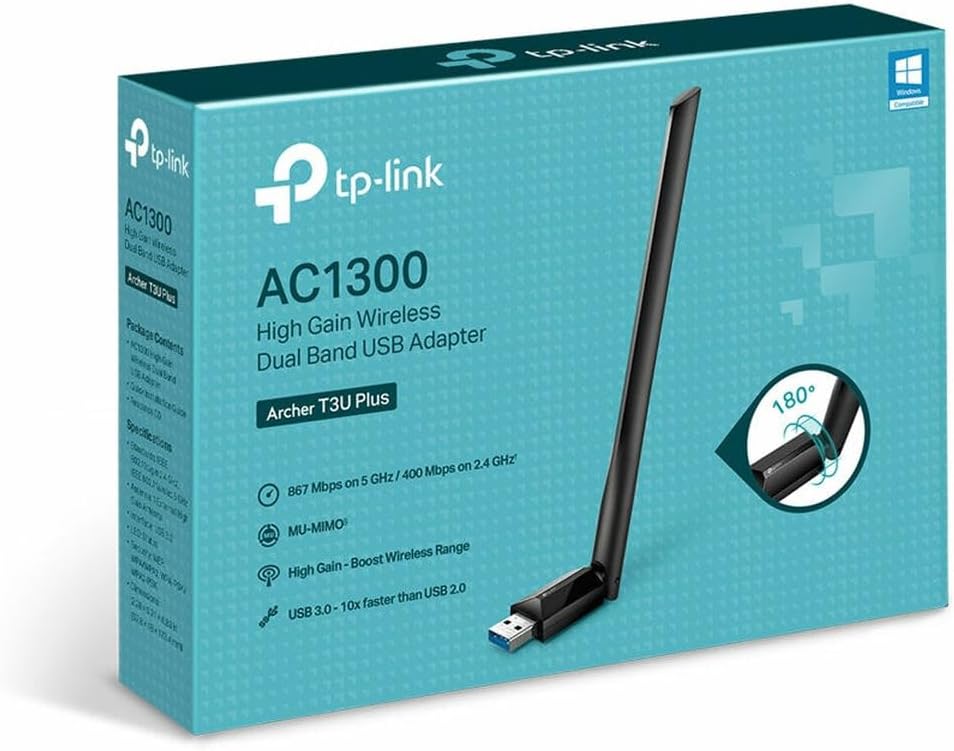
Figure 2.1: Retail packaging of the TP-Link Archer T3U Plus, showing the adapter and key features.
3. Setup Guide
3.1. Hardware Installation
To install the Archer T3U Plus:
- Locate an available USB 3.0 port on your computer. While compatible with USB 2.0, USB 3.0 offers optimal performance.
- Carefully insert the Archer T3U Plus adapter into the USB port. Ensure it is fully seated.
- Adjust the antenna for optimal signal reception. The antenna can be rotated up to 180 degrees.

Figure 3.1: The TP-Link Archer T3U Plus USB Wi-Fi Adapter with its adjustable antenna.

Figure 3.2: The Archer T3U Plus adapter connected to a laptop's USB port.
3.2. Driver Installation
After connecting the hardware, you need to install the drivers:
- Using the Resource CD: Insert the provided Resource CD into your computer's CD-ROM drive. Follow the on-screen instructions to install the drivers and utility.
- Downloading from TP-Link Website: If your computer does not have a CD-ROM drive, or if you prefer the latest drivers, visit the official TP-Link support website (www.tp-link.com/support) and search for 'Archer T3U Plus'. Download and run the latest driver package for your operating system.
- Follow the installation wizard prompts to complete the driver installation. You may need to restart your computer after installation.
4. Operating Instructions
Once the drivers are installed, you can connect to a Wi-Fi network:
- For Windows: Click the Wi-Fi icon in the system tray (usually in the bottom-right corner of the screen). A list of available Wi-Fi networks will appear.
- Select your desired Wi-Fi network from the list and click 'Connect'.
- If prompted, enter the network security key (Wi-Fi password) and click 'Next' or 'OK'.
- Your computer should now be connected to the Wi-Fi network using the Archer T3U Plus adapter.
- For macOS: Click the Wi-Fi icon in the menu bar (usually in the top-right corner of the screen). A dropdown list of available Wi-Fi networks will appear.
- Select your desired Wi-Fi network.
- Enter the network password if required and click 'Join'.
- Your Mac should now be connected to the Wi-Fi network.
5. Advanced Features
5.1. MU-MIMO Technology
The Archer T3U Plus supports MU-MIMO (Multi-User, Multiple-Input, Multiple-Output) technology. This technology allows the adapter to communicate with multiple MU-MIMO compatible routers simultaneously, rather than sequentially. This significantly improves network efficiency and throughput, especially in environments with multiple devices, reducing latency and ensuring smoother performance for all connected devices.

Figure 5.1: Illustration of MU-MIMO technology, demonstrating simultaneous data streams to multiple devices.
5.2. Dual Band Wi-Fi
The adapter operates on both 2.4 GHz and 5 GHz Wi-Fi bands:
- 2.4 GHz Band: Offers wider coverage and better penetration through walls, ideal for general internet use like web browsing and email.
- 5 GHz Band: Provides faster speeds and less interference, perfect for bandwidth-intensive activities such as online gaming, HD video streaming, and large file transfers.
The high-gain antenna can be adjusted to optimize signal reception for either band, ensuring the best possible connection quality.

Figure 5.2: The adjustable antenna allows for optimal positioning to enhance signal strength and range.
6. Troubleshooting
If you encounter issues with your Archer T3U Plus, refer to the following common problems and solutions:
| Problem | Solution |
|---|---|
| Adapter not detected by computer. |
|
| Cannot connect to Wi-Fi network. |
|
| Slow Wi-Fi speed or frequent disconnections. |
|
7. Specifications
| Feature | Detail |
|---|---|
| Model Number | ARCHER T3U PLUS |
| Hardware Interface | USB 3.0 (backward compatible with USB 2.0) |
| Data Transfer Rate | Up to 1300 Mbps (867 Mbps on 5GHz, 400 Mbps on 2.4GHz) |
| Wireless Standards | IEEE 802.11ac, IEEE 802.11a, IEEE 802.11n, IEEE 802.11g, IEEE 802.11b |
| Frequency | 2.4 GHz and 5 GHz |
| Antenna Type | High-Gain External Antenna |
| Security | 64/128-bit WEP, WPA/WPA2, WPA-PSK/WPA2-PSK encryption |
| Compatible Operating Systems | Windows 10/8.1/8/7, macOS |
| Product Dimensions (L x W x H) | 2.28 x 0.71 x 6.81 inches (57.9 x 18 x 173.4 mm) |
| Item Weight | 5.3 ounces (150 grams) |
| Color | Black |
| UPC | 753459084199 |
| Date First Available | January 13, 2021 |
8. Warranty and Support
TP-Link products come with a limited warranty. For detailed warranty information, technical support, and driver updates, please visit the official TP-Link support website:
You can also find FAQs, troubleshooting guides, and contact information for customer service on the support page.
Related documentsARCHER T3U PLUS


Ask a question about this manual
Ask about setup, troubleshooting, compatibility, parts, safety, or missing instructions. Manuals+ will review the question and use this page’s manual context to help answer it.