
1. Introduction
This manual provides detailed instructions for the installation, configuration, and operation of your DrayTek VigorAP 912C Ceiling Mesh Wireless 802.11ac Range Extender and Access Point. The VigorAP 912C is designed to extend wireless network coverage and enhance network performance through its advanced mesh capabilities and 802.11ac Wave 2 technology. Please read this manual thoroughly before setting up your device.
2. Product Features
- Mesh Wireless: DrayTek's Mesh system intelligently connects and manages a group of VigorAPs wirelessly. The Self-Optimizing Mesh ensures your wireless network nodes always use the fastest path to the Mesh Root.
- Gigabit Power Over Ethernet (PoE): The VigorAP 912C can be powered through its Gigabit Ethernet interface using standard IEEE 802.3af PoE, allowing for a tidier and more convenient installation without the need for a separate power outlet.
- Auto-Optimization: Mesh Nodes automatically identify the best connection path and re-connect without downtime in case of a node failure, ensuring continuous service.
- Easy to Configure and Manage: Setup is simplified with the DrayTek Wireless app. Configuration and monitoring can also be done through DrayTek's management platforms (VigorACS cloud, VigorConnect, Router AP Management) or directly via the AP's Web Interface.
- Wireless Optimization: Features include 802.11ac Wave 2 with Multi-User MIMO for improved efficiency, Band Steering to optimize 5GHz device speeds, Airtime Fairness for better wireless client time management, and AP Assisted Roaming to help clients connect to the best available AP.
- Ceiling Mounting: The AP-912C's design blends seamlessly with most home or office interiors. It offers adaptable deployment options including ceilings and wall mounting, and includes a secure ceiling mounting plate and easy-to-install clips for suspended ceilings.
3. What's in the Box
- DrayTek VigorAP 912C Access Point
- Mounting Plate
- Mounting Clips for Suspended Ceilings
- Ethernet Cable
- Quick Start Guide
4. Physical Overview

Figure 4.1: Front view of the DrayTek VigorAP 912C. This image displays the sleek, circular design of the access point, suitable for ceiling or wall mounting, with a central LED indicator.

Figure 4.2: Back view of the DrayTek VigorAP 912C. This image shows the rear of the device, highlighting the mounting points and the recessed area for cable management.

Figure 4.3: Close-up of the Ethernet and power ports. This image details the Gigabit Ethernet port, which supports Power over Ethernet (PoE), and the 12V DC IN power input.
5. Setup & Installation
5.1 Physical Installation
The VigorAP 912C is designed for flexible deployment on ceilings or walls. It supports Power over Ethernet (PoE), simplifying wiring by delivering both power and data through a single Ethernet cable.

Figure 5.1: Mounting plate for ceiling installation. This image illustrates the circular mounting plate with screw holes, designed to securely attach the access point to a ceiling surface.

Figure 5.2: Mounting clips for suspended ceilings. This image shows the specialized clips that allow for easy and secure attachment of the access point to a suspended ceiling grid.
5.2 Powering the Device
Connect an Ethernet cable from a PoE-enabled switch or injector to the VigorAP 912C's Ethernet port. This will provide both power and network connectivity. Alternatively, use a 12V DC power adapter (not included) if PoE is not available.
6. Configuration & Management
The DrayTek VigorAP 912C offers multiple methods for configuration and ongoing management.

Figure 6.1: Screenshot of the WLAN settings interface. This image displays the web-based configuration page for wireless LAN settings, including SSID, security, and channel options.

Figure 6.2: Screenshot of the AP status dashboard. This image shows a graphical overview of the access point's operational status, including connected clients, channel load, and radio throughput.
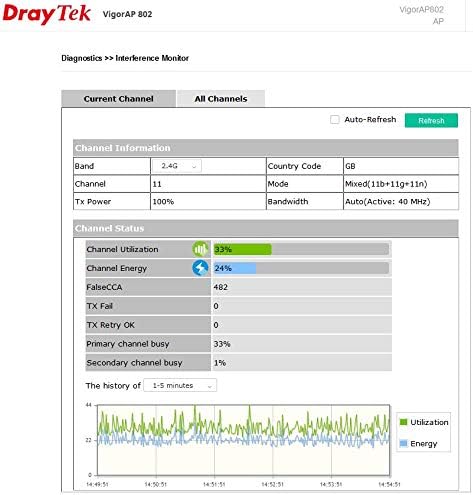
Figure 6.3: Screenshot of usage per SSID. This image provides a detailed breakdown of data usage and client connections for each configured SSID (Service Set Identifier).
6.1 DrayTek Wireless App
Download the DrayTek Wireless app from your device's app store. The app simplifies the initial setup process and allows for basic monitoring and management of your VigorAP 912C.
6.2 Web Interface
Access the device's web interface by connecting a computer to the same network as the VigorAP 912C and entering its IP address into a web browser. The default IP address and login credentials can be found in the Quick Start Guide.
6.3 Centralized Management
For larger deployments, the VigorAP 912C can be managed centrally using DrayTek's VigorACS cloud platform, VigorConnect software, or through the AP Management feature on compatible DrayTek routers.
7. Operating Modes
The VigorAP 912C supports various operating modes to optimize your wireless network.
- Mesh Wireless: Create a self-organizing, self-healing wireless network where multiple VigorAPs work together to provide seamless coverage. This mode is ideal for extending Wi-Fi across large areas without extensive cabling.
- Access Point (AP) Mode: Functions as a traditional access point, providing wireless connectivity to clients connected to a wired network.
- Universal Repeater Mode: Extends the range of an existing wireless network by repeating its signal.
- Client Mode: Allows the VigorAP 912C to act as a wireless client, connecting a wired device to a wireless network.
8. Maintenance & Optimization
Regular maintenance and optimization ensure optimal performance of your VigorAP 912C.
- Firmware Updates: Periodically check the DrayTek website for the latest firmware updates to ensure your device has the most recent features and security enhancements.
- Channel Optimization: Utilize the device's management interface or app to scan for Wi-Fi interference and select the least congested wireless channels for both 2.4GHz and 5GHz bands.
- Network Monitoring: Regularly monitor network traffic and client usage through the dashboard to identify potential bottlenecks or unauthorized access.
9. Troubleshooting
If you encounter issues with your VigorAP 912C, consider the following troubleshooting steps:
- No Power/LED Indicators Off: Ensure the PoE connection is active or the 12V DC power adapter is correctly connected and functioning.
- No Wireless Connectivity: Verify that the Ethernet cable is securely connected and providing network access. Check the SSID broadcast settings and ensure clients are using the correct Wi-Fi password.
- Poor Signal Strength/Slow Speeds: Relocate the AP to a more central location or closer to the affected area. Check for sources of interference (e.g., microwaves, cordless phones) and optimize wireless channels. Ensure client devices support 802.11ac for optimal performance.
- Cannot Access Web Interface: Confirm your computer is on the same network segment as the AP. Try resetting the AP to factory defaults (refer to the Quick Start Guide for instructions).
10. Specifications
| Attribute | Value |
|---|---|
| Model Number | VAP912C-K |
| Package Dimensions | 11.57 x 7.4 x 3.19 inches |
| Item Weight | 1.69 pounds |
| Manufacturer | DrayTek |
| ASIN | B084KRF34W |
| Date First Available | February 7, 2020 |
11. Warranty & Support
The DrayTek VigorAP 912C is covered by a manufacturer's warranty. Please refer to the warranty card included in your product packaging or visit the official DrayTek website for detailed warranty terms and conditions. For technical support, contact DrayTek customer service or visit their support portal.


