
1. Introduction
Thank you for choosing the Hoco ES34 Wireless Bluetooth Earphones. This manual provides detailed instructions on how to set up, operate, maintain, and troubleshoot your new earphones. Please read this manual carefully before use to ensure optimal performance and longevity of your device.
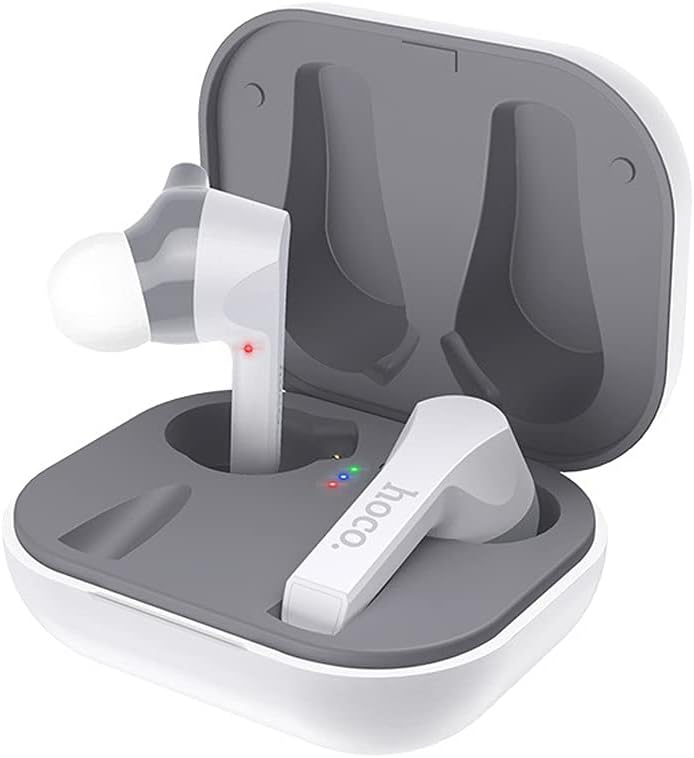
Image: Hoco ES34 Wireless Bluetooth Earphones securely placed within their charging case, indicating charging status with LED lights.
2. Package Contents
Please check the package for the following items:
- Hoco ES34 Wireless Bluetooth Earphones (Left and Right)
- Charging Case
- USB Charging Cable
- User Manual

Image: The retail packaging for the Hoco ES34 earphones, displaying the product image and key features.
3. Setup
3.1 Charging the Earphones and Case
Before first use, fully charge the earphones and the charging case.
- Place the earphones into the charging case. Ensure they are correctly seated.
- Connect the USB charging cable to the charging port on the case and the other end to a USB power adapter (not included) or a computer's USB port.
- The indicator lights on the case will show the charging status. Once fully charged, the lights will indicate completion or turn off.
- Charging time for the case is approximately 2 hours. Earphones charge in about 1.5 hours within the case.
3.2 Pairing with Your Device
Follow these steps to pair your Hoco ES34 earphones with a Bluetooth-enabled device:
- Ensure the earphones are charged and placed in the charging case.
- Open the charging case. The earphones will automatically enter pairing mode (or manually remove them from the case).
- On your device (smartphone, tablet, etc.), go to Bluetooth settings and enable Bluetooth.
- Search for available devices. You should see "Hoco ES34" or a similar name in the list.
- Select "Hoco ES34" to connect. Once connected, a voice prompt will confirm successful pairing.
- The earphones support master-slave switching, meaning either earphone can be used independently.

Image: The Hoco ES34 earphones positioned next to a smartphone, illustrating their wireless connectivity for audio playback.
4. Operating Instructions
The Hoco ES34 earphones feature touch controls for various functions.
4.1 Power On/Off
- Power On: Open the charging case, and the earphones will automatically power on. Alternatively, long-press the touch area on both earphones for a few seconds.
- Power Off: Place the earphones back into the charging case and close the lid. Alternatively, long-press the touch area on both earphones for a few seconds until they power off.
4.2 Music Playback
- Play/Pause: Single tap the touch area on either earphone.
- Next Track: Double tap the touch area on the right earphone.
- Previous Track: Double tap the touch area on the left earphone.
4.3 Call Management
- Answer/End Call: Single tap the touch area on either earphone.
- Reject Call: Long-press the touch area on either earphone for 2 seconds.
4.4 Voice Assistant (Siri)
- Activate Voice Assistant: Triple tap the touch area on either earphone to activate your device's voice assistant (e.g., Siri, Google Assistant).
5. Maintenance and Care
Proper care will extend the life of your Hoco ES34 earphones.
- Cleaning: Use a soft, dry, lint-free cloth to clean the earphones and charging case. Do not use harsh chemicals or abrasive materials.
- Storage: When not in use, store the earphones in their charging case to protect them from dust and damage. Keep them in a cool, dry place.
- Battery Care: To preserve battery life, avoid fully discharging the earphones and case frequently. Charge them regularly, even if not in constant use.
- Water Resistance: The earphones are not waterproof. Avoid exposure to water, sweat, or high humidity.
6. Troubleshooting
If you encounter issues with your Hoco ES34 earphones, refer to the table below for common problems and solutions.
| Problem | Possible Cause | Solution |
|---|---|---|
| Earphones not pairing with device. | Bluetooth is off on device; earphones not in pairing mode; interference. | Ensure Bluetooth is on. Place earphones in case, then open to re-enter pairing mode. Move closer to device. Forget device in Bluetooth settings and re-pair. |
| No sound from one or both earphones. | Earphones not connected; low battery; volume too low. | Check Bluetooth connection. Charge earphones. Increase volume on device. |
| Charging case not charging. | Faulty cable/adapter; dirty charging port. | Try a different USB cable and power adapter. Clean the charging port gently. |
| Touch controls not responding. | Incorrect touch gesture; temporary software glitch. | Ensure you are using the correct touch gesture. Place earphones back in case, close, then reopen to reset. |
7. Specifications
Detailed technical specifications for the Hoco ES34 Wireless Bluetooth Earphones:
| Feature | Specification |
|---|---|
| Bluetooth Version | 5.0 |
| Bluetooth Chip | Jerry 6936D |
| Charging Case Battery Capacity | 400 mAh |
| Earphone Battery Capacity | 55 mAh (each) |
| Charging Time (Case) | Approx. 2 hours |
| Charging Time (Earphones) | Approx. 1.5 hours |
| Call/Music Playback Time | Approx. 5 hours |
| Standby Time | Approx. 100 hours |
| Total Weight | 41 grams |
| Package Dimensions | 17.6 x 11.2 x 4.6 cm |
| Color | White |
| Headphones Form Factor | In Ear |
| Noise Control | Active Noise Cancellation |
| Included Components | Charging Cable |
8. Warranty and Support
Hoco products are designed and manufactured to the highest quality standards. For information regarding warranty coverage, technical support, or service inquiries, please refer to the warranty card included with your product or visit the official Hoco website.
Please retain your proof of purchase for any warranty claims.


