
1. Introduction
The FiiO DK1 is a versatile Type C universal docking station designed to enhance the functionality of your compatible FiiO digital audio players. It provides convenient connectivity for charging, data transfer, and USB audio output. The dock features a rotating USB Type-C port for easy device connection and a switch to manage data flow.
Note: The DK1 USB-C does not include a USB Type-C cable. Two USB cables may be necessary to achieve full functionality for all features.
2. Setup and Connections
This section details how to connect your FiiO player to the DK1 docking station for various functions.

Figure 2.1: Front view of the FiiO DK1 docking station, showing the rotating USB-C connector.

Figure 2.2: Rear view of the FiiO DK1, illustrating the POWER-IN and DATA-IN/OUT ports and the switch.
2.1 Charging Your Player
- Connect your FiiO player onto the DK1 dock, ensuring the USB-C connector is properly seated.
- Connect a USB cable to the POWER-IN connector at the rear of the DK1.
- Set the switch on the rear of the DK1 to the DATA-IN position.
2.2 Using as a USB DAC (External Sound Card)
To use your FiiO player as a high-quality external sound card for your computer:
- Connect your FiiO player onto the DK1 dock.
- Configure your player to function as a USB DAC (refer to your player's specific manual for this setting).
- Connect one USB cable to the POWER-IN connector on the DK1.
- Connect a second USB cable to the DATA-IN connector on the DK1 and then to your computer.
- Ensure the switch on the rear of the DK1 is set to the DATA-IN position.
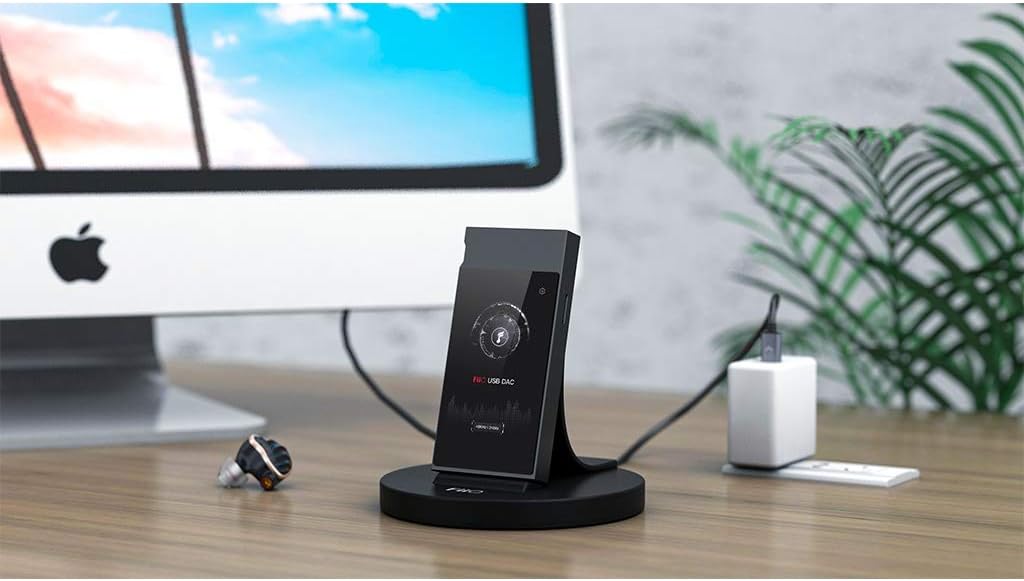
Figure 2.3: FiiO DK1 connected to a computer, demonstrating USB DAC functionality.
2.3 Data Exchange with Your Computer
To transfer files between your FiiO player and your computer:
- Connect your FiiO player onto the DK1 dock.
- Ensure your player is in data transfer mode (e.g., USB storage mode).
- Connect one USB cable to the POWER-IN connector on the DK1.
- Connect a second USB cable to the DATA-IN connector on the DK1 and then to your computer.
- Ensure the switch on the rear of the DK1 is set to the DATA-IN position.
2.4 USB Audio Output Mode (USB OUT)
To output music stream via USB to compatible external devices:
- Connect your FiiO player onto the DK1 dock.
- Connect one USB cable to the POWER-IN connector on the DK1.
- Connect a second USB cable to the DATA-OUT connector on the DK1 and then to your external audio device.
- Ensure the switch on the rear of the DK1 is set to the DATA-OUT position.
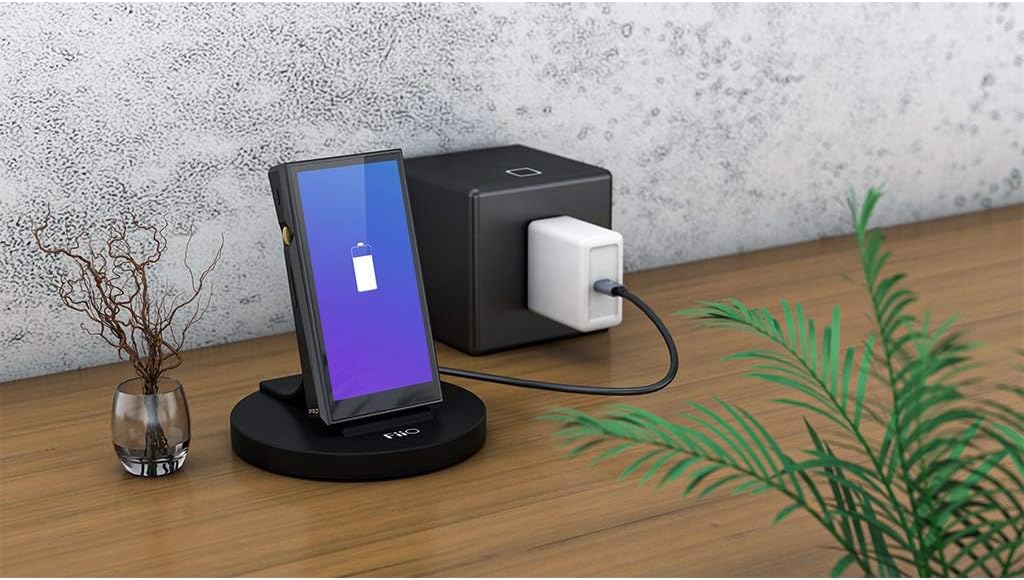
Figure 2.4: FiiO DK1 with a FiiO player connected, illustrating charging.
3. Operating Instructions
The FiiO DK1 is designed for plug-and-play operation with compatible FiiO players. Once connected as described in the Setup section, the dock facilitates the chosen function (charging, data transfer, or USB audio output).
- Compatible Players: The DK1 is compatible with FiiO players including M6, M7, M9, M11, M11 PRO, and M15.
- Rotating USB Type-C Port: The integrated USB Type-C port can rotate, allowing for easier connection and disconnection of your player and accommodating slight variations in player design.
- DATA-IN/DATA-OUT Switch: This switch on the rear of the dock controls the direction of data flow. Set it to DATA-IN for charging, USB DAC use, or data transfer to/from a computer. Set it to DATA-OUT for sending audio to an external USB audio device.
4. Maintenance
Proper maintenance ensures the longevity and optimal performance of your FiiO DK1 docking station.
- Cleaning: Use a soft, dry, lint-free cloth to gently wipe the surface of the docking station. Avoid using harsh chemicals, solvents, or abrasive materials, as these can damage the finish.
- Storage: When not in use, store the DK1 in a cool, dry place away from direct sunlight and extreme temperatures.
- Handling: Avoid dropping the device or subjecting it to strong impacts. Handle the USB-C connector with care to prevent damage.
5. Troubleshooting
If you encounter issues with your FiiO DK1, refer to the following common problems and solutions:
- Device not charging or connecting:
- Ensure the FiiO player is correctly seated on the dock's USB-C connector.
- Verify that the USB cable for power is securely connected to the POWER-IN port and a reliable power source.
- Check the DATA-IN/DATA-OUT switch position. For charging, it should be set to DATA-IN.
- Confirm that the USB-C port on your player is clean and free of debris.
- USB DAC or Data Transfer not working:
- Ensure two USB cables are connected: one for POWER-IN and one for DATA-IN, both connected to your computer.
- Verify the DATA-IN/DATA-OUT switch is set to DATA-IN.
- Check your computer's device manager or audio settings to ensure the FiiO player is recognized.
- Confirm that your FiiO player is set to the correct mode (e.g., USB DAC mode or USB storage mode).
- Some users have reported issues with specific FiiO player models (e.g., M11) not connecting correctly with external DACs via the DK1, while smartphones work. Ensure your player's firmware is up to date.
- Cannot charge player while playing audio:
Some FiiO player models, when connected to the DK1, may not support simultaneous charging and audio playback. This is a limitation of the player or the dock's design for certain modes. If this occurs, you may need to charge the player separately or use it in a mode that prioritizes charging.
If the problem persists, please refer to the Support section for further assistance.
6. Specifications
| Feature | Specification |
|---|---|
| Brand | FiiO |
| Model Number | FIIODK1C |
| Color | Black |
| Connector Type | USB Type C |
| Total USB Ports | 1 (for device connection) |
| Power Input | DC (via USB POWER-IN port) |
| Power Output | 1.5 Watts (for charging) |
| Compatible FiiO Players | M6, M7, M9, M11, M11 PRO, M15 |
| Components Included | 1 Docking Station (USB cables not included) |
7. Warranty Information
Specific warranty terms and conditions for the FiiO DK1 Type C Universal Docking Station are typically provided with the product packaging or available on the official FiiO website. Please retain your proof of purchase for warranty claims. For detailed information regarding warranty coverage, duration, and service procedures, please consult the documentation included with your purchase or visit the manufacturer's support page.
8. Support
For further assistance, technical support, or frequently asked questions, please visit the official FiiO website. You can typically find support resources, firmware updates, and contact information for customer service there.
Official FiiO Website: www.fiio.com


