
NETVUE Vigil
NETVUE Vigil Outdoor Security Camera User Manual
Model: Vigil | Brand: NETVUE
1. Introduction
The NETVUE Vigil Outdoor Security Camera is designed to provide reliable surveillance for your property. Featuring 1080p Full HD video, advanced night vision, two-way audio communication, and smart motion detection, this camera ensures comprehensive monitoring day and night. Its robust, weather-resistant design allows for outdoor installation in various conditions.

Image: The NETVUE Vigil camera provides clear 1080p video both during the day and at night, as illustrated by the comparison of a driveway scene.
2. Package Contents
Please verify that all items are present in your package:
- NETVUE Vigil Outdoor Security Camera
- Power Adapter
- Mounting Screws and Wall Anchors
- Mounting Template
- User Manual (this document)
3. Setup and Installation
3.1 Before Installation
- Ensure your Wi-Fi network operates on the 2.4GHz band. The camera does not support 5GHz Wi-Fi.
- Position the camera within range of your Wi-Fi router for a stable connection. The camera features an enhanced 5dBi antenna for improved signal strength.
- Prepare a power outlet near the intended installation location.
3.2 Physical Installation
The NETVUE Vigil camera can be mounted on a wall or ceiling/roof. Choose a location that provides the desired viewing angle and is within reach of a power source.
- Use the provided mounting template to mark drill holes on the desired surface.
- Drill holes and insert wall anchors if mounting on masonry.
- Secure the camera's mounting base using the screws.
- Adjust the camera angle as needed.
- Connect the power adapter to the camera and plug it into a power outlet.

Image: The NETVUE Vigil camera offers flexible installation options for both wall and roof mounting.

Image: The camera features a 5dBi antenna designed for a more stable Wi-Fi connection.
3.3 App Setup
- Download the 'Netvue' app from your mobile device's app store (iOS or Android).
- Create a new account or log in if you already have one.
- Follow the in-app instructions to add your new NETVUE Vigil camera. This typically involves scanning a QR code on the camera or manually entering its details.
- Connect the camera to your 2.4GHz Wi-Fi network as prompted by the app.
4. Operating the Camera
4.1 Live View and Remote Access
Access your camera's live feed anytime, anywhere through the Netvue app on your smartphone or tablet. You can also integrate the camera with Amazon Alexa for voice control and viewing on compatible devices.
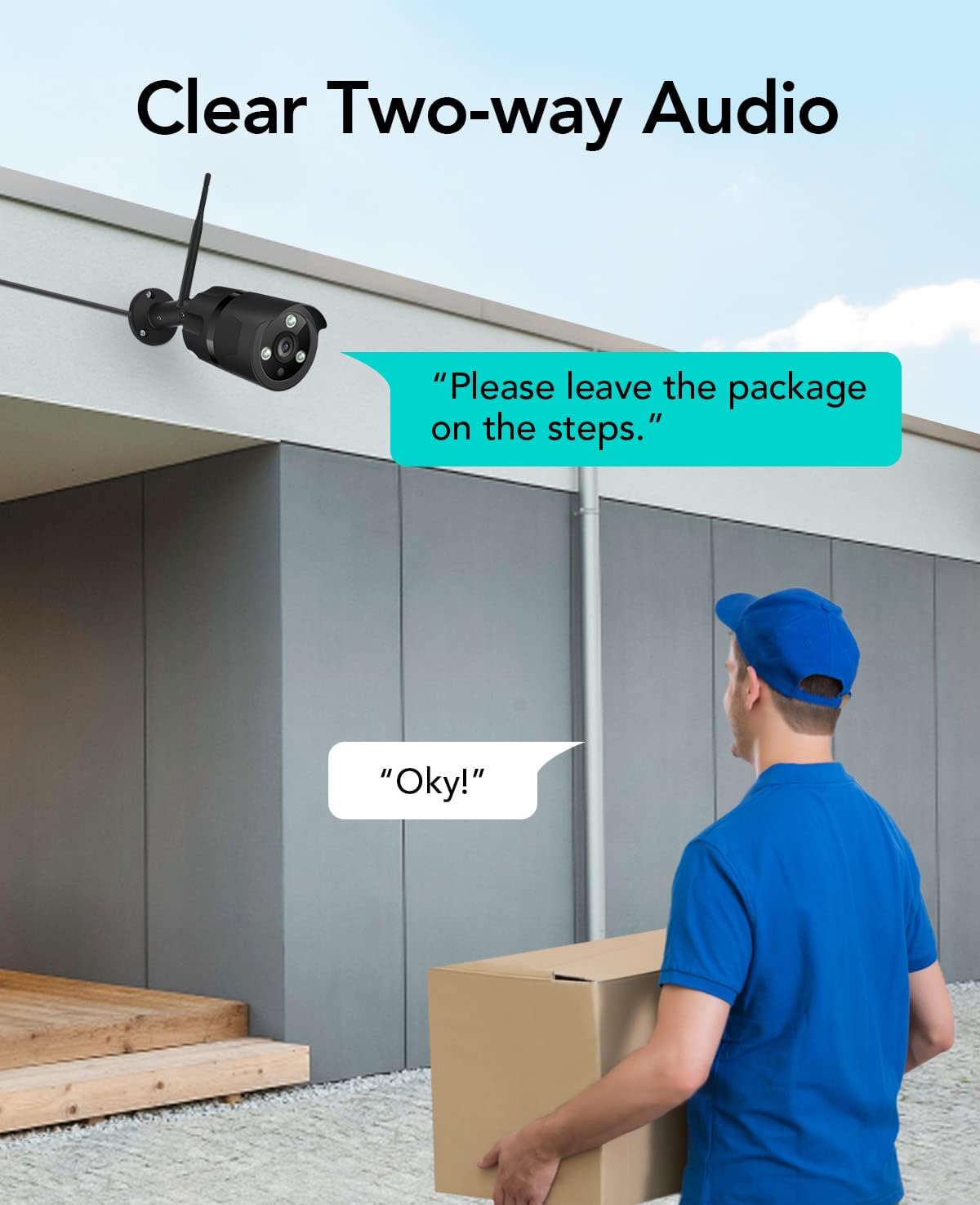
Image: The NETVUE Vigil camera is compatible with Amazon Alexa, allowing you to view the live feed on devices like the Echo Show.
4.2 Two-Way Audio
The built-in microphone and speaker allow for two-way communication. Use this feature to speak with visitors or deter unwanted guests directly through the Netvue app.

Image: Engage in clear two-way audio communication with individuals near your camera, such as a delivery person.
4.3 Motion Detection and Alerts
The camera features smart motion detection. When motion is detected, you will receive instant notifications on your mobile phone. You can customize motion detection zones, sensitivity levels, and alert schedules within the Netvue app to focus on areas of importance.

Image: The camera sends smart motion alerts to your phone when activity is detected, as shown with a person at a door.
4.4 Night Vision
Equipped with infrared LEDs and IR-Cut technology, the camera automatically switches to night vision mode in low-light conditions, providing clear video up to 19.8 meters (65 feet) in complete darkness.
4.5 Video Storage
The NETVUE Vigil camera supports two storage options:
- Local Storage: Insert a microSD card (up to 128GB, not included) into the camera for continuous recording or event-triggered recordings. You can view playback directly from the Netvue app.
- Cloud Storage: Optional cloud storage plans are available through the Netvue app for secure, off-site video backup and advanced AI features like person/vehicle detection. Subscription fees apply for cloud services.

Image: The camera supports both local storage via an SD card and optional cloud storage for video recordings.
5. Maintenance
- Cleaning: Periodically clean the camera lens with a soft, dry cloth to ensure clear image quality. Do not use harsh chemicals.
- Firmware Updates: Keep your camera's firmware updated through the Netvue app to ensure optimal performance and access to new features.
- Connection Check: Regularly verify the camera's Wi-Fi connection status in the app to ensure continuous operation.
6. Troubleshooting
6.1 Camera Not Connecting to Wi-Fi
- Ensure your Wi-Fi network is 2.4GHz.
- Check if the camera is within range of your router.
- Verify the Wi-Fi password entered in the app is correct.
- Restart your router and the camera.
6.2 Poor Image Quality
- Clean the camera lens.
- Ensure sufficient lighting for optimal day vision.
- Check your internet connection speed.
6.3 No Motion Alerts
- Verify motion detection is enabled in the Netvue app.
- Check motion detection zone settings and sensitivity.
- Ensure app notifications are enabled on your phone.
For further assistance, please refer to the support section or contact NETVUE customer service.
7. Specifications
| Feature | Specification |
|---|---|
| Model Number | Vigil |
| Video Resolution | 1080p (1920 x 1080 pixels) |
| Photo Sensor Resolution | 2 MP |
| Night Vision Range | Up to 19.8 meters (65 feet) |
| Connectivity | Wireless (2.4GHz Wi-Fi), Ethernet |
| Weather Resistance | IP66 (Waterproof) |
| Operating Temperature | -15.6 °C to 50.0 °C (-20 °C to 50 °C) |
| Power Source | AC |
| Compatible Devices | Smartphone (iOS/Android), Amazon Alexa |
| Storage Options | MicroSD Card (up to 128GB), Cloud Storage (subscription required) |
| Dimensions | 20.1 x 12.4 x 8.1 cm |
8. Warranty and Support
NETVUE products come with a limited warranty. Please refer to the warranty card included in your package or visit the official NETVUE website for detailed warranty terms and conditions.
For technical support, product inquiries, or warranty claims, please contact NETVUE customer service through their official website or the contact information provided in the Netvue app. Our support team is available to assist you with any questions or issues you may encounter.
Online Resources:
- Official NETVUE Website: www.netvue.com
- Netvue App: Available on Apple App Store and Google Play Store
Related documentsVigil


Ask a question about this manual
Ask about setup, troubleshooting, compatibility, parts, safety, or missing instructions. Manuals+ will review the question and use this page’s manual context to help answer it.