1. Introduction
The Geeni Dot Smart Plug provides remote control over your electronic devices. This compact, fire-resistant smart outlet connects directly to your 2.4GHz Wi-Fi network, allowing you to manage lights, appliances, and electronics from anywhere using the Geeni app. It supports voice commands via Amazon Alexa and Google Assistant, offers custom scheduling, and includes energy monitoring features.

Image: Geeni Dot Smart Plug packaging and two individual smart plugs.
2. What's in the Box
- Geeni Dot Smart Wi-Fi Plug (2 units)
- User Manual
- Voice Control Guide
3. Setup Instructions
Follow these steps to set up your Geeni Dot Smart Plug:
- Download the Geeni App: Search for "Geeni" in the Apple App Store (for iOS devices) or Google Play Store (for Android devices) and download the application.
- Register an Account: Open the Geeni app and follow the on-screen instructions to register a new account using your mobile phone number or email address.
- Plug In: Insert the Geeni Dot Smart Plug into a standard electrical outlet. Ensure the indicator light on the device is flashing, indicating it is ready to connect.
- Connect to Wi-Fi:
- Ensure your phone's Bluetooth is enabled.
- In the Geeni app, tap "Add Device" or the "+" icon. The app should discover the plug via Bluetooth.
- Follow the in-app instructions to connect the plug to your 2.4GHz Wi-Fi network. Note: The Geeni Dot Smart Plug does not support 5GHz Wi-Fi networks.

Image: Visual guide for simple setup: Download the Geeni App, Plug in the Smart Plug, and Connect via the app.
4. Operating Instructions
4.1. Remote Control
Once connected, you can control any device plugged into the Geeni Smart Plug from anywhere using the Geeni app on your smartphone.

Image: A smartphone displaying the Geeni app interface, showing various smart devices in a home that can be remotely controlled.
4.2. Voice Control
The Geeni Dot Smart Plug is compatible with Amazon Alexa and Google Assistant. Link your Geeni account to your voice assistant app to enable voice commands.
- For Alexa: Say "Alexa, turn on [device name]."
- For Google Assistant: Say "Hey Google, turn off [device name]."
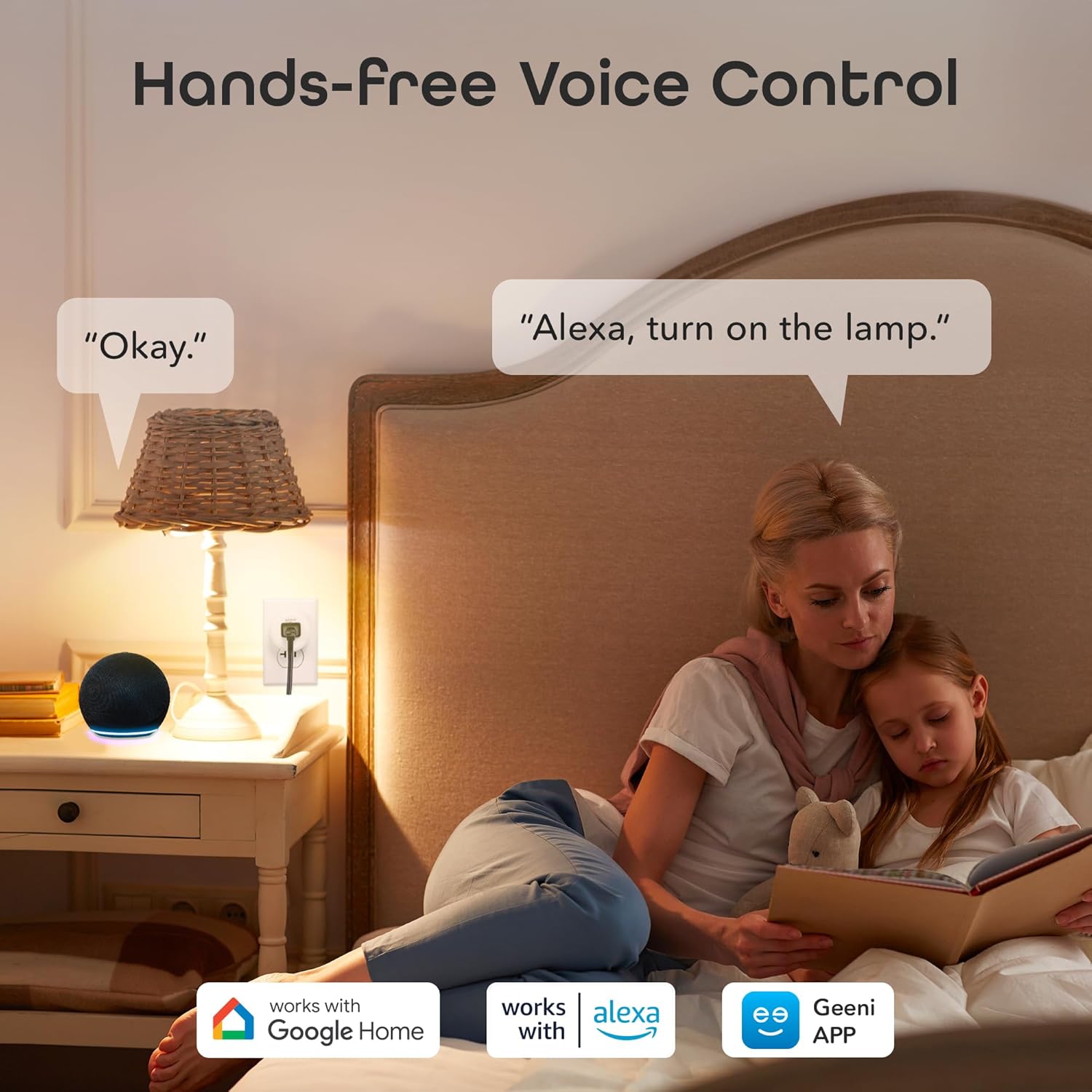
Image: A person in a bedroom using voice commands to turn on a lamp connected to a Geeni Smart Plug.
4.3. Custom Scheduling & Timers
Use the Geeni app to set schedules and timers for your connected devices. This allows for automatic operation, such as turning lights on at dusk or a coffee maker on in the morning.

Image: An illustration showing different home devices and how schedules and timers can be set for them using the Geeni app.
4.4. Group Control
Organize multiple Geeni Smart Plugs into groups within the app to control several devices simultaneously with a single command.

Image: A cutaway view of a house illustrating how multiple smart devices can be managed together using the group control feature in the Geeni app.
5. Features
- Compact Design: Designed to save space and keep other outlets accessible.
- Safety Features: Includes secure PCBA, overcurrent protection fuse, and fire-resistant material.
- Energy Monitoring: Track real-time energy usage via the Geeni app to optimize consumption.
- No Hub Required: Connects directly to your 2.4GHz Wi-Fi network.

Image: An exploded view diagram highlighting the safety components of the Geeni Smart Plug.
6. Specifications
| Specification | Detail |
|---|---|
| Manufacturer | Geeni |
| Model Number | GN-WW217-199 |
| Item Weight | 5.6 ounces |
| Product Dimensions | 2 x 1.9 x 1.1 inches |
| Material | ABS |
| Power Source | AC |
| Voltage | 125 Volts |
| Wattage | 1250 watts |
| Switch Type | 1-way |
| Certification | UL |
7. Troubleshooting
If you encounter issues with your Geeni Dot Smart Plug, consider the following:
- Connectivity Issues: Ensure your Wi-Fi network is 2.4GHz. The plug does not support 5GHz networks. Verify your Wi-Fi password and signal strength. Try moving the plug closer to your router.
- Device Not Responding: Check if the plug is securely inserted into the outlet. Press the manual power button on the side of the plug to see if it responds. If not, try unplugging and re-plugging the device.
- App Control Problems: Ensure your Geeni app is updated to the latest version. Restart the app or your smartphone.
- Resetting the Plug: If issues persist, you may need to reset the smart plug. Consult the Geeni app or the included quick start guide for specific reset instructions.
Video: An overview of Geeni Smart Home Products, demonstrating various devices including smart plugs. This video provides context on the ecosystem but does not specifically address troubleshooting.
8. Maintenance
To ensure optimal performance and longevity of your Geeni Dot Smart Plug:
- Keep the device clean and free from dust. Use a dry, soft cloth for cleaning.
- Avoid exposing the plug to excessive moisture or extreme temperatures.
- Do not attempt to disassemble or repair the device yourself. Contact customer support for assistance.
9. Warranty and Support
The Geeni Dot Smart Plug comes with a 1 Year Limited Warranty. For any questions, technical support, or warranty claims, please contact Geeni customer support:
- Website: support.mygeeni.com
- Phone: 1 (888) 232-3143


