
1. Introduction
The CHUWI Mini PC HeroBox is a compact and powerful desktop computer designed for various applications including business, education, and everyday use. It features an Intel N100 processor, ample memory, and versatile connectivity options, all within a small form factor.
2. Specifications
- Processor: 12th Gen Intel Alder Lake-N100 (4 Cores, 4 Threads, up to 3.4GHz, 10nm process, 13W TDP)
- Graphics: 12th Gen Intel UHD Graphics
- RAM: 8GB LPDDR5 4800MHz
- Storage: 256GB M.2 SSD (expandable with 2.5-inch SATA HDD up to 2TB, TF card up to 512GB)
- Operating System: Pre-installed Windows 11 (supports Linux)
- Wireless Connectivity: Wi-Fi 6 (802.11ax), Bluetooth 5.2
- Wired Connectivity: RJ45 Gigabit Ethernet
- Video Output: 2x HDMI (4K@60FPS), 1x VGA (supports dual display)
- USB Ports: 2x USB 3.0, 2x USB 2.0, 1x Type-C
- Audio: 1x Earphone Jack
- Power Input: DC 12V
- Dimensions: 7.39 x 5.43 x 1.46 inches
- Weight: 1.1 pounds
- Mounting: VESA mount compatible
- Certifications: FCC, RoHS, CE
3. Package Contents
- CHUWI Mini PC HeroBox
- Power Adapter
- HDMI Cable
- VESA Mount Bracket
- User Manual
4. Physical Overview
The HeroBox Mini PC features a compact design with various ports for connectivity and expansion.
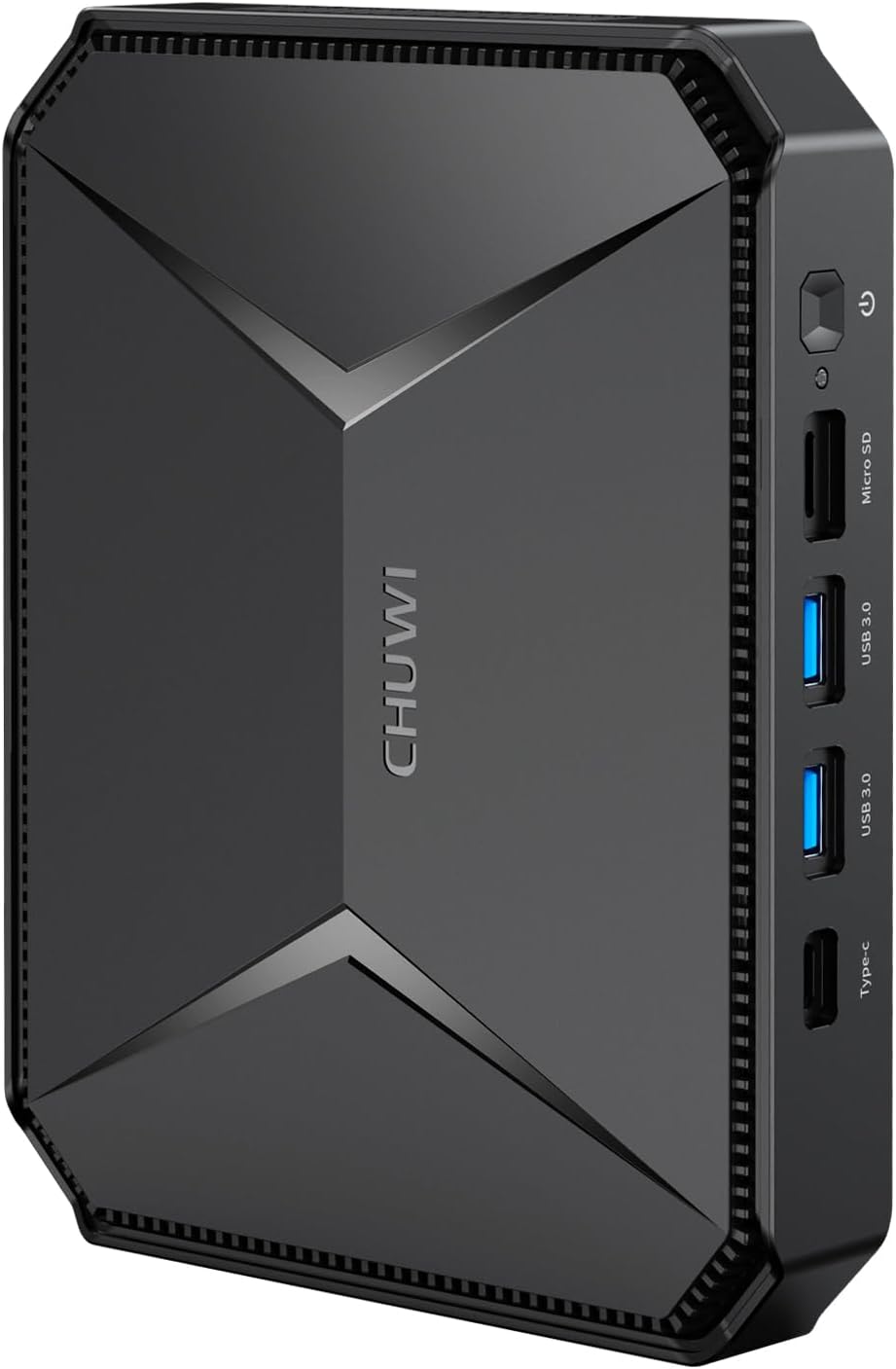
Figure 1: Front view of the CHUWI Mini PC HeroBox, showcasing its compact size and sleek design.

Figure 2: Detailed view of the port layout on the CHUWI Mini PC HeroBox. The front features a power button, Micro SD card slot, two USB 3.0 ports, and a Type-C port. The rear includes a DC-12V power input, VGA port, HDMI port, LAN port, two USB 2.0 ports, and an earphone jack.
5. Setup
Follow these steps to set up your CHUWI Mini PC HeroBox:
- Connect Display: Connect your monitor(s) to the HDMI and/or VGA ports on the rear of the Mini PC using appropriate cables.
- Connect Peripherals: Plug in your USB keyboard and mouse into the available USB ports.
- Connect Power: Connect the power adapter to the DC-12V port on the rear of the Mini PC and plug it into a power outlet.
- Power On: Press the power button located on the front of the Mini PC. The device will boot up.
- Initial Windows 11 Setup: Follow the on-screen instructions to complete the initial setup of Windows 11, including language, region, network connection, and user account creation.
Video 1: CHUWI HeroBox Mini PC overview. This video demonstrates the physical aspects and connectivity of the device.
6. Operating System
The CHUWI HeroBox comes with an authorized Windows 11 system pre-installed, offering a familiar and efficient user experience. The device also supports Linux-based operating systems, providing flexibility for advanced users and specific application needs.
7. Storage Expansion
The Mini PC is equipped with a 256GB M.2 SSD. For additional storage, you can expand it in several ways:
- 2.5-inch SATA SSD/HDD: The HeroBox supports adding a 2.5-inch SATA SSD or HDD, allowing for up to 2TB of extra storage.
- TF Card: A TF card (Micro SD card) can be inserted into the dedicated slot on the front of the device, supporting up to 512GB.

Figure 3: Internal view of the CHUWI Mini PC HeroBox, illustrating the M.2 SSD and the space available for a 2.5-inch SATA drive for storage expansion.
8. Connectivity
The HeroBox offers robust connectivity options:
- Wi-Fi 6 (802.11ax): Provides significantly faster network speeds and improved efficiency compared to previous Wi-Fi standards, ensuring seamless streaming and downloads.
- Bluetooth 5.2: Enables quick and stable connections to wireless peripherals such as keyboards, mice, headphones, and speakers.
- RJ45 Gigabit Ethernet: For a stable and high-speed wired network connection, supporting data transfer speeds of over one billion bits per second.

Figure 4: The CHUWI Mini PC HeroBox highlighting its Wi-Fi 6 capabilities for fast and efficient wireless connectivity.
9. Display Setup
The Mini PC supports dual display output at 4K@60FPS, enhancing productivity and visual experience:
- HDMI Ports: Two HDMI ports are available for connecting 4K monitors or TVs.
- VGA Port: An additional VGA port allows for connection to older monitors or as a third display option (though the JSON only mentions dual display, the image shows VGA).

Figure 5: The CHUWI Mini PC HeroBox connected to a 4K display, demonstrating its smooth 4K decoding and output capabilities for high-resolution video playback and editing.
10. Heat Management
The HeroBox is designed with an effective heat dissipation system to ensure stable and efficient operation even during prolonged use. It utilizes thermal conductive aluminum alloys and a cooling fan to maintain optimal temperatures.
11. VESA Mounting
The compact size of the HeroBox allows for flexible placement. It is VESA mount compatible, enabling you to install it on the back of a monitor or TV, effectively creating an all-in-one PC setup and saving desk space.

Figure 6: The CHUWI Mini PC HeroBox shown VESA mounted on the back of a monitor, illustrating its space-saving installation option.
12. Troubleshooting
- No Display: Ensure all display cables (HDMI/VGA) are securely connected to both the Mini PC and the monitor(s). Verify the monitor input source is correctly selected.
- No Power: Check that the power adapter is correctly connected to the Mini PC and a working power outlet. Try a different outlet if necessary.
- Connectivity Issues: For Wi-Fi, ensure the network is available and the password is correct. For Ethernet, check the cable connection. For Bluetooth, ensure the peripheral is in pairing mode.
- Slow Performance: Check for background applications consuming resources. Ensure sufficient free storage space. Consider updating drivers or running system diagnostics.
13. Safety & Certifications
The CHUWI HeroBox Mini PC complies with international safety and quality standards, holding FCC, RoHS, and CE certifications. Always use the device in a well-ventilated area and avoid blocking air vents to prevent overheating.
14. Warranty & Support
For warranty information, technical support, or service inquiries, please refer to the documentation included in your product package or visit the official CHUWI website for assistance.


