
iRV Technologies iRV68
iRV68 RV Radio Stereo User Manual
Model: iRV68 | Brand: iRV Technologies
1. Introduction
The iRV68 is a versatile wall-mount RV stereo system designed to provide a comprehensive entertainment experience. It features independent Zone 3 control and supports a wide array of media formats and connectivity options, including Bluetooth, HDMI with ARC, AM/FM radio, CD/DVD playback, MP3/MP4, and a built-in clock. This unit also offers digital 5.1 Surround Sound with optical SPDIF audio input and a digital amplifier for efficient, low-heat operation. The USB port allows for music, video, and photo file playback, as well as charging for Android and Apple devices. This manual will guide you through the installation, operation, and maintenance of your iRV68 system.
2. Safety Information
- Read all instructions carefully before operating the unit.
- Do not expose the unit to rain or moisture to prevent fire or electric shock.
- Ensure proper ventilation around the unit to prevent overheating.
- Only use accessories specified by the manufacturer.
- Refer all servicing to qualified service personnel.
- Disconnect power before cleaning or performing maintenance.
3. Package Contents
Please check that all items are present in the package:
- iRV68 Main Unit
- Remote Control
- Wiring Harness
- Operation Manual (this document)
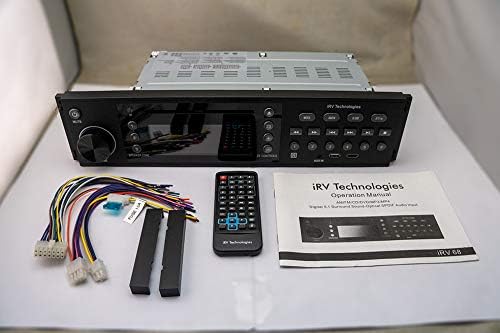
The iRV68 unit displayed with its included accessories: remote, wiring harness, and operation manual.
4. Product Features
- 3 Zones Wall Mount RV Stereo with independent Zone 3 control.
- Supports HDMI in&out with ARC (Audio Return Channel).
- Digital 5.1 Surround Sound with optical SPDIF Audio Input.
- Bluetooth 5.0 for smart music transfer with a dedicated Bluetooth button.
- NFC (Near Field Communication) for quick Bluetooth pairing.
- AM/FM radio, CD/DVD, MP3/MP4 playback.
- USB port for music, video, photo files, and charging Android/Apple devices.
- Built-in clock display.
- Digital amplifier for audio output, designed for low heat in mounting cabinets.
- APP control available for Android & Apple devices, turning smartphones into wireless remote controls.
5. Setup
5.1 Installation
The iRV68 is designed for wall mounting in an RV. Ensure the mounting location provides adequate space for the unit's dimensions (16.4 x 6.5 x 3.9 inches) and allows for proper ventilation. Secure the unit firmly using appropriate mounting hardware (not included unless specified in package contents). Refer to the dimension image for precise measurements.
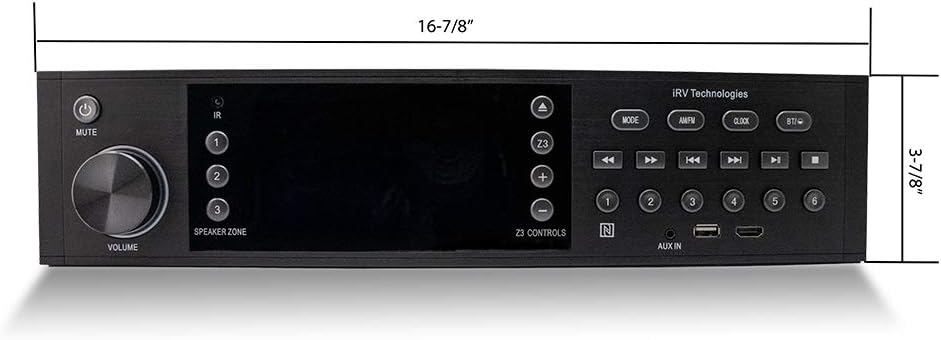
Front view of the iRV68 unit with key dimensions indicated for installation planning.
5.2 Wiring Connections
Carefully connect the provided wiring harness to the corresponding ports on the rear of the iRV68 unit. Ensure all connections are secure to prevent intermittent operation or damage. The wiring diagram below provides detailed pinouts for power, ground, speaker zones, and other inputs/outputs. It is crucial to connect both the main power (Yellow BAT) and auxiliary power (Red ACC) for the unit to function correctly.

Rear view of the iRV68 unit showing various input/output ports for audio, video, and power connections.

Detailed view of the iRV68's rear wiring harness and connection labels, essential for correct installation.
5.3 Initial Power On
Once all connections are made, apply power to the unit. The display should illuminate. Follow any on-screen prompts for initial setup, such as setting the clock or language preferences.
6. Operating Instructions
6.1 Front Panel Controls
The iRV68 features an intuitive front panel with various buttons and a volume knob for easy control. Key functions include power, mute, mode selection (AM/FM, CD/DVD, HDMI, AUX, Bluetooth), clock settings, and speaker zone selection.

Close-up of the iRV68 front panel controls, including the volume knob, power button, and various mode/playback buttons.
6.2 Remote Control
The included remote control provides full functionality from a distance. It allows for power on/off, volume adjustment, source selection, track navigation, and direct access to speaker zones.

The remote control for the iRV68 system, showing various buttons for media playback, source selection, and zone control.
6.3 Bluetooth and NFC Pairing
To pair a Bluetooth device, press the dedicated Bluetooth button on the unit or remote. Enable Bluetooth on your smart device and select 'iRV68' from the list of available devices. For NFC pairing, simply tap your NFC-enabled device to the NFC label on the unit to establish a quick connection.
6.4 HDMI with ARC Function
Connect your TV's HDMI ARC port to the iRV68's HDMI OUT (ARC) port. This allows audio from your TV to be streamed back to the iRV68's amplifier and connected speakers. Ensure ARC is enabled in your TV's audio settings.
6.5 USB Playback and Charging
Insert a USB drive containing music, video, or photo files into the USB port. The unit will automatically detect and allow playback of supported formats. The USB port also provides power for charging compatible Android and Apple smartphones.
6.6 App Control
Download the official iRV Technologies app from your device's app store (available for Android and Apple). The app transforms your smartphone into a wireless remote control, offering convenient access to all unit functions.
6.7 Zone Control
The iRV68 features three independent audio zones. Zone 1 and Zone 2 are typically for interior speakers, while Zone 3 can be controlled separately, making it ideal for outdoor speakers. Use the 'Speaker Zone' buttons on the front panel or remote to select and adjust volume for each zone independently.
7. Maintenance
To ensure the longevity and optimal performance of your iRV68 unit, follow these maintenance guidelines:
- Cleaning: Use a soft, dry cloth to clean the unit's exterior. For stubborn marks, lightly dampen the cloth with water. Avoid abrasive cleaners or solvents.
- Disc Tray: Keep the disc tray free of dust and debris. Do not force discs into the tray.
- Ventilation: Ensure the ventilation openings are not blocked to prevent overheating.
- Storage: If storing the RV for an extended period, ensure the unit is powered off and, if possible, disconnected from the main power source.
8. Troubleshooting
If you encounter issues with your iRV68, refer to the following common problems and solutions:
| Problem | Possible Cause | Solution |
|---|---|---|
| No Power | Loose power connection, blown fuse, vehicle battery low. | Check wiring harness connections. Inspect vehicle fuses. Ensure vehicle battery is charged. |
| No Sound | Volume too low, mute activated, incorrect source selected, speaker wires disconnected. | Increase volume. Deactivate mute. Select correct audio source. Check speaker wire connections. Verify correct speaker zone is active. |
| Bluetooth Connection Issues | Device not in pairing mode, unit not discoverable, interference. | Ensure both devices are in pairing mode. Move devices closer. Restart Bluetooth on both devices. |
| Disc Playback Errors | Dirty or scratched disc, unsupported format, disc inserted incorrectly. | Clean disc. Try a different disc. Ensure disc is inserted correctly. |
| HDMI ARC Not Working | ARC not enabled on TV, incorrect HDMI port used, faulty cable. | Verify ARC is enabled in TV settings. Use the correct HDMI ARC port on TV. Try a different HDMI cable. |
9. Specifications
| Feature | Specification |
|---|---|
| Model Number | iRV68 |
| Product Dimensions | 16.4 x 6.5 x 3.9 inches |
| Item Weight | 5.64 pounds |
| Connectivity Technologies | Bluetooth, USB, HDMI |
| Wireless Communication | Bluetooth, IR, AM/FM |
| Audio Output Mode | Stereo |
| Surround Sound Configuration | 5.1 channel |
| Total HDMI Ports | 1 (with ARC) |
| Special Features | ARC, Equalizer, NFC, App Control, 3 Independent Zones |
| Compatible Devices | Speaker, Television, Smartphone |
| Video Encoding | MP4 |
| Manufacturer | ATP Products Inc. |
| Country of Origin | China |
| First Available Date | December 13, 2019 |
10. Warranty and Support
For warranty information or technical support, please refer to the contact details provided by iRV Technologies at the time of purchase or visit their official website. Keep your purchase receipt as proof of purchase for any warranty claims.
Related documentsiRV68


Ask a question about this manual
Ask about setup, troubleshooting, compatibility, parts, safety, or missing instructions. Manuals+ will review the question and use this page’s manual context to help answer it.