
Introduction
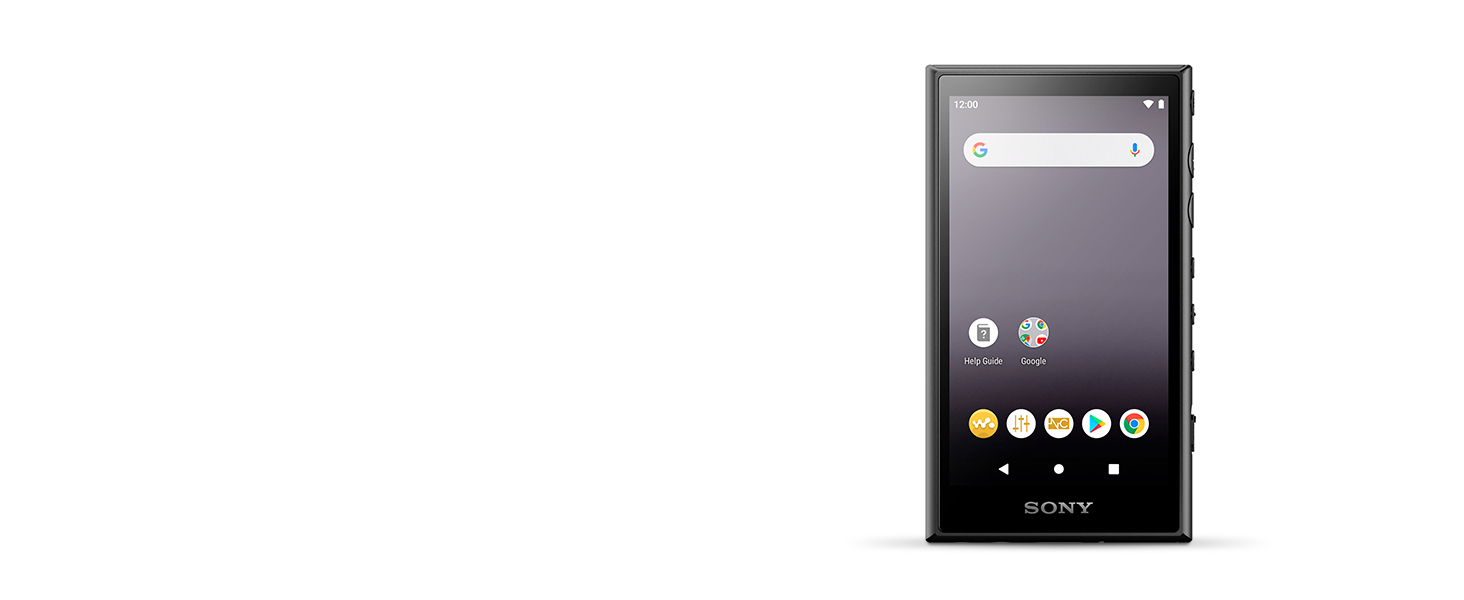
The Sony Walkman NW-A105 is a high-resolution digital music player designed to deliver exceptional audio quality. Running on the Android operating system, it allows users to stream and download music from various platforms via Wi-Fi. With its S-Master HX digital amplifier and DSEE HX AI technology, the NW-A105 enhances your listening experience by restoring compressed audio files and providing pure sound quality. It features a 16GB internal storage, expandable via a microSD card slot, and offers up to 45 hours of battery life for extended playback.
What's in the Box
- Sony Walkman NW-A105
- USB Type-C Cable
- Startup Guide
- Instruction Manual (this document)
Product Overview


Key Features
- High-Resolution Audio: Compatible with various high-resolution audio formats for superior sound quality.
- S-Master HX Digital Amplifier: Delivers pure sound quality by reducing distortion and noise.
- DSEE HX AI: Analyzes song type and intelligently restores compressed audio files to near high-resolution quality.
- Android OS: Provides access to streaming services and apps via Wi-Fi.
- Wi-Fi and Bluetooth Connectivity: For wireless streaming and connecting to headphones or speakers.
- 16GB Internal Storage: Ample space for your music library.
- MicroSD Card Slot: Expandable memory for additional storage.
- USB Type-C: Modern and reversible connector for charging and data transfer.
- Long Battery Life: Up to 45 hours of audio playback.
Setup
1. Charging the Device
Before initial use, fully charge your Walkman. Connect the supplied USB Type-C cable to the Walkman's USB-C port and the other end to a USB charging adapter (not supplied) or a computer's USB port. The charging indicator will illuminate.

2. Powering On/Off
- To Power On: Press and hold the Power button (located on the side) until the Sony logo appears on the screen.
- To Power Off: Press and hold the Power button until the power options appear, then select 'Power off'.
3. Initial Android Setup
Upon first power-on, follow the on-screen instructions to complete the initial Android setup. This includes selecting your language, connecting to a Wi-Fi network, and signing in with your Google account (optional, but recommended for app access).
4. Expanding Storage with a MicroSD Card
The Walkman supports microSDXC cards for additional storage. Locate the microSD card slot on the bottom of the device. Gently insert the microSD card until it clicks into place.

Operating the Walkman
1. Physical Controls


- Power Button: Turns the device on/off, or puts it to sleep/wakes it up.
- Volume Up/Down Buttons: Adjusts the audio output volume.
- Play/Pause Button: Controls music playback.
- Skip Forward/Backward Buttons: Navigates between tracks.
- Hold Switch: Locks all physical buttons to prevent accidental presses.
2. Music Playback
Use the pre-installed music player app or download your preferred music app from the Google Play Store. Navigate your music library using the touchscreen or the physical control buttons.

3. Streaming and Apps
Connect to a Wi-Fi network to access streaming services like Spotify, Apple Music, or YouTube Music. Download apps from the Google Play Store to expand the functionality of your Walkman.
4. Bluetooth Connectivity
To connect Bluetooth headphones or speakers:
- Go to Settings > Connected devices > Bluetooth.
- Turn Bluetooth on.
- Put your Bluetooth device into pairing mode.
- Select your device from the list of available devices on the Walkman screen.

Maintenance
Cleaning the Device
- Use a soft, dry cloth to wipe the exterior of the Walkman.
- For the screen, use a microfiber cloth specifically designed for electronics to avoid scratches.
- Do not use abrasive cleaners, solvents, or alcohol-based solutions, as these can damage the finish or screen.
Battery Care
- Avoid exposing the device to extreme temperatures, which can degrade battery performance.
- For optimal battery longevity, avoid fully discharging the battery frequently.
Troubleshooting
Common Issues and Solutions
| Issue | Possible Solution |
|---|---|
| Short Battery Life | Turn off Wi-Fi and Bluetooth when not in use. Close background applications. Enable Airplane Mode if only listening to downloaded content. Adjust screen brightness. |
| Device Not Responding | Press and hold the Power button for about 10 seconds to force a restart. |
| Music Skipping or Glitching | Ensure your music files are not corrupted. Try playing from internal memory versus microSD card, or vice-versa. Update the music player app or device firmware. |
| Cannot Connect to Wi-Fi/Bluetooth | Ensure Wi-Fi/Bluetooth is enabled. Restart the Walkman and the router/Bluetooth device. Check network settings. |
| No Sound Output | Check volume levels. Ensure headphones/speakers are properly connected or paired via Bluetooth. Test with different headphones/speakers. |
Specifications
| Feature | Detail |
|---|---|
| Brand | Sony |
| Model Name | NW-A105 |
| Special Features | Hi-Res Audio, Bluetooth |
| Connectivity Technology | USB, Wi-Fi |
| Memory Storage Capacity | 16 GB (expandable via Micro SDXC) |
| Color | Black |
| Screen Size | 3.6 Inches |
| Compatible Devices | Smartphone, Headphone, Personal Computer |
| Media Type | Micro SDXC |
| Display Technology | LCD |
| Supported Standards | MP3 and other Hi-Res formats |
| Battery Average Life | Up to 45 Hours |
| Item Weight | 136 Grams |
| Item Dimensions (D x W x H) | 0.44"D x 2.21"W x 3.9"H |
| Manufacturer | SONY |
| Model Number | NWA105/B |
| UPC | 027242916838 |
Warranty Information
The Sony Walkman NW-A105 comes with a 1-year limited warranty from the date of purchase. This warranty covers manufacturing defects under normal use. For specific terms and conditions, please refer to the warranty card included with your product or visit the official Sony support website.
Support
For further assistance, technical support, or to download the latest firmware updates, please visit the official Sony support website for your region. You can also find FAQs and community forums for additional help.
Sony Support Website: www.sony.com/electronics/support/


