
1. Introduction
The Apple Pro Display XDR is a 32-inch Retina 6K display designed for professional workflows. It features Extreme Dynamic Range (XDR) technology, delivering exceptional brightness, contrast, and color accuracy. This manual provides essential information for setting up, operating, maintaining, and troubleshooting your display.

Figure 1.1: The Apple Pro Display XDR showcasing a vibrant abstract image.
2. Setup
2.1 Unpacking the Display
- Carefully remove the display from its packaging.
- Ensure all components are present: Pro Display XDR, power cable, and Thunderbolt 3 Pro Cable.
- Retain original packaging for future transport or service.
2.2 Attaching a Stand or Mount
The Pro Display XDR requires either an Apple Pro Stand or a VESA Mount Adapter, both sold separately. Follow the instructions provided with your chosen accessory for proper attachment.

Figure 2.1: Side profile of the Pro Display XDR mounted on the optional Pro Stand.
2.3 Connecting to Power
- Connect the included power cable to the power port on the back of the display.
- Plug the other end of the power cable into a grounded electrical outlet.
2.4 Connecting to a Computer
- Connect one end of the Thunderbolt 3 Pro Cable to the Thunderbolt 3 port on the back of the Pro Display XDR.
- Connect the other end of the Thunderbolt 3 Pro Cable to a compatible Thunderbolt 3 port on your Mac or other compatible computer.
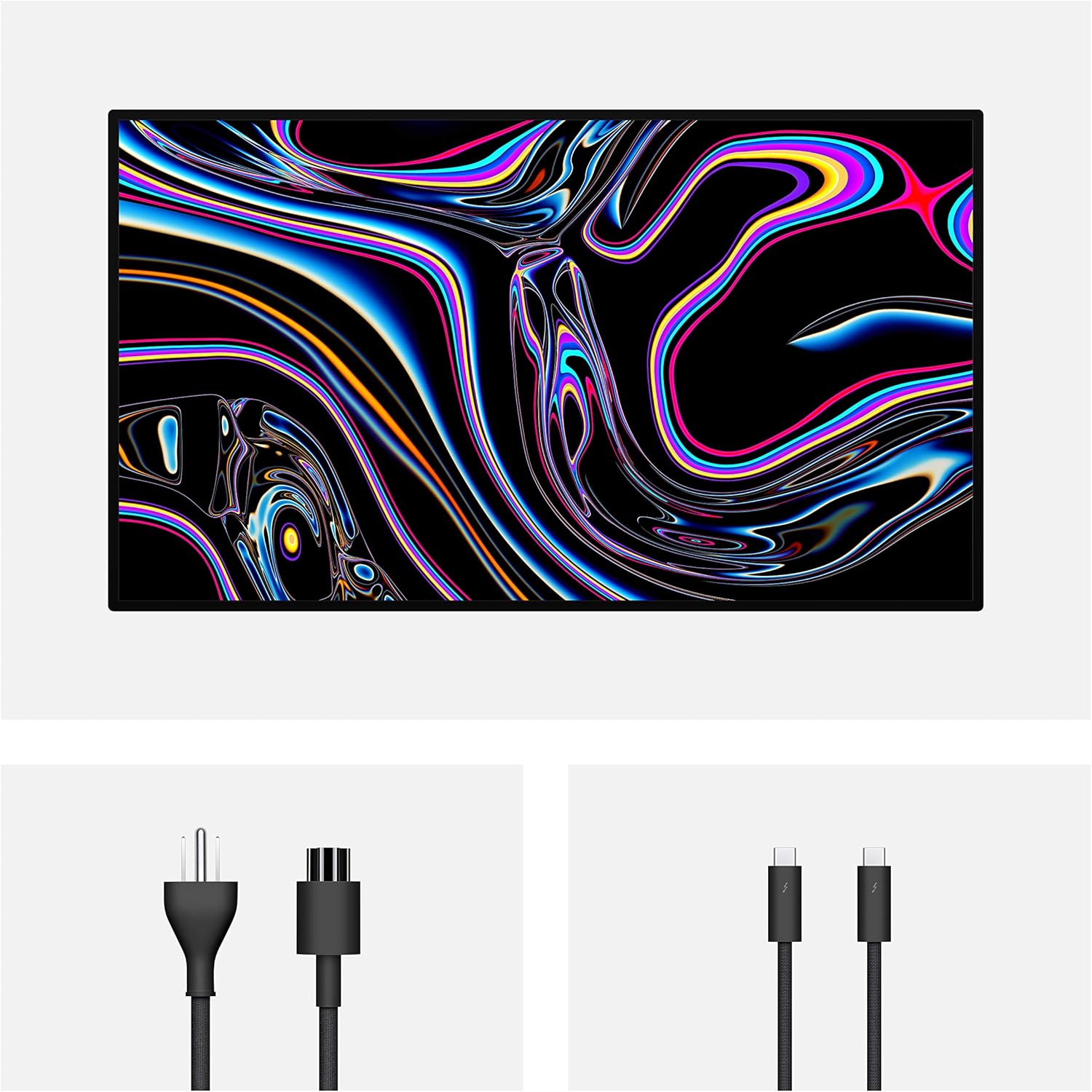
Figure 2.2: Rear view of the Pro Display XDR showing the power and Thunderbolt 3 cable connections.
3. Operating the Display
3.1 Power On/Off
The Pro Display XDR automatically powers on when connected to a powered-on computer via Thunderbolt 3. It will enter a low-power state when the connected computer sleeps or is turned off.
3.2 Display Controls
All display settings, including brightness, reference modes, and other preferences, are managed through the connected macOS computer's System Settings (or System Preferences). There are no physical buttons on the display for these adjustments.
3.3 Reference Modes
The Pro Display XDR offers various reference modes optimized for different professional workflows, such as HDR Video, Digital Cinema, Photography, and Design. These modes ensure accurate color representation for specific content types. You can select and customize reference modes in macOS System Settings.
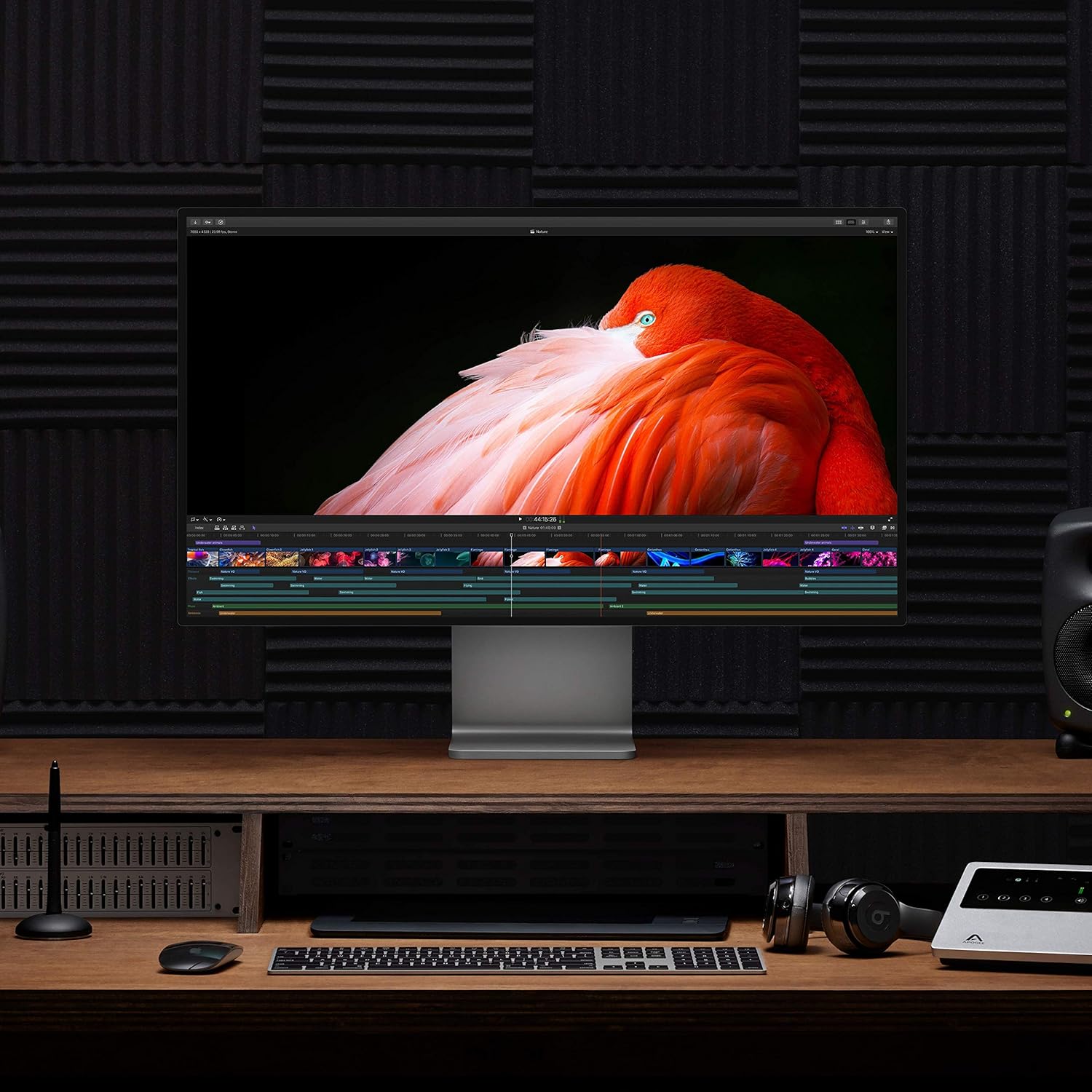
Figure 3.1: The Pro Display XDR integrated into a professional setup, showing video editing software.
4. Maintenance
4.1 Cleaning the Display
- Screen: Use only a soft, lint-free cloth slightly dampened with water. Avoid harsh chemicals, aerosols, or abrasive materials.
- Casing: Wipe the exterior surfaces with a soft, dry, lint-free cloth.
- Always disconnect the display from power before cleaning.
4.2 Storage
When not in use for extended periods, store the display in a cool, dry environment. If possible, use the original packaging for protection.
5. Troubleshooting
5.1 No Image on Display
- Ensure the power cable is securely connected to both the display and a working electrical outlet.
- Verify the Thunderbolt 3 Pro Cable is firmly connected to both the display and your computer.
- Check if your computer is powered on and not in sleep mode.
- Test with a different Thunderbolt 3 port or cable if available.
5.2 Display Artifacts or Incorrect Colors
- Restart your computer.
- Ensure your macOS is up to date.
- Check display settings in macOS System Settings for correct resolution and reference mode.
- If issues persist, contact Apple Support.
6. Specifications
| Feature | Specification |
|---|---|
| Model Number | MWPE2LL/A |
| Screen Size | 32 Inches |
| Resolution | Retina 6K (6016 by 3384 pixels) |
| Display Technology | LCD with Extreme Dynamic Range (XDR) |
| Brightness | 1000 nits sustained, 1600 nits peak |
| Contrast Ratio | 1,000,000:1 |
| Color Gamut | P3 wide color |
| Color Depth | 10-bit |
| Viewing Angle | Superwide |
| Ports | One Thunderbolt 3, three USB-C |
| Screen Surface | Glossy (Standard Glass) |
| Product Dimensions | 1.1 x 28.3 x 25.7 inches (without stand) |
| Item Weight | 30.4 pounds (without stand) |
7. Warranty and Support
7.1 Product Warranty
The Apple Pro Display XDR is covered by Apple's standard limited warranty. For detailed information regarding warranty terms, conditions, and duration, please refer to the official Apple warranty documentation included with your product or visit the Apple Support website.
7.2 Technical Support
For technical assistance, troubleshooting beyond this manual, or service inquiries, please contact Apple Support. You can find contact information and additional resources on the official Apple Support website: support.apple.com.


