
Ticwatch TicPods 2 Pro Ice
TicPods 2 Pro True Wireless Earbuds User Manual
Model: TicPods 2 Pro Ice | Brand: Ticwatch
1. Introduction
The TicPods 2 Pro are advanced true wireless earbuds designed for a seamless audio experience and intuitive control. Featuring Bluetooth 5.0, dual-mic noise cancellation, and smart gesture controls, they offer high-quality sound and convenience for various activities. This manual provides detailed instructions for setup, operation, maintenance, and troubleshooting to ensure optimal use of your earbuds.

Image: TicPods 2 Pro Ice earbuds and their charging case.
2. What's in the Box
- 1 x TicPods 2 Pro Ice Earbuds
- 1 x Charging Dock
- 1 x User Guide

Image: The package contents, including earbuds, charging dock, and user guide.
3. Setup Guide
3.1 Initial Charging
Before first use, fully charge your TicPods 2 Pro. Place the earbuds into the charging case. Connect the charging case to a power source using the provided Type-C cable. A 5-minute charge provides 1 hour of playing time, and a full charge offers 4 hours of playback, extending to 23 hours with the charging case.
3.2 Pairing with Your Device
The TicPods 2 Pro feature quick pairing via Bluetooth 5.0 for a stable connection within 10 meters. Simply open the charging case, and the earbuds will enter pairing mode. Select 'TicPods 2 Pro' from your device's Bluetooth settings.
Video: Demonstrates quick pairing and Bluetooth 5.0 connectivity.
3.3 Mobvoi App Installation
For enhanced features and to ensure optimal performance, install the Mobvoi app on your smartphone. The app allows for OTA updates, smart control customization, and battery life monitoring.

Image: Screenshot of the Mobvoi app interface, showing device connection and features.
4. Operating Instructions
4.1 Smart Controls
The TicPods 2 Pro offer various intuitive control methods:
- Tickle Feature: Control playback and calls without taking out your smartphone.
- Double-click: Play the next song or hang up a call.
- Press and Hold (2 seconds): Wake up voice assistant or reject a call.
- Slide Up/Down: Increase or decrease volume.
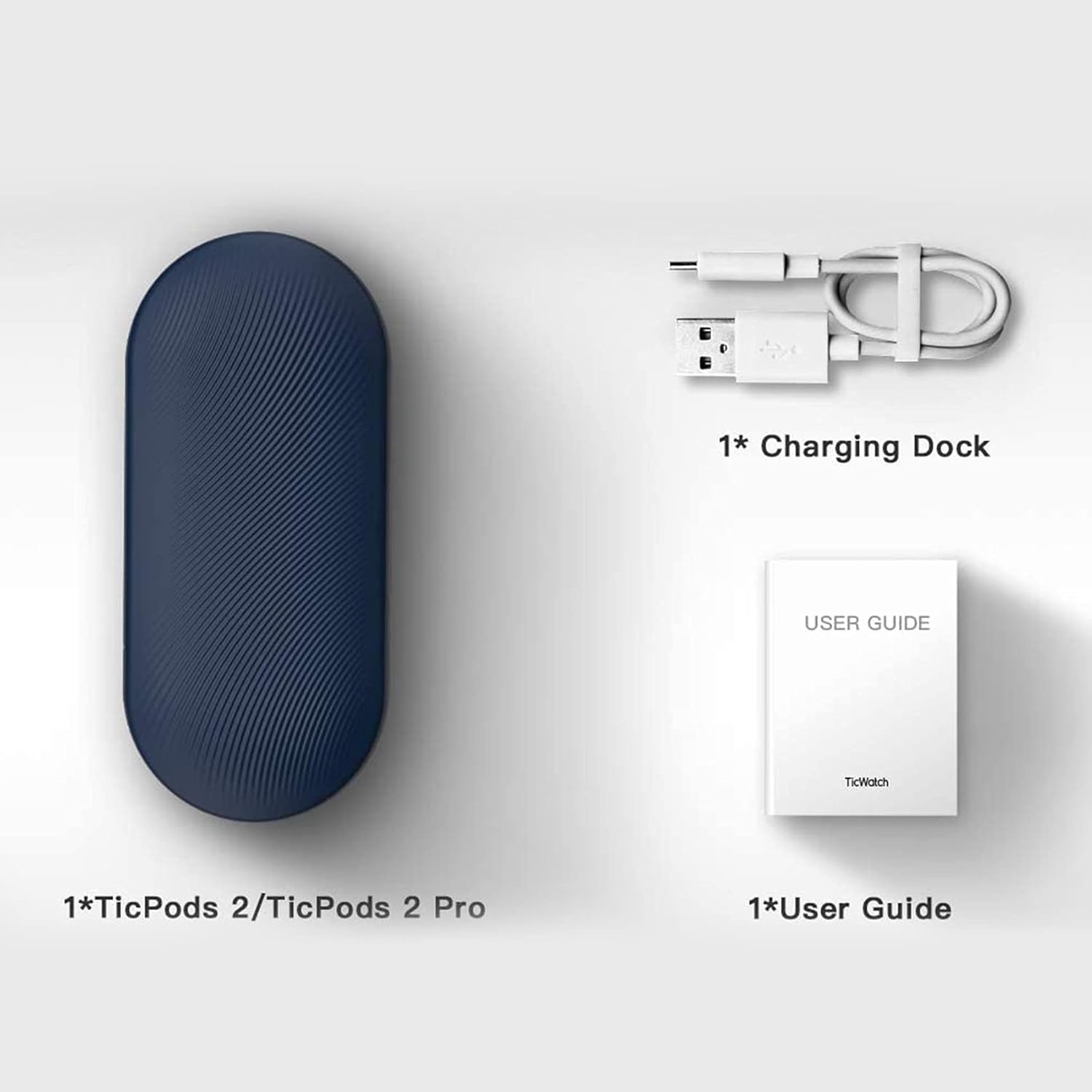
Image: A person demonstrating interaction with the earbuds, highlighting AI human-machine interaction.
4.2 Head Gesture Controls
Answer or reject calls with simple head movements:
- Nod Twice: Pick up an incoming call.
- Shake Head: Reject an incoming call.
4.3 Quick Commands
Use voice commands for common actions without a wake word:
- Say "Play music" to start playback.
- Say "Hey Tico" to activate your default voice assistant.
4.4 In-Ear Detection
High-precision sensors automatically play or pause music the moment you wear or remove the earbuds.
4.5 Audio Quality
Experience superior sound with 13mm moving coils. The earbuds support Hi-Fi protocols such as aptX and AAC, delivering an audio sensitivity of 132dB@1kHZ for an immersive listening experience.

Image: Diagram illustrating the dual-mic system for noise cancellation.
4.6 Water Resistance
The TicPods 2 Pro are IPX4 rated, providing protection against splashes and sweat, making them suitable for workouts and outdoor activities.
5. Maintenance
To ensure the longevity and optimal performance of your TicPods 2 Pro, follow these maintenance guidelines:
- Cleaning: Regularly wipe the earbuds and charging case with a soft, dry, lint-free cloth. Avoid using abrasive materials or harsh chemicals.
- Storage: When not in use, store the earbuds in their charging case to protect them from dust and damage. Keep them in a cool, dry place away from extreme temperatures.
- Charging Contacts: Periodically check and gently clean the charging contacts on both the earbuds and inside the case to ensure a proper connection.
6. Troubleshooting
If you encounter issues with your TicPods 2 Pro, refer to the following common solutions:
- Earbuds not pairing: Ensure both earbuds are in the charging case, then open the lid to activate pairing mode. Check your device's Bluetooth settings and forget previous connections if necessary.
- No sound from one earbud: Place both earbuds back into the charging case, close the lid, wait a few seconds, then open it again. This often re-syncs them.
- Charging issues: Verify that the charging cable and adapter are working correctly. Clean the charging contacts on the earbuds and case to remove any debris.
- Controls not responding: Ensure the earbuds are properly seated in your ears. Try restarting the earbuds by placing them in the case and taking them out again.
- Software Updates: Regularly check for and install the latest firmware updates via the Mobvoi app to resolve potential bugs and improve performance.
For persistent issues, please contact Ticwatch customer support.
7. Specifications
| Feature | Specification |
|---|---|
| Model Name | TicPods 2 Pro Ice |
| Connectivity Technology | Wireless (Bluetooth 5.0) |
| Bluetooth Range | 10 Meters |
| Water Resistance Level | IPX4 (Waterproof) |
| Battery Life (Single Charge) | 4 Hours |
| Battery Life (with Charging Case) | 23 Hours |
| Audio Driver Size | 13 Millimeters |
| Sensitivity | 132 dB |
| Control Type | Touch, Voice Assistant |
| Item Weight | 6.4 ounces |
| Product Dimensions | 2.8 x 1.26 x 0.94 inches |

Image: Diagram illustrating key technical specifications of the TicPods 2 Pro.
8. Warranty and Support
Ticwatch offers a replacement for quality-related issues for 12 months from the date of your purchase. You can extend this by an additional 6 months (total 18 months) by joining the Mobvoi membership program at mobvoi.com/membership.
For further assistance or to report issues, please visit the official Ticwatch support website or contact their customer service.
Related documentsTicPods 2 Pro Ice

Ask a question about this manual
Ask about setup, troubleshooting, compatibility, parts, safety, or missing instructions. Manuals+ will review the question and use this page’s manual context to help answer it.