
Xiltek PZGXC0E112K
Instruction Manual
Carel Thermostat with Temperature Sensor Probe
Model: PZGXC0E112K
1. Product Overview
The Xiltek Carel Model PZGXC0E112K is a 115V thermostat designed for precise temperature control in various commercial refrigeration units, including reach-in freezers, undercounter and worktop freezers, glass door display freezers, and deli cases. This unit serves as a direct replacement for the discontinued Carel IR33F0AHA0 model.
It features an LCD display for easy monitoring and button/touch controls for intuitive operation. The thermostat comes equipped with necessary sensor probes and mounting brackets for installation.

Image: The Carel Model PZGXC0E112K thermostat unit, accompanied by its black and blue temperature sensor probes.
Included Components:
- 1 x Carel Temperature Controller (Model PZGXC0E112K)
- Yellow Clip Brackets for mounting
- Sensor Probes (typically one black and one blue)

Image: Close-up view of the black and blue temperature sensor probes included with the thermostat.
Replacement Information:
This Carel Model PZGXC0E112K is designed as a direct replacement for the older, now discontinued, Carel IR33F0AHA0 model. Users replacing the older model should ensure compatibility before installation.

Image: A visual comparison showing the discontinued Carel IR33F0AHA0 model crossed out, and the new Carel PZGXC0E112K model below it, indicating replacement.
2. Setup and Installation
Installation of the Carel PZGXC0E112K thermostat should be performed by a qualified technician. Ensure all power to the refrigeration unit is disconnected before beginning installation.
Mounting:
The thermostat is designed for wall mounting. Use the provided yellow clip brackets to secure the unit in the desired location. Ensure adequate ventilation around the unit.
Wiring:
Refer to the wiring diagram located on the top label of the thermostat for correct connections. The unit operates on 115V AC power. Connect the sensor probes to the designated terminals. Ensure all connections are secure and properly insulated.

Image: The rear view of the Carel thermostat, highlighting the various wiring terminals for electrical connections.
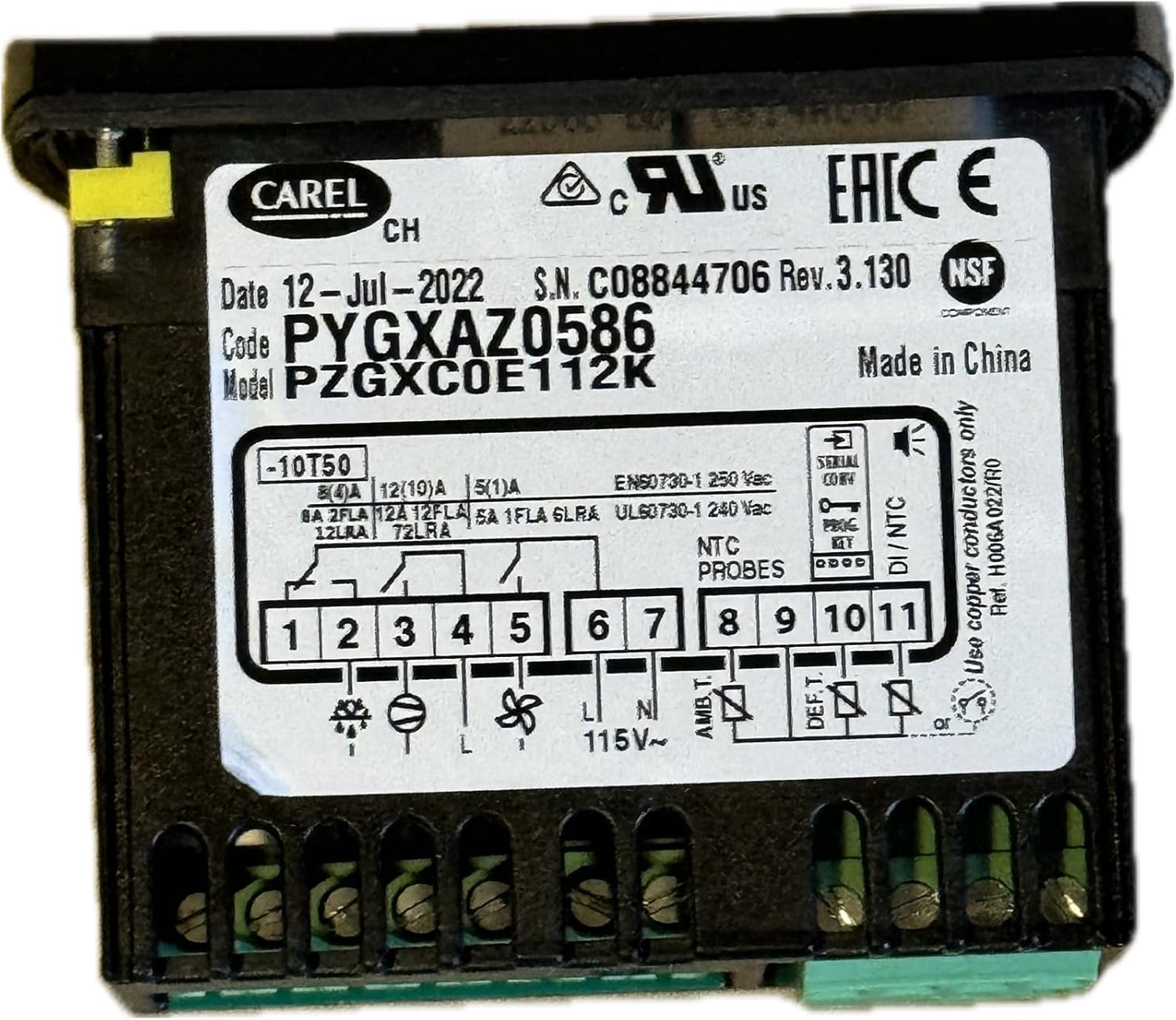
Image: The top view of the Carel thermostat, displaying the detailed wiring diagram and model information on its label.
After wiring, double-check all connections before restoring power to the refrigeration unit.
3. Operating Instructions
Once installed and powered, the thermostat's LCD display will show the current temperature. The unit features button and touch controls for setting parameters.
Basic Operation:
- Power On/Off: The unit powers on automatically when connected to a 115V AC power source.
- Temperature Display: The main LCD screen displays the current temperature measured by the sensor probe.
- Setting Temperature: Use the "Set" button to enter the temperature setting mode. Use the up/down arrows (if present, or implied by touch interface) to adjust the desired temperature. Press "Set" again to confirm.
- Mute/Alarm: The "Mute" button is typically used to silence alarms or acknowledge warnings.
- Fan Control: This model includes a fan control feature. Refer to the detailed programming manual (not included in this general guide) for specific fan operation settings.
For advanced programming and parameter adjustments, consult the comprehensive programming manual provided by Carel or Xiltek, which details all available settings and their functions.
4. Maintenance
The Carel PZGXC0E112K thermostat is designed for reliable operation with minimal maintenance. Regular checks can help ensure its longevity and accurate performance.
- Cleaning: Periodically wipe the exterior of the unit with a soft, dry cloth. Do not use abrasive cleaners or solvents. Ensure no liquids enter the unit.
- Sensor Probes: Inspect sensor probes for any physical damage or corrosion. Ensure they are securely in place and not obstructed.
- Connections: Annually, or as needed, verify that all electrical connections are tight and free from corrosion. Ensure power is disconnected before checking connections.
- Ventilation: Ensure the area around the thermostat is clear of obstructions to allow for proper airflow and prevent overheating.
5. Troubleshooting
This section provides guidance for common issues. For complex problems, contact a qualified technician or Xiltek support.
| Problem | Possible Cause | Solution |
|---|---|---|
| No display/No power | No power supply; Loose wiring; Blown fuse/breaker | Check power source; Verify all wiring connections; Check and reset circuit breaker or replace fuse. |
| Incorrect temperature reading | Faulty sensor probe; Improper sensor placement; Sensor connection issue | Inspect sensor for damage; Ensure sensor is correctly positioned in the freezer; Check sensor wiring connections. |
| Unit not controlling temperature | Incorrect temperature settings; Wiring error; Internal fault | Verify set temperature; Re-check wiring according to diagram; Contact support if problem persists. |
| Alarm sounding | Temperature outside set limits; Sensor error; Other system fault | Check freezer temperature; Press "Mute" to silence; Consult programming manual for alarm codes; Address underlying issue. |
6. Specifications
| Feature | Detail |
|---|---|
| Brand | Xiltek |
| Model Name | PZGXC0E112K |
| Controller Type | Carel |
| Voltage | 115 Volts |
| Power Source | AC adapter |
| Special Feature | Fan Control |
| Specific Uses For Product | Freezer |
| Temperature Control Type | Thermostatic |
| Connectivity Technology | Wired |
| Included Components | Temperature Controller, Yellow Clip Brackets, Sensor Probes |
| Item Weight | 1 Pounds |
| Material | Copper |
| Product Dimensions | 2.9 x 2.95 x 1.4 inches |
| Display Type | LCD |
| Control Type | Button Control |
| Control Method | Touch |
| Mounting Type | Wall Mount |
| Backlight | Yes |
| UPC | 689227216960 |
| Manufacturer | Carel |
7. Warranty and Support
For warranty information and technical support regarding your Xiltek Carel Thermostat, please contact Xiltek directly. Refer to the product packaging or the Xiltek official website for the most current contact details and warranty terms.
Xiltek Store: Visit the Xiltek Store on Amazon
Ask a question about this manual
Ask about setup, troubleshooting, compatibility, parts, safety, or missing instructions. Manuals+ will review the question and use this page’s manual context to help answer it.