
1. Introduction
This manual provides detailed instructions for the setup, operation, and maintenance of your TP-Link Archer C90 AC1900 Wireless MU-Mimo Gigabit Router. The Archer C90 utilizes 802.11AC Wave2 technology, delivering speeds of up to 1900 Mbps, with 1300 Mbps on the 5 GHz band and 600 Mbps on the 2.4 GHz band. It incorporates MU-MIMO technology to ensure multiple devices receive data simultaneously, optimizing performance for activities such as online gaming and 4K streaming.
2. Package Contents
Verify that your package contains the following items:
- TP-Link Archer C90 AC1900 Wireless MU-Mimo Gigabit Router
- Power Adapter
- Ethernet Cable
- Quick Installation Guide
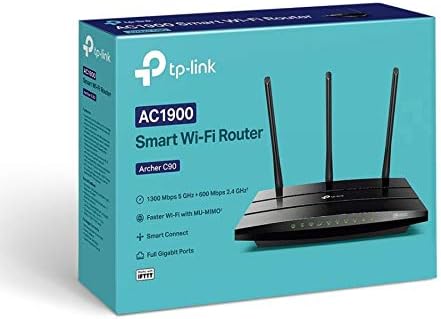
Figure 2.1: The retail packaging for the TP-Link Archer C90 router. This box typically contains the router unit, power adapter, Ethernet cable, and a quick start guide.
3. Physical Overview
Familiarize yourself with the ports, buttons, and indicators on your Archer C90 router.
3.1 Front Panel

Figure 3.1: Front view of the TP-Link Archer C90 router. This image displays the router's sleek black design and the array of LED indicators on the front panel, which show the status of power, internet connection, wireless networks (2.4 GHz and 5 GHz), Ethernet ports, and USB ports.
3.2 Angled View

Figure 3.2: Angled view of the TP-Link Archer C90 router. This perspective highlights the three external antennas and the overall physical form factor of the device, providing a better understanding of its dimensions and design.
3.3 Rear Panel

Figure 3.3: Rear view of the TP-Link Archer C90 router. This image clearly shows the various ports and buttons located on the back of the router, including the power input, power on/off switch, USB ports, WAN port (blue), and four Gigabit LAN ports (yellow). Also visible are the WPS/Reset button and the Wi-Fi on/off button.
4. Setup Instructions
Follow these steps to set up your TP-Link Archer C90 router.
- Unpack the Router: Carefully remove the router and all accessories from the packaging.
- Connect Hardware:
- Connect your modem's Ethernet cable to the blue WAN port on the back of the Archer C90.
- Connect the power adapter to the router's power input and plug it into an electrical outlet.
- Press the Power On/Off button if the router does not power on automatically.
- Verify LED Indicators: Wait for the Power, Internet, and Wi-Fi LEDs on the front panel to become solid, indicating a successful connection.
- Connect to the Router:
- Wired Connection: Connect a computer to one of the yellow LAN ports using an Ethernet cable.
- Wireless Connection: Connect to the default Wi-Fi network (SSID) printed on the label at the bottom of the router.
- Access the Web Management Interface: Open a web browser and enter
http://tplinkwifi.netorhttp://192.168.0.1in the address bar. - Log In: Use the default username and password (usually
adminfor both, or as specified on the router label) to log in. You will be prompted to create a new password for security. - Run Quick Setup: Follow the on-screen instructions of the Quick Setup wizard to configure your internet connection and wireless network settings (SSID and password).
- WPS (Wi-Fi Protected Setup): For quick and secure connection of WPS-compatible devices, press the WPS button on the router and then the WPS button on your device within two minutes.
5. Operating Instructions
Once set up, your Archer C90 router provides a robust wireless network. Here are key operational aspects:
- Dual-Band Wi-Fi: The router operates on both 2.4 GHz and 5 GHz frequency bands. The 2.4 GHz band offers wider coverage, while the 5 GHz band provides faster speeds and less interference, ideal for bandwidth-intensive tasks like streaming and gaming.
- MU-MIMO Technology: The Archer C90 supports Multi-User, Multiple-Input, Multiple-Output (MU-MIMO) technology, allowing it to communicate with multiple compatible devices simultaneously. This improves overall network efficiency and reduces latency, especially in environments with many connected devices.
- Gigabit Ethernet Ports: The router is equipped with Gigabit WAN and LAN ports, ensuring high-speed wired connections for devices such as desktop computers, smart TVs, and gaming consoles.
- USB Ports: Utilize the USB ports to share files across your network from a connected USB storage device or to set up a local print server.
- Guest Network: Create a separate network for guests to provide internet access while keeping your main network secure and private.
- Parental Controls: Manage and monitor internet access for children, including time limits and content filtering.
6. Maintenance
Regular maintenance helps ensure optimal performance and longevity of your router.
- Firmware Updates: Periodically check the TP-Link website for firmware updates. Updating the firmware can improve performance, add new features, and fix security vulnerabilities. Access the router's web management interface to perform updates.
- Regular Reboots: Rebooting your router every few weeks can help clear its memory and resolve minor performance issues. You can do this by unplugging the power adapter for 10 seconds and then plugging it back in.
- Physical Cleaning: Keep the router in a clean, dust-free environment. Gently wipe the exterior with a soft, dry cloth. Ensure ventilation openings are not blocked.
- Security Best Practices: Regularly change your Wi-Fi password and the router's login password. Use strong, unique passwords for both.
- Optimal Placement: Place the router in a central location, away from obstructions and devices that emit electromagnetic interference (e.g., microwaves, cordless phones) to maximize Wi-Fi coverage and signal strength.
7. Troubleshooting
This section addresses common issues you might encounter with your Archer C90 router.
- No Internet Access:
- Check if the Internet LED on the router is solid. If not, ensure the Ethernet cable from your modem is securely connected to the router's WAN port.
- Reboot your modem and router. Unplug both devices, wait 30 seconds, then plug in the modem first. Once the modem is fully online, plug in the router.
- Verify your internet connection settings in the router's web management interface.
- Slow Wi-Fi Speed or Frequent Disconnections:
- Ensure the router is placed centrally and away from interference sources.
- Check for overlapping Wi-Fi channels using a Wi-Fi analyzer app and change your router's channel in the settings if necessary.
- Confirm your devices are connecting to the appropriate band (5 GHz for closer, faster connections; 2.4 GHz for longer range).
- Update your router's firmware to the latest version.
- Cannot Access Router's Web Management Page:
- Ensure your device is connected to the router (wired or wirelessly).
- Verify you are using the correct address (
http://tplinkwifi.netorhttp://192.168.0.1). - Try a different web browser.
- If you forgot your login password, you may need to perform a factory reset.
- Factory Reset: If issues persist, you can perform a factory reset. With the router powered on, press and hold the WPS/Reset button on the rear panel for about 10 seconds until the LEDs flash. This will restore the router to its default factory settings, requiring you to reconfigure it.
8. Specifications
Key technical specifications for the TP-Link Archer C90 AC1900 Wireless MU-Mimo Gigabit Router:
| Feature | Detail |
|---|---|
| Brand | TP-Link |
| Model Number | ARCHER C90 |
| Wireless Type | 802.11ac Wave2, 2.4 GHz Radio Frequency, 5 GHz Radio Frequency |
| Wireless Communication Standard | 2.4 GHz Radio Frequency |
| Frequency Band Class | Dual-Band (2.4 GHz & 5 GHz) |
| Max Wireless Speed | AC1900 (1300 Mbps on 5 GHz, 600 Mbps on 2.4 GHz) |
| Connectivity Technology | Ethernet, Wireless |
| Ethernet Ports | 1x Gigabit WAN, 4x Gigabit LAN |
| Antenna Type | Retractable External Antennas |
| Special Feature | WPS (Wi-Fi Protected Setup), MU-MIMO |
| Compatible Devices | Personal Computer and other network-enabled devices |
| Recommended Uses | Gaming, 4K Streaming, General Home Networking |
| Operating System | Router-specific OS |
| Voltage | 12 Volts (DC) |
| Color | Black |
| Item Weight | 2.15 pounds |
| Package Dimensions | 12.99 x 9.49 x 3.11 inches |
| Manufacturer | TP-Link |
| ASIN | B081QCC2P2 |
| Date First Available | November 19, 2019 |
9. Warranty and Support
For warranty information, technical support, and additional resources, please visit the official TP-Link website. You can find detailed FAQs, troubleshooting guides, and contact information for customer service there.
TP-Link Official Website: www.tp-link.com


