
Introduction
This manual provides essential information for the setup, operation, and maintenance of your Akia Screens AK-M110H1 110-inch Manual Pull-Down Projector Screen. Designed for both commercial and residential applications, this 16:9 widescreen screen features MaxWhite 2 front projection material, offering a 1.1 gain and a wide 180-degree viewing angle for clear, bright images. It is 4K and 8K HD Ready, ensuring compatibility with high-resolution content. The screen is also GREENGUARD Gold Certified for indoor air quality.

Image: Akia Screens projector screen showcasing cinematic clarity in an office environment.
Setup
Installation Guidelines
The Akia Screens AK-M110H1 projector screen is designed for versatile installation, supporting both wall and ceiling mounting. The white metal case includes all necessary hardware for a secure setup. For optimal stability, it is recommended to mount at least one side of the screen to a wall stud if possible. If mounting to drywall, ensure to use appropriate drywall anchors (included) to support the screen's weight.
Mounting Options
- Wall Mount: Securely attach the screen case directly to a wall using the provided hardware.
- Ceiling Mount: The screen can also be mounted to the ceiling, offering flexibility for various room configurations.
- Optional L-Brackets: For installations requiring the screen to be positioned further from the wall, optional 6-inch and 12-inch L-brackets are available separately. These brackets allow for adjustable extension from the mounting surface.

Image: Mounting options for the Akia Screens projector, illustrating wall and ceiling installation with optional L-brackets.

Image: Detailed view of the optional L-Bracket Wall Mount Kit.
Operating the Screen
Manual Pull-Down Operation
The AK-M110H1 features a smooth manual pull-down system with an integrated auto-lock mechanism, allowing you to stop the screen securely at multiple desired height positions. A screen lanyard is included to assist with reaching the pull-down handle, especially in higher installations.
To Deploy the Screen:
- Gently pull the screen's handle downwards.
- Continue pulling until the screen reaches your desired viewing height.
- Slightly release the handle to engage the auto-lock mechanism. The screen will hold its position.
To Retract the Screen:
- Gently pull the screen's handle downwards again, slightly past the auto-lock position.
- Slowly guide the screen upwards. The auto-lock mechanism will disengage, allowing the screen to retract smoothly into its casing.
- Ensure the screen retracts fully and evenly to prevent damage.

Image: The auto-locking system provides variable height settings and includes a screen lanyard for easy access.
Video: Official demonstration of the Akia Manual Projector Screen's auto-locking system.
Maintenance
Care and Cleaning
To maintain the quality and longevity of your projector screen, follow these simple cleaning guidelines:
- Use a soft, damp cloth with mild soap and water to gently clean the screen surface.
- Avoid harsh chemicals, abrasive cleaners, or scrubbing, as these can damage the MaxWhite 2 material.
- Ensure the screen is completely dry before retracting it into its casing to prevent mildew or damage.
- Regularly inspect the pull-down mechanism and casing for any signs of wear or damage.
Troubleshooting
Common Issues and Solutions
Screen Not Retracting Smoothly:
If the screen does not retract smoothly, ensure you are pulling the handle slightly downwards to disengage the auto-lock before guiding it up. Avoid forcing the retraction. If the issue persists, gently pull the screen down to its full extension and then slowly guide it back up.
Image Quality Concerns:
Ensure your projector is a standard (long-throw) type, as this screen is not compatible with ultra-short-throw projectors. Verify the projector's focus and alignment with the screen surface. The MaxWhite 2 material is ISF Certified for accurate color reproduction, so ensure your projector settings are optimized.
"Screeching" Sound During Operation:
A slight "screeching" sound during the screen's pull-down or retraction is a normal characteristic of some manual projector screen mechanisms and typically does not indicate a defect.
Specifications
Product Specifications
| Feature | Detail |
|---|---|
| Model Number | AK-M110H1 |
| Display Dimensions | 110 inch diagonal |
| Aspect Ratio | 16:9 Widescreen |
| Viewable Area | 54.0" H × 96.0" W |
| Overall Extended Size | 68.6" H × 105.5" W |
| Projection Material | MaxWhite 2 Front Projection |
| Gain | 1.1 |
| Viewing Angle | 180 Degrees |
| Case Color | White |
| Mounting Type | Wall mount, Ceiling mount |
| Operation Mode | Manual with Auto-Locking System |
| Certifications | ISF Certified, GREENGUARD Gold Certified (UL 2818) |
| Recommended Projector Type | Standard (Long-throw) Projectors |
| Item Weight | 15.39 Pounds |
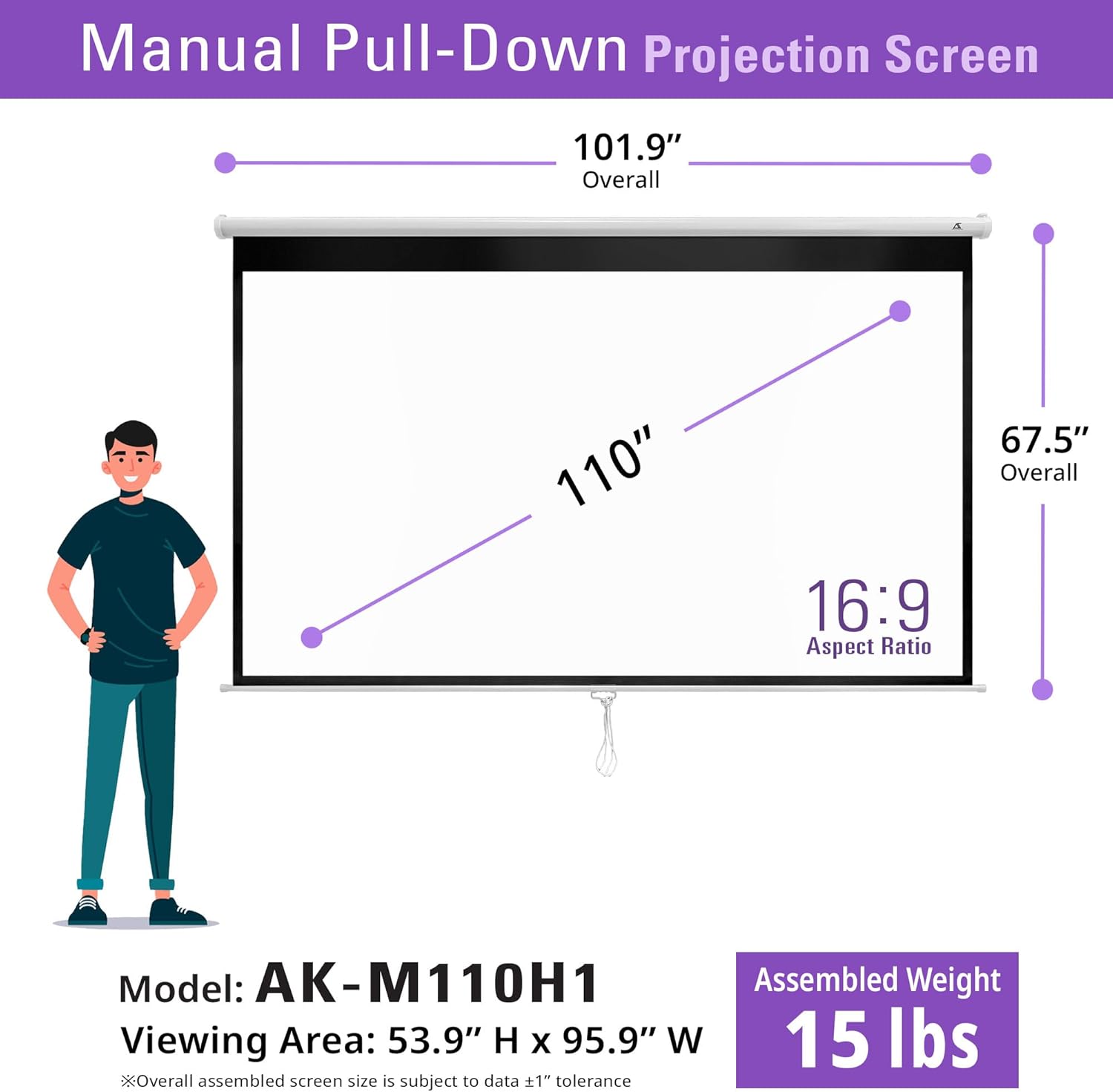
Image: Detailed dimensions of the Akia Screens AK-M110H1.

Image: Key features of the MaxWhite 2 projection material, including certifications.
Warranty and Support
Warranty Information
The Akia Screens AK-M110H1 projector screen is backed by a 1-year manufacturer's warranty, covering defects in materials and workmanship under normal use.
Customer Support
For any questions, technical assistance, or warranty claims, Akia Screens provides comprehensive customer support:
- US-Based Support: Access to knowledgeable support staff located in the United States.
- Email Support: Contact via email for detailed inquiries.
- Live Web Chat: Instant assistance through live chat on the official website.
- Lifetime Tech Support: Enjoy lifetime technical support for your product.

Image: Akia Screens offers comprehensive US-based customer support and warranty services.
