
Introduction
The Apple 96W USB-C Power Adapter is designed to provide fast and efficient charging for compatible USB-C devices, including MacBook Pro, iPhone, and iPad models. This manual provides essential information for the safe and effective use of your power adapter.
Safety Information
- Do not expose the power adapter to water or excessive moisture.
- Avoid using the power adapter in extremely hot or cold environments.
- Ensure the power adapter is properly ventilated during use. Do not cover it.
- Disconnect the power adapter from the power outlet when not in use for extended periods.
- Do not attempt to disassemble or repair the power adapter yourself. Refer to qualified service personnel.
- Use only with compatible USB-C charge cables and devices.
Setup
To set up your Apple 96W USB-C Power Adapter:
- Unfold the electrical prongs on the power adapter.
- Plug the power adapter into a functional wall outlet.
- Connect a compatible USB-C charge cable (sold separately) to the USB-C port on the power adapter.
- Connect the other end of the USB-C charge cable to your device.
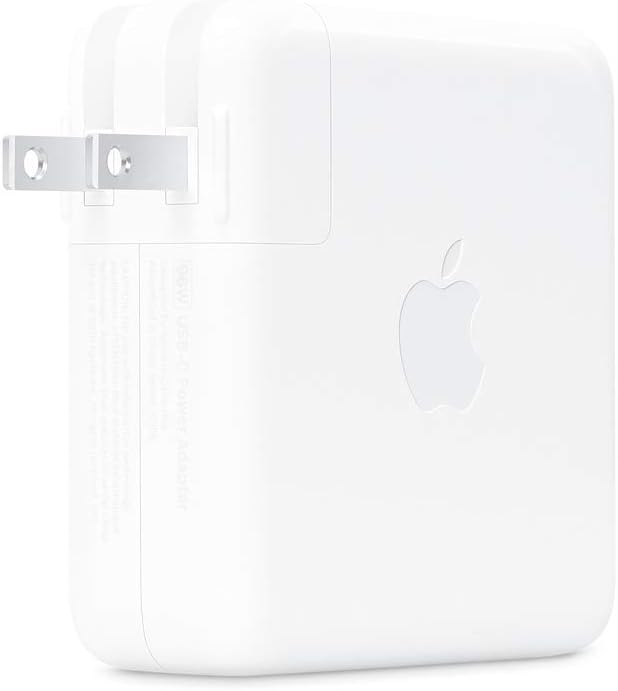
Image: Front view of the Apple 96W USB-C Power Adapter with its electrical prongs extended, ready for connection to a power outlet.
Operating Instructions
Once connected, the power adapter will begin charging your device. The 96W power output supports fast charging for compatible devices.
- Fast Charging: For optimal fast charging, pair this adapter with a 14-inch MacBook Pro (2021) using a USB-C to MagSafe 3 Cable or a USB-C Charge Cable. This combination can achieve a 0 to 50 percent charge in approximately 30 minutes.
- Compatibility: This power adapter is compatible with various USB-C enabled devices, including MacBook Pro, MacBook Air, iPhone 15 series, iPad Pro, iPad Air, and other devices that support USB-C charging.
- Cable Requirement: A USB-C Charge Cable is required and sold separately. Ensure the cable used is appropriate for the power output and your device.

Image: Rear view of the Apple 96W USB-C Power Adapter, showcasing the distinct Apple logo on its white casing.
Maintenance
- Cleaning: Disconnect the power adapter from the wall outlet and your device before cleaning. Use a soft, dry, lint-free cloth to wipe the exterior. Avoid using liquid cleaners or aerosols.
- Storage: Store the power adapter in a cool, dry place when not in use. Avoid wrapping the cable too tightly around the adapter to prevent damage to the cable or connection points.
Troubleshooting
| Problem | Possible Solution |
|---|---|
| Device not charging. |
|
| Slow charging. |
|
| Adapter feels warm during use. | It is normal for the power adapter to become warm during operation, especially during fast charging. If it becomes excessively hot or emits smoke/unusual odors, immediately unplug it and discontinue use. Contact Apple Support. |
Specifications
- Model Number: MX0J2AM/A
- Wattage: 96W
- Input Voltage: 5 Volts (standard AC input)
- Connector Type: USB Type C
- Product Dimensions: 4.88 x 4.88 x 1.22 inches
- Item Weight: 12.3 ounces
- Included Components: Apple 96W USB-C Power Adapter (USB-C Charge Cable sold separately)
- Compatible Devices: Phones, tablets, computers (e.g., iPhone 15/16 series, iPad, MacBook Pro/Air with USB-C)
Warranty and Support
The Apple 96W USB-C Power Adapter is covered by Apple's standard limited warranty. For detailed warranty information, please refer to the documentation included with your product or visit the official Apple support website.
For technical assistance, troubleshooting, or service inquiries, please contact Apple Support directly through their official website or authorized service providers. Keep your proof of purchase for warranty claims.
Apple Support Website: support.apple.com


