
1. Introduction
The Razer Viper is an ultralight ambidextrous wired optical gaming mouse designed for high-performance gaming. It features Razer's advanced optical switches and a high-precision 16,000 DPI optical sensor, ensuring speed, accuracy, and durability. This manual provides essential information for setting up, operating, maintaining, and troubleshooting your Razer Viper gaming mouse.
2. Package Contents
- Razer Viper Wired Optical Mouse
- Important Product Information Guide (not included in this digital manual)
3. Product Overview
The Razer Viper is engineered for competitive play, focusing on lightweight design and responsive performance. Key features include:
- Ultralight Design: Weighing approximately 69g, it's designed for minimal fatigue during extended gaming sessions.
- Razer Optical Mouse Switches: Utilizes light beam-based actuation for faster response times and enhanced durability (up to 70 million clicks).
- Razer 5G Optical Sensor: Provides up to 16,000 DPI with 99.4% tracking accuracy.
- Razer Speedflex Cable: A flexible, low-drag cable designed to minimize resistance and provide a wireless-like feel.
- Ambidextrous Design: Symmetrical shape with programmable buttons on both sides, suitable for left and right-handed users.
- 8 Programmable Buttons: Customizable via Razer Synapse 3 for macros and remapping.
- Onboard DPI Storage: Store up to 5 DPI profiles directly on the mouse.
- Razer Chroma RGB Lighting: Customizable lighting with 16.8 million color options.
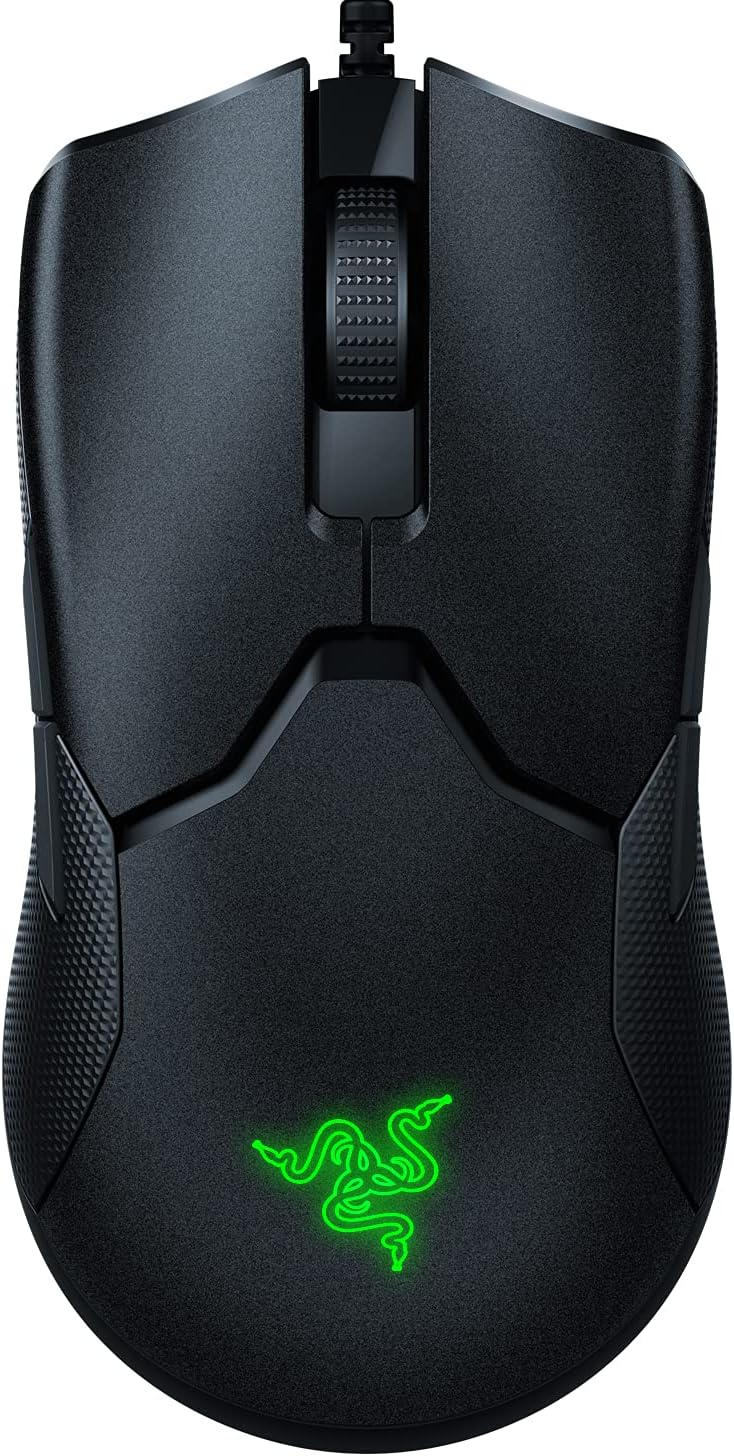
Figure 3.1: Razer Viper Wired Optical Gaming Mouse. This image shows the top-down view of the black Razer Viper mouse, highlighting its ambidextrous design and the illuminated Razer logo.
4. Setup
4.1 Connecting Your Razer Viper
- Locate an available USB port on your computer.
- Plug the USB connector of your Razer Viper mouse into the USB port.
- Your computer should automatically detect and install the necessary drivers.
4.2 Installing Razer Synapse 3 (Optional, Recommended)
To unlock advanced customization options, including button remapping, DPI adjustments, Chroma RGB lighting effects, and surface calibration, install Razer Synapse 3 software.
- Download Razer Synapse 3 from the official Razer website: www.razer.com/synapse
- Follow the on-screen instructions to install the software.

Figure 4.1: Razer Viper with Speedflex Cable. This image shows the Razer Viper mouse connected via its flexible Speedflex cable, emphasizing the low-drag design.
5. Operating Your Razer Viper
5.1 Basic Functions
- Left Click: Primary action.
- Right Click: Secondary action/context menu.
- Scroll Wheel: Scroll up/down, middle click.
- Side Buttons (Left & Right): Default to forward/back in web browsers, customizable via Synapse 3.
5.2 DPI Adjustment
The Razer Viper features a dedicated DPI Stage button on the underside of the mouse to prevent accidental presses during intense gameplay. This button allows you to cycle through up to 5 pre-configured DPI sensitivity stages.
- To change DPI: Press the "DPI Stage" button located on the bottom of the mouse.
- An LED indicator next to the button will change color to show the active DPI profile.

Figure 5.1: Razer Viper DPI Button. This image shows the underside of the Razer Viper mouse, pointing out the DPI Stage button and its LED indicator.
5.3 Customization with Razer Synapse 3
Razer Synapse 3 provides comprehensive control over your mouse settings:
- Customize: Remap buttons, assign macros, and configure secondary functions (HyperShift).
- Performance: Adjust DPI sensitivity stages (100 to 16,000 DPI) and polling rate (up to 1000 Hz).
- Lighting: Personalize Chroma RGB lighting effects and brightness.
- Calibration: Optimize tracking for your specific mouse mat surface.

Figure 5.2: Razer Synapse 3 Button Customization Interface. This screenshot displays the Razer Synapse 3 software interface, showing how users can customize the 8 programmable buttons on the Razer Viper mouse.
6. Maintenance
6.1 Cleaning Your Mouse
- Disconnect the mouse from your computer before cleaning.
- Use a soft, lint-free cloth lightly dampened with water or a mild cleaning solution to wipe the surface.
- Avoid using harsh chemicals, abrasive cleaners, or excessive moisture.
- Clean the optical sensor area gently with a cotton swab to ensure optimal tracking performance.
6.2 Cable Management
The Speedflex cable is designed to be flexible. To prolong its lifespan, avoid sharp bends or excessive pulling. Use the included cable tie to manage excess cable length.
7. Troubleshooting
7.1 Mouse Not Responding
- Ensure the USB cable is securely plugged into a working USB port on your computer.
- Try plugging the mouse into a different USB port.
- Restart your computer.
- If using a USB hub, try connecting the mouse directly to the computer.
7.2 Tracking Issues
- Clean the optical sensor on the underside of the mouse.
- Ensure your mouse mat surface is clean and free of debris.
- Perform surface calibration using Razer Synapse 3.
- Test the mouse on a different surface to rule out surface-related issues.
7.3 Razer Synapse 3 Not Detecting Mouse
- Ensure Razer Synapse 3 is updated to the latest version.
- Restart Razer Synapse 3.
- Reinstall Razer Synapse 3 if the issue persists.
8. Specifications
| Feature | Detail |
|---|---|
| Model Number | RZ01-0255 |
| Sensor | Razer 5G Optical Sensor |
| DPI (Dots Per Inch) | Up to 16,000 |
| Tracking Accuracy | 99.4% |
| Switches | Razer Optical Mouse Switches (70 million click lifespan) |
| Buttons | 8 Programmable Buttons |
| Design | Ambidextrous, Ultralight (approx. 69g) |
| Cable | Razer Speedflex Cable |
| Lighting | Razer Chroma RGB |
| Onboard Memory | Yes (up to 5 DPI profiles) |
| Connectivity | USB |
| Product Dimensions | 4.99 x 2.61 x 1.49 inches |
| Item Weight | approx. 69g (2.43 oz) |
9. Warranty and Support
For warranty information, technical support, or to register your product, please visit the official Razer support website:
Please retain your proof of purchase for warranty claims.


