
MOUNTUP MU0001
MOUNTUP Single Monitor Desk Mount User Manual
Model: MU0001
Brand: MOUNTUP
Introduction
Thank you for choosing the MOUNTUP Single Monitor Desk Mount. This manual provides detailed instructions for the safe and efficient installation, operation, and maintenance of your new monitor arm. Please read this manual thoroughly before installation and keep it for future reference.
This monitor mount is designed to enhance your workspace by providing an ergonomic and adjustable solution for your display, freeing up valuable desk space and allowing for optimal viewing angles.
Safety Information
WARNING: Failure to read and follow all instructions, warnings, and cautions in this manual may result in personal injury or property damage.
- Do not exceed the maximum load capacity of 17.6 lbs (8 kg).
- Ensure the mounting surface (desk) can safely support the combined weight of the mount and your monitor.
- Use only the provided hardware. If any parts are missing or defective, contact MOUNTUP customer service.
- This product contains small items that could be a choking hazard if swallowed. Keep away from children.
- Always have two people assist with lifting and positioning heavy monitors.
- Tighten all screws firmly but do not overtighten. Overtightening can damage the threads.
- Periodically check that the mount is secure and all fasteners are tight.
Package Contents
Please verify that all components are present and undamaged before beginning installation.
- Monitor Arm Assembly
- Desk Clamp Base
- Grommet Base Components
- Mounting Pole
- VESA Plate
- Cable Clips
- Tool Holder
- Hardware Kit (screws, washers, Allen wrenches)
- User Manual
Specifications
| Feature | Specification |
|---|---|
| Model Number | MU0001 |
| Compatible Screen Size | 13 - 32 inches |
| Weight Capacity | Up to 17.6 lbs (8 kg) |
| VESA Compatibility | 75x75mm, 100x100mm |
| Material | Alloy Steel |
| Color | Black |
| Tilt Angle | Up 90° / Down 90° |
| Swivel Angle | 180° |
| Rotation | 360° (Landscape to Portrait) |
| C-Clamp Desk Thickness | 0.39" - 3.54" (10-90mm) |
| Grommet Mount Desk Thickness | 0.39" - 1.57" (10-40mm) |
| Grommet Hole Diameter | 0.39" - 2.36" (10-60mm) |
Setup and Installation
The MOUNTUP Single Monitor Desk Mount offers two installation options: C-Clamp and Grommet Mount. Choose the method that best suits your desk.
Step 1: Choose Your Mounting Option
C-Clamp Installation
This method is suitable for desks with a thickness between 0.39" and 3.54" (10-90mm).
- Attach the C-clamp base to the edge of your desk.
- Tighten the clamp screw until the base is securely fastened to the desk.
- Insert the mounting pole into the C-clamp base and secure it with the provided screws.

Image: Two installation options for the monitor mount, showing the C-clamp for desk edges and the grommet mount for desks with a pre-drilled hole. Desk thickness requirements are indicated for each method.
Grommet Mount Installation
This method requires a pre-drilled hole in your desk with a diameter between 0.39" and 2.36" (10-60mm), and a desk thickness between 0.39" and 1.57" (10-40mm).
- Assemble the grommet base components.
- Insert the grommet base through the desk hole.
- Secure the base from underneath the desk using the provided plate and screw.
- Insert the mounting pole into the grommet base and secure it with the provided screws.
Image: Two installation options for the monitor mount, showing the C-clamp for desk edges and the grommet mount for desks with a pre-drilled hole. Desk thickness requirements are indicated for each method.
Step 2: Attach the Monitor Arm to the Pole
- Slide the monitor arm assembly onto the mounting pole at your desired height.
- Tighten the adjustment screw on the arm to secure it to the pole.

Image: A hand sliding the monitor arm assembly down onto the vertical mounting pole, illustrating the attachment process.
Step 3: Attach the VESA Plate to Your Monitor
- Remove the VESA plate from the monitor arm by loosening the retaining screw.
- Align the VESA plate with the mounting holes on the back of your monitor.
- Secure the VESA plate to the monitor using the appropriate M4 or M6 screws from the hardware kit. Use spacers if your monitor has a recessed VESA area.
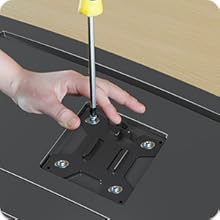
Image: A hand using a screwdriver to attach the VESA mounting plate to the back of a monitor, demonstrating the securement of the plate.
Step 4: Mount Your Monitor to the Arm
- Carefully slide the monitor (with the attached VESA plate) onto the monitor arm's VESA head.
- Ensure the VESA plate clicks securely into place. Tighten the retaining screw on the VESA head to prevent accidental detachment.
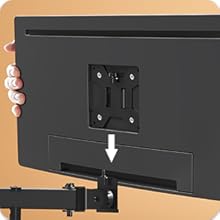
Image: A monitor being slid downwards onto the monitor arm's VESA head, showing the final step of attaching the display to the mount.
Step 5: Cable Management
Utilize the integrated cable clips and tool holder to keep your workspace tidy.
- Route your monitor cables (power, video) through the cable clips along the arm and pole.
- Attach the tool holder to the pole to store your Allen wrenches for future adjustments.
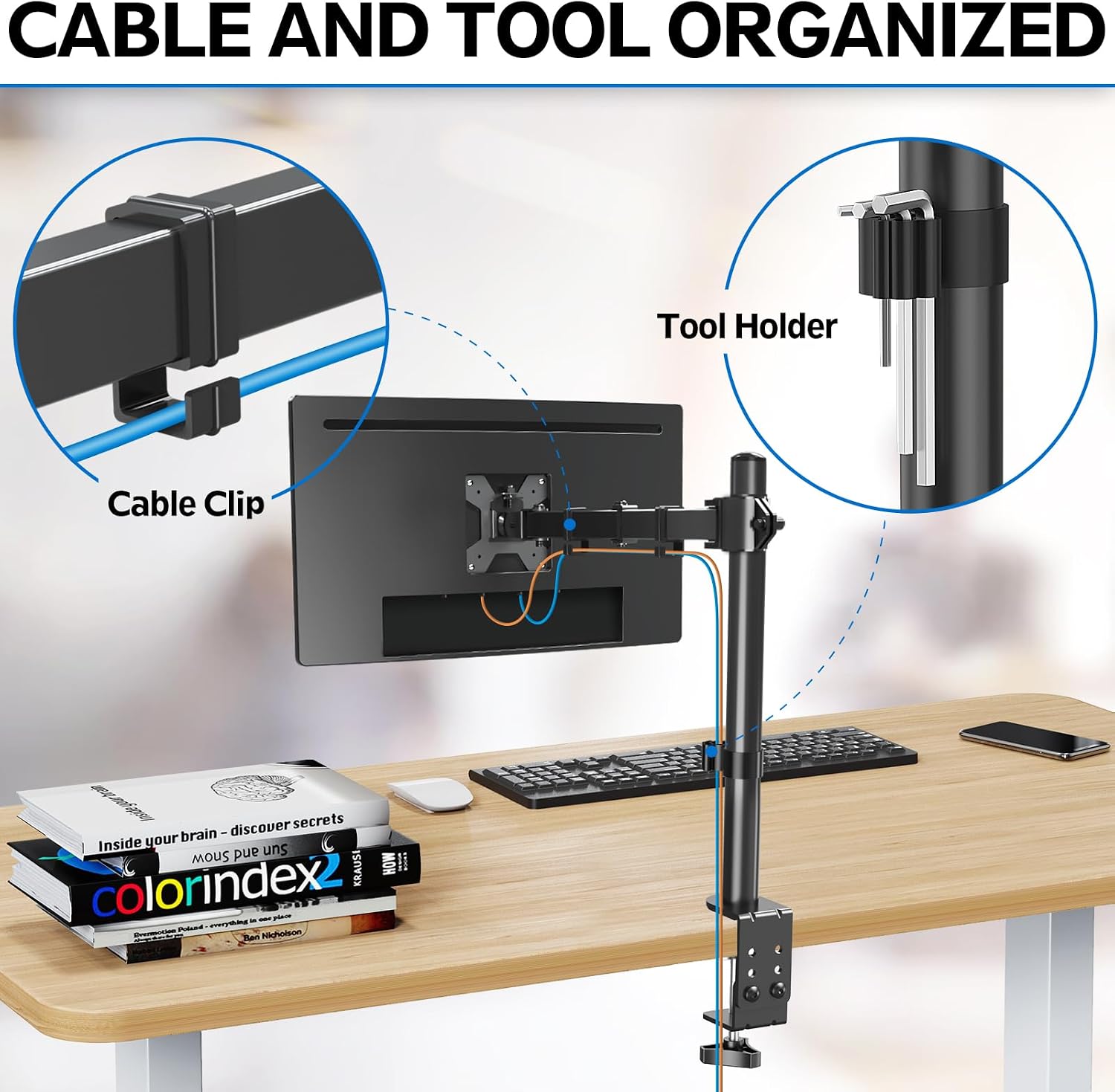
Image: A close-up view of the monitor arm demonstrating the cable clips for organizing wires and a dedicated tool holder attached to the pole for storing adjustment tools.
Operating Instructions
Your MOUNTUP Single Monitor Desk Mount offers a wide range of adjustments to achieve your optimal viewing position.
Height Adjustment
Loosen the screw on the arm's collar, slide the arm up or down the pole to the desired height, and then re-tighten the screw firmly.
Tilt Adjustment
The monitor can be tilted up to 90 degrees upwards and 90 degrees downwards. Adjust the tilt angle by gently pushing or pulling the top or bottom of your monitor. Tighten the tilt screw on the VESA head if the monitor does not hold its position.
Swivel Adjustment
The monitor arm allows for 180-degree swivel. Gently rotate the monitor arm left or right from the pole to achieve your desired viewing angle.
Rotation (Landscape/Portrait)
Rotate your monitor 360 degrees to switch between landscape and portrait orientations as needed.

Image: A diagram showing the various adjustment capabilities of the monitor arm, including tilt (160 degrees), height adjustment along the pole, swivel (90 degrees left/right), and 360-degree rotation, along with arm extension and pole height.
Maintenance
Regular maintenance ensures the longevity and safe operation of your MOUNTUP monitor mount.
- Cleaning: Wipe the mount with a soft, damp cloth. Avoid using abrasive cleaners or solvents.
- Fastener Check: Periodically (e.g., every 3-6 months) check all screws and bolts to ensure they are securely tightened. Re-tighten if necessary.
- Movement Check: Ensure all articulating joints move smoothly. If any joint becomes stiff, apply a small amount of silicone-based lubricant (do not use oil-based lubricants).
Troubleshooting
If you encounter any issues with your monitor mount, please refer to the following common problems and solutions:
- Monitor sags or does not hold position:
Solution: The tilt mechanism may need to be tightened. Use the appropriate Allen wrench to tighten the screw on the VESA head that controls the tilt. Ensure the monitor's weight does not exceed the mount's capacity. - Mount feels unstable or wobbly:
Solution: Check that the C-clamp or grommet base is securely tightened to the desk. Ensure the mounting pole is firmly secured to the base. Verify that all screws connecting the arm to the pole and the VESA plate to the monitor are tight. - Arm is difficult to move or adjust:
Solution: Some joints may be overtightened or require lubrication. Loosen the relevant adjustment screws slightly. If still stiff, apply a small amount of silicone-based lubricant to the moving parts. - Monitor is not level:
Solution: Adjust the rotation of the VESA plate on the arm. Most VESA plates allow for slight rotational adjustment to ensure the monitor is perfectly level.
If the problem persists after trying these solutions, please contact MOUNTUP customer service for further assistance.
Warranty and Customer Support
MOUNTUP stands behind the quality and durability of its products. This monitor mount comes with a 3-year support from the date of purchase.
For any pre-purchase questions, installation assistance, or warranty claims, please contact MOUNTUP customer service. Our team is dedicated to providing friendly and efficient support.
Please have your model number (MU0001) and purchase information ready when contacting support.
Related documentsMU0001


Ask a question about this manual
Ask about setup, troubleshooting, compatibility, parts, safety, or missing instructions. Manuals+ will review the question and use this page’s manual context to help answer it.