Introduction
The Kensington SD4750P USB-C & USB 3.0 Dual 4K Docking Station is designed to provide Ultra High Definition video output for up to two 4K 60Hz monitors. This docking station offers versatile connectivity for a wide range of devices, including Windows, MacBook, Surface, and Chromebooks, supporting both USB-C and USB-A enabled laptops. It features multiple video ports (HDMI 2.0 and DisplayPort 1.2), 85W of power delivery, and six USB ports to expand your connectivity options.

Image: The Kensington SD4750P docking station, a sleek black rectangular device with various ports visible on its sides.
What's in the Box
Upon opening the package, verify that all components are present:
- Kensington SD4750P Docking Station
- USB-C Cable (1 meter)
- 135W Power Adapter

Image: The Kensington SD4750P docking station, its power adapter, and the USB-C cable laid out, representing the contents of the product box.
Product Overview and Features
The SD4750P docking station is equipped with a comprehensive set of ports and features to enhance your workstation setup.
Port Layout
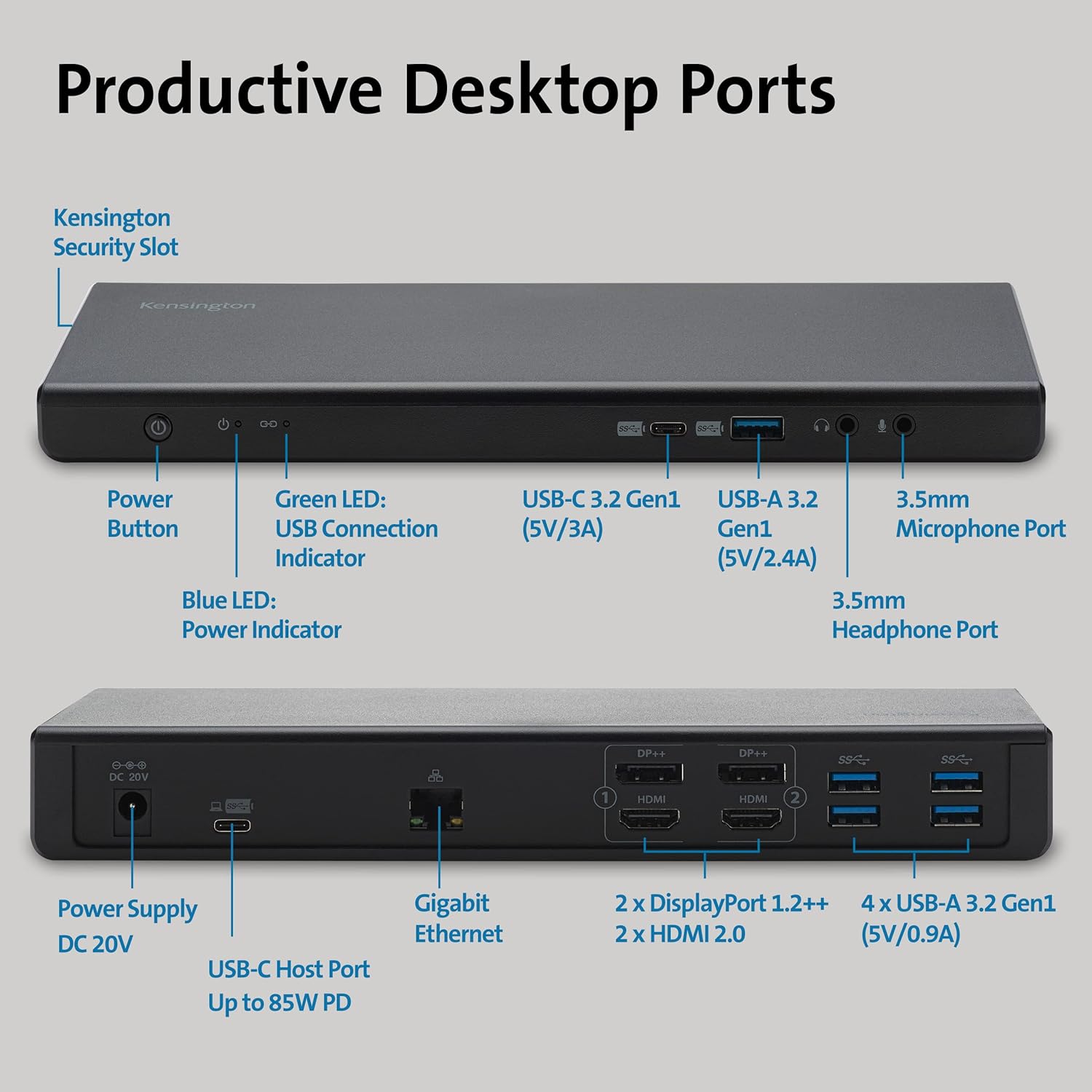
Image: Detailed diagram showing the front and back ports of the Kensington SD4750P docking station, including power button, LED indicators, USB-C, USB-A, headphone/microphone jacks, power supply, Gigabit Ethernet, DisplayPort, and HDMI ports.
- Front Ports: Power Button, Green LED (USB Connection Indicator), Blue LED (Power Indicator), USB-C 3.2 Gen1 (5V/3A), USB-A 3.2 Gen1 (5V/2.4A), 3.5mm Headphone Port, 3.5mm Microphone Port.
- Rear Ports: Power Supply (DC 20V), USB-C Host Port (Up to 85W PD), Gigabit Ethernet, 2 x DisplayPort 1.2++, 2 x HDMI 2.0, 4 x USB-A 3.2 Gen1 (5V/0.9A).
- Security: Kensington Security Slot for securing the device (lock sold separately).
Key Features
- Dual 4K Video Output: Supports dual or single 4K@60Hz display via DisplayLink technology. Features four video-out ports (2 DisplayPort 1.2++ and 2 HDMI 2.0) for flexible connectivity.
- 85W Power Delivery: Provides up to 85W of power to charge compatible laptops (Windows laptops must accept Power Delivery; Surface devices with USB-C ports are compatible).
- Universal Compatibility: Works with USB-C, USB-A, and Thunderbolt 3/4 laptops (at USB-C speeds). Compatible with Windows 7+, macOS 10.14+, and Chrome 44+. Supports dual display for all MacBooks (M1/M2/M3, M2/M3 Pro, M2/M3 Max, and earlier).
- Six USB Ports: Includes two USB Gen-2 fast charging ports (one USB-A 5V 2.4A and one USB-C 5V 3A) and four USB-A 3.1 ports (5V 0.9A).
- Gigabit Ethernet: Provides a reliable wired network connection.
- Audio Jacks: Separate 3.5mm headphone and microphone jacks.

Image: A laptop connected to the Kensington SD4750P docking station, which is then connected to two external monitors displaying a panoramic city skyline, illustrating the dual 4K video output capability.

Image: A close-up of the docking station's ports, highlighting the power delivery capability with a laptop charging via USB-C in the background.

Image: A laptop connected to the docking station and external monitors, with logos for Windows, Apple macOS, and ChromeOS, indicating broad operating system compatibility.
Setup Guide
Follow these steps to set up your Kensington SD4750P Docking Station:
- Power Connection: Connect the 135W power adapter to the "DC 20V" port on the rear of the docking station, then plug the adapter into a power outlet. The blue power indicator LED on the front of the dock should illuminate.
- Connect to Laptop: Use the included 1-meter USB-C cable to connect the "USB-C Host Port" on the rear of the docking station to a USB-C port on your laptop. If your laptop uses USB-A, an optional USB-A adapter may be required (not included with the standard package).
- Install DisplayLink Drivers: The Kensington SD4750P utilizes DisplayLink technology for video output. Before connecting external monitors, download and install the latest DisplayLink drivers for your operating system (Windows, macOS, ChromeOS) from the official DisplayLink website or Kensington's support page.
- Connect Monitors: Connect your external monitors to the docking station using either the DisplayPort 1.2++ or HDMI 2.0 ports. You can use two DisplayPort cables, two HDMI cables, or one of each. Ensure your monitors are powered on and set to the correct input source.
- Connect Peripherals: Connect your USB devices (keyboard, mouse, external drives, etc.) to the available USB-A or USB-C ports on the docking station. For wired network access, connect an Ethernet cable to the Gigabit Ethernet port.
- Audio Devices: Connect headphones or speakers to the 3.5mm headphone jack and a microphone to the 3.5mm microphone jack if desired.
For optimal performance and to manage display settings, consider installing the free Kensington DockWorks™ Software, available from the Kensington website.
Operating Instructions
Once the docking station is set up, operating it is straightforward:
- Power On/Off: Use the power button on the front of the docking station to turn it on or off. When the dock is powered on and connected to a laptop, the blue power indicator LED will be lit.
- Laptop Charging: If your laptop supports USB-C Power Delivery, it will begin charging automatically when connected to the dock's USB-C Host Port.
- Display Configuration: After connecting your monitors, your operating system should detect them. You can configure display settings (e.g., extend, duplicate, resolution) through your computer's display settings. For Windows, right-click on the desktop and select "Display settings." For macOS, go to System Settings > Displays.
- USB Device Usage: Connected USB devices will function as if directly connected to your laptop.
- Network Connectivity: The Gigabit Ethernet port provides a stable wired network connection, which is often more reliable than Wi-Fi.
Maintenance
To ensure the longevity and optimal performance of your docking station, follow these maintenance guidelines:
- Cleaning: Use a soft, dry cloth to clean the exterior of the docking station. Avoid using abrasive cleaners, solvents, or strong chemicals, as they may damage the surface.
- Ventilation: Ensure the docking station is placed in a well-ventilated area to prevent overheating. Do not block any ventilation openings.
- Cable Management: Keep cables organized and untangled to prevent damage to the ports or cables themselves. Avoid sharp bends or excessive pulling on cables.
- Storage: When not in use for extended periods, store the docking station in a cool, dry place away from direct sunlight and extreme temperatures.
Troubleshooting
If you encounter issues with your Kensington SD4750P Docking Station, try the following troubleshooting steps:
- No Display Output:
- Ensure DisplayLink drivers are correctly installed and up to date.
- Verify that the docking station is powered on (blue LED illuminated).
- Check all video cables (HDMI/DisplayPort) are securely connected to both the dock and the monitors.
- Confirm monitors are powered on and set to the correct input source.
- Try restarting your laptop and the docking station.
- Test with a single monitor to isolate the issue.
- Laptop Not Charging:
- Ensure your laptop supports USB-C Power Delivery.
- Verify the USB-C cable is connected to the correct "USB-C Host Port" on the dock.
- Check if the 135W power adapter is securely connected to the dock and a working power outlet.
- USB Devices Not Recognized:
- Try connecting the USB device to a different port on the docking station.
- Connect the USB device directly to your laptop to confirm it is functional.
- Ensure the docking station is properly connected to your laptop.
- Network Connectivity Issues:
- Check the Ethernet cable connection to both the dock and your router/modem.
- Verify network drivers on your laptop are up to date.
- Restart your router/modem.
For more detailed troubleshooting, refer to the official Kensington Troubleshooting Guide (PDF): Kensington SD4750P Troubleshooting Guide
Specifications
| Feature | Detail |
|---|---|
| Brand | Kensington |
| Model Number | SD4750P |
| Series | SD4750P Docking Station |
| Color | Black |
| Hardware Interface | USB 3.1 Type C |
| Compatible Devices | MacBook Air, MacBook Pro, Windows Laptops, Surface Pro, Surface Book, Surface Laptop, Chromebooks |
| Total USB Ports | 6 (2x USB-C Gen1, 4x USB-A Gen1) |
| Total HDMI Ports | 2 (HDMI 2.0) |
| DisplayPort | 2 (DisplayPort 1.2++) |
| Ethernet | Gigabit Ethernet |
| Power Delivery | Up to 85W via USB-C Host Port |
| Item Weight | 2.67 pounds (approx. 1.21 kg) |
| Product Dimensions (LxWxH) | 10.8 x 4.6 x 3.5 inches (approx. 27.4 x 11.7 x 8.9 cm) |
| Date First Available | October 24, 2019 |
Warranty and Support
Kensington provides comprehensive support for its products:
- Warranty: The Kensington SD4750P Docking Station comes with 3 years of coverage.
- Technical Support: Lifetime technical support is available for this product.
- TAA Compliant: This product is TAA compliant.
For further assistance, please visit the official Kensington support website or refer to the provided documentation.


