
1. Introduction
This manual provides essential information for the safe and efficient operation of your Prolink PRO1201SFCU 1200VA Uninterruptible Power Supply (UPS). The PRO1201SFCU is a line-interactive UPS system featuring Prolink's Super-Fast Charging technology, designed to provide stable backup power and protect your electronic devices from power fluctuations and outages. Please read this manual thoroughly before installation and use.
2. Safety Information
Observe the following safety precautions to prevent injury and damage to the UPS or connected equipment:
- Do not open the UPS casing. There are no user-serviceable parts inside. Refer all servicing to qualified service personnel.
- Do not connect appliances that could overload the UPS, such as laser printers, vacuum cleaners, or hair dryers.
- Ensure the UPS is connected to a grounded power outlet.
- Do not expose the UPS to rain, water, or excessive humidity.
- Place the UPS in a well-ventilated area, away from direct sunlight or heat sources.
- In case of fire, use a dry chemical fire extinguisher. Water can cause electrical shock.
- Battery replacement should only be performed by qualified personnel using the same type and number of batteries.
3. Product Overview
3.1 Front Panel
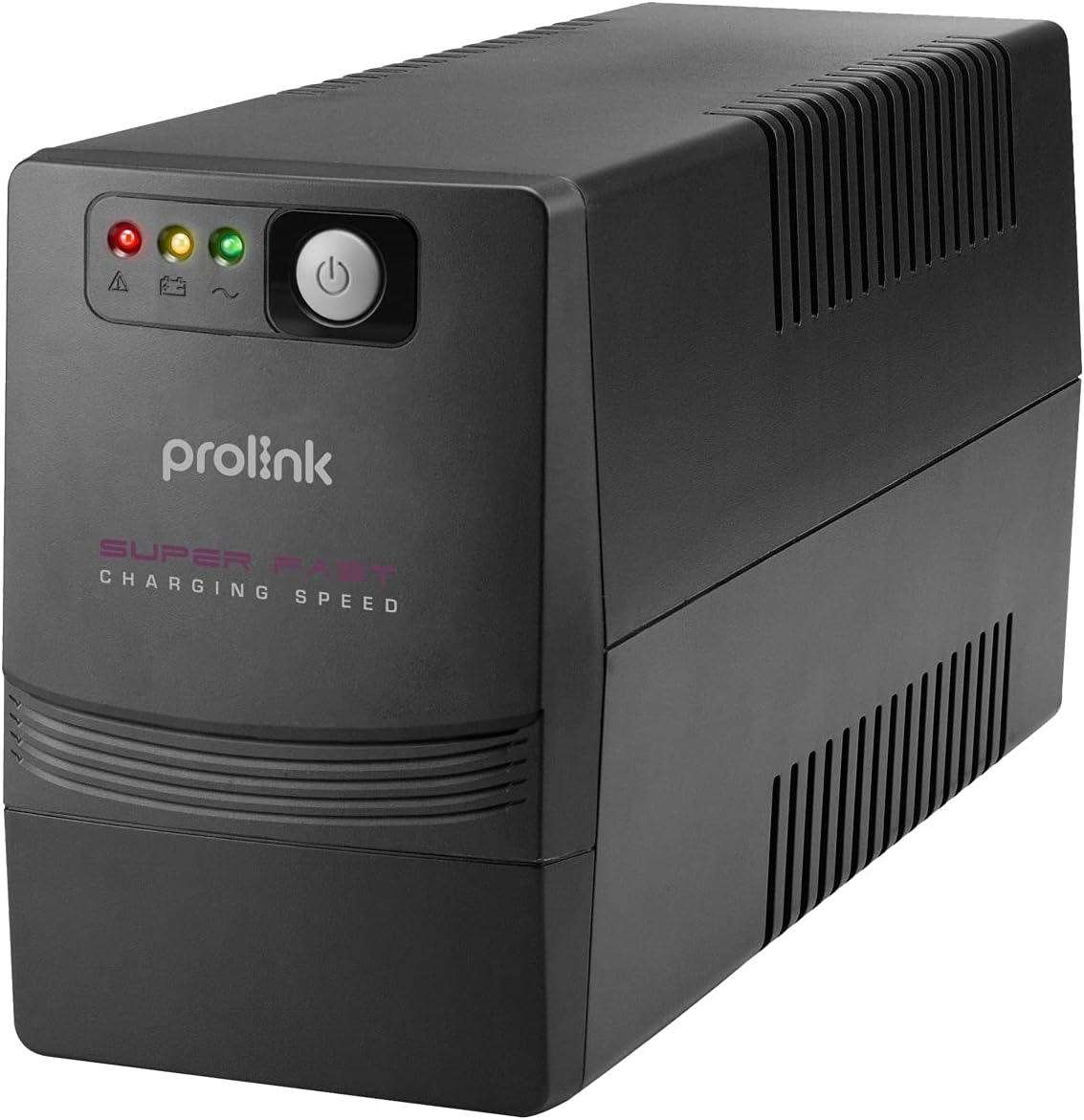
The front panel of the Prolink PRO1201SFCU features LED indicators for status monitoring and a power button for controlling the unit.
3.2 Rear Panel and Connections

The rear panel provides all necessary connection ports for your devices and the main power supply. It includes:
- Power AC Input: Connects the UPS to the main power supply.
- Backup Outlets: Provides battery backup and surge protection for connected devices.
- USB Port: For communication with a computer to enable monitoring and control software.
- RJ45 Ports: For surge protection of network/phone lines.
3.3 Key Features
- Intelligent Battery Management: Optimizes battery performance and extends lifespan.
- Super Fast Charging: Recharges the battery to 90% capacity within 3 hours.
- TRUE 3-Step AVR: Automatic Voltage Regulation ensures stable output voltage without using battery power.
- Wide Input Voltage: Tolerates a broad range of input voltage fluctuations.
- Overload Protection: Protects against excessive power draw.
- Surge Protection: Safeguards connected equipment from power surges.
- Early Shutdown Warning System: Alerts users to potential issues.
- Universal Sockets: Compatible with various plug types.
- Off-mode Charging: Charges batteries even when the UPS is off.
- Cold Start Function: Allows the UPS to power on using battery power without AC input.
4. Setup
4.1 Unpacking and Placement
- Carefully unpack the UPS and inspect it for any shipping damage. If damage is found, do not operate the unit and contact your dealer.
- Place the UPS on a flat, stable surface in a clean, dry, and well-ventilated area. Avoid direct sunlight, heat sources, and excessive dust.
- Ensure there is adequate space around the UPS for proper airflow.
4.2 Connecting to Power and Devices
- Connect the UPS power cord to a grounded wall outlet.
- Connect your computer, monitor, and other critical devices to the backup outlets on the rear panel of the UPS.
- For network/phone line surge protection, connect your network cable or phone line through the RJ45 IN and OUT ports on the UPS.
- If desired, connect the USB cable from the UPS to your computer for monitoring and control software functionality.
4.3 Initial Charging
Before initial use, allow the UPS to charge for at least 4-6 hours with the power cord connected to a wall outlet, even if the UPS is turned off. This ensures the battery is fully charged and ready to provide optimal backup time.
4.4 Software Installation
For advanced monitoring and control features, install the ViewPower software on your computer. This software allows you to monitor UPS status, schedule shutdowns, and configure various settings. Ensure you use the correct version of ViewPower (e.g., ViewPower, not ViewPowerPro) compatible with your operating system.
5. Operation
5.1 Turning On/Off
- To Turn On: Press and hold the power button on the front panel for approximately 3 seconds until you hear a beep and the indicators light up.
- To Turn Off: Press and hold the power button for approximately 3 seconds until the indicators turn off.
5.2 LED Indicators
The front panel LEDs provide visual status of the UPS:
- AC Mode: Indicates the UPS is operating on utility power.
- Battery Mode: Indicates the UPS is operating on battery power during an outage.
- Fault/Warning: Indicates an error or warning condition. Refer to the troubleshooting section.
5.3 Automatic Voltage Regulation (AVR)
The UPS automatically regulates incoming voltage fluctuations to provide a stable output to connected devices without switching to battery power, thus preserving battery life.
5.4 Battery Backup Mode
During a power outage, the UPS will automatically switch to battery power, providing continuous power to connected devices. An audible alarm will sound to indicate battery mode. The alarm will typically sound more frequently as the battery level depletes, signaling an impending shutdown.
6. Maintenance
6.1 Battery Care
- To maintain optimal battery performance, keep the UPS connected to an AC outlet at all times to ensure the battery remains charged.
- If the UPS is stored for an extended period, recharge the battery every three months for at least 24 hours to prevent battery degradation.
- Battery lifespan is typically 3-5 years under normal operating conditions. Replace batteries when their capacity significantly diminishes.
6.2 Cleaning
Use a soft, dry cloth to clean the exterior of the UPS. Do not use liquid or aerosol cleaners. Ensure the UPS is turned off and disconnected from the AC power source before cleaning.
7. Troubleshooting
This section addresses common issues you may encounter with your UPS. If the problem persists after following these steps, contact technical support.
| Problem | Possible Cause | Solution |
|---|---|---|
| UPS does not turn on | No AC input; Low battery; UPS fault | Check AC power connection; Charge battery for several hours; Contact support if fault persists. |
| UPS is in battery mode frequently | Unstable AC power; Overload; Weak battery | Check AC power quality; Reduce connected load; Replace battery if old. |
| Short backup time | Battery not fully charged; Battery end-of-life; Overload | Allow battery to fully charge; Replace battery; Reduce connected load. |
| Software not connecting | Incorrect software version; USB cable issue; Driver issue | Ensure you are using ViewPower (not ViewPowerPro); Check USB cable connection; Install correct USB drivers. |
| Continuous alarm | Overload; Battery fault; Internal fault | Reduce connected load; Contact support for battery or internal fault. |
8. Specifications
The following table details the technical specifications of the Prolink PRO1201SFCU UPS:
| Feature | Specification |
|---|---|
| Capacity | 1200 VA |
| Output Wattage | 960 Watts |
| Input Voltage Range | 140-300VAC ±5% |
| Output Voltage (AC Mode) | 230VAC +12% -14% |
| Output Voltage (Battery Mode) | 230VAC ±10% |
| Frequency | 50Hz / 60Hz (Auto-sensing) |
| Waveform | Simulated Sine Wave (Battery Mode), Sine Wave (AC Mode) |
| Transfer Time | 2ms typical |
| Battery Type | 12V/8.2AH - 2pcs (Lead Acid) |
| Recharge Time | 2-4 hours recovery to 90% capacity |
| Short Circuit Protection | Yes (Line mode & battery mode) |
| Overload Protection | Line mode: 110-120% 5 mins change to fault mode, >120% shutdown immediately. Battery mode: 100-110% alarm & shutdown in 10 secs, >120% shutdown immediately. |
| Noise Level | <40dB |
| Operating Temperature | 0 °C - 40 °C |
| Humidity | 0 - 90% |
| Dimensions (D x W x H) | 320 x 130 x 182mm |
| Weight | 8.2 kg |
For a visual representation of the UPS dimensions, refer to the image below:

This image illustrates the physical size of the UPS, with a width of approximately 37 cm (14.8 inches).
9. Warranty and Support
For warranty information, please refer to the warranty card included with your product or contact your local Prolink dealer. For technical support or service inquiries, please visit the official Prolink website or contact their customer service department.


