
Divoom Ditoo
Divoom Ditoo Pixel Art Gaming Portable Bluetooth Speaker User Manual
Model: Ditoo
Introduction
The Divoom Ditoo is a versatile portable Bluetooth speaker featuring a 16x16 LED front panel for pixel art display, a smart alarm, and various app-controlled functions. This manual provides detailed instructions for setting up, operating, and maintaining your Ditoo speaker.

Image: The Divoom Ditoo speaker, showcasing its pixel art display and retro design.
What's in the Box
Upon unboxing your Divoom Ditoo, please ensure all the following components are present:
- Divoom Ditoo Speaker
- USB-C Charging Cable
- User Manual (this document)
- Mini Wireless Microphone (if included with your specific package)
- Quick Start Guide
- Cute Sticker

Image: A visual representation of the Divoom Ditoo speaker and its included accessories, such as the USB-C cable and quick start guide.
Product Overview and Controls
Familiarize yourself with the Ditoo's physical components and controls for optimal use.
Image: Detailed diagram of the Divoom Ditoo speaker, highlighting its various buttons, ports, and features.
| No. | Button/Port | Function |
|---|---|---|
| 1 | "m" button | Press: Enter/Exit menu system. Hold: Turn On/Off the keyboard backlight. |
| 2 | "+" button | Press: Increase volume. Hold: Increase brightness. |
| 3 | "*" Lighting button | Press: Change light function. Hold: Change light effects. |
| 4 | "<" button | Press: Previous song. Hold: Last light effect. |
| 5 | "-" Lower key | Press: Decrease volume. Hold: Lower brightness. |
| 6 | ">" button | Press: Next song. Hold: Next light effect. |
| 7 | Lever | Short pull: Play/Pause. Long pull: Start voice memo recording. |
| 8 | Audio source button | Short pull: Switch between different audio sources. Double press: Disconnect Bluetooth connection. |
| 9 | Battery indicator | Press any button to check the battery status. |
| 10 | Bass port | Enhances low-frequency sound output. |
| 11 | Rear port flap | Protects the charging and TF card slots. |
| 12 | Reset pin hole | Used to reset the device if it becomes unresponsive. |
| 13 | USB Type-C charging port | For charging the device. |
| 14 | ON/OFF button | Hold: Power ON/OFF speaker. |
| 15 | TF card slot | Playback music from a TF (microSD) card. |
Setup
1. Charging the Ditoo
Before first use, fully charge your Divoom Ditoo speaker. Connect the provided USB-C cable to the charging port (13) on the back of the device and the other end to a USB power adapter (not included).
- The battery indicator (9) will show charging status.
- A full charge provides approximately 8 hours of playback. Playback time may vary depending on image complexity and brightness.
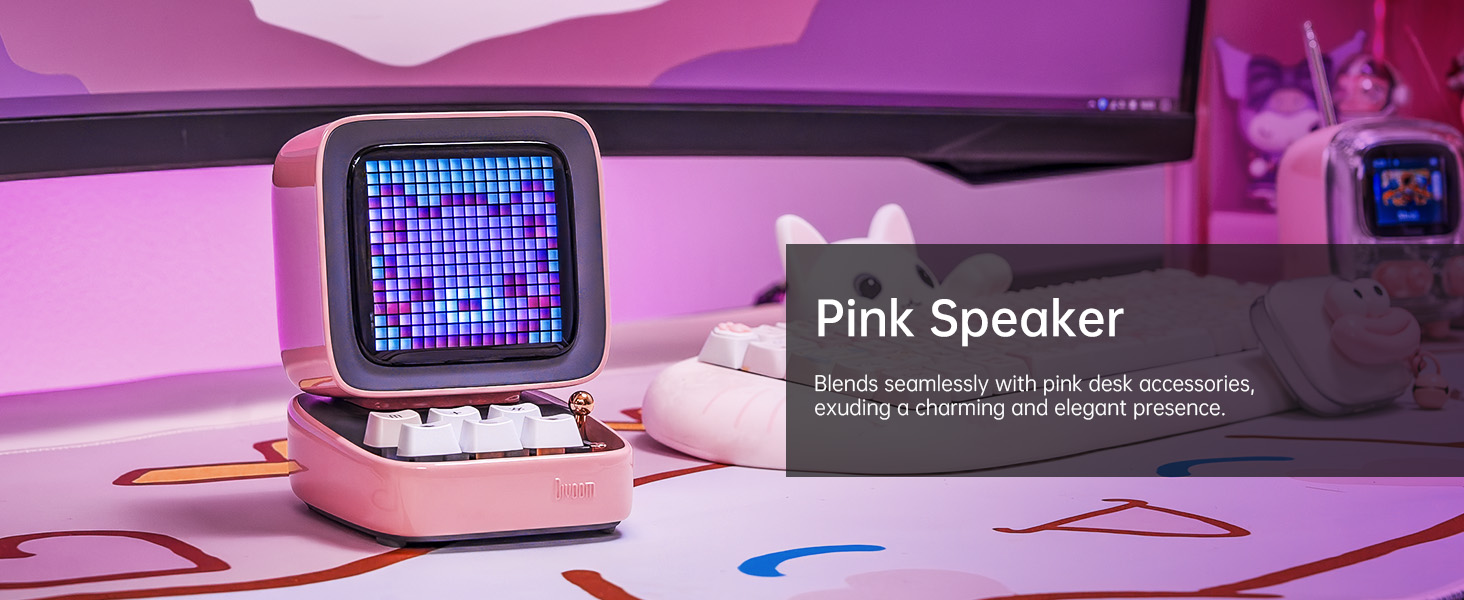
Image: The Divoom Ditoo speaker connected to a USB-C charging cable, illustrating the charging process.
2. Downloading the Divoom App
To unlock the full potential of your Ditoo speaker, download the official Divoom app. The app is available for both iOS and Android devices.
- Scan the QR code on the product packaging or visit www.divoom.com/AppDownLoad to download.
Image: A smartphone displaying the Divoom app, demonstrating its pixel art creation and gallery functionalities.
3. Bluetooth Pairing
Once the Ditoo is charged and the app is installed:
- Hold the ON/OFF button (14) to power on the speaker.
- Enable Bluetooth on your smartphone or tablet.
- Open the Divoom app and follow the on-screen instructions to connect to "Ditoo-Audio".
- Alternatively, you can pair directly through your device's Bluetooth settings.
Image: A smartphone wirelessly connected to the Divoom Ditoo speaker, illustrating the Bluetooth pairing process and real-time pixel art display.
Operating Instructions
Basic Audio Playback
- Volume Control: Use the "+" (2) and "-" (5) buttons on the keyboard to adjust volume.
- Track Navigation: Use the "<" (4) and ">" (6) buttons to skip between songs.
- Play/Pause: Short pull the Lever (7) to play or pause audio.
- Audio Source: Short pull the Audio source button (8) to switch between Bluetooth and TF card playback.
Pixel Art and Lighting Functions
- Change Light Function: Press the "*" Lighting button (3) to cycle through different lighting modes.
- Change Light Effects: Hold the "*" Lighting button (3) to change specific light effects within a mode.
- Keyboard Backlight: Hold the "m" button (1) to turn the keyboard backlight on or off.
- Brightness Adjustment: Hold the "+" (2) or "-" (5) buttons to adjust the screen brightness.

Image: The Divoom Ditoo speaker showcasing its vibrant pixel art display capabilities, including dynamic animations and color variations.
Using the Divoom App Features
The Divoom app provides extensive customization and functionality for your Ditoo speaker:
- Pixel Art Creation: Design your own pixel art or import images to display on the screen.
- Online Gallery: Access a vast community gallery of pixel art designs created by other users.
- Smart Alarm: Set alarms with customizable sounds and pixel art animations.
- Notifications: Receive social media and app notifications directly on the Ditoo's screen.
- Games: Play built-in pixel games using the joystick and keyboard buttons.
- Tools: Access various tools like a stopwatch, timer, and scorekeeper.
- Music Visualizer: Display dynamic pixel art visualizations that react to your music.
- White Noise: Choose from 24 soothing sounds for relaxation or sleep aid.

Image: Multiple screenshots of the Divoom mobile application, demonstrating its diverse features including pixel art design, clock face selection, and scheduling tools.
Voice Memo Recording
Long pull the Lever (7) to start recording a voice memo. Pull again to stop recording. Memos can be managed through the Divoom app.
Maintenance
- Cleaning: Use a soft, dry cloth to clean the speaker's surface. Do not use liquid cleaners or aerosols.
- Storage: Store the Ditoo in a cool, dry place away from direct sunlight and extreme temperatures.
- Battery Care: To prolong battery life, avoid fully discharging the battery frequently. Charge regularly.
- Water Resistance: The Divoom Ditoo is NOT waterproof. Avoid exposure to water or high humidity.
Troubleshooting
| Issue | Possible Cause | Solution |
|---|---|---|
| Device does not power on. | Low battery. | Charge the device using the USB-C cable. |
| Cannot connect via Bluetooth. | Bluetooth not enabled on device; Ditoo not in pairing mode; interference. | Ensure Bluetooth is on. Double press the Audio source button (8) to disconnect and re-enter pairing mode. Move closer to the speaker. |
| Pixel art display is dim or unresponsive. | Brightness setting too low; software glitch. | Hold the "+" button (2) to increase brightness. If unresponsive, use a pin to press the Reset pin hole (12). |
| Sound distortion at high volume. | Volume too high. | Decrease the volume using the "-" button (5). |
| App features not syncing with speaker. | App not connected or outdated. | Ensure the app is connected to "Ditoo-Audio". Update the Divoom app to the latest version. |
Specifications
| Feature | Detail |
|---|---|
| Model Name | Ditoo |
| Dimensions (D x W x H) | 3.54"D x 4.48"W x 4.77"H (90mm x 114.2mm x 121.2mm) |
| Item Weight | 533 Grams (1.18 pounds) |
| Speaker Size | 48 mm |
| Output Power | 15 Watts |
| Battery Capacity | 5000 mAh |
| Playback Time | Up to 8 hours |
| Bluetooth Version | 5.0 |
| Wireless Range | 10 Meters |
| Frequency Response | 80 Hz (lower bound provided) |
| Signal-to-Noise Ratio | 80 dB |
| Control Method | App, Buttons |
| Connectivity | Bluetooth, TF Card, USB Type-C |
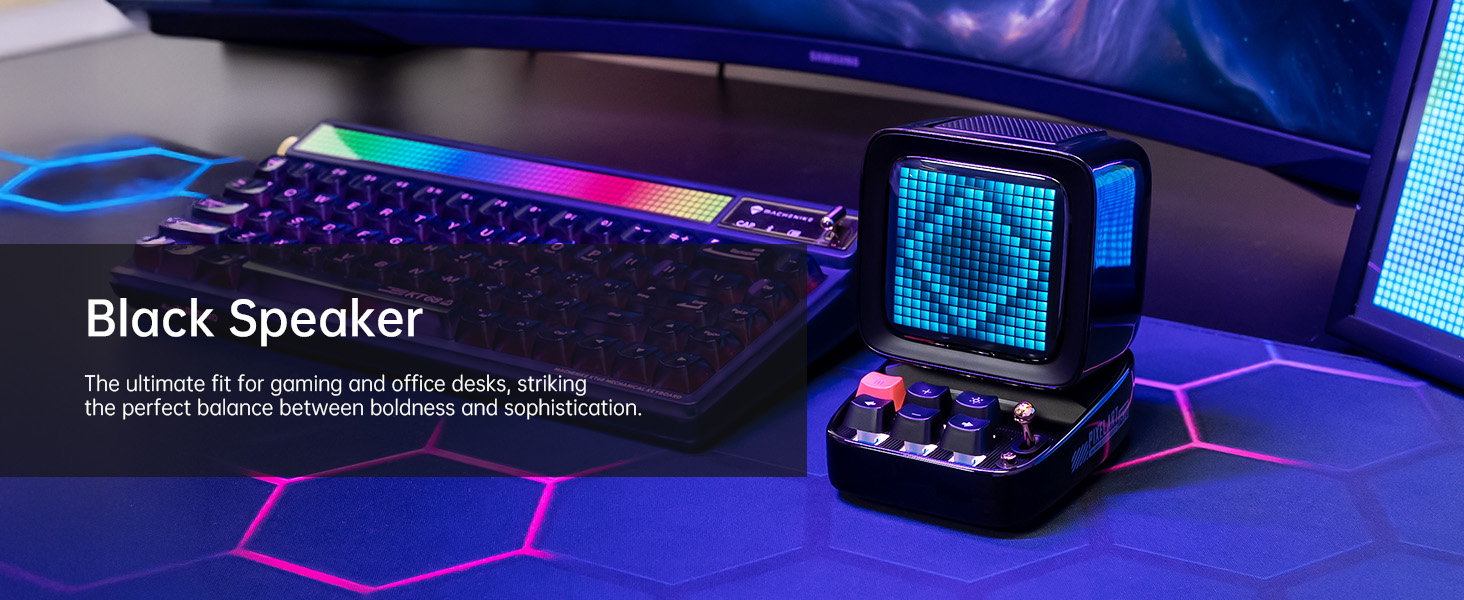
Image: A technical diagram illustrating the physical dimensions and key product parameters of the Divoom Ditoo speaker.
Warranty and Support
Divoom products typically come with a standard manufacturer's warranty. For specific warranty details, please refer to the warranty card included in your product packaging or visit the official Divoom website. For technical support, troubleshooting assistance, or any product-related inquiries, please contact Divoom customer service through their official channels.
Official Divoom Website: www.divoom.com
You can also refer to the official User Manual (PDF) available at: Divoom Ditoo User Manual PDF
Related documentsDitoo


Ask a question about this manual
Ask about setup, troubleshooting, compatibility, parts, safety, or missing instructions. Manuals+ will review the question and use this page’s manual context to help answer it.