Introduction
The CINEMOOD 360 is a portable smart projector designed for family entertainment. It offers access to various streaming services, preloaded educational content, and interactive features. This manual provides essential information for setting up, operating, maintaining, and troubleshooting your device.

Image: The CINEMOOD 360 projector, a small black cube, is held in a person's hand, with a bright light beam emanating from its lens, indicating its projection capability.
What's in the Box
Verify that all items are present in the packaging:
- CINEMOOD 360 Projector
- Recharging Cable
- 2 AA batteries (for remote control, included)
Setup
1. Charging the Device
Before first use, fully charge the CINEMOOD 360 using the provided recharging cable. Connect the cable to the device's charging port and a compatible USB power adapter (not included). The device has up to 5 hours of battery life on a full charge.
2. Initial Power On and Wi-Fi Connection
Press and hold the power button to turn on the projector. Follow the on-screen prompts to connect to your Wi-Fi network. A stable internet connection is required for accessing streaming services and software updates.
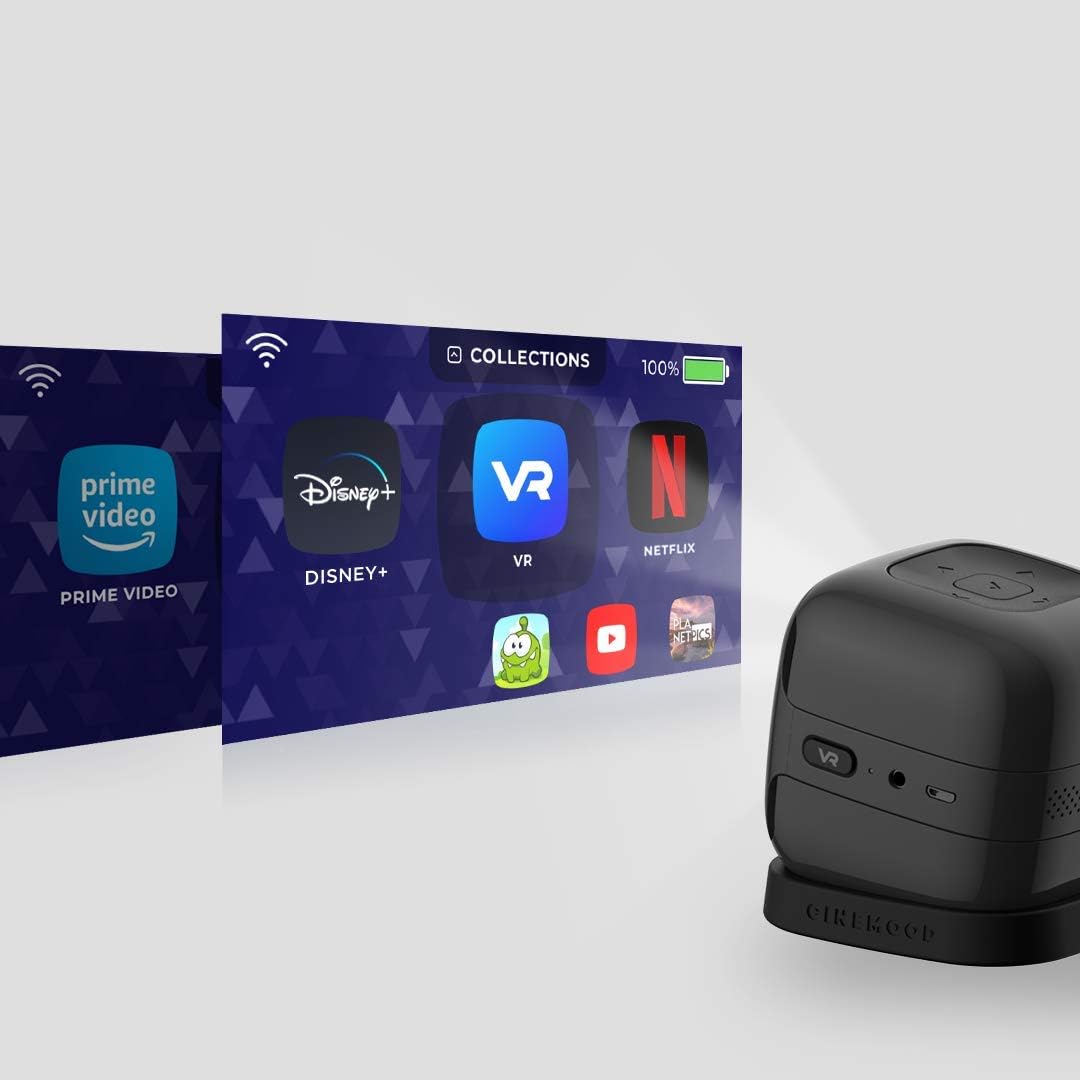
Image: The CINEMOOD 360 projector is shown projecting a user interface with icons for Prime Video, Disney+, VR content, Netflix, and YouTube, illustrating its streaming capabilities.
3. Content Download and Streaming
Once connected to Wi-Fi, you can access preloaded content or download videos from supported streaming applications such as Prime Video, Netflix, YouTube, Disney+, CBS, ESPN, and HULU. Content can be downloaded for offline viewing.
Operating Instructions
Device Controls
The CINEMOOD 360 features intuitive controls on the device itself and can also be controlled via a smartphone application.

Image: A top-down view of the CINEMOOD 360 projector, highlighting its control buttons for navigation and volume on the top surface.
- Power Button: Press and hold to turn on/off.
- Navigation Buttons: Use to navigate menus and select content.
- Volume Buttons: Adjust audio output.
- VR Button: Activates 360-degree video mode.
- Auxiliary Port: For connecting external audio devices.
- USB Port: For charging and data transfer.
Projection and Focus
The projector can create an image up to 120 inches in a dimmed or dark environment. Adjust the focus using the focus wheel located on the side of the device.

Image: A side view of the CINEMOOD 360 projector, showing the VR button, headphone jack, and micro-USB charging port.
Parental Controls and Safety Features
The CINEMOOD 360 includes parental control features, a sleep timer, and soft lumens for eye safety. It provides over 120 hours of parent-curated content without advertisements.

Image: Two young girls are shown standing in front of a wall, interacting with a colorful projected image from the CINEMOOD 360, which appears to be a game or interactive content.
Maintenance
Cleaning the Projector
To maintain optimal performance, keep the projector lens and body clean. Use a soft, dry cloth to wipe the exterior. For the lens, use a lens cleaning cloth specifically designed for optics. Avoid abrasive cleaners or solvents.
Software Updates
The CINEMOOD OS receives regular software updates. Ensure your device is connected to Wi-Fi to receive and install these updates, which can improve performance and add new features.
Troubleshooting
| Problem | Possible Cause | Solution |
|---|---|---|
| Device does not turn on. | Low battery or power issue. | Ensure the device is fully charged. Check the charging cable and adapter. |
| No image projected. | Device is off, lens cap is on, or projection surface is too bright. | Turn on the device. Ensure no obstructions are blocking the lens. Use in a dimmed or dark environment. |
| Image is blurry. | Focus not adjusted correctly. | Rotate the focus wheel on the side of the projector until the image is clear. |
| Cannot connect to Wi-Fi. | Incorrect password, out of range, or network issue. | Verify Wi-Fi password. Move closer to the router. Restart the projector and router. |
| Audio issues (no sound or low volume). | Volume too low, external speaker not connected properly, or internal speaker issue. | Increase volume using device controls or remote app. Check external speaker connection if applicable. |
| Remote app disconnects. | Bluetooth or Wi-Fi connectivity issues. | Ensure Bluetooth is enabled on your phone and the projector. Restart both devices. Ensure both are on the same Wi-Fi network. |
Specifications
- Model Number: CNMD0019BL
- Product Dimensions: 3 x 3 x 3 inches
- Item Weight: 8 ounces
- Display Resolution: 1920 x 1080 (Full HD)
- Projection Size: Up to 120 inches (diagonal)
- Battery Life: Up to 5 hours video playtime
- Internal Memory: 32GB
- Connectivity: Wi-Fi, Bluetooth, USB
- Special Features: Internet Ready, Pico, Built-in Speakers, 360-degree video capabilities, Screen Mirroring
- Included Batteries: 2 AA batteries (for remote control)
Note: The CINEMOOD 360 is designed for portable entertainment and does not feature an HDMI port. It is not intended as a substitute for professional HD quality projectors or work presentations.
Warranty and Support
For warranty information and technical support, please refer to the official CINEMOOD website or contact their customer service. A user guide in PDF format is also available for download: CINEMOOD 360 User Guide (PDF).
Visit the official CINEMOOD Store for more information: CINEMOOD Store.

