
WiMiUS P30
WiMiUS P30 1080P Full HD Projector Instruction Manual
Model: P30
Brand: WiMiUS
1. Product Overview
The WiMiUS P30 is a portable 1080P Full HD projector designed for home entertainment. It features 5500 lumens brightness, a native resolution of 1280x800 (supporting 1080P input), and a dynamic contrast ratio of 6000:1. This projector offers a large display size up to 200 inches and includes a zoom function for flexible image sizing without moving the unit. Integrated stereo speakers with SRS sound enhance the audio experience.
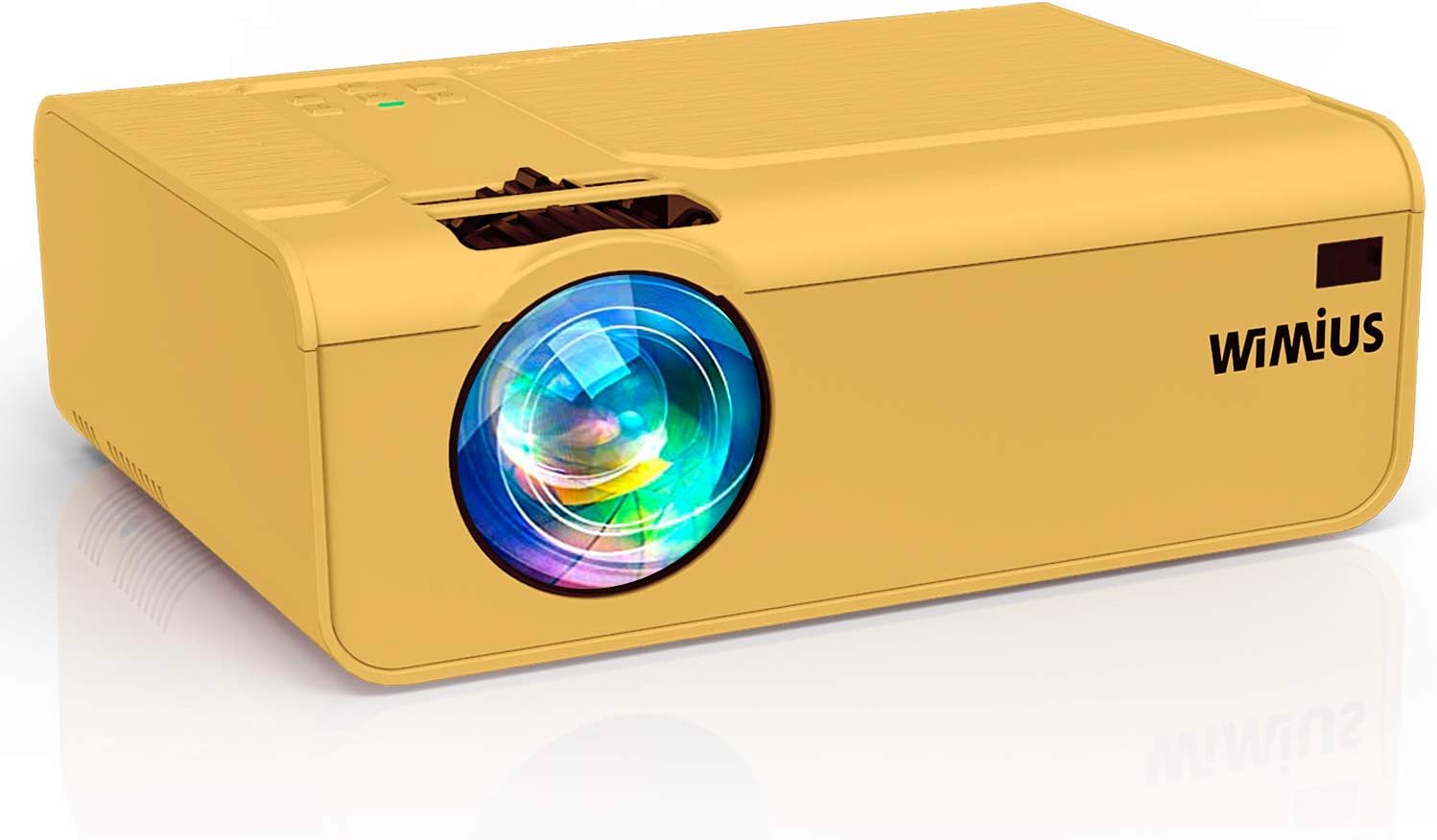
Image: Front view of the WiMiUS P30 Projector, showcasing its lens and compact design.
2. Safety Instructions
- Do not block the ventilation openings. Ensure adequate space around the projector for proper airflow.
- Avoid direct exposure to the projector lens light.
- Do not place the projector in unstable locations.
- Keep the projector away from water or any liquids.
- Use only the power adapter supplied with the projector.
- Unplug the projector during lightning storms or when unused for long periods.
- Do not attempt to open or repair the projector yourself. Refer all servicing to qualified personnel.
3. Package Contents
Verify that all items are present in the package:
- WiMiUS P30 Projector
- Power Cable
- HDMI Cable
- AV Cable
- Remote Control (batteries not included)
- User Manual
4. Setup Guide
4.1 Placement
Place the projector on a stable, flat surface or mount it securely. Ensure the projector lens is perpendicular to the projection surface for optimal image geometry. Maintain a suitable distance from the screen to achieve the desired image size (50 to 200 inches).
4.2 Power Connection
- Connect the power cable to the projector's power input port.
- Plug the other end of the power cable into a power outlet.
- The power indicator light on the projector will illuminate.
4.3 Source Connection
Connect your media device (PC, laptop, PS4, TV Box, USB drive, etc.) to the projector using the appropriate cable:
- HDMI: For high-definition video and audio. Connect an HDMI cable from your device to the projector's HDMI port.
- USB: For playing media directly from a USB flash drive. Insert the USB drive into the USB port.
- VGA: For connecting older computers. Connect a VGA cable from your PC to the projector's VGA port. (Audio will need a separate connection if not handled by the PC).
- AV: For connecting devices with composite video output. Use the provided AV cable.
- TF Card: Insert a TF card into the designated slot for direct media playback.
- Smartphone/Tablet: Requires an additional adapter or wireless dongle (not included) for connection.
4.4 Focus and Keystone Adjustment
- Turn on the projector and display an image.
- Adjust the focus ring near the lens until the image appears sharp and clear.
- If the image is trapezoidal, use the keystone correction dial or menu option to adjust it to a rectangular shape.
5. Operating Instructions
5.1 Power On/Off
- Power On: Press the power button on the projector or the remote control. The indicator light will change.
- Power Off: Press the power button again. Confirm shutdown if prompted. Allow the projector to cool down before unplugging.
5.2 Input Source Selection
Press the 'Source' button on the remote control or the projector's control panel. Use the navigation buttons to select the desired input source (e.g., HDMI1, USB, VGA, AV) and press 'OK' to confirm.
5.3 Image Adjustment
- Zoom Function: The P30 projector features a digital zoom function (100% to 75%). Use the zoom controls on the remote control to adjust the image size without physically moving the projector.
- Aspect Ratio: Adjust the image aspect ratio (e.g., 16:9, 4:3) through the projector's menu settings to match your content.
- Picture Mode: Select from various picture modes (Standard, Dynamic, Movie, User) to optimize image quality for different content types.
5.4 Audio Settings
The projector has built-in stereo speakers. You can adjust the volume using the remote control. For external audio, connect external speakers or a sound system to the projector's 3.5mm audio output port.
6. Maintenance
6.1 Lens Cleaning
Use a professional lens cleaning cloth and solution to gently clean the projector lens. Avoid using abrasive materials or harsh chemicals that could scratch the lens.
6.2 Ventilation Cleaning
Regularly check and clean the projector's ventilation openings to prevent dust buildup, which can lead to overheating. Use a soft brush or compressed air to remove dust.
6.3 Storage
When not in use, store the projector in a cool, dry, and dust-free environment. Use the original packaging or a protective bag to prevent damage.
7. Troubleshooting
| Issue | Possible Cause | Solution |
|---|---|---|
| No image displayed | Incorrect input source selected; Loose cable connection; Device not powered on. | Select the correct input source; Check all cable connections; Ensure the source device is powered on. |
| Blurry image | Out of focus; Incorrect projection distance. | Adjust the focus ring; Adjust the projector's distance from the screen. |
| Image is trapezoidal | Projector not perpendicular to screen. | Adjust the keystone correction dial or menu setting. |
| No sound | Volume too low; Muted; Incorrect audio output selected on source device. | Increase volume; Unmute; Check audio settings on the source device. |
| Remote control not working | Dead batteries; Obstruction between remote and projector. | Replace batteries; Ensure clear line of sight to the IR receiver. |
8. Specifications
| Brand | WiMiUS |
| Model Number | P30 (CCK01001) |
| Display Technology | LCD |
| Native Resolution | 1280 x 800 (Supports 1920 x 1080 Full HD) |
| Maximum Supported Resolution | 4K |
| Brightness | 5500 Lumens |
| Contrast Ratio | 6000:1 |
| Aspect Ratio | 16:9 (Native) |
| Projection Size | 50 - 200 inches |
| Noise Level | 30 Decibels |
| Input Interfaces | HDMI, USB, VGA, AV, TF Card |
| Output Interface | 3.5mm Audio Out |
| Power Source | AC |
| Product Dimensions | 23 x 15 x 6.5 cm |
| Product Weight | 1.1 kg |
9. Warranty and Support
The WiMiUS P30 Projector comes with a minimum 3-year warranty, providing extended assurance for your purchase. This warranty covers manufacturing defects and ensures reliable performance.
For technical support, warranty claims, or any questions regarding your projector, please contact WiMiUS customer service. Refer to the contact information provided in your product packaging or on the official WiMiUS website for assistance. Our support team aims to provide a prompt resolution within 24 hours.
Related documentsP30


Ask a question about this manual
Ask about setup, troubleshooting, compatibility, parts, safety, or missing instructions. Manuals+ will review the question and use this page’s manual context to help answer it.